

Adjust your price list: your prices on every quote
Make the guided quote and your links use YOUR prices. It is the first thing to do before your first real client.
Which price goes where
Prices live in three places. Change the one your quote uses:
🏷️The guided quote and your links
What the guided quote works out and what your client sees through your links.
My price lists › your list › Publish
📐The “detailed” per m² quote
The quote by measurements of each item. Computer only.
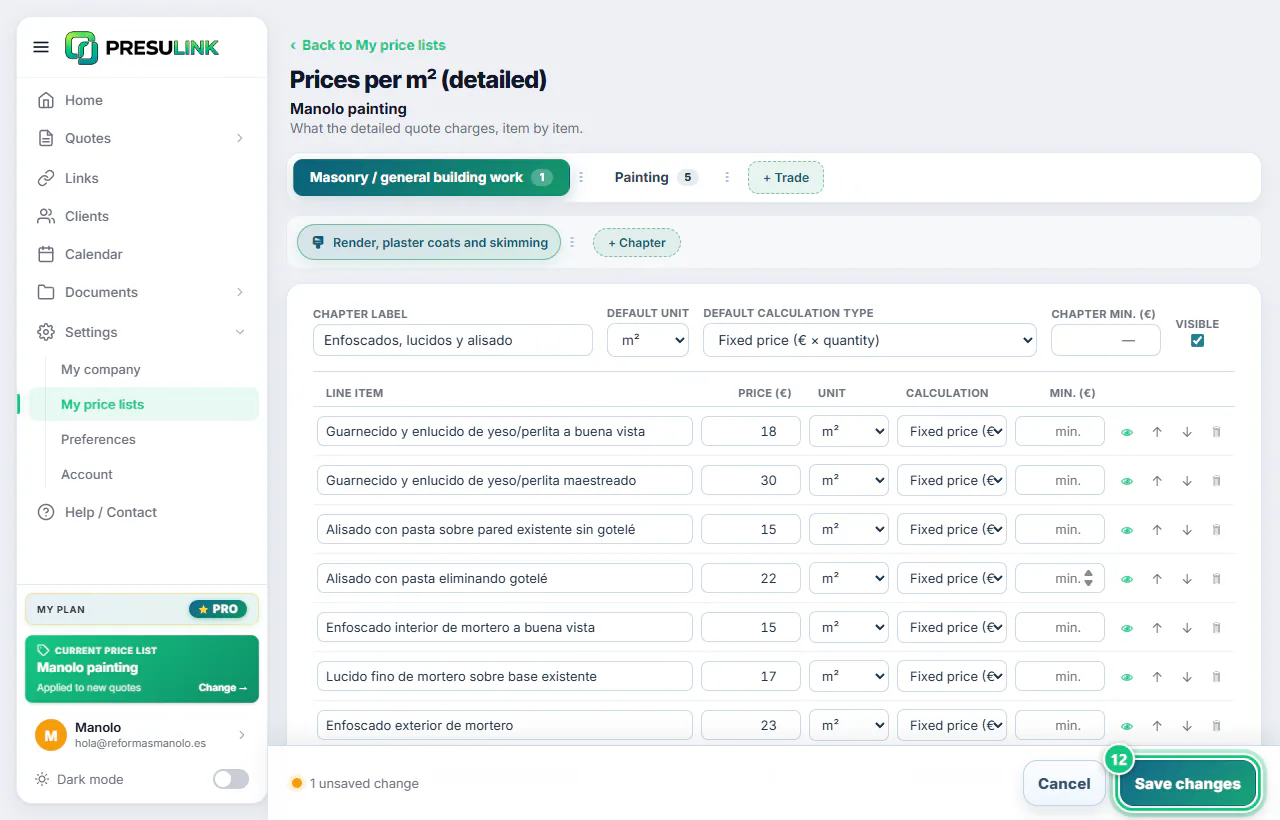
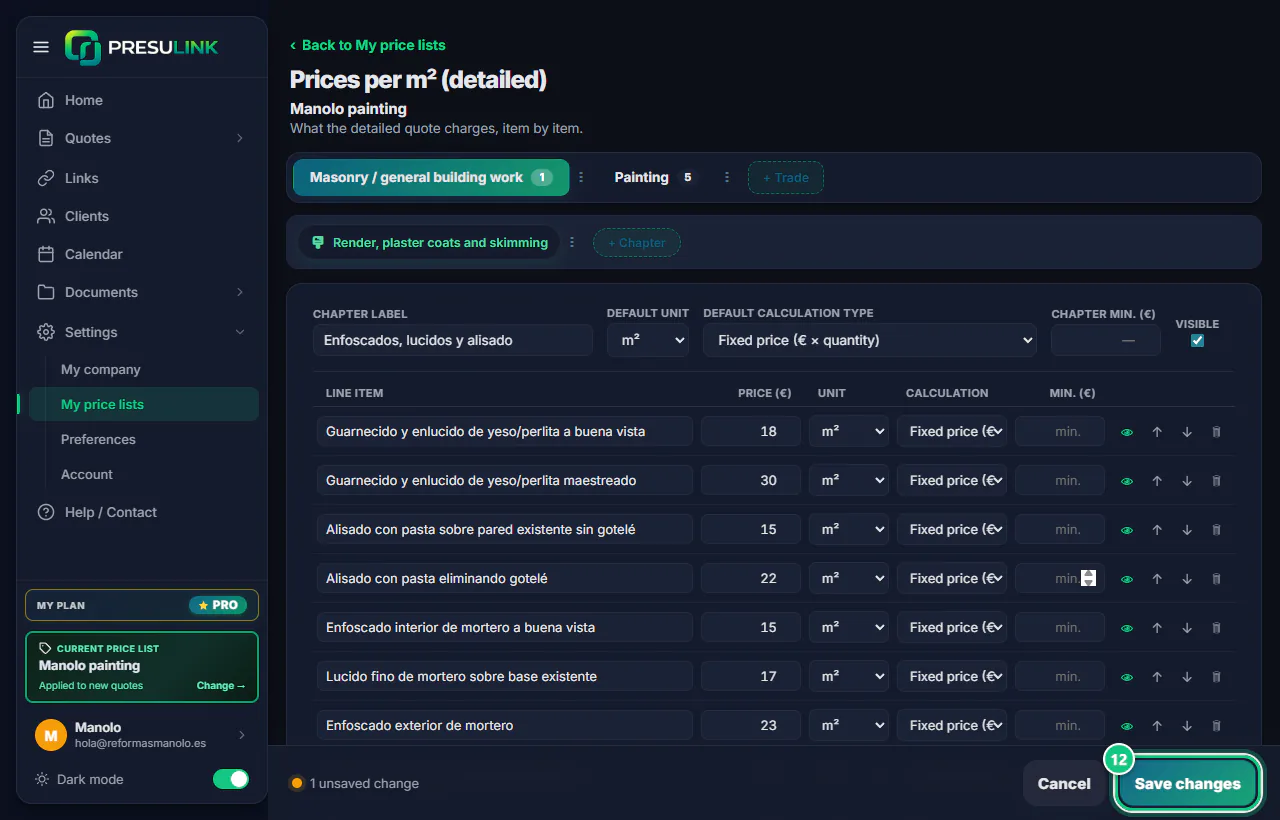
My price lists › Prices per m² (detailed) › Save changes
✍️One free-form quote
The price of a line, for that quote only.
On the line itself › Save
Step by step
A · Your trade’s price list, with your prices
-
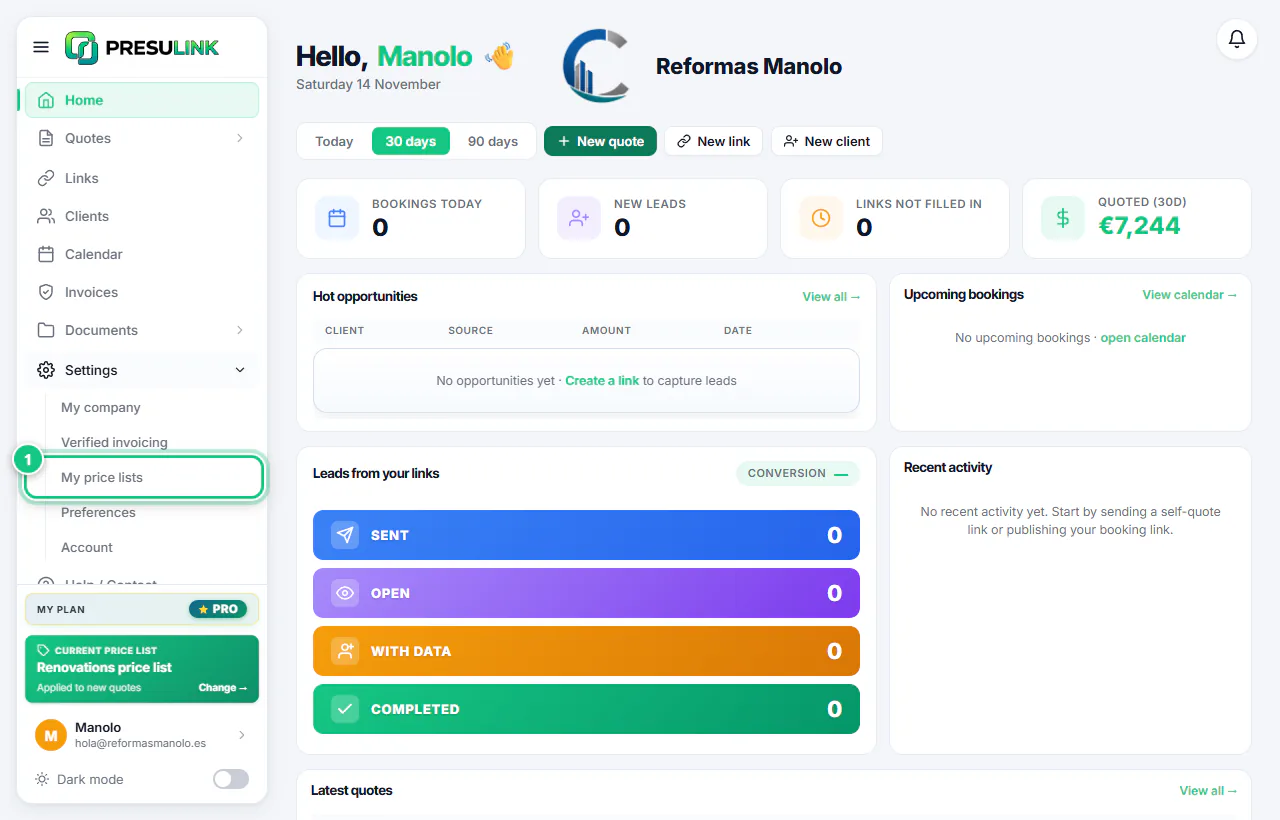
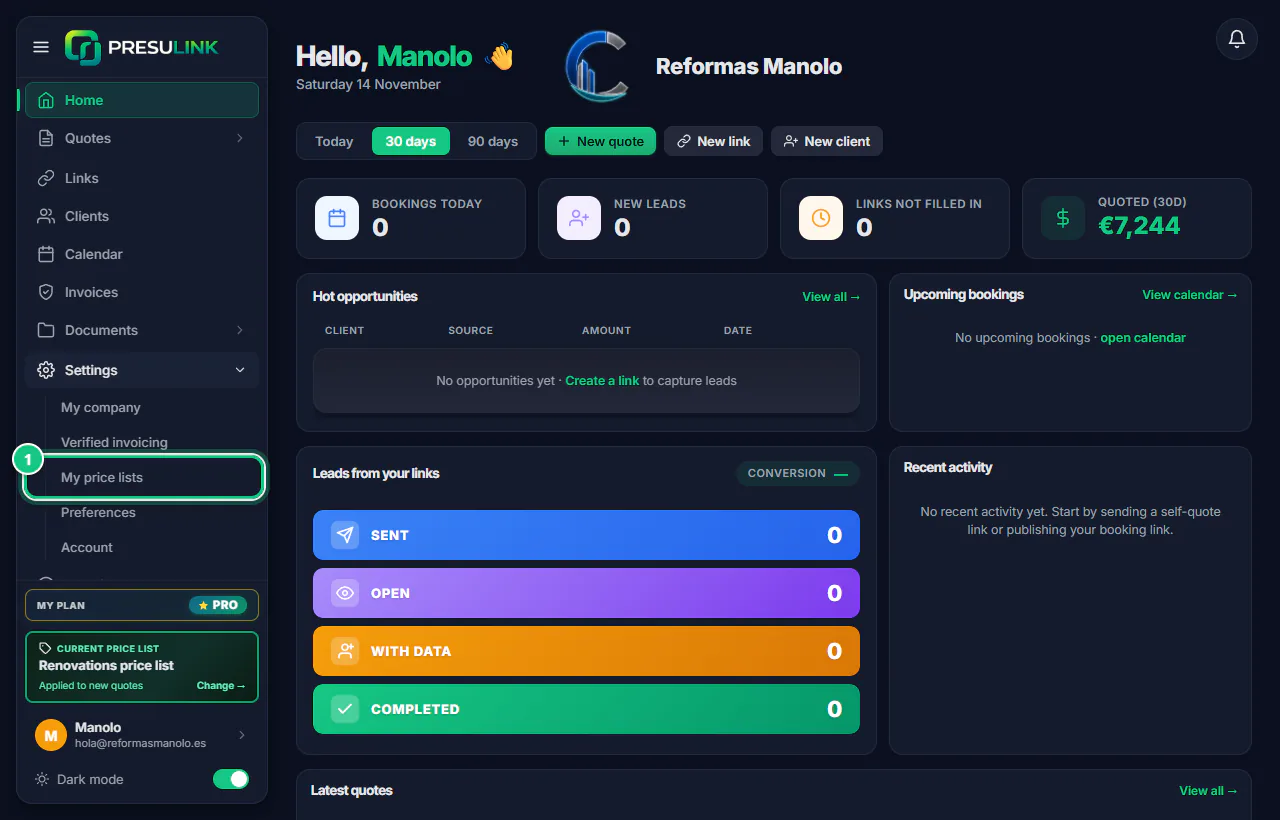
Click Settings › My price lists.
-
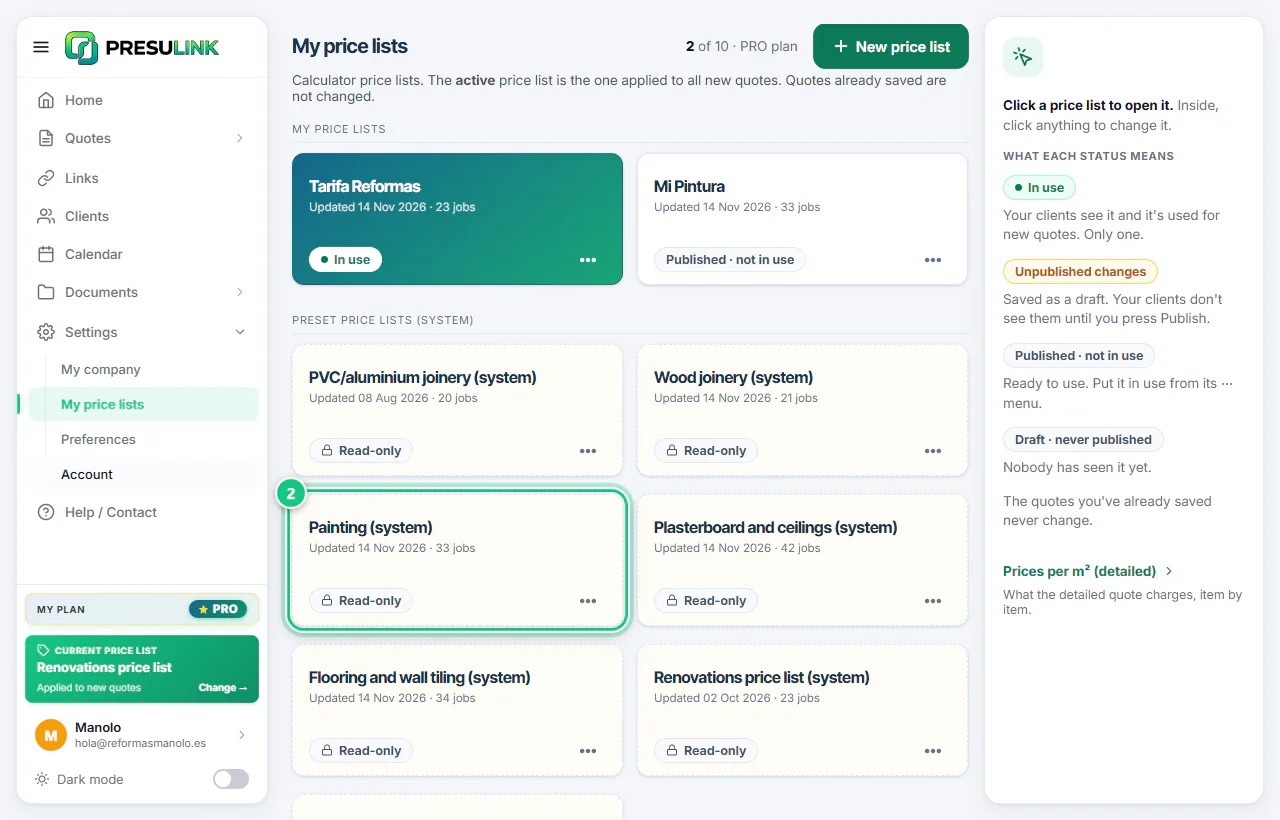
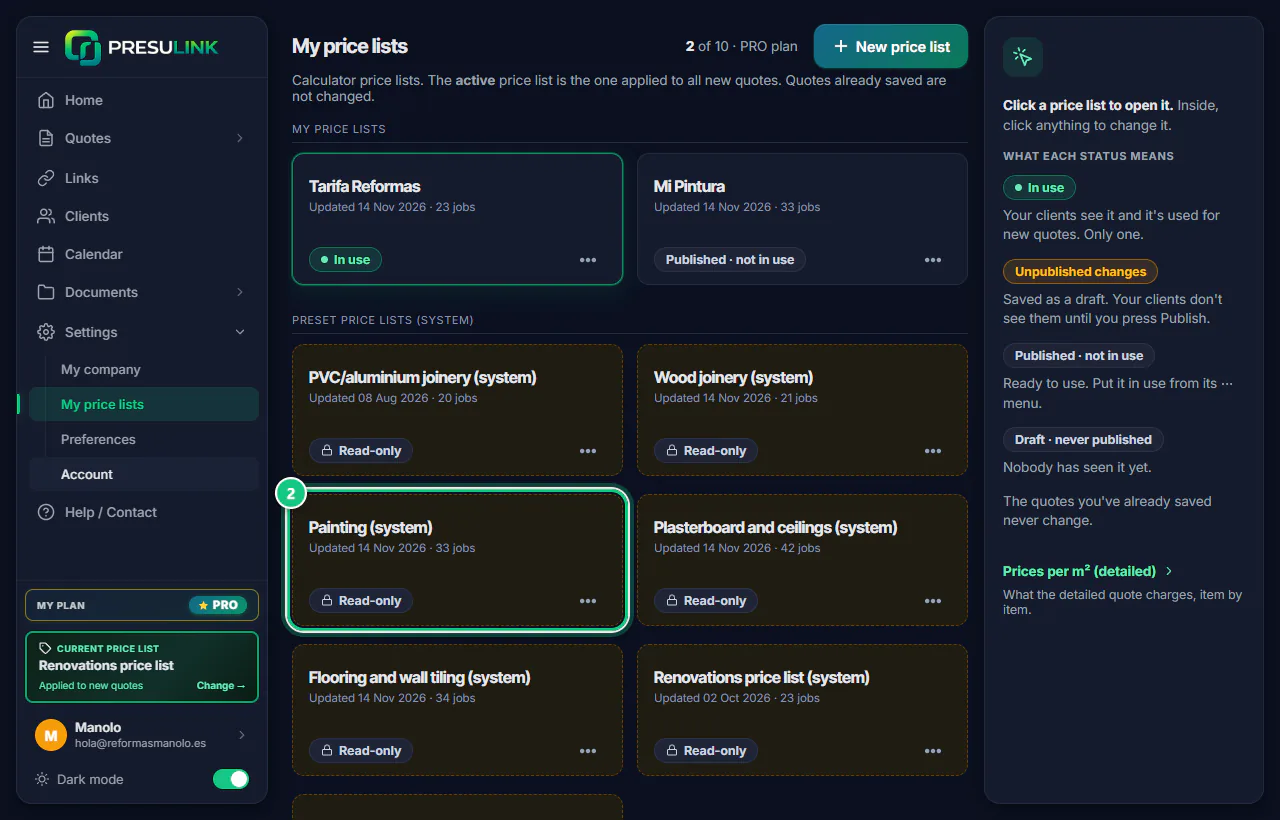
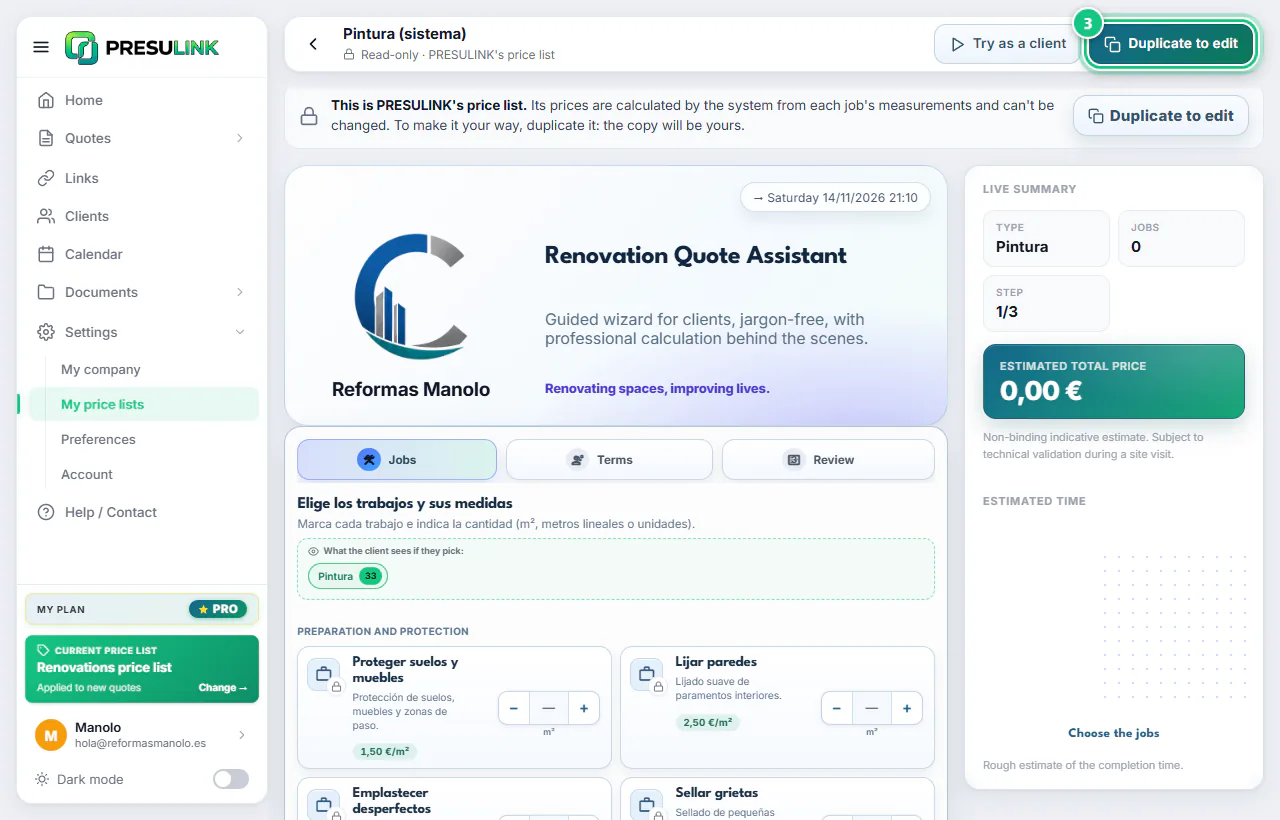
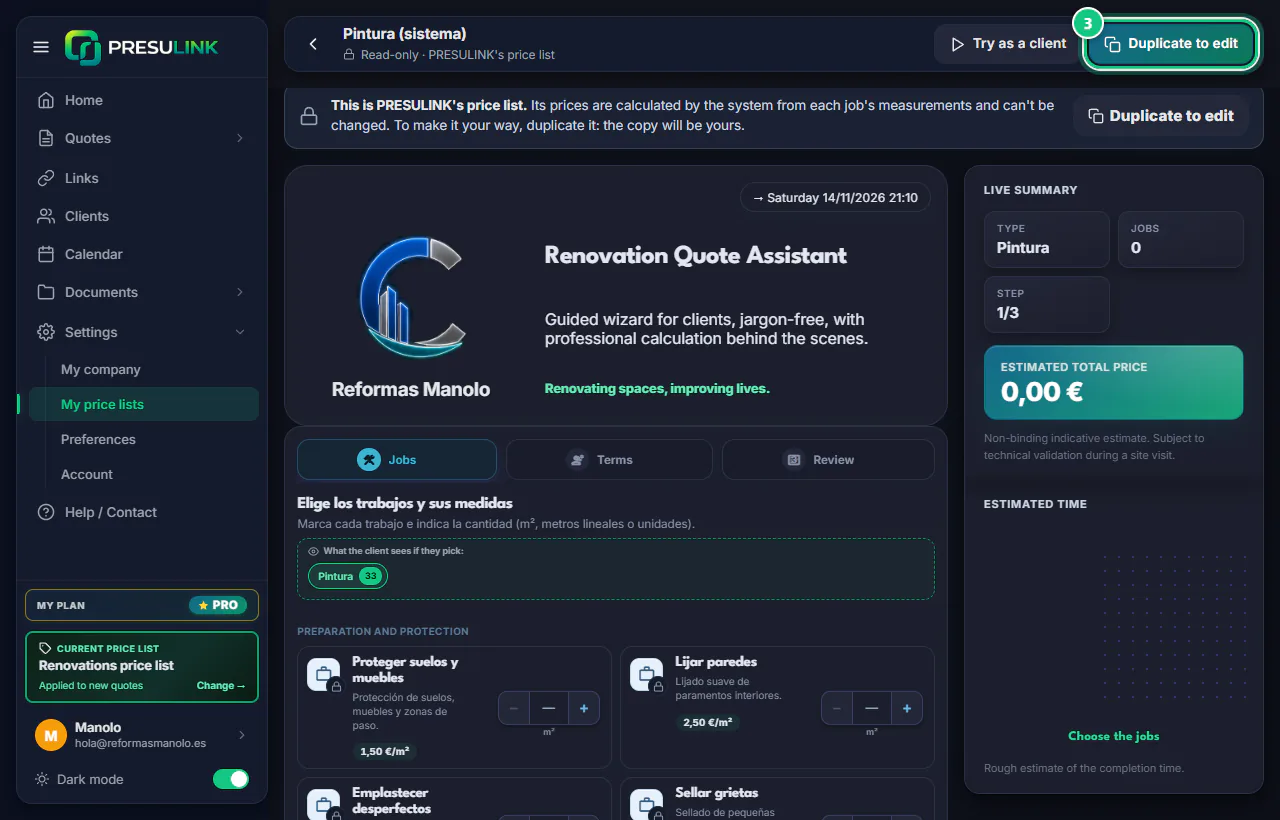
Under Preset price lists (system), open your trade’s list.
Note: Already have a list of your own In use? The welcome made it for you. Open it and go to step 4, or 8 if it has a padlock.
-
Click Duplicate to edit, give it a name and Create copy.
-
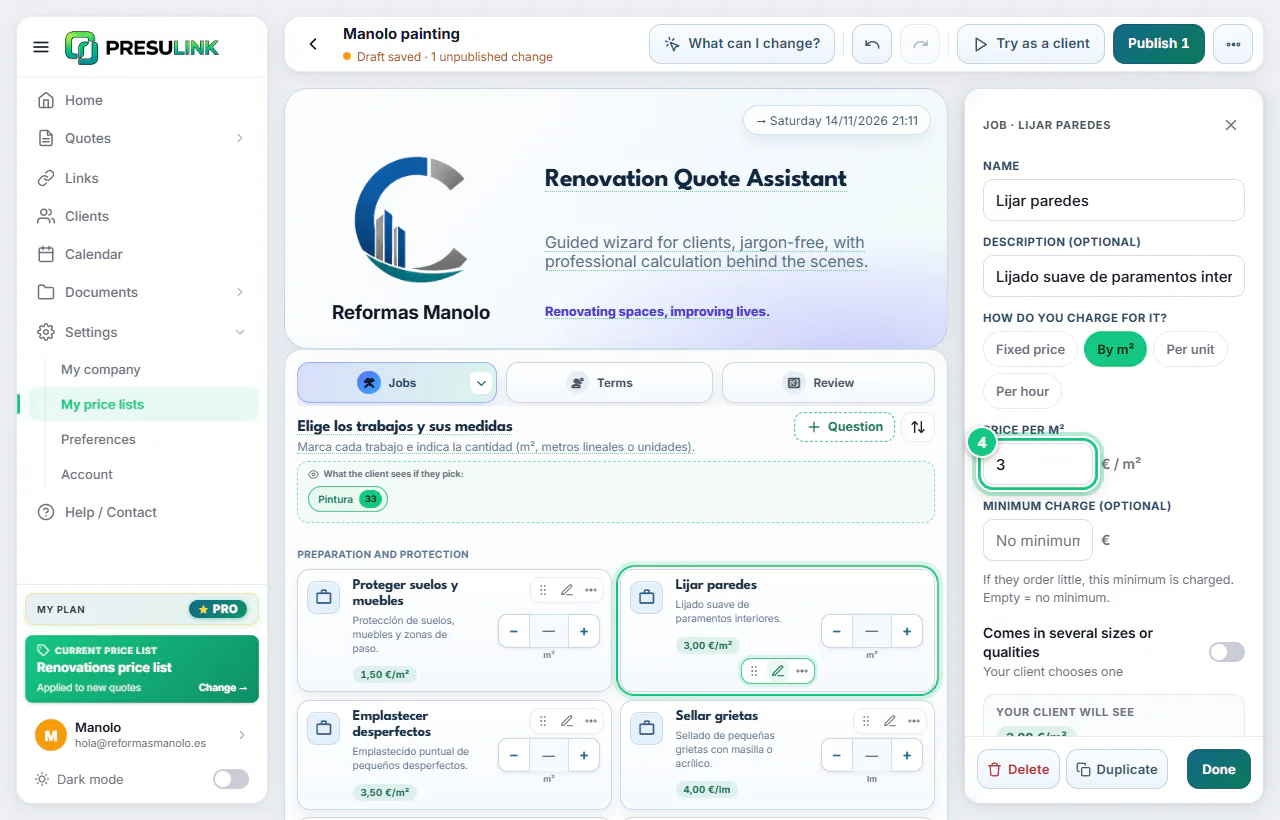
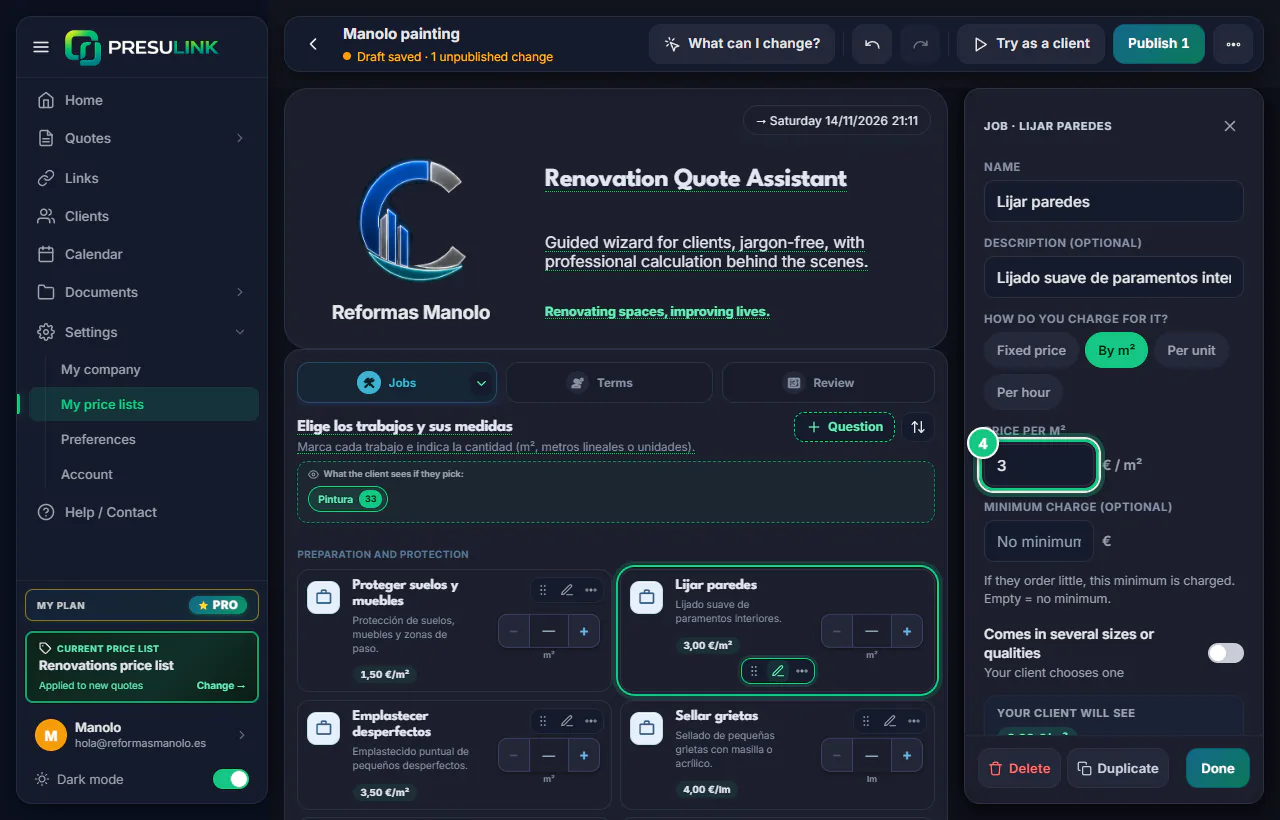
Click the pencil on a job, change the price and click Done.
-
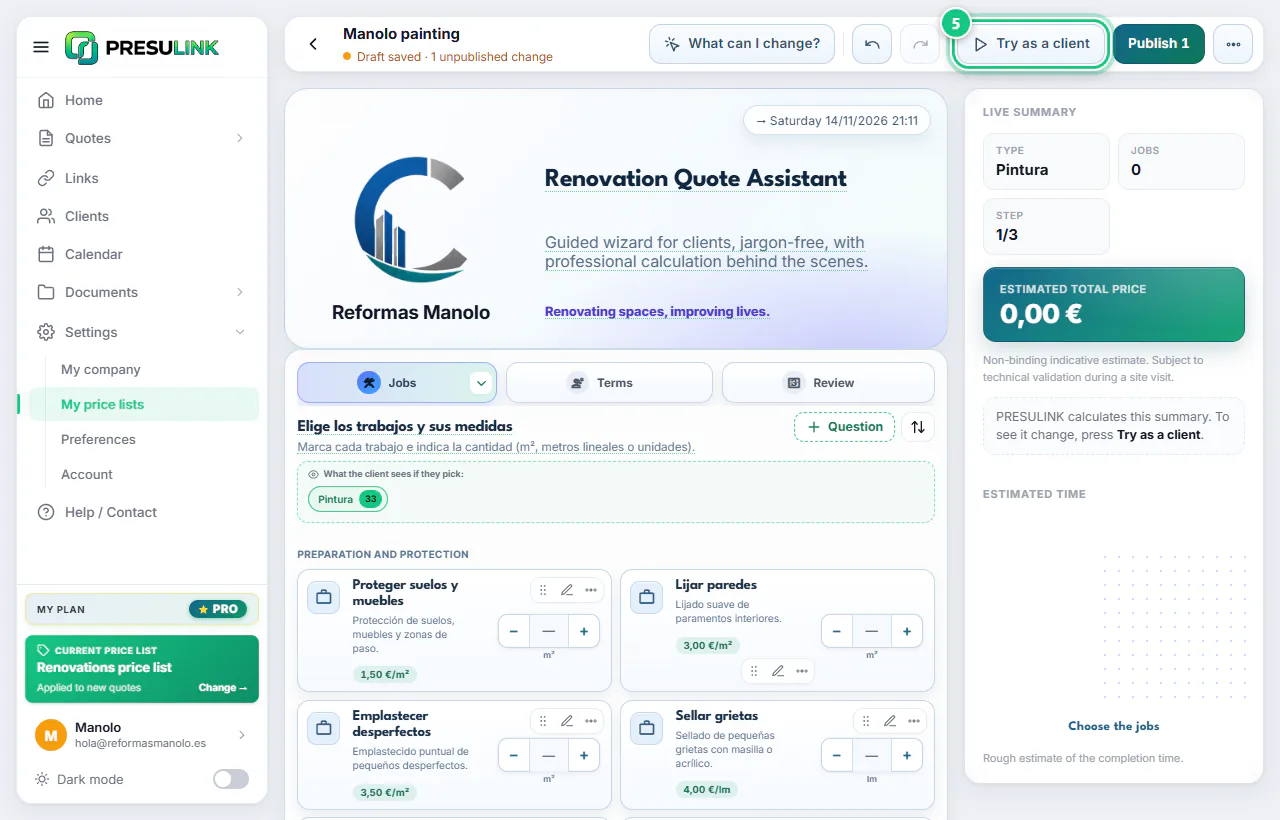
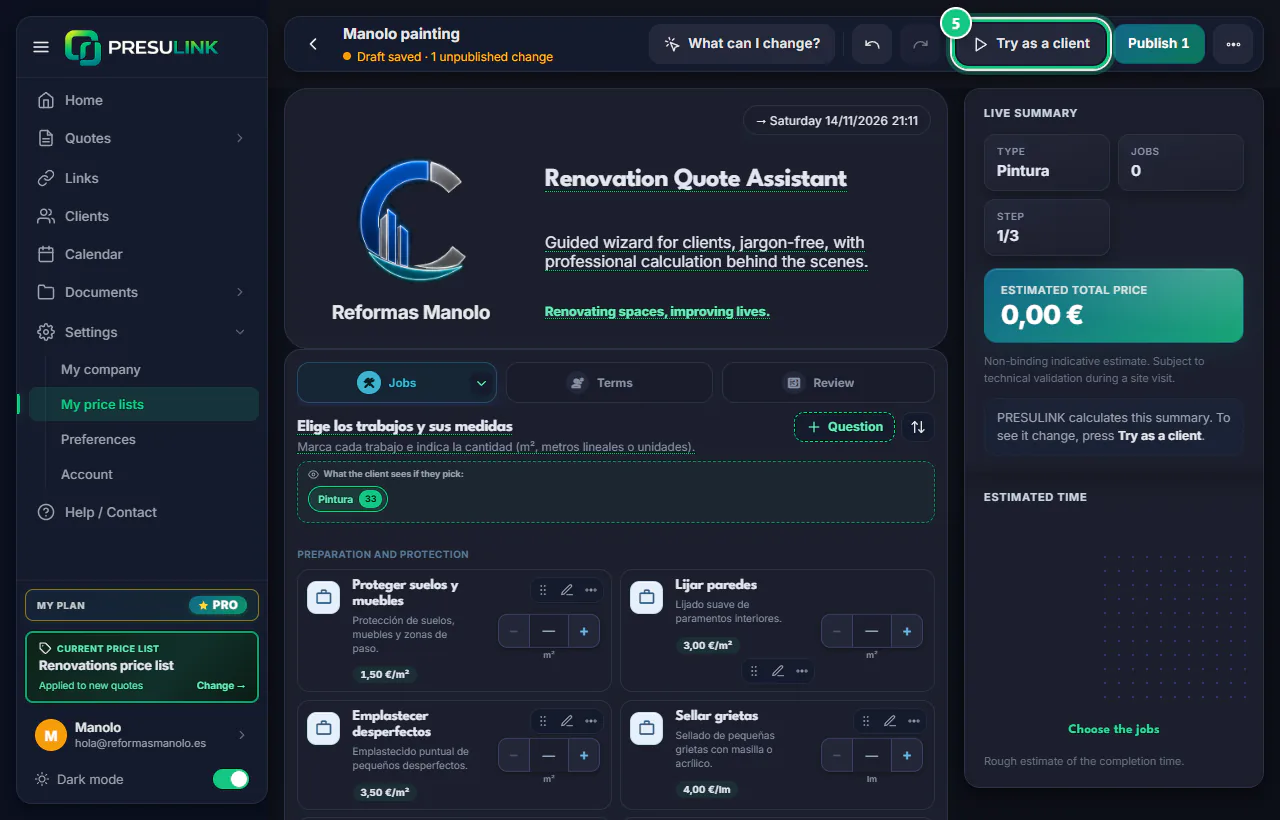
Click Try as a client to see it as your client will.
-
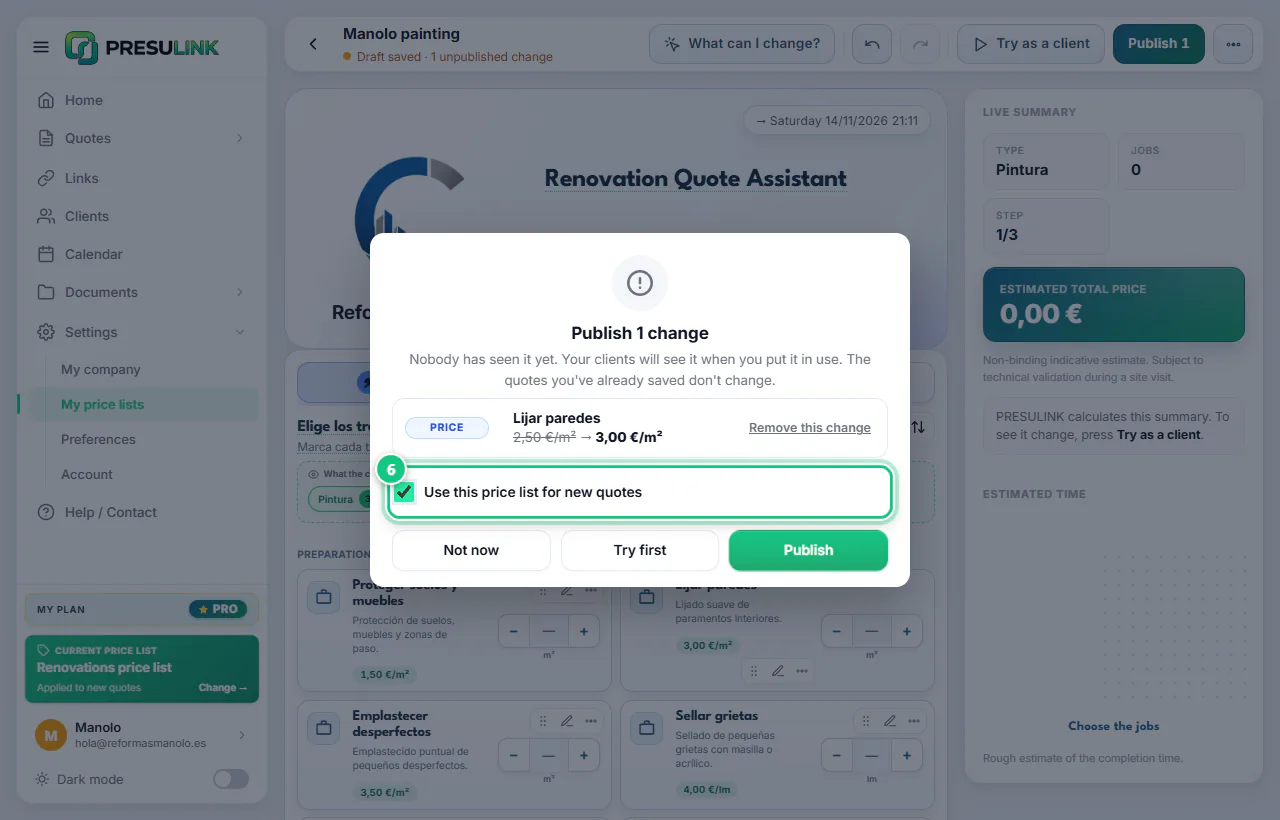
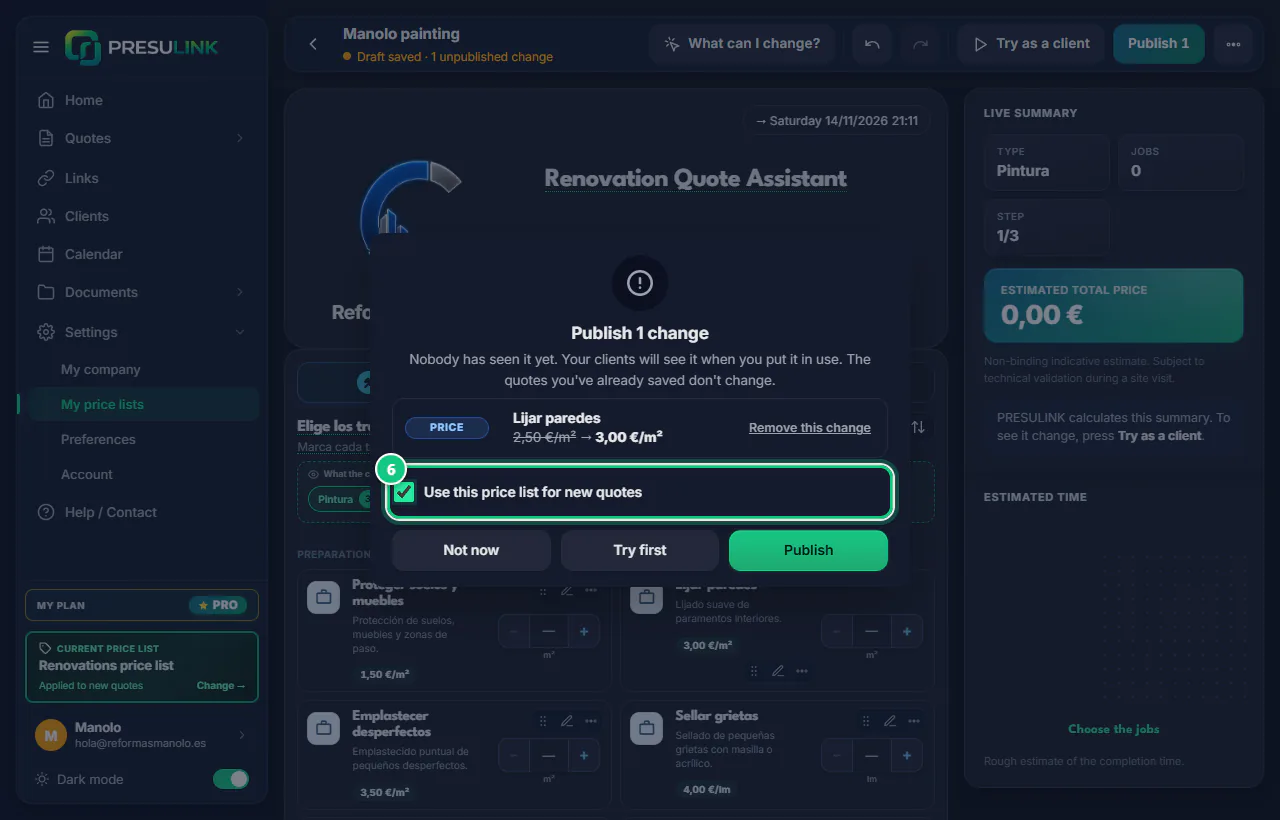
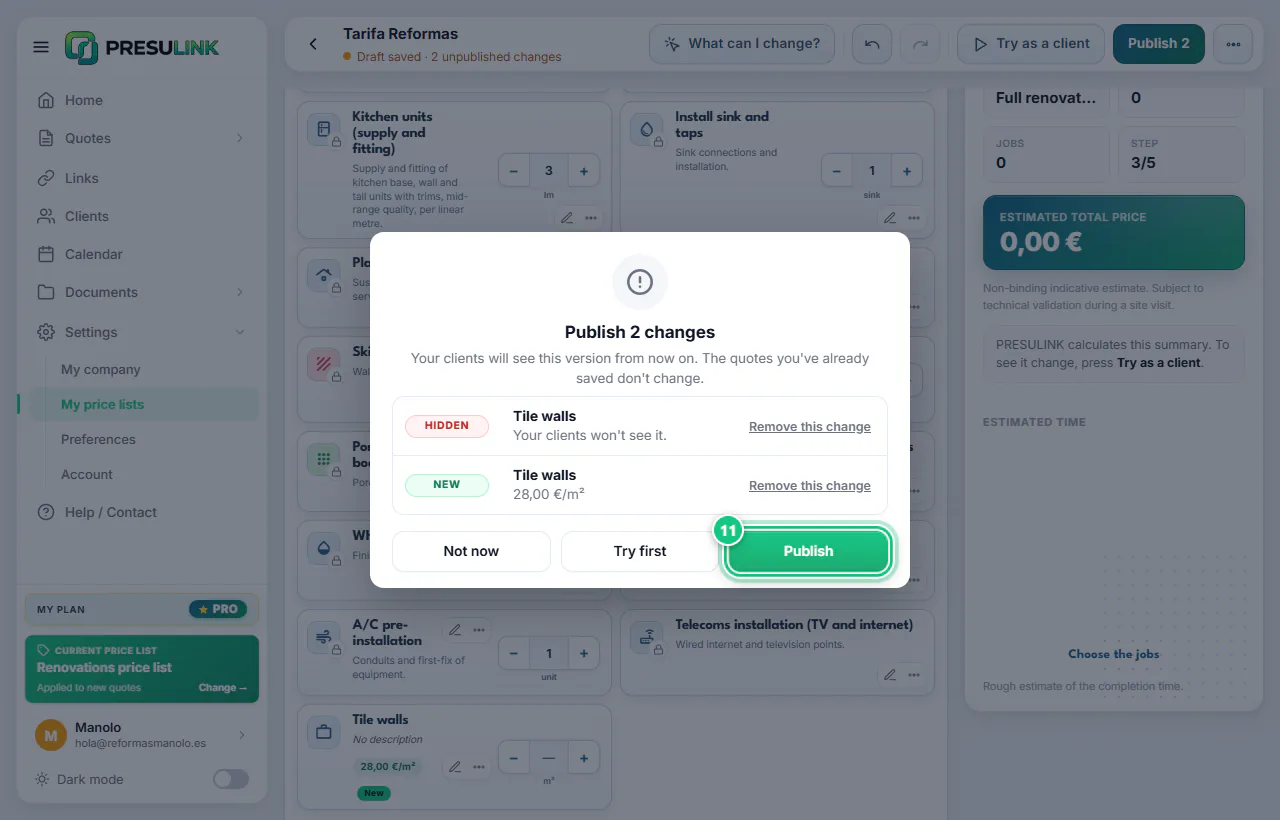
Click Publish, tick Use this price list for new quotes and confirm.
Note: Unticked, it stays Published · not in use. Your quotes keep using the list that is In use.
-
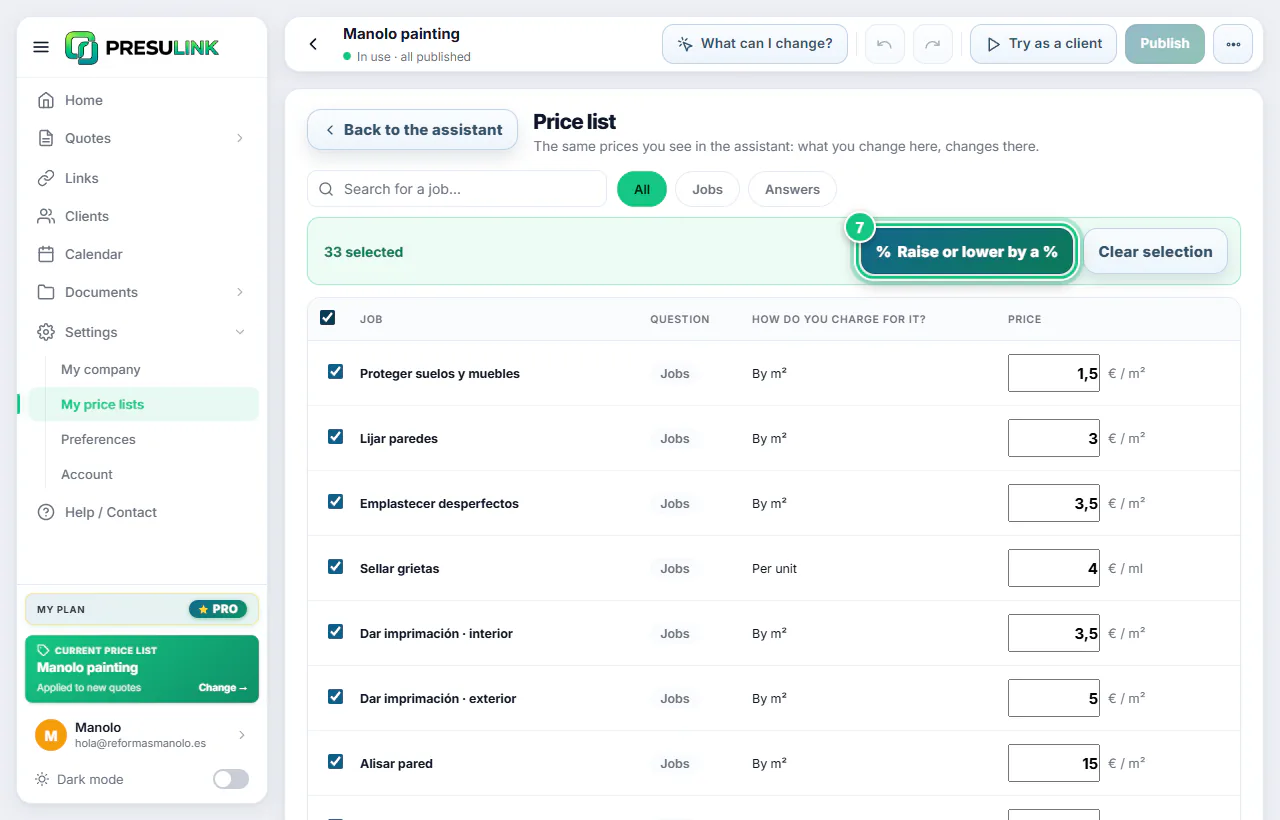
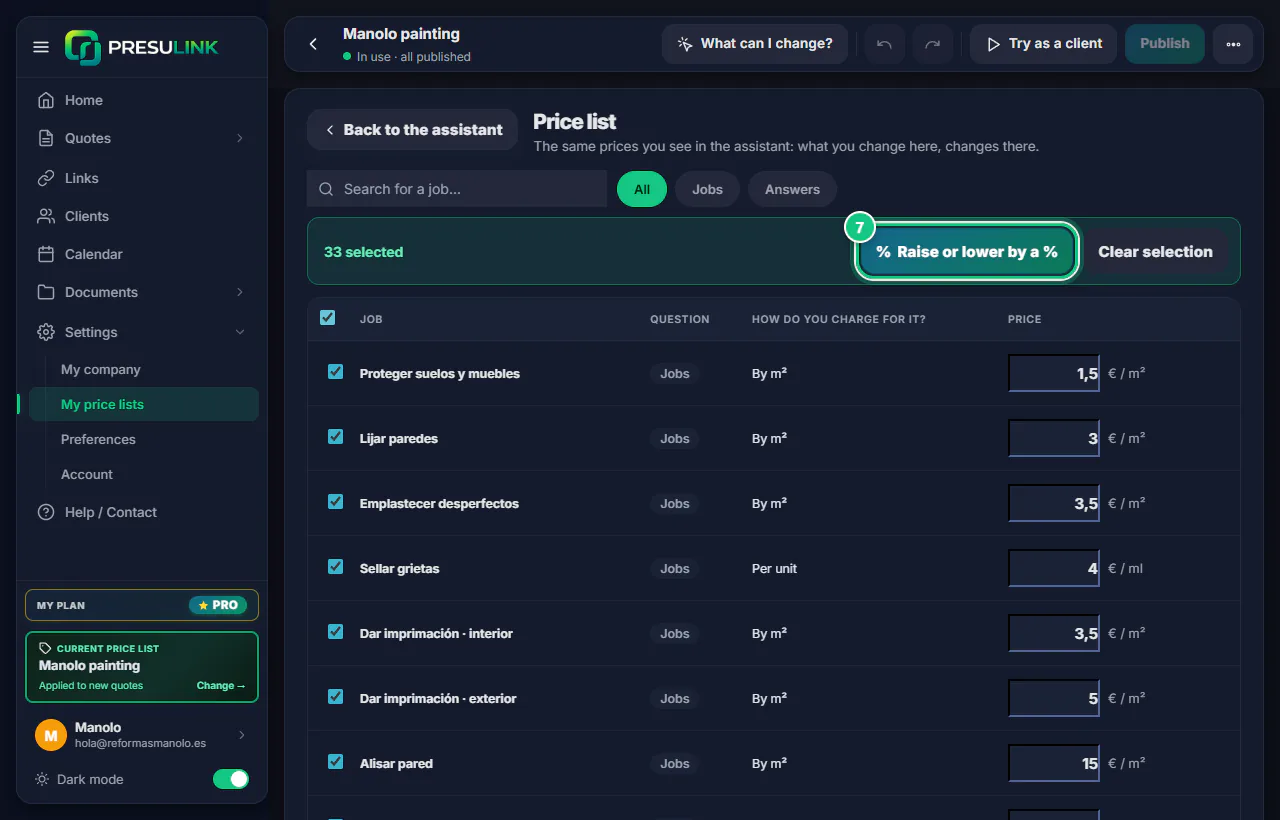
Raise everything by a %? ⋯ › Price list, tick the jobs and Raise or lower by a %.
B · Locked jobs (Renovations price list)
-
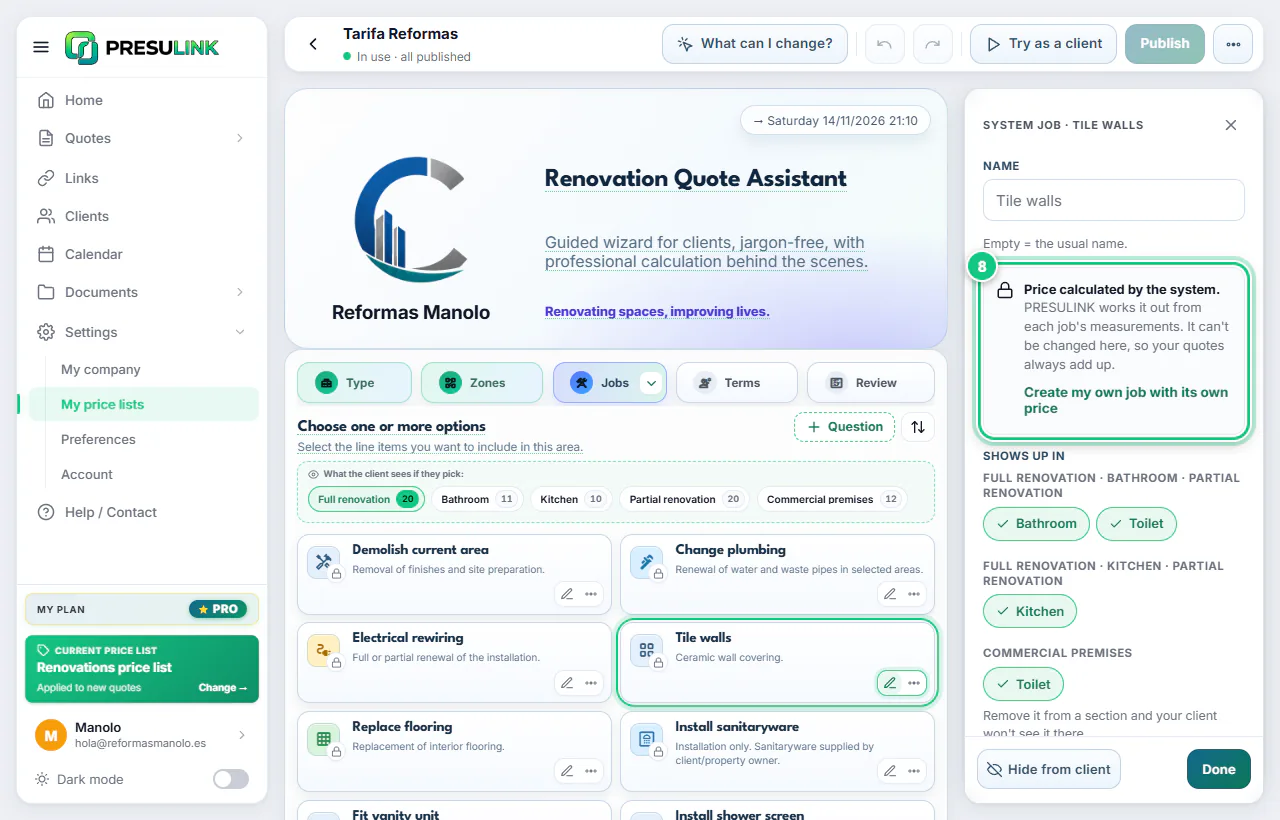
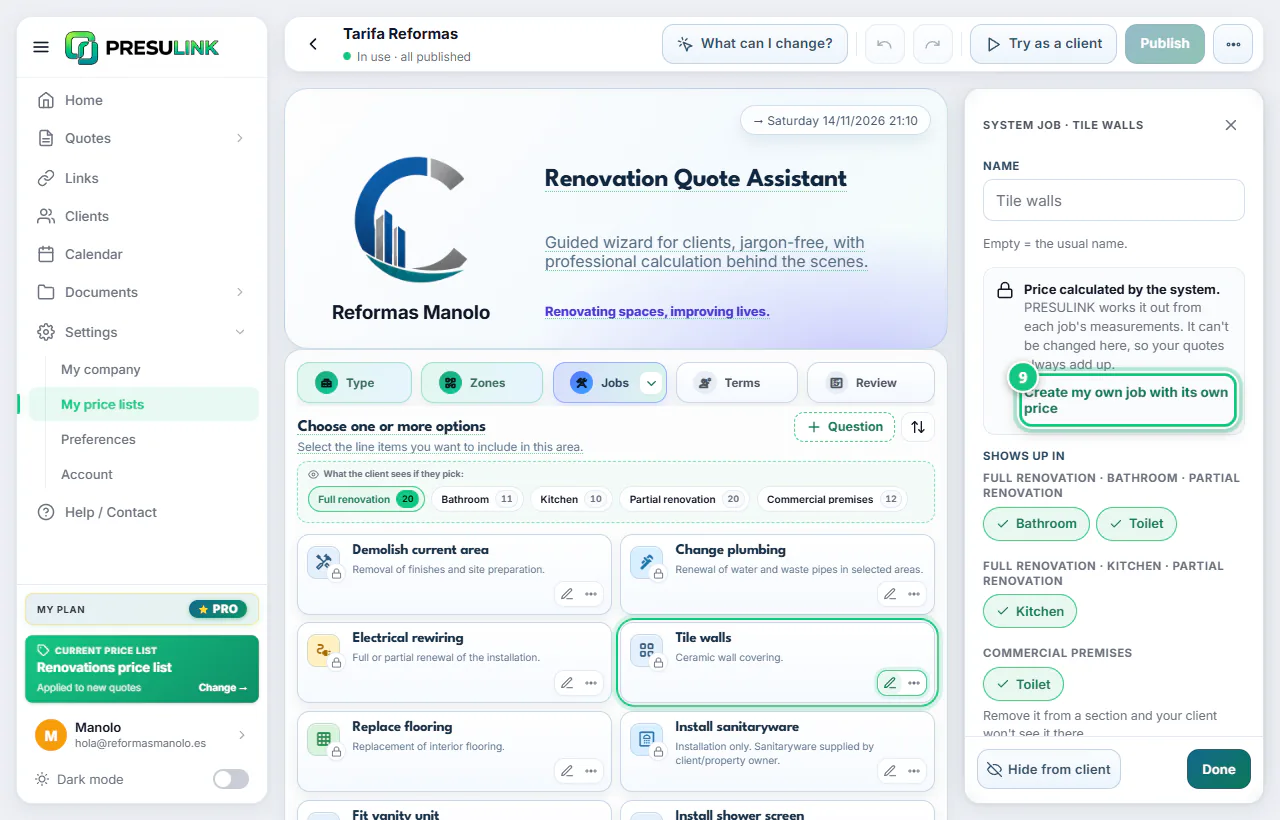
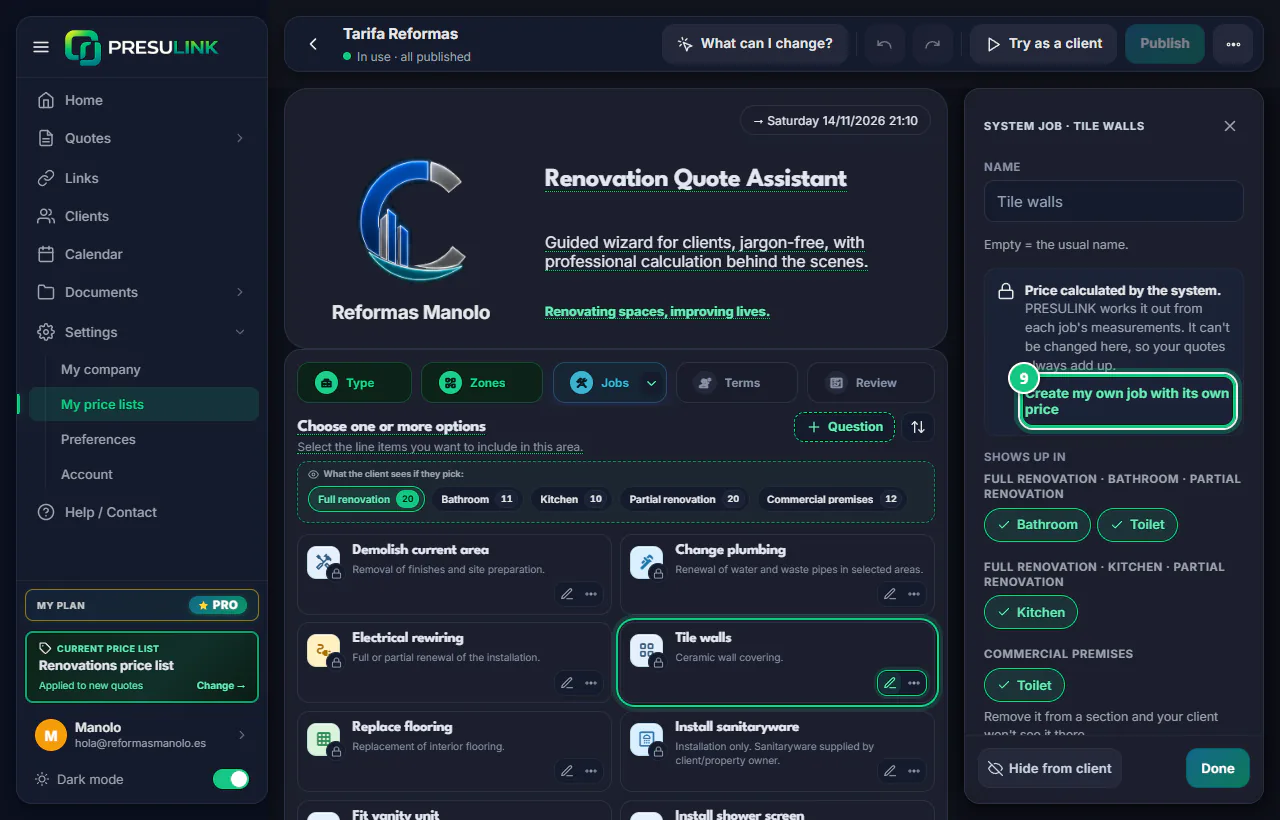
In your list that is In use, click the pencil on a locked job.
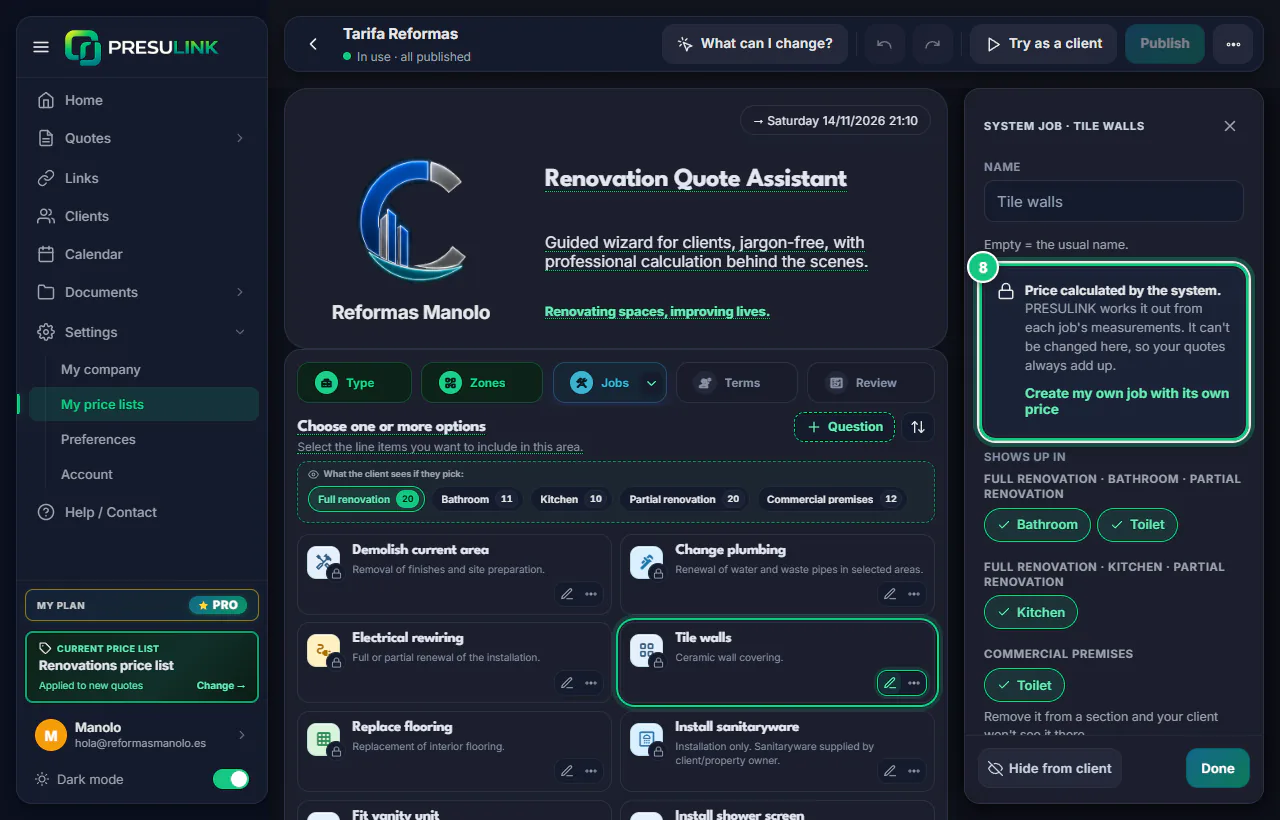
Note: You will see “Price calculated by the system”. PRESULINK works it out from each job’s measurements.
-
Click Create my own job with its own price.
Note: Only once. If you end up with two, Publish is blocked: on one, Remove this change.
-
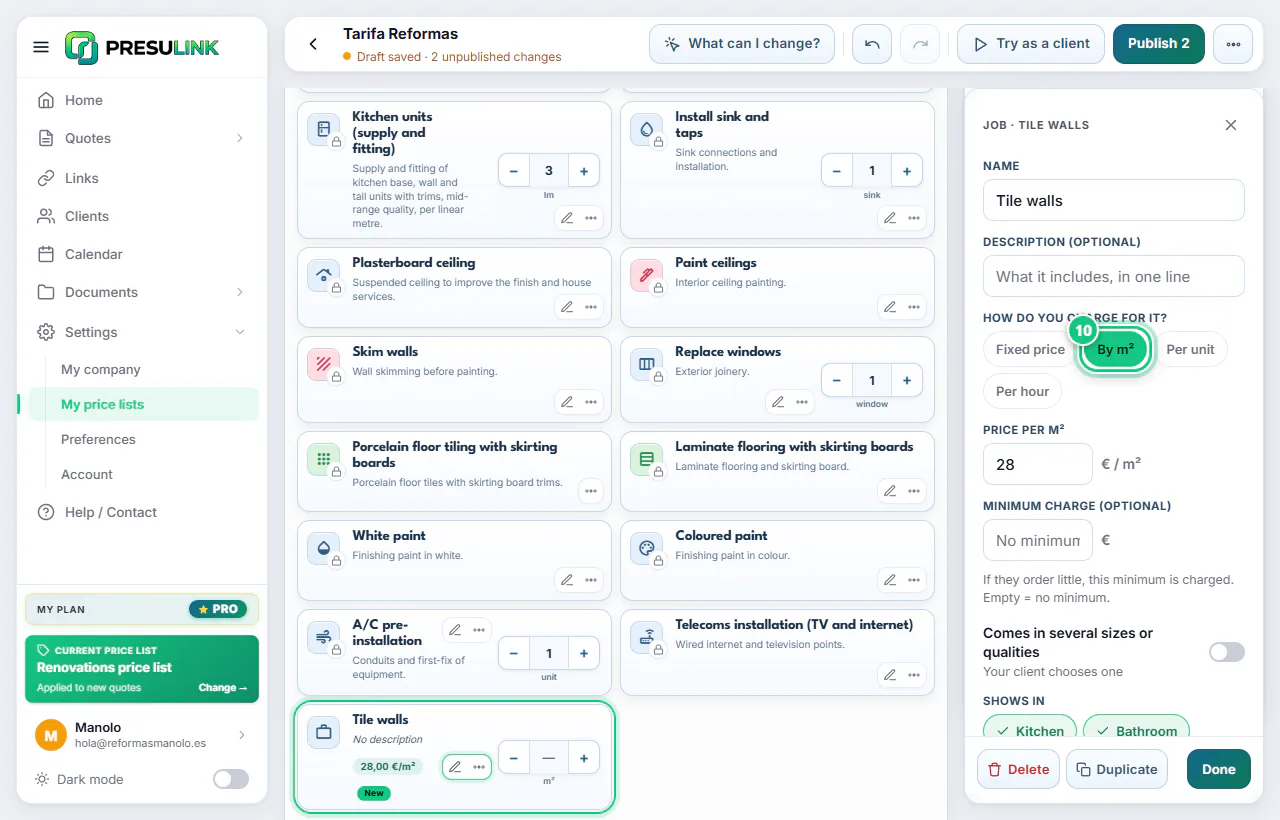
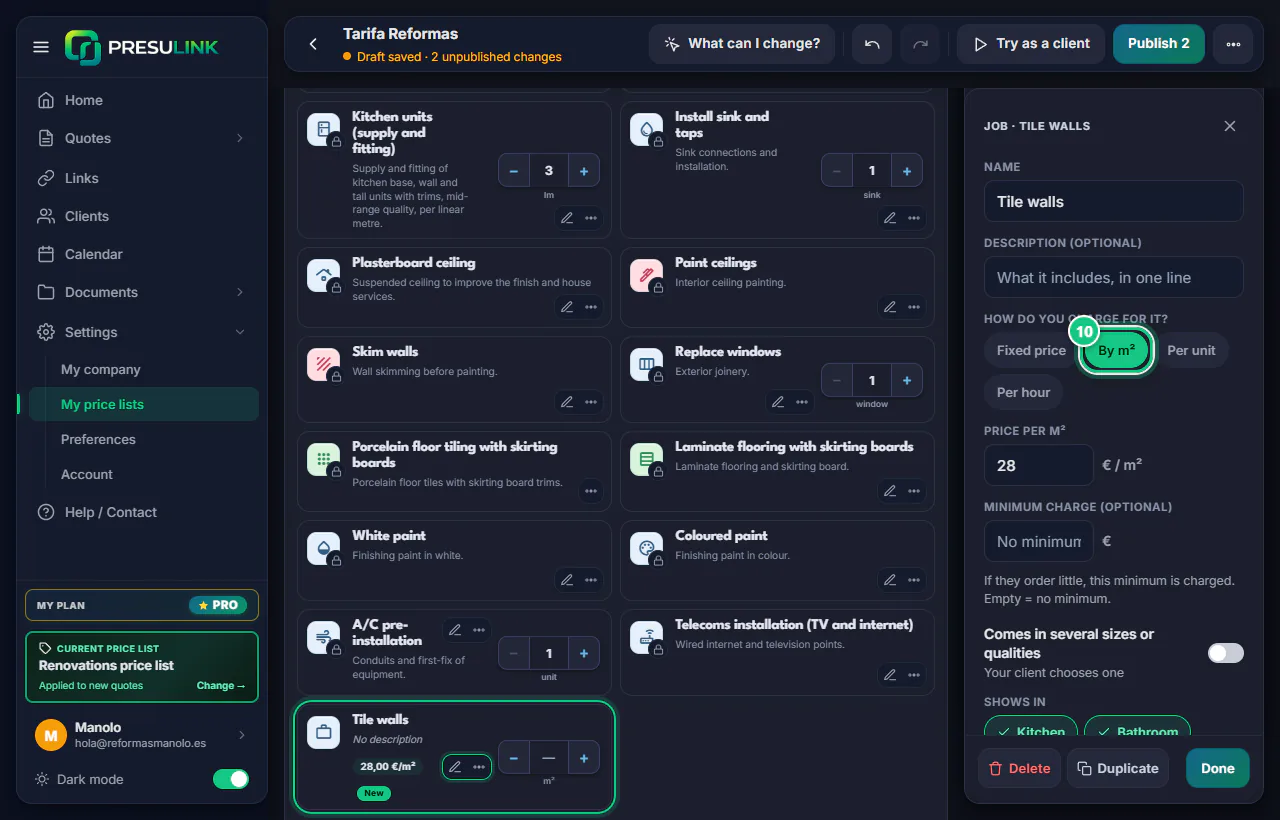
Choose how you charge, enter the price and click Done.
Note: The app hides the system job by itself; if you want both, click Show both.
-
Click Publish and confirm.
Note: Check it in New guided: tick the job and type the m². Without them, the app won’t let you go on.

-
Use the detailed quote? My price lists › Prices per m² (detailed) › price › Save changes.
A · Your trade’s price list, with your prices
-
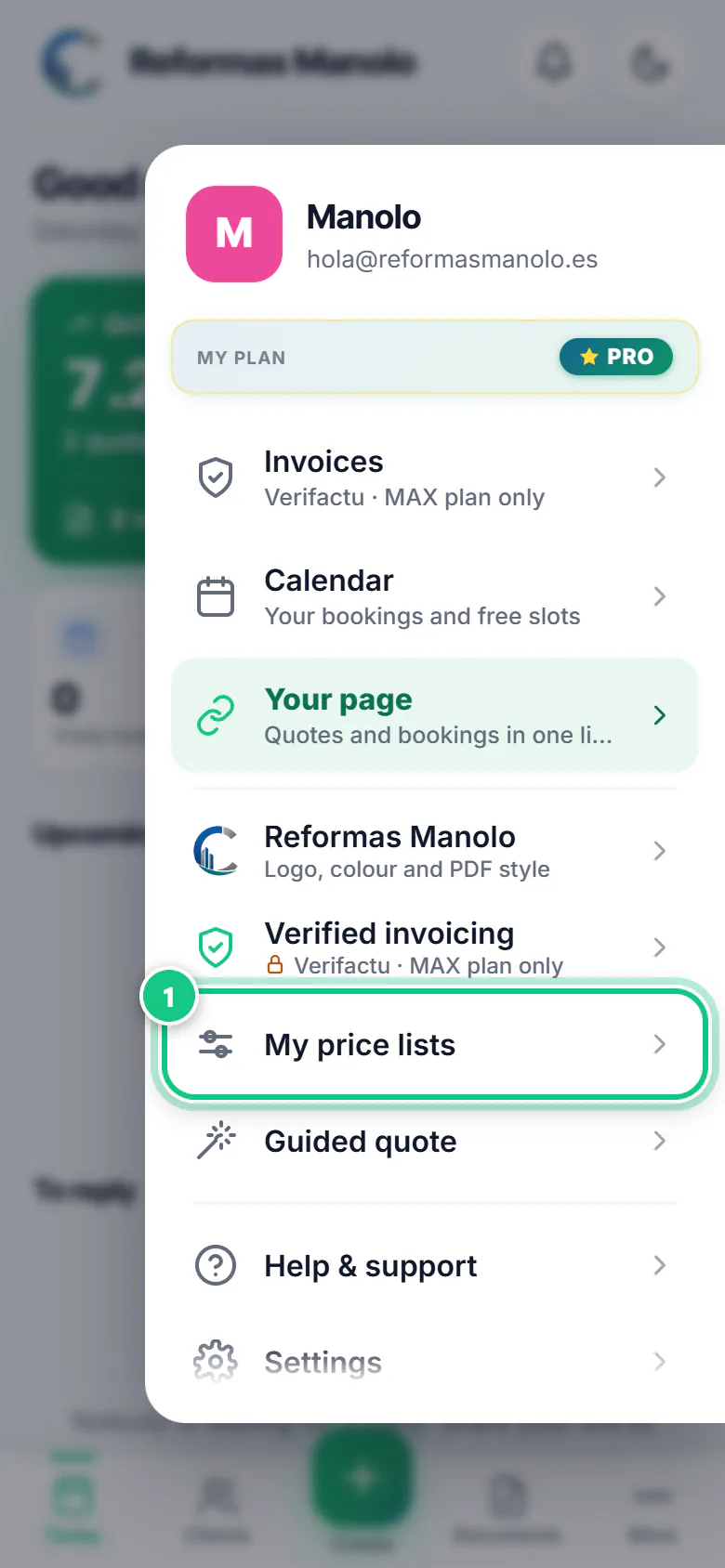
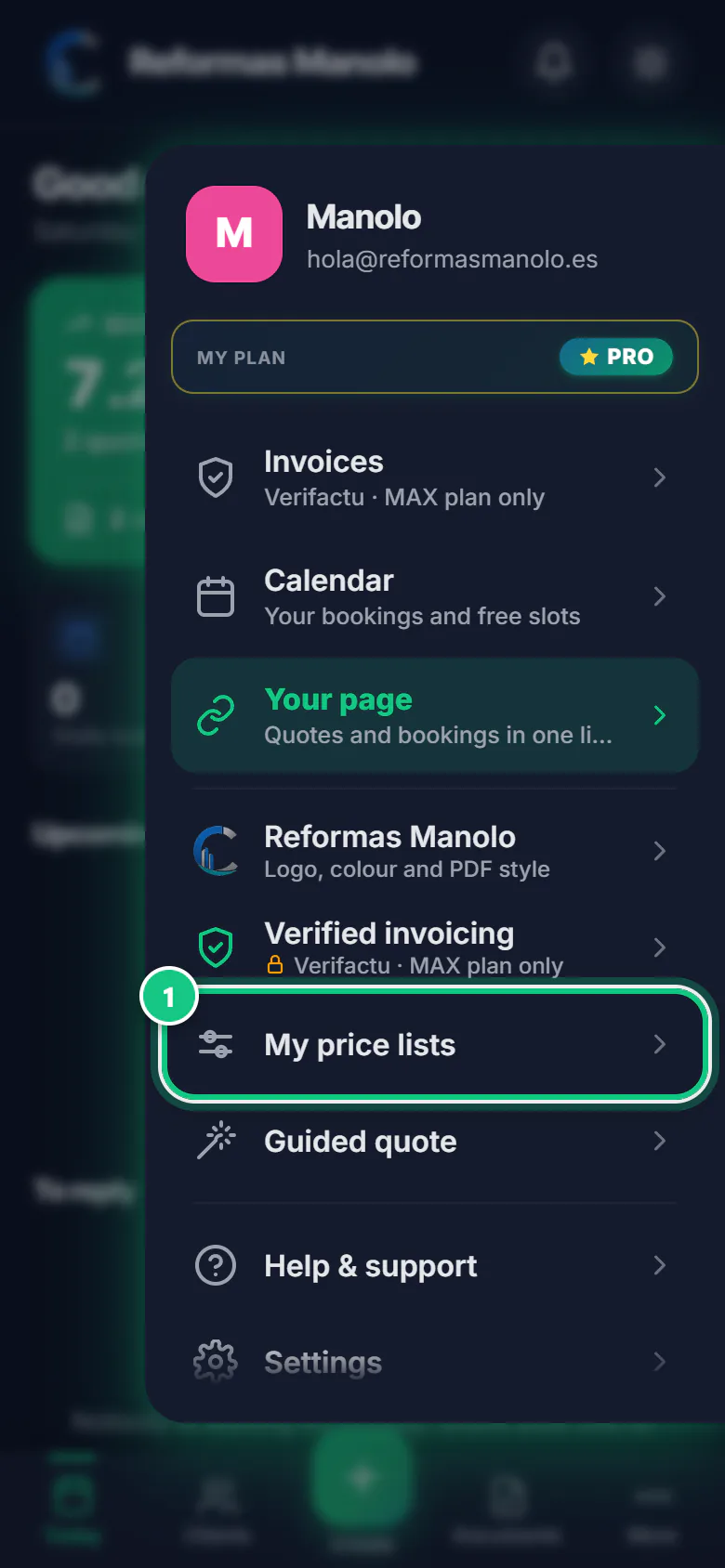
Tap More, then My price lists.
Note: No list of your own yet? Then it is called Prices and price lists.
-
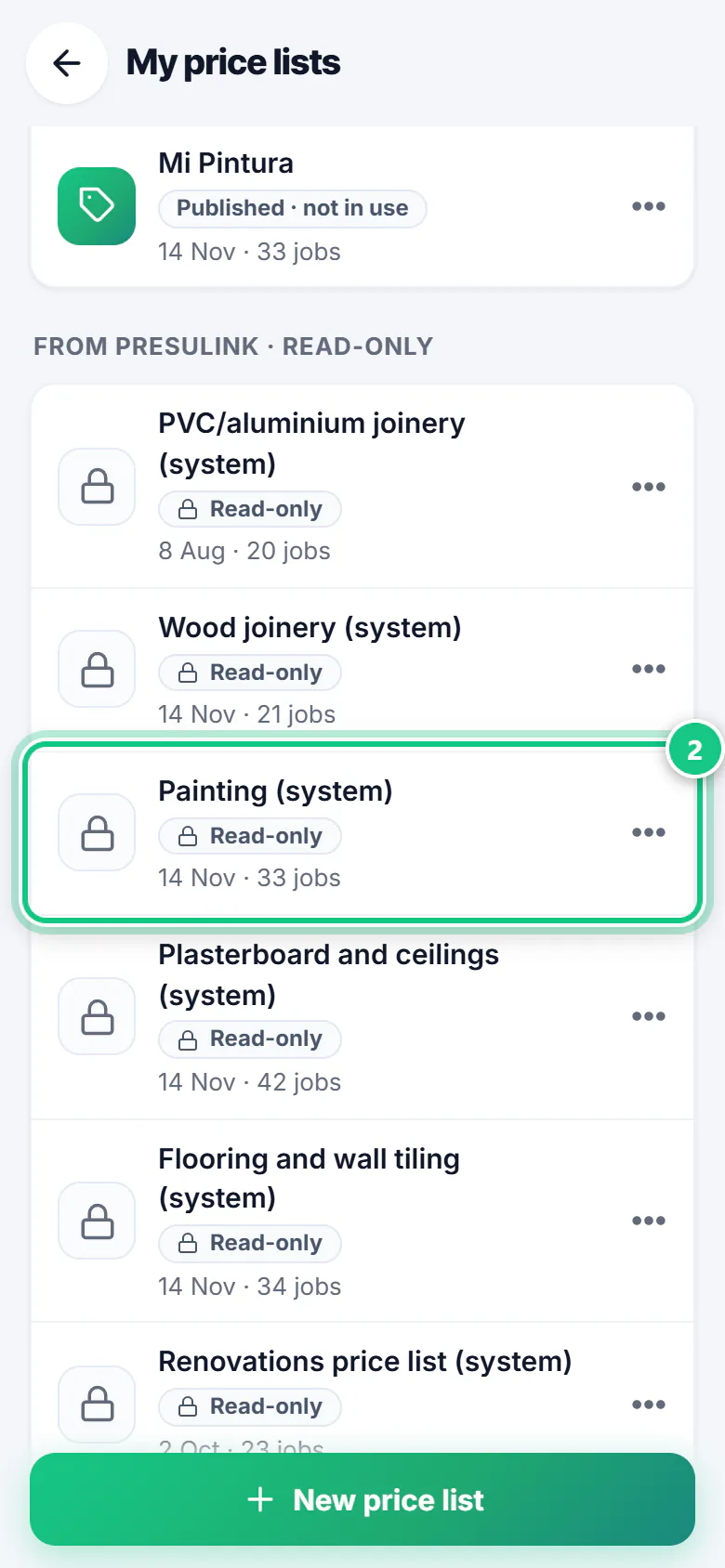
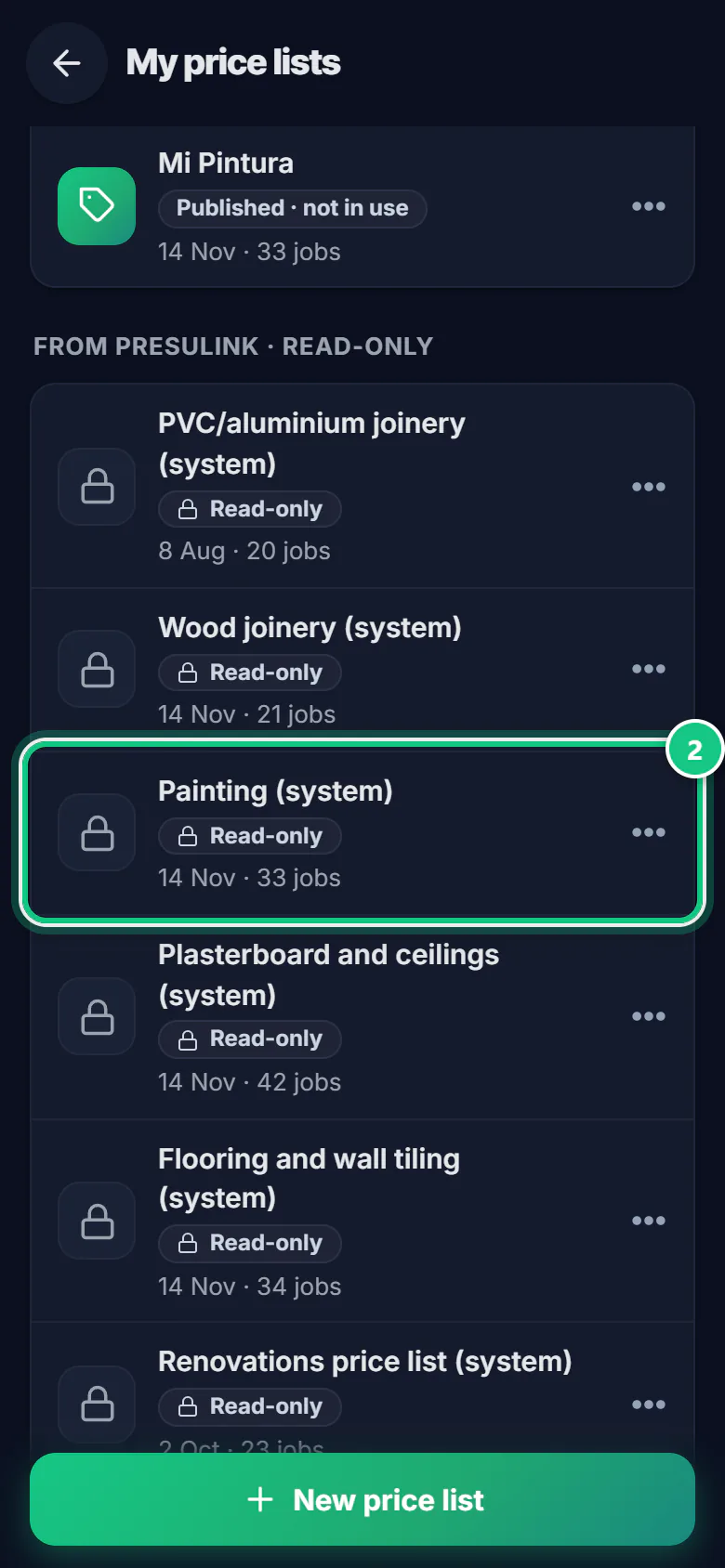
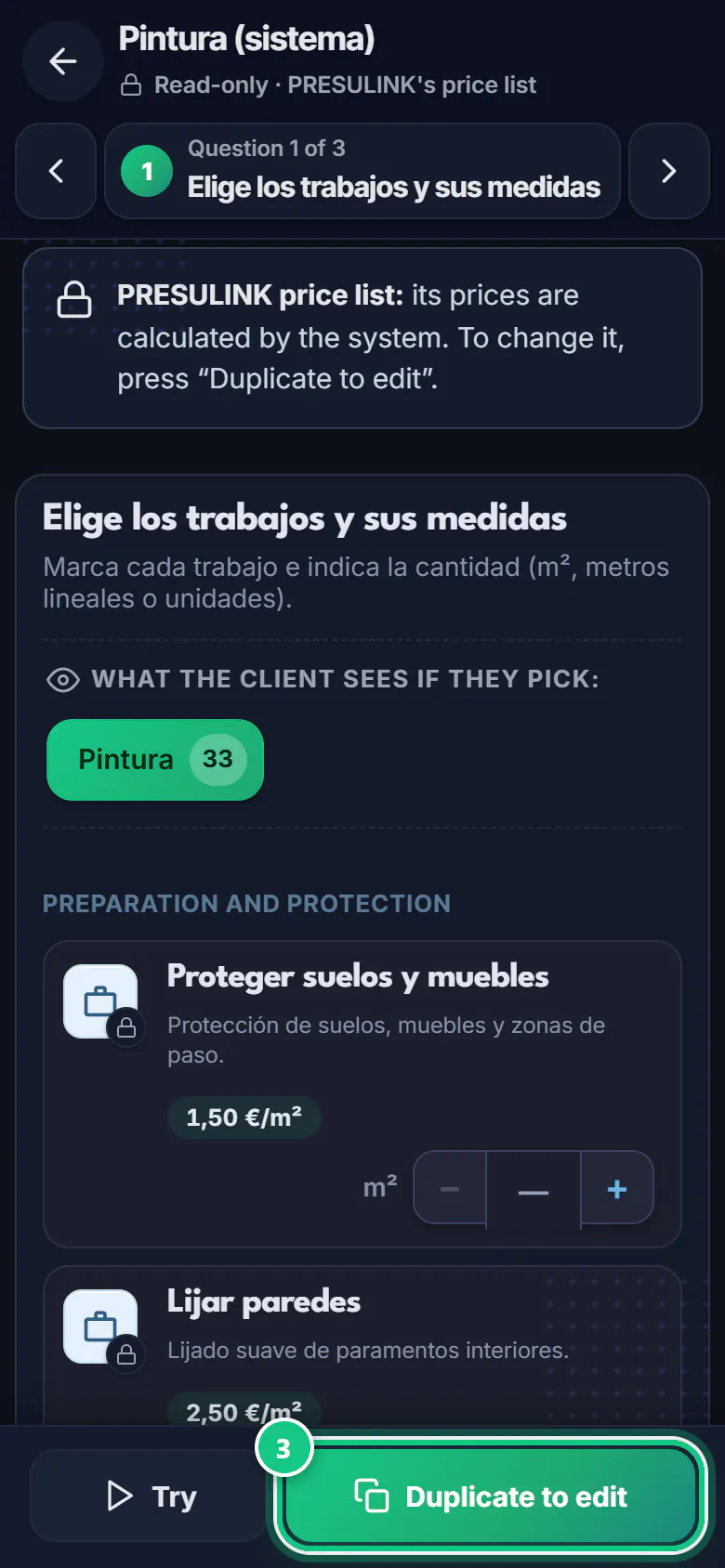
Under the read-only PRESULINK lists, tap your trade’s list.
Note: Already have a list of your own In use? The welcome made it for you. Open it and go to step 4, or 8 if it has a padlock.
-
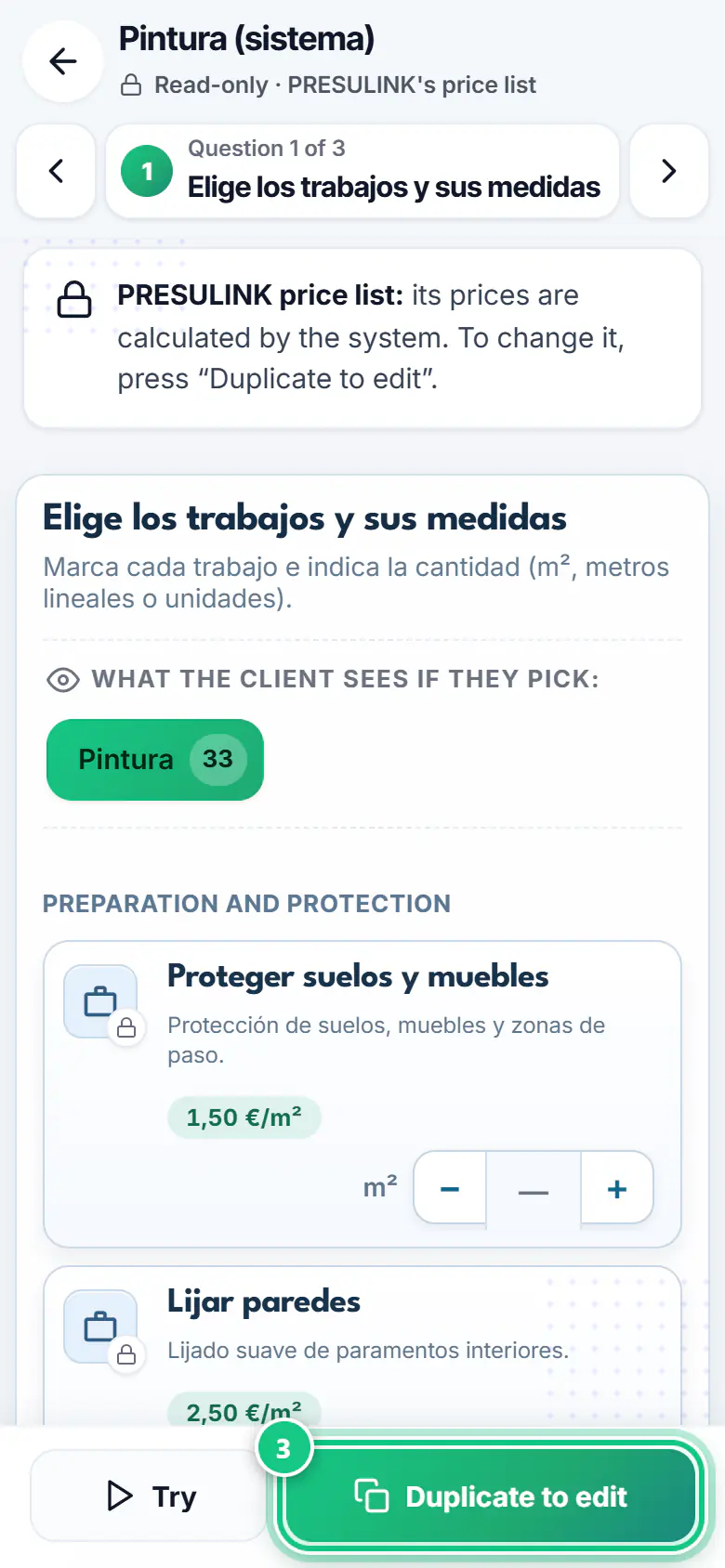
Tap Duplicate to edit, give it a name and tap Create copy.
-
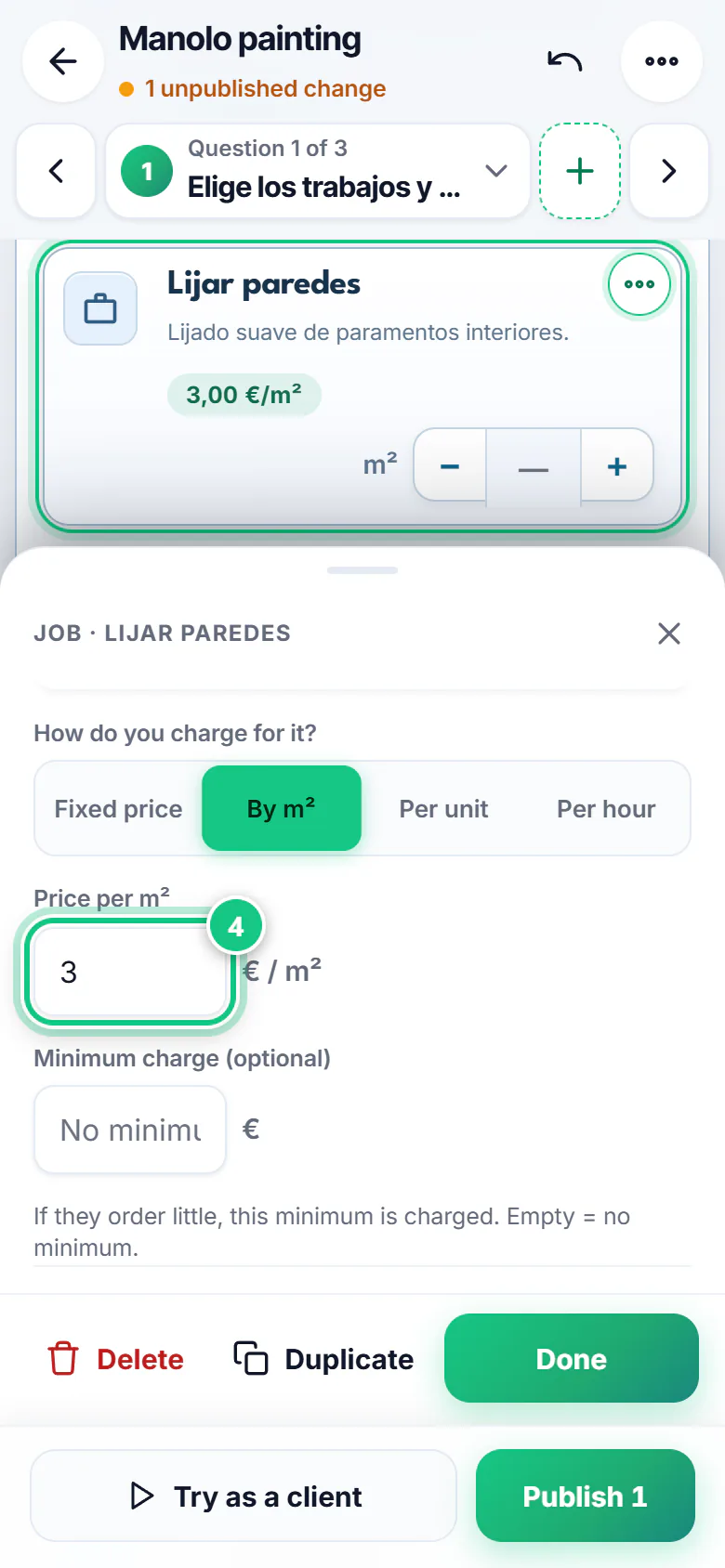
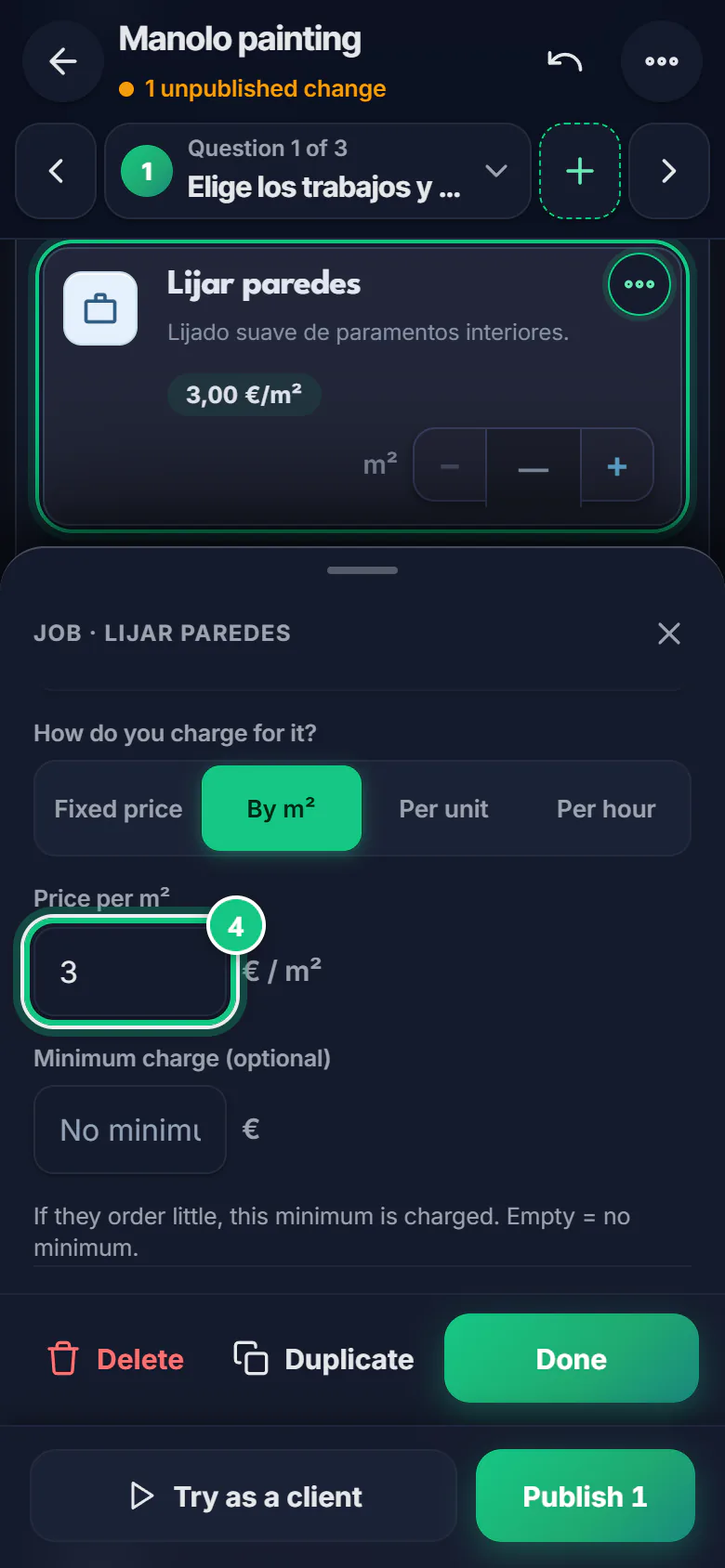
Tap a job, change the price and tap Done.
-
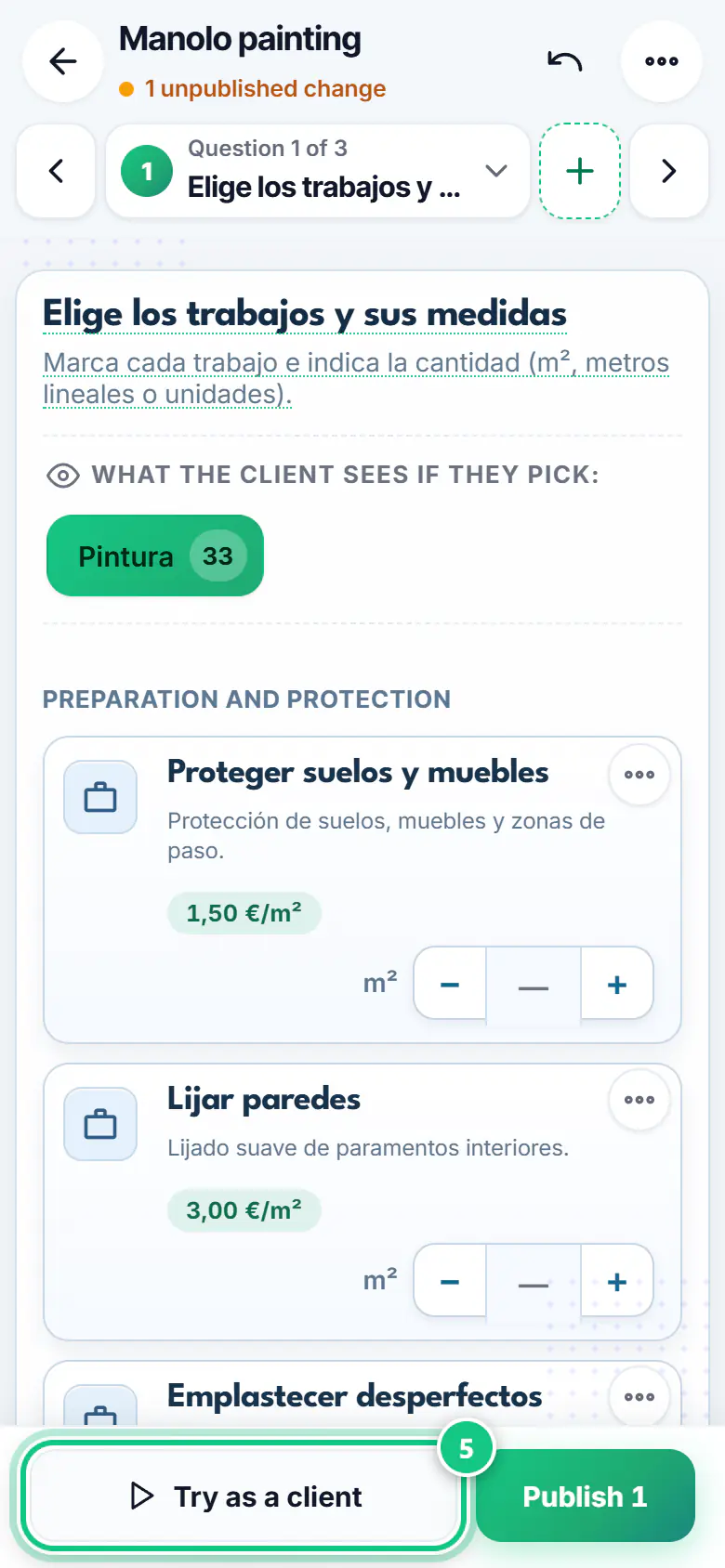
Tap Try as a client to see it the way your client will.
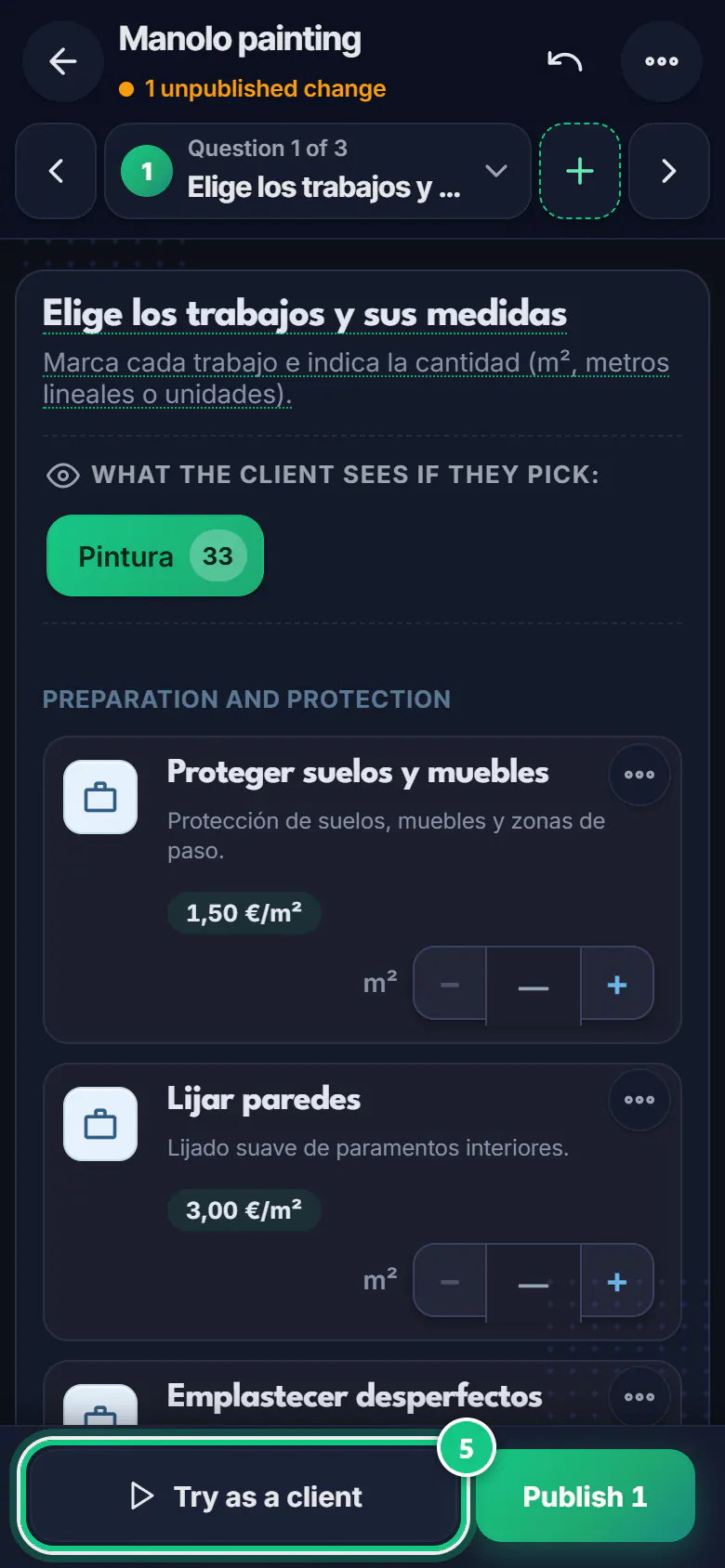
-
Tap Publish, tick Use this price list for new quotes and Publish 1 change.
Note: Unticked, it stays Published · not in use. Your quotes keep using the list that is In use.
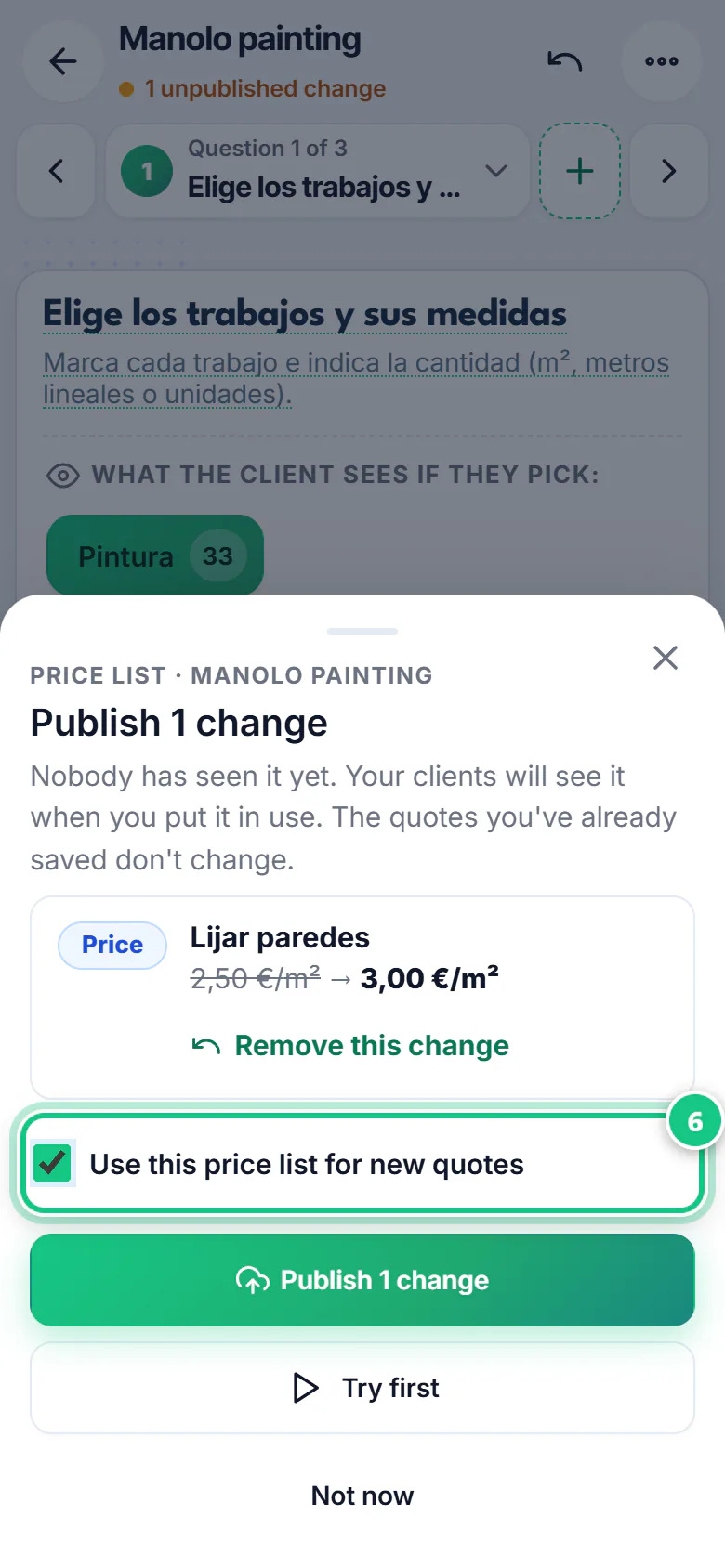
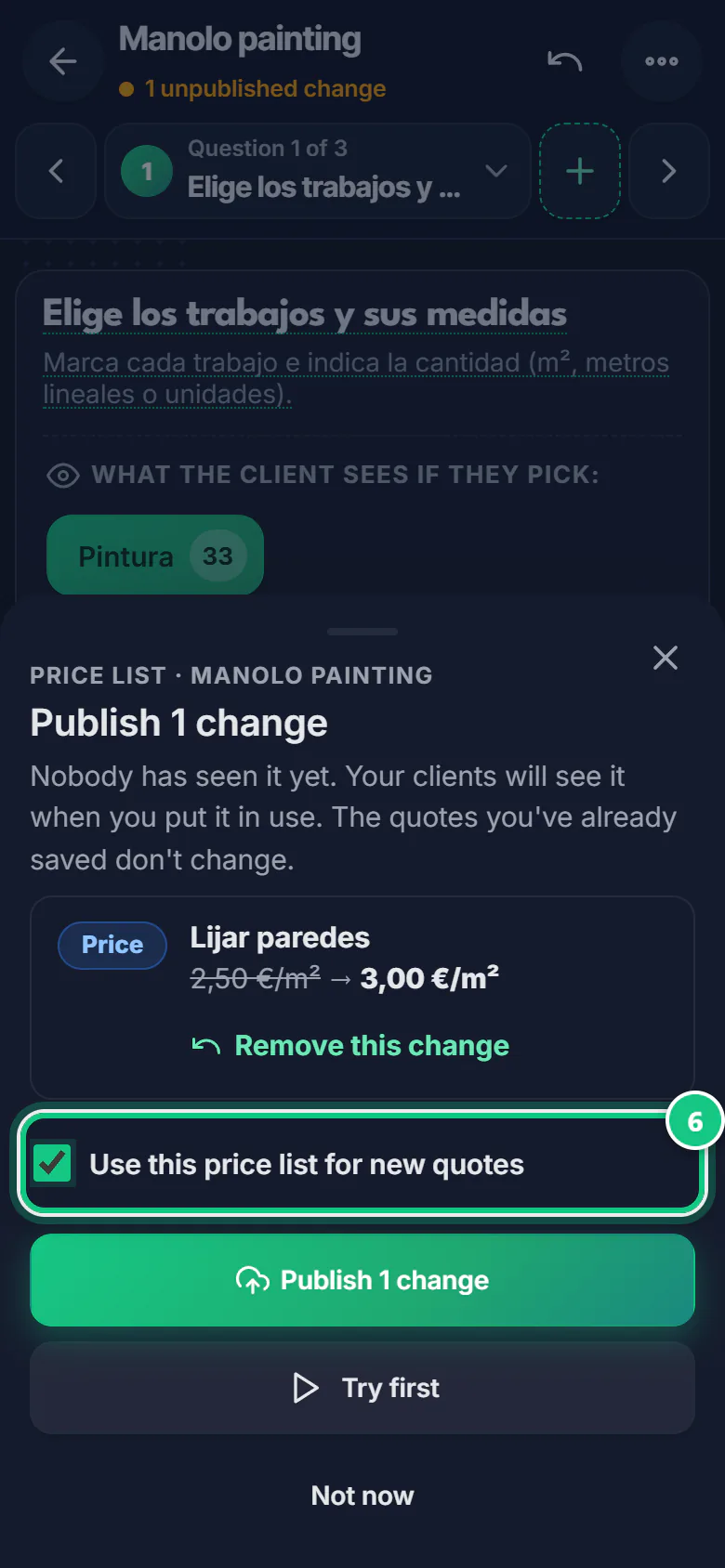
-
Raise everything by a %? ⋯ › Price list, tick the jobs and Raise or lower by a %.
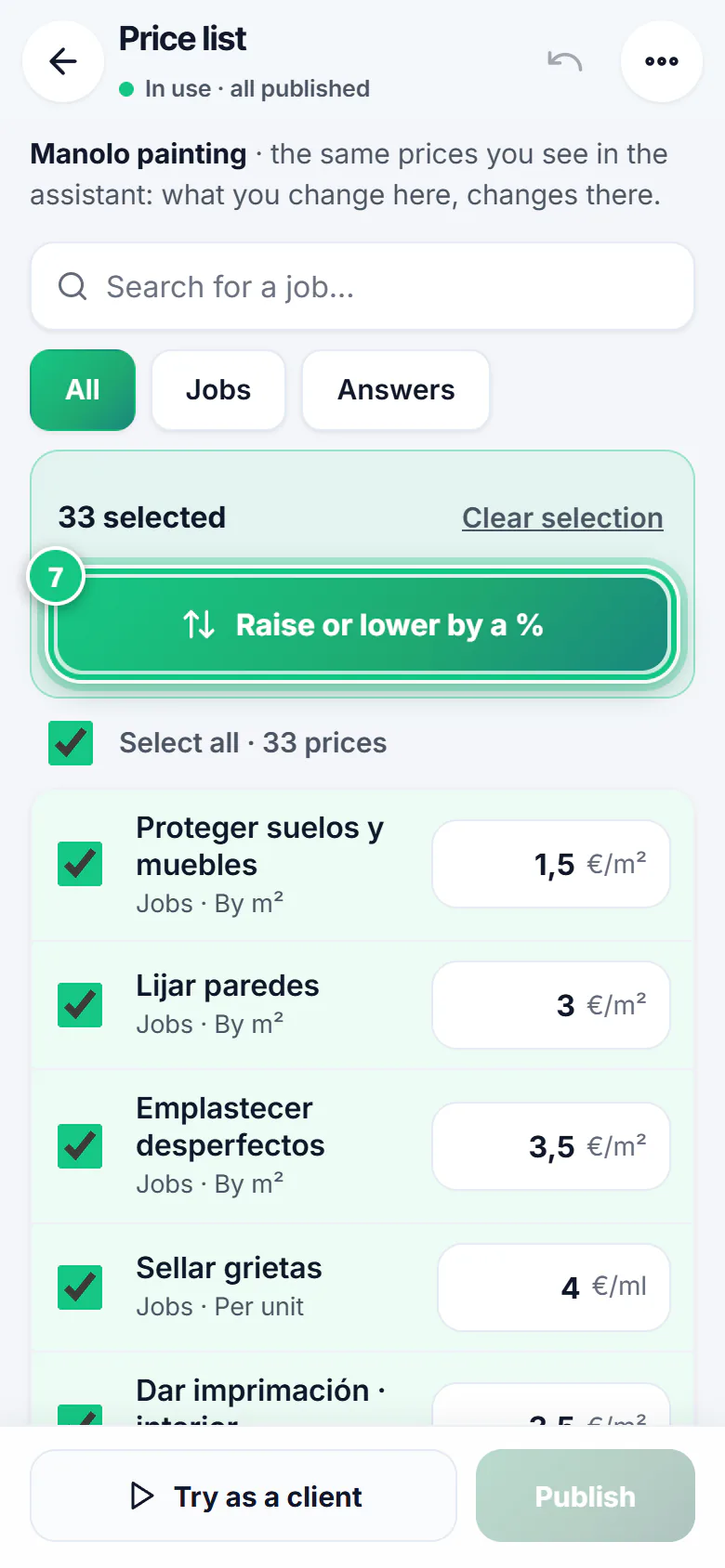
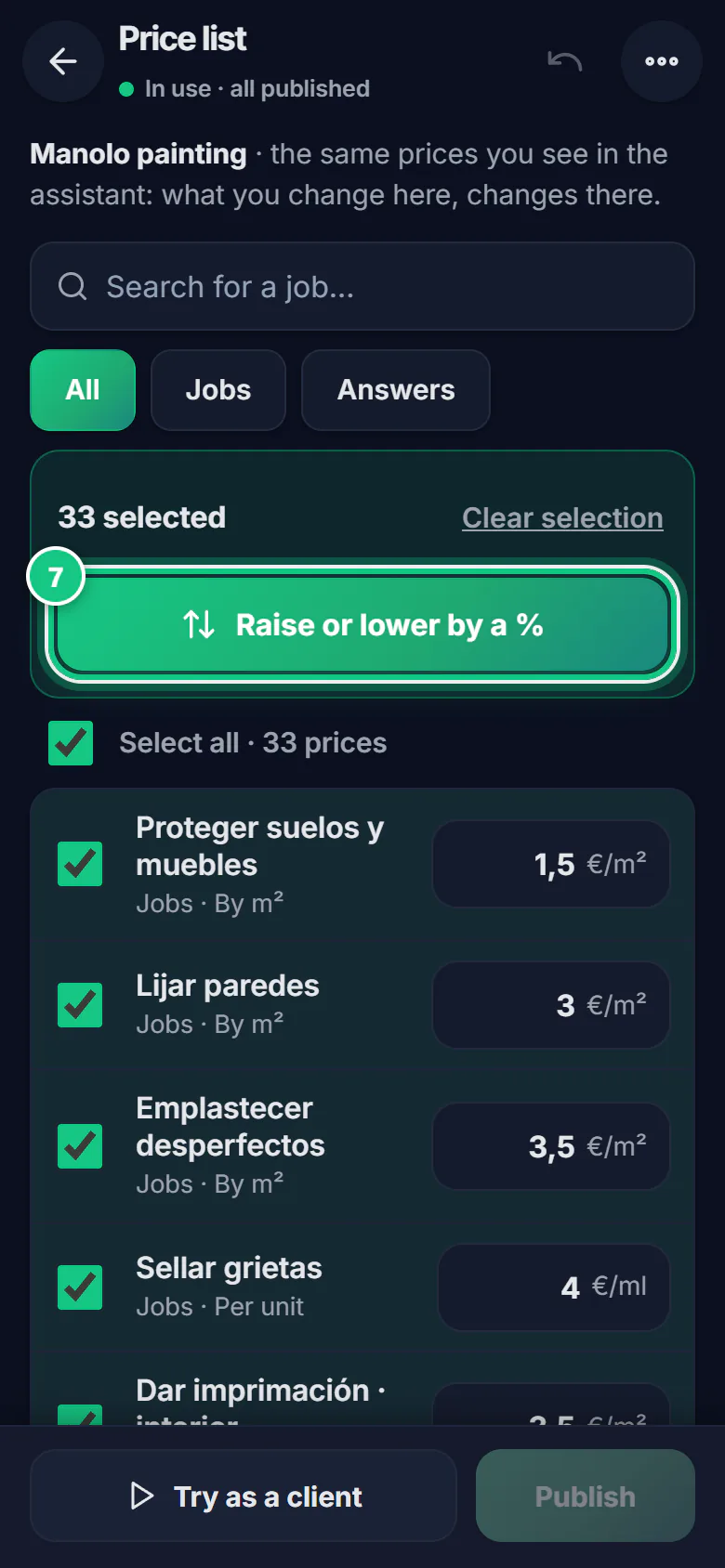
B · Locked jobs (Renovations price list)
-
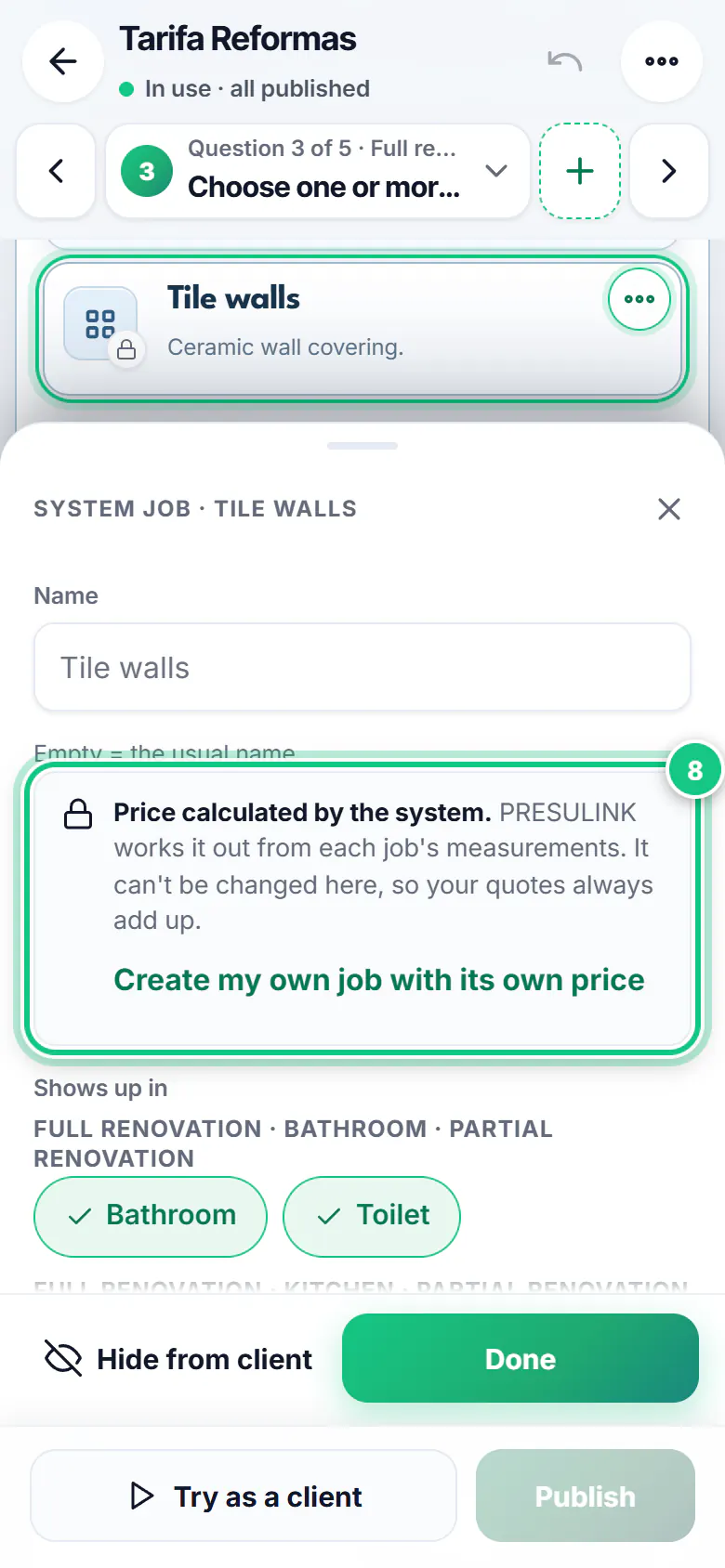
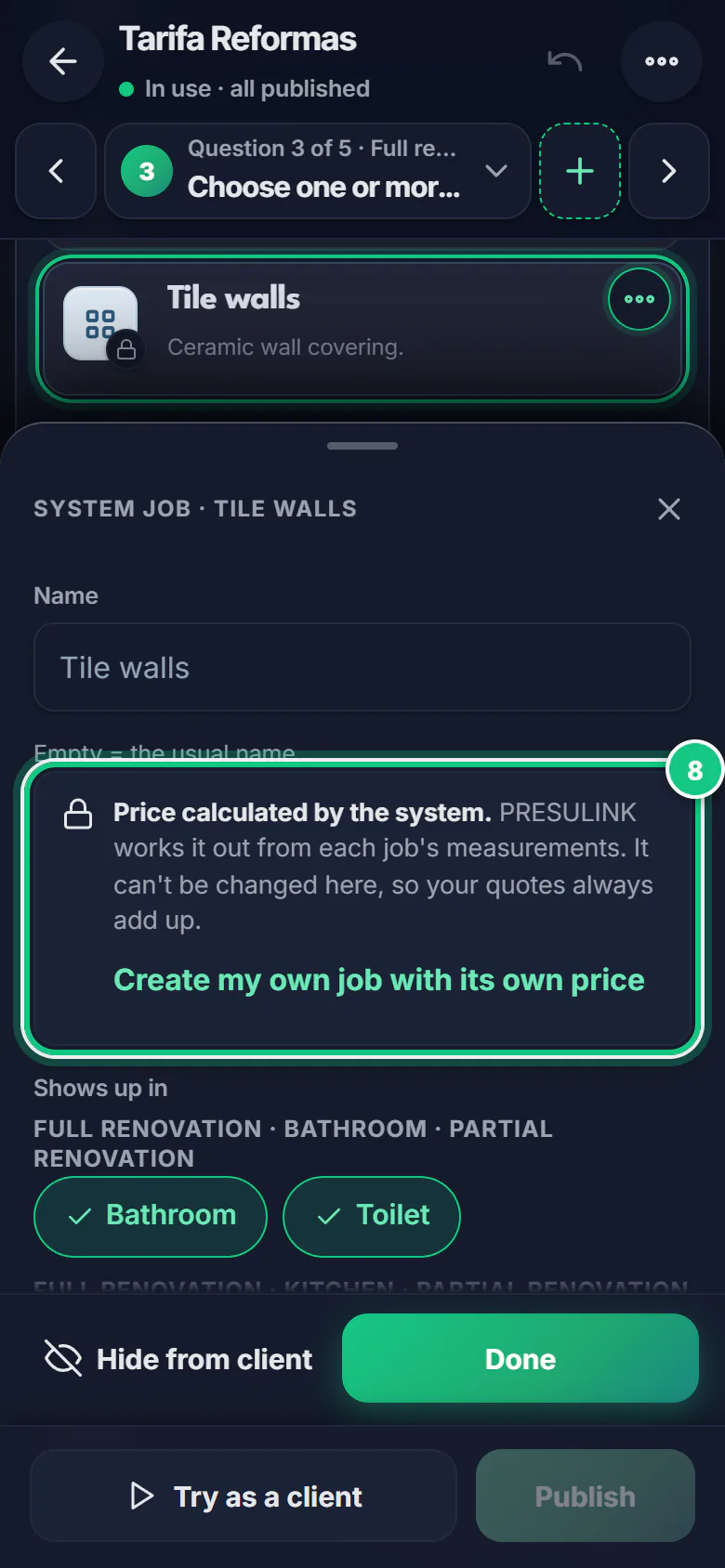
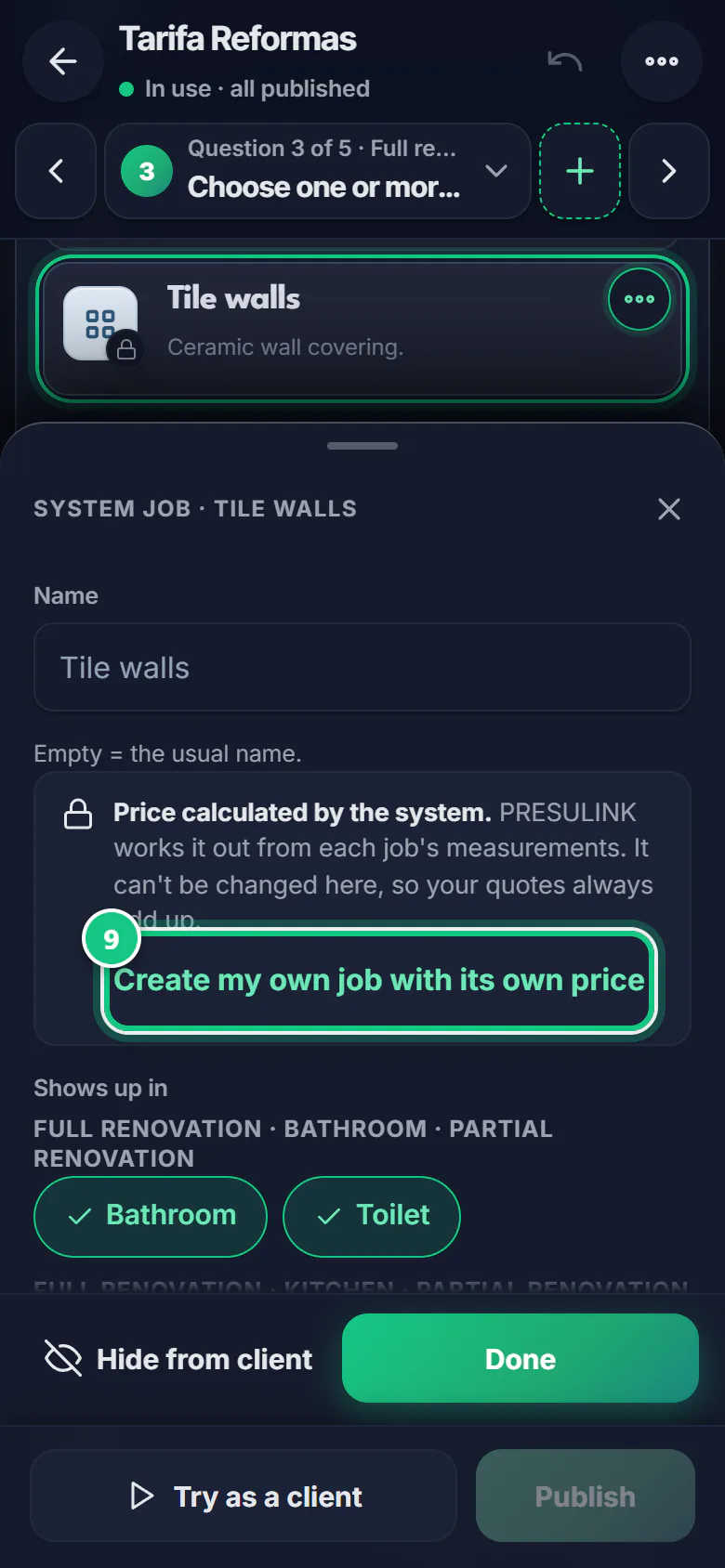
In your list that is In use, tap a job with a padlock.
Note: You will see “Price calculated by the system”. PRESULINK works it out from each job’s measurements.
-
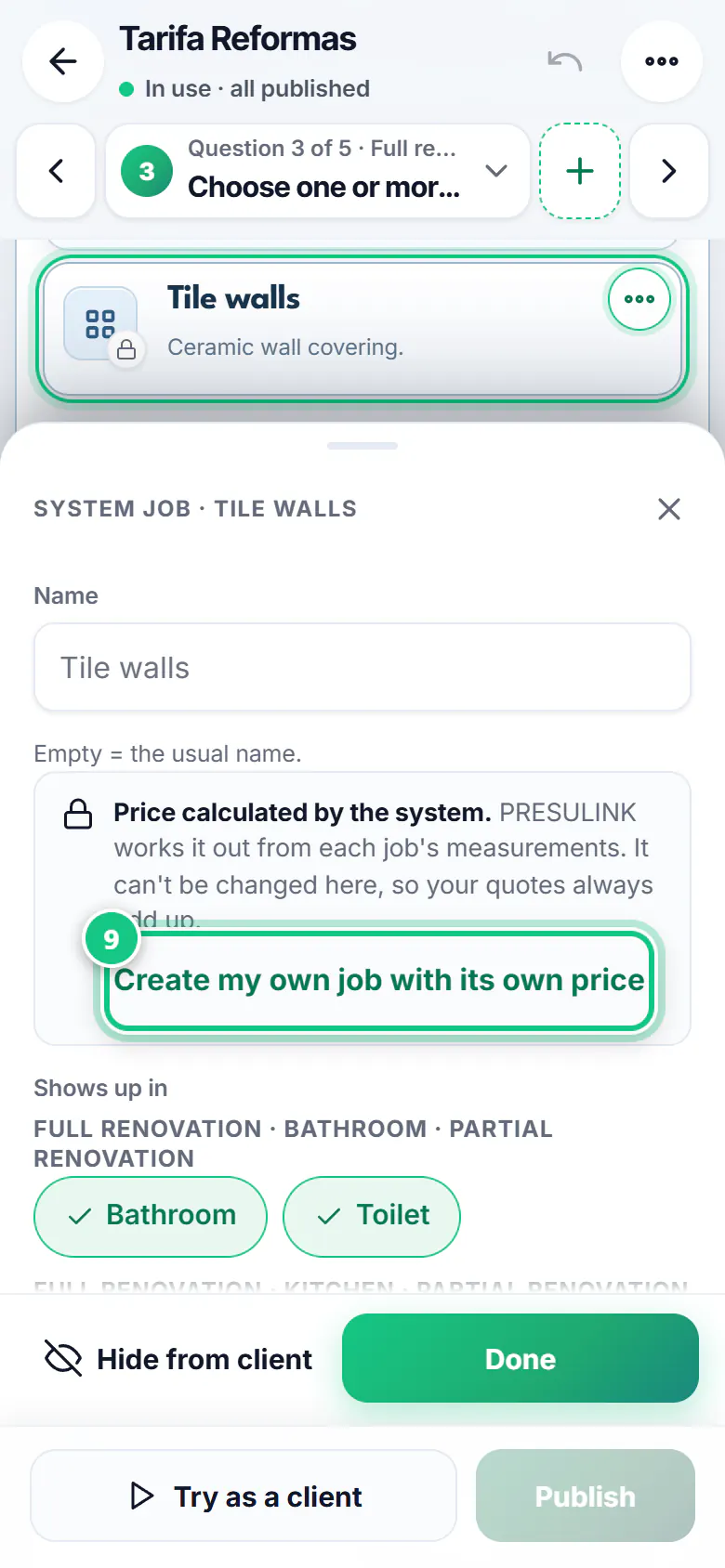
Tap Create my own job with its own price.
Note: Tap it only once. If you end up with two, Publish is blocked: on one, Remove this change.
-
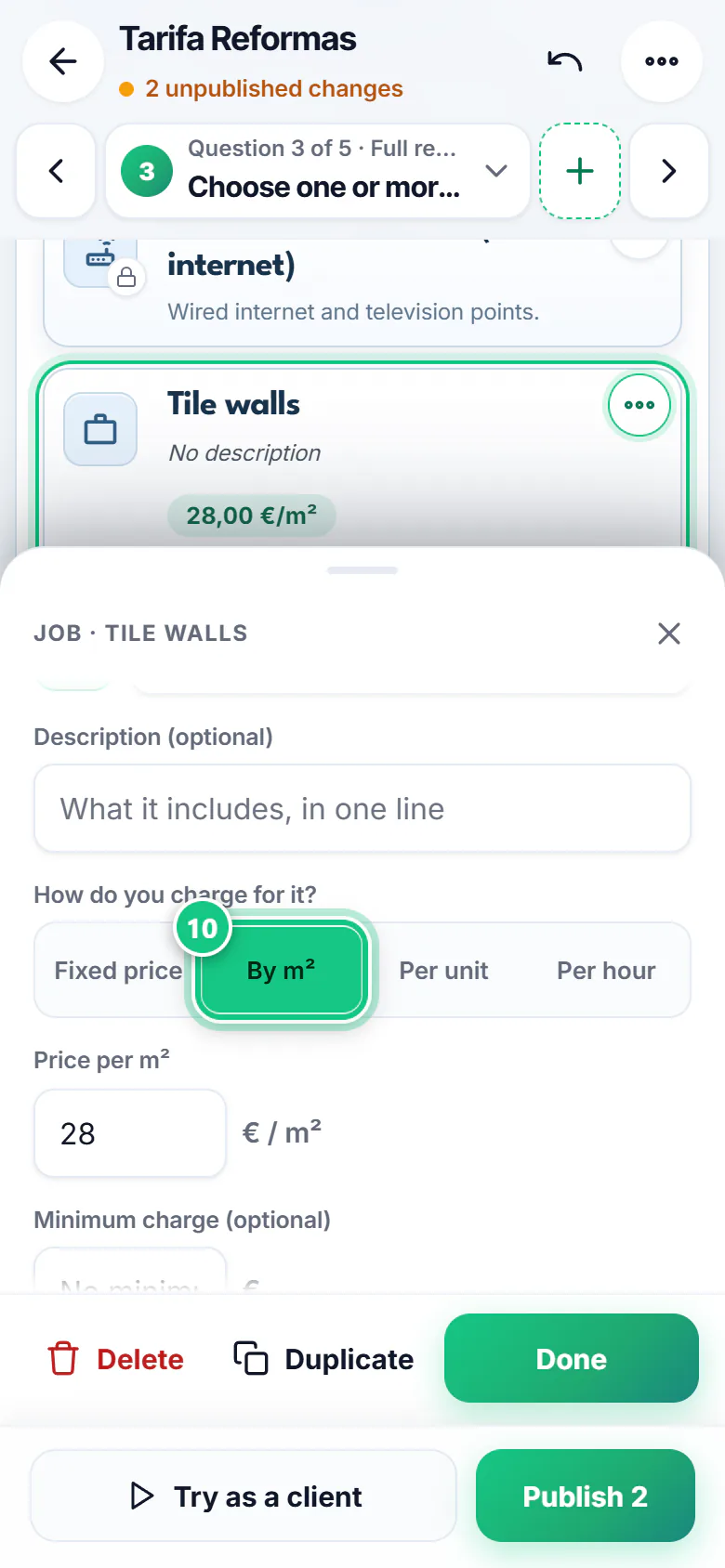
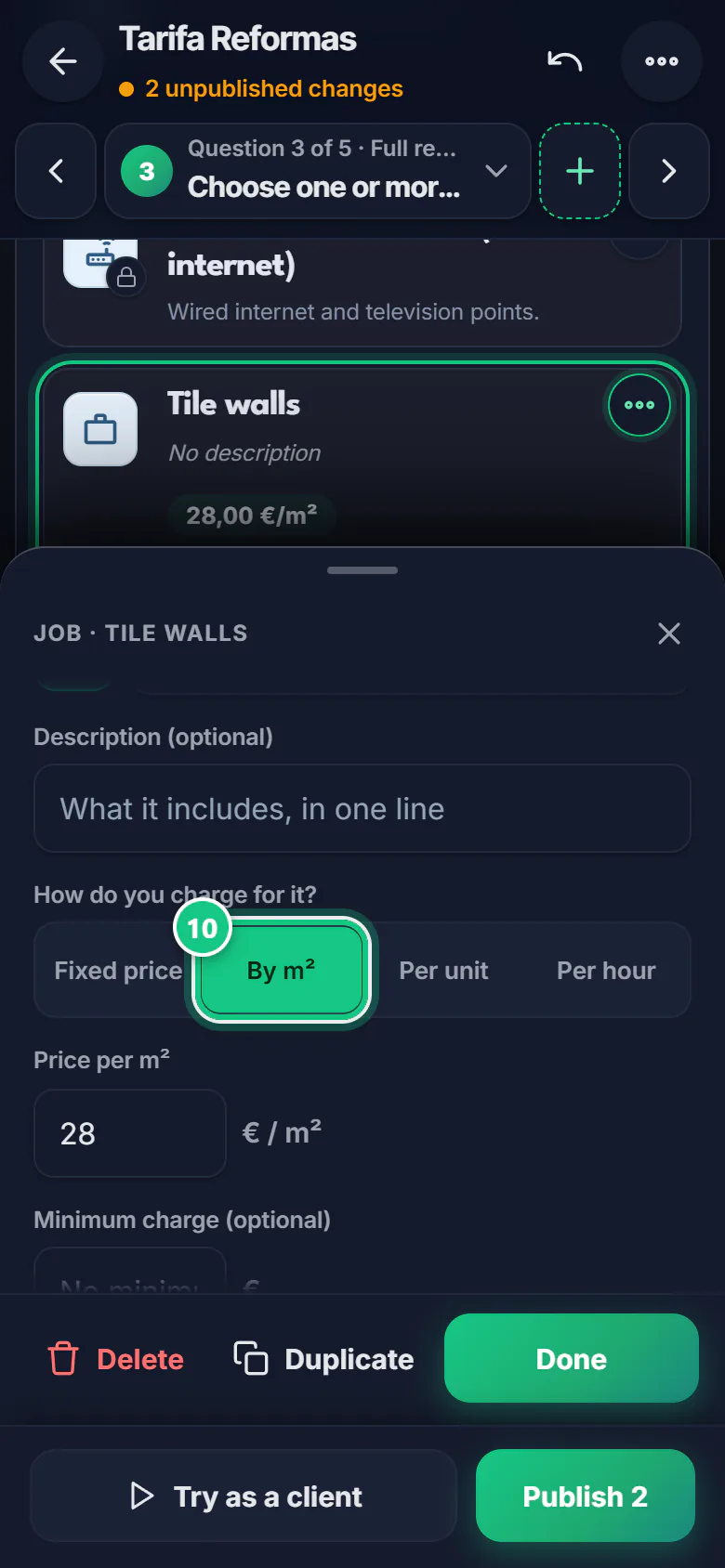
Choose how you charge (By m², Fixed price…), enter the price and tap Done.
Note: The app hides the system job by itself; if you want both, tap Show both.
-
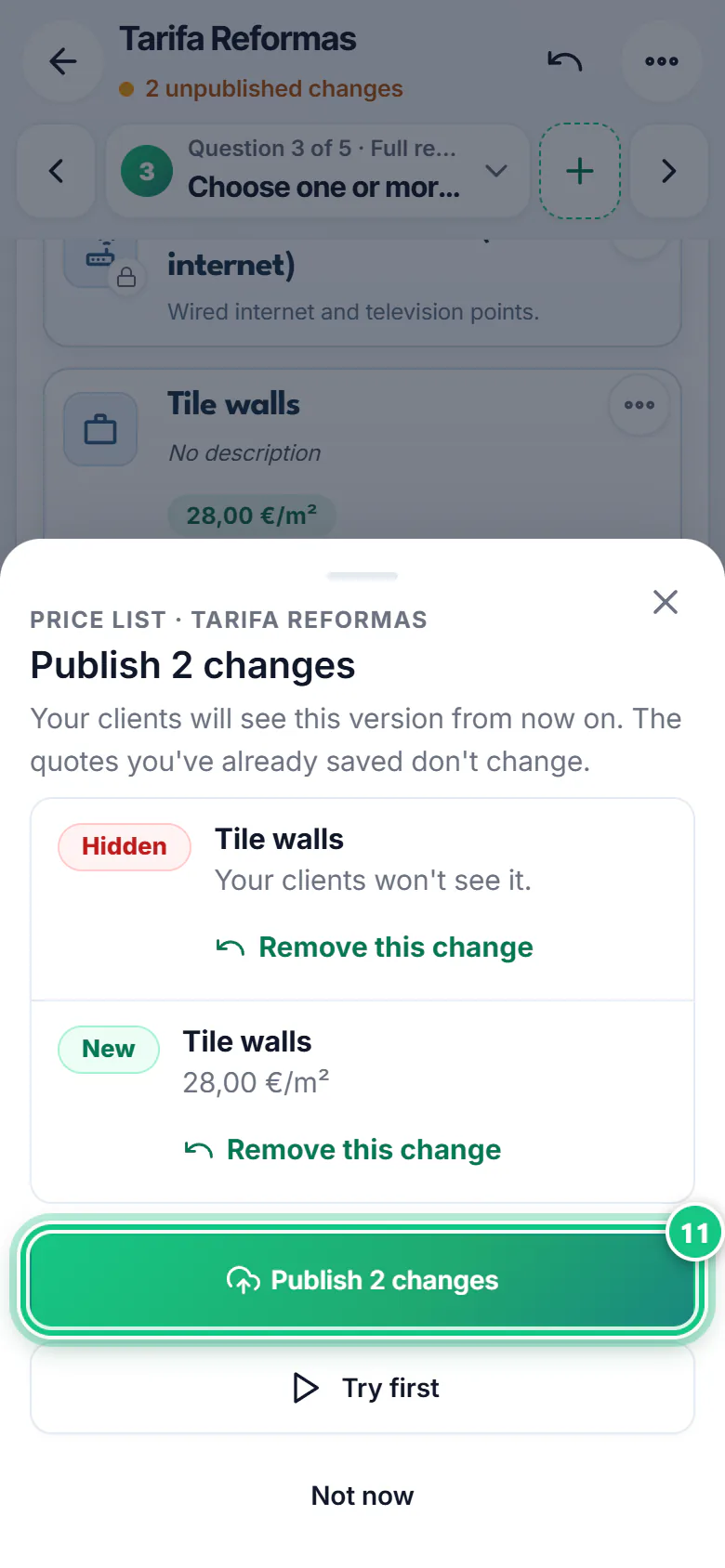
Tap Publish and confirm. New quotes now use your price.
Note: Check it: Create › Guided quote, tick the job and type the m². Without the m², the app won’t let you go on.
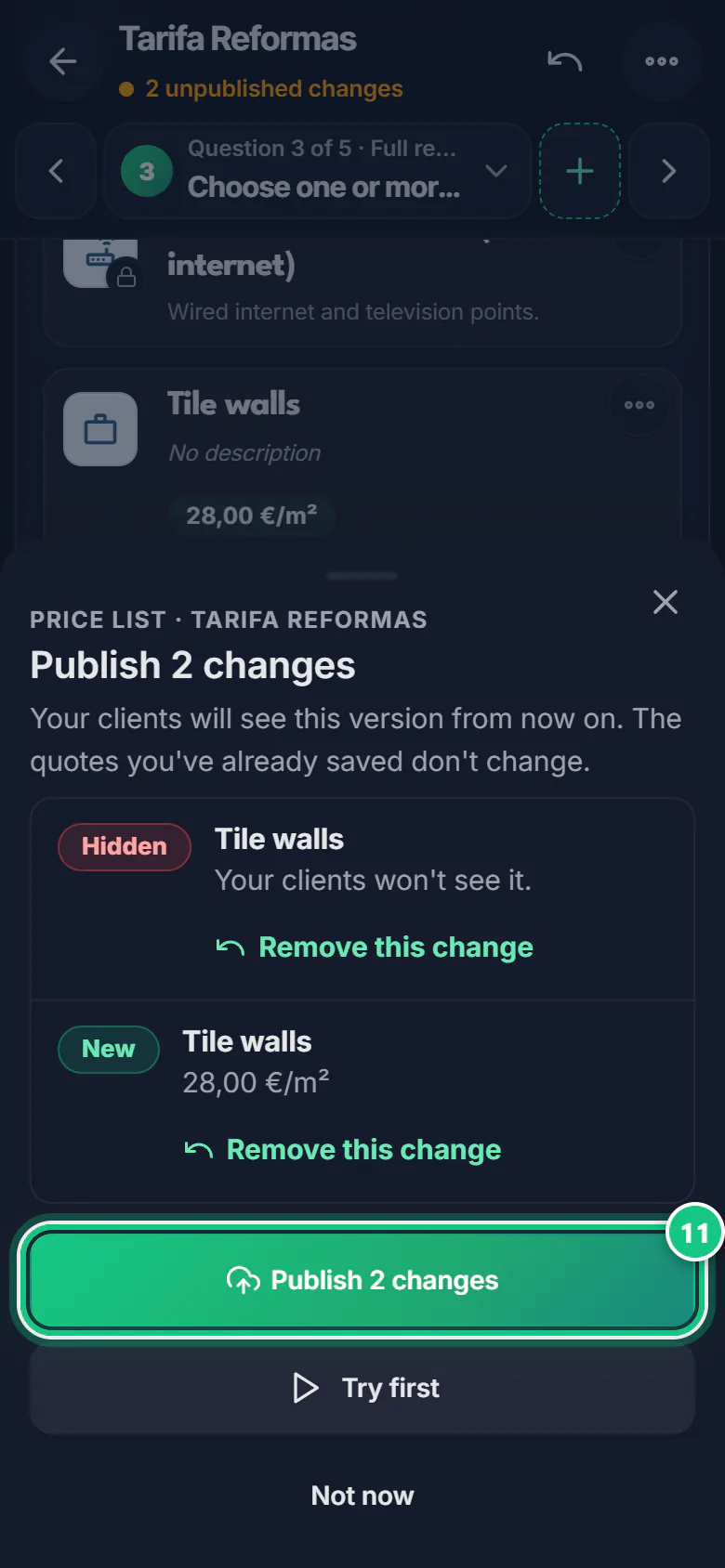
Where people get stuck
- “I can’t change the price” (the padlock). PRESULINK works that job out. Create your own with its own price: step 9.
- “I can’t change the price” (the padlock). PRESULINK works that job out. Create your own with its own price: step 9.
- You have to publish. Until you tap Publish, neither your clients nor your new quotes see the change.
- Published but not showing? It must be In use. When you publish, tick Use this price list for new quotes.
- “Save” or “Publish”. The detailed per m² prices use Save changes. Your price list uses Publish.
- Quotes you already saved don’t change. The new price applies to the ones you make from now on.
Open it in the app
On your phone
Open the PRESULINK app and go to:
More›My price lists
On your computer
Takes you to that screen. If you are not logged in, it asks you to log in first and then takes you there.
Open My price listsOn a computer, at app.presulink.es: Settings›My price lists