

Getting paid: proforma, receipt and account statement
Ask for a payment with a proforma, record what you were paid with a receipt and see what each client owes.
What each document is
📄Proforma
What you ask to be paid. It is not an invoice: it has no tax validity.
🧾Receipt
What you have been paid. One per payment, signed.
📊Account statement
The summary per client: quoted, paid and outstanding.
Step by step
-
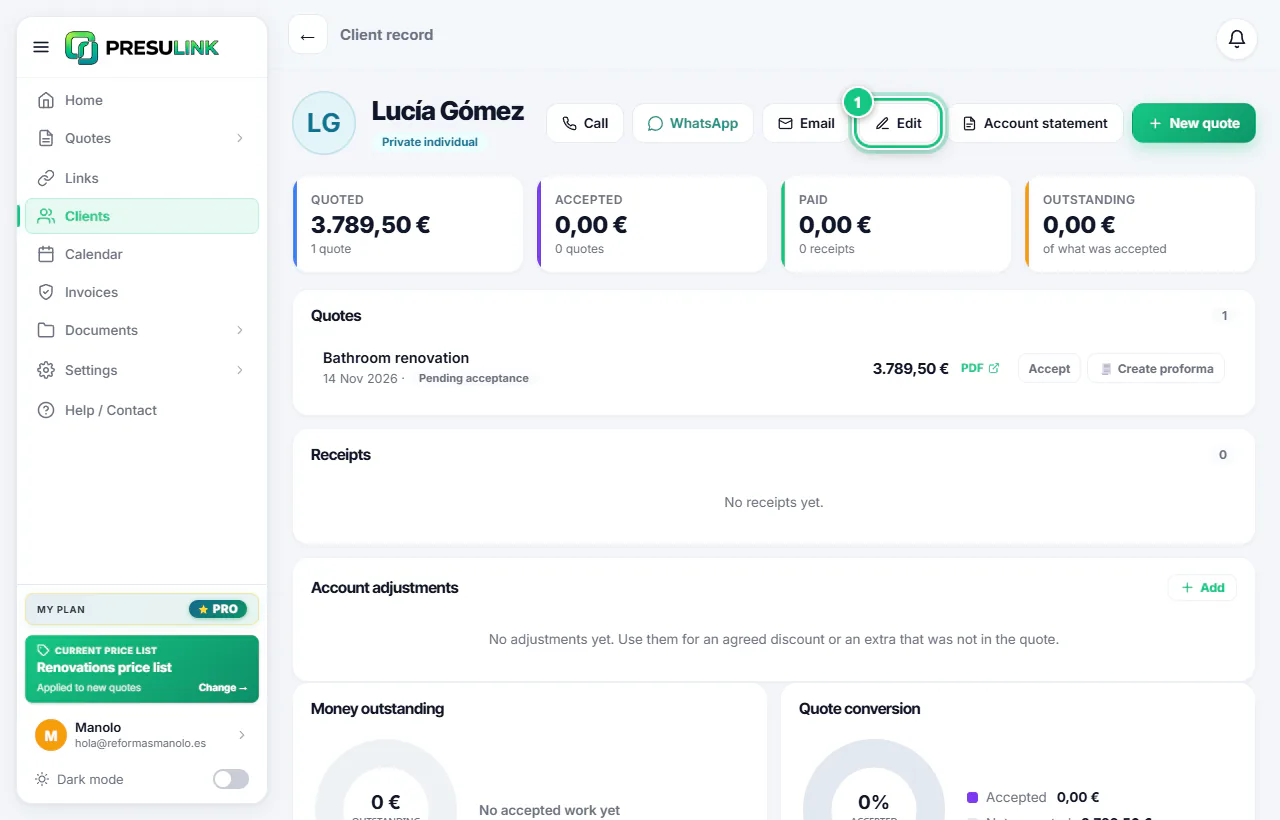
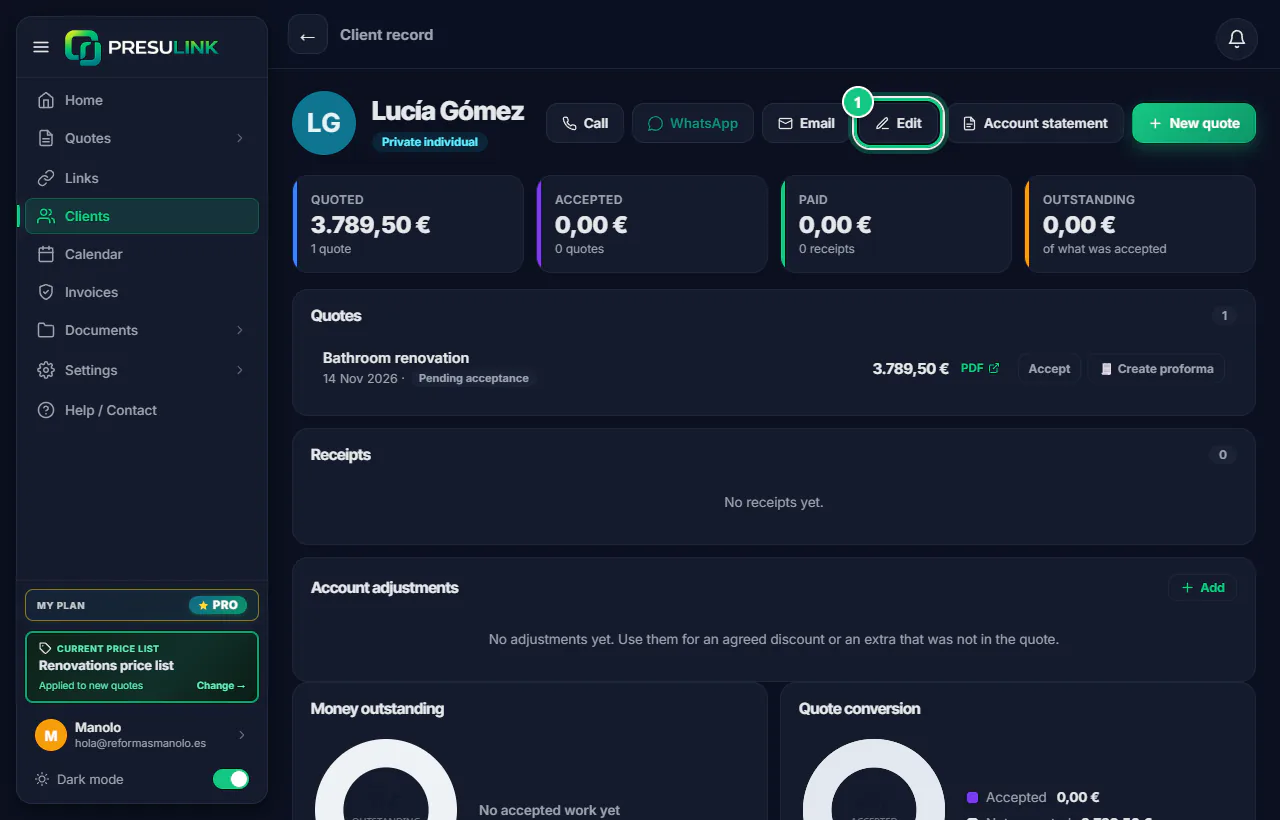
Click Clients, open the client and click Edit.
-
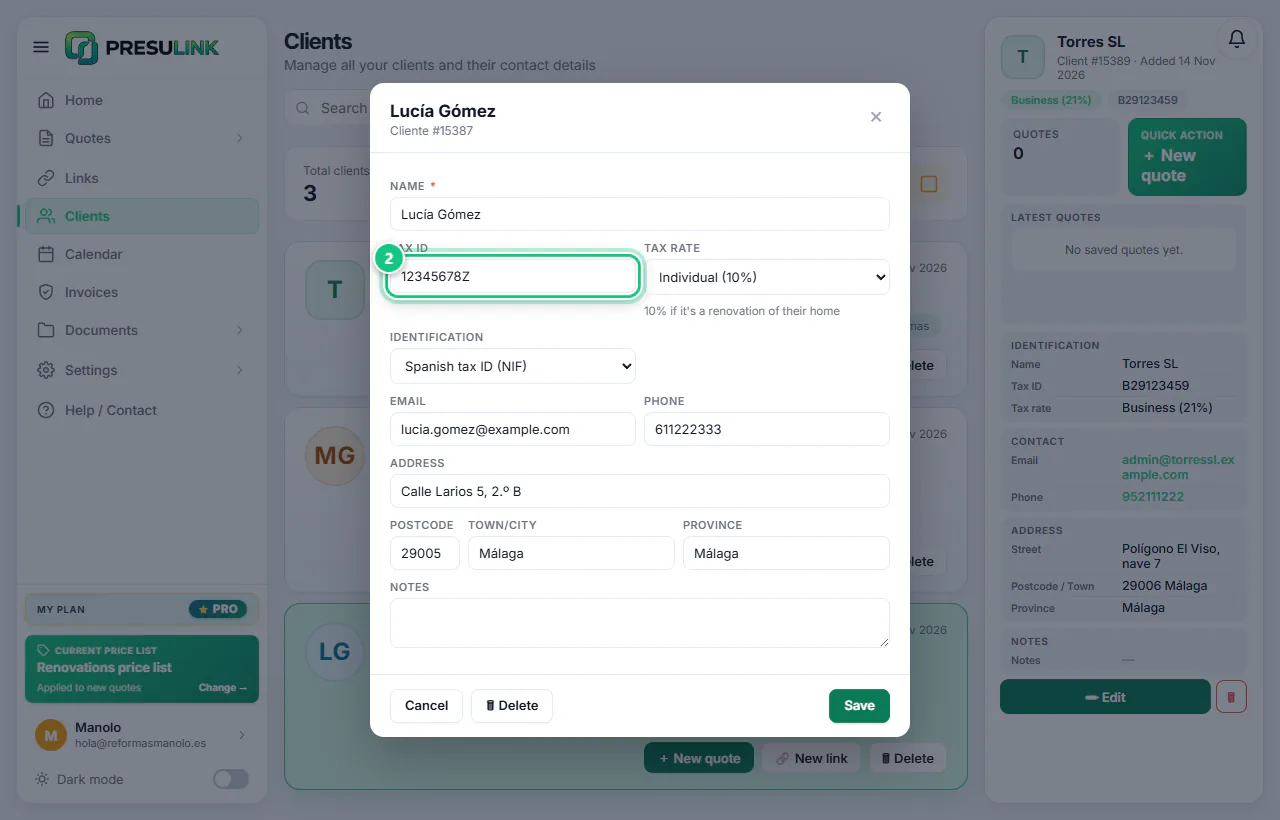
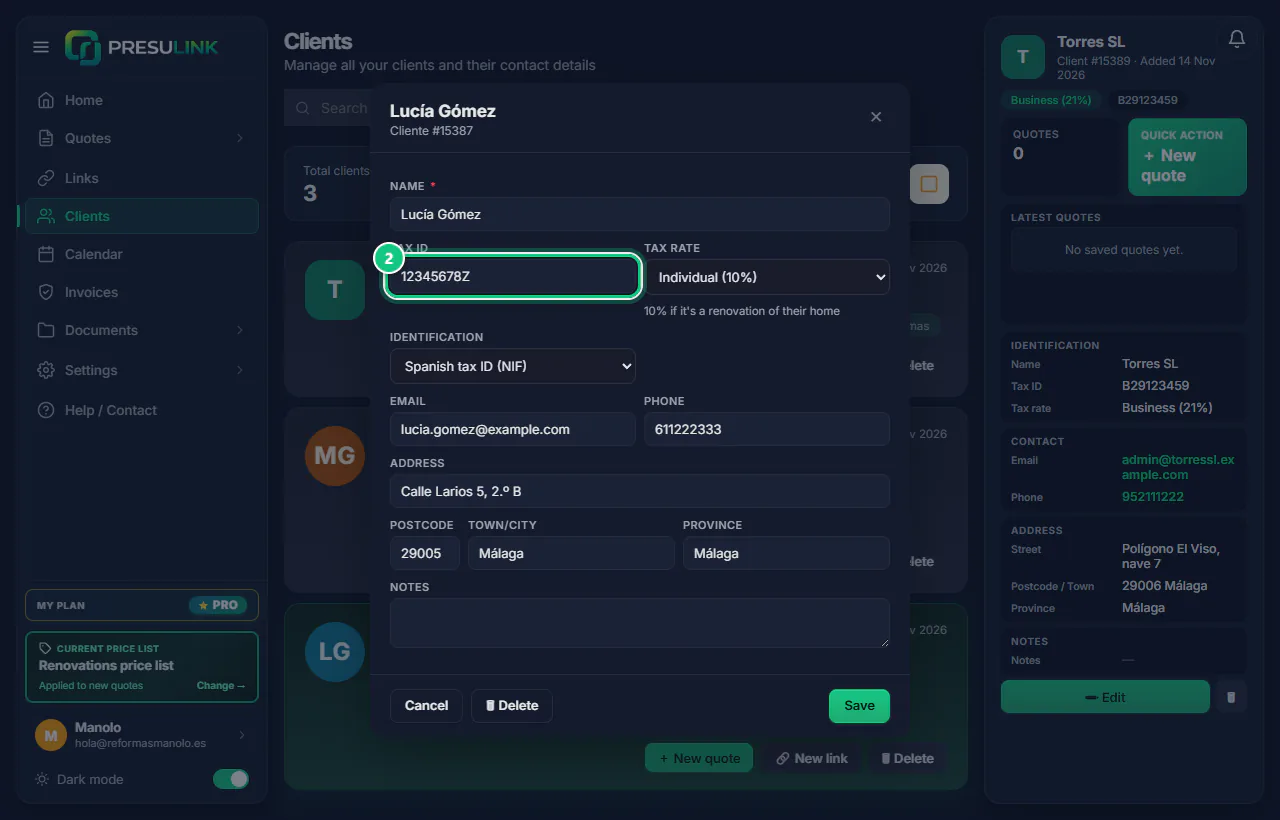
Type their Tax ID and click Save.
Note: Without the client’s tax ID you can’t create the proforma. Nor without your company’s tax ID.
-
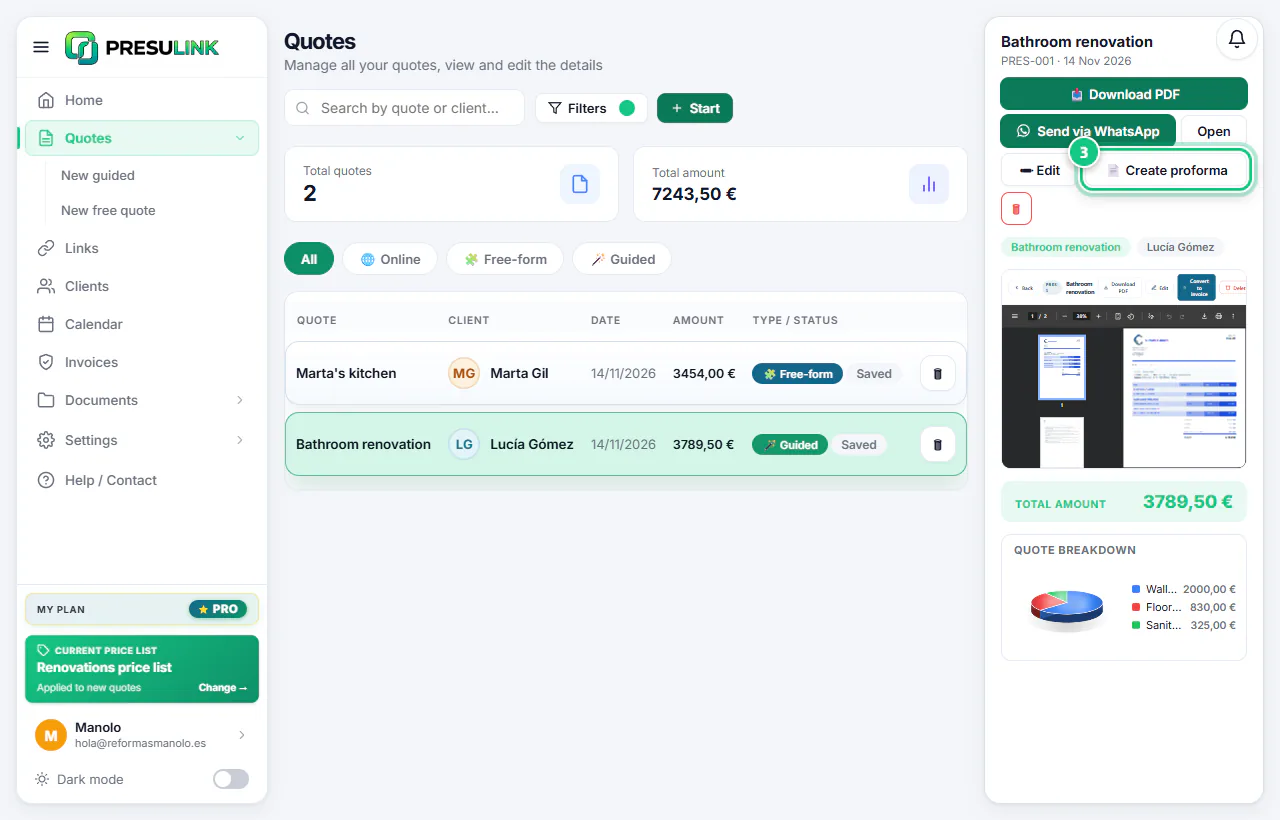
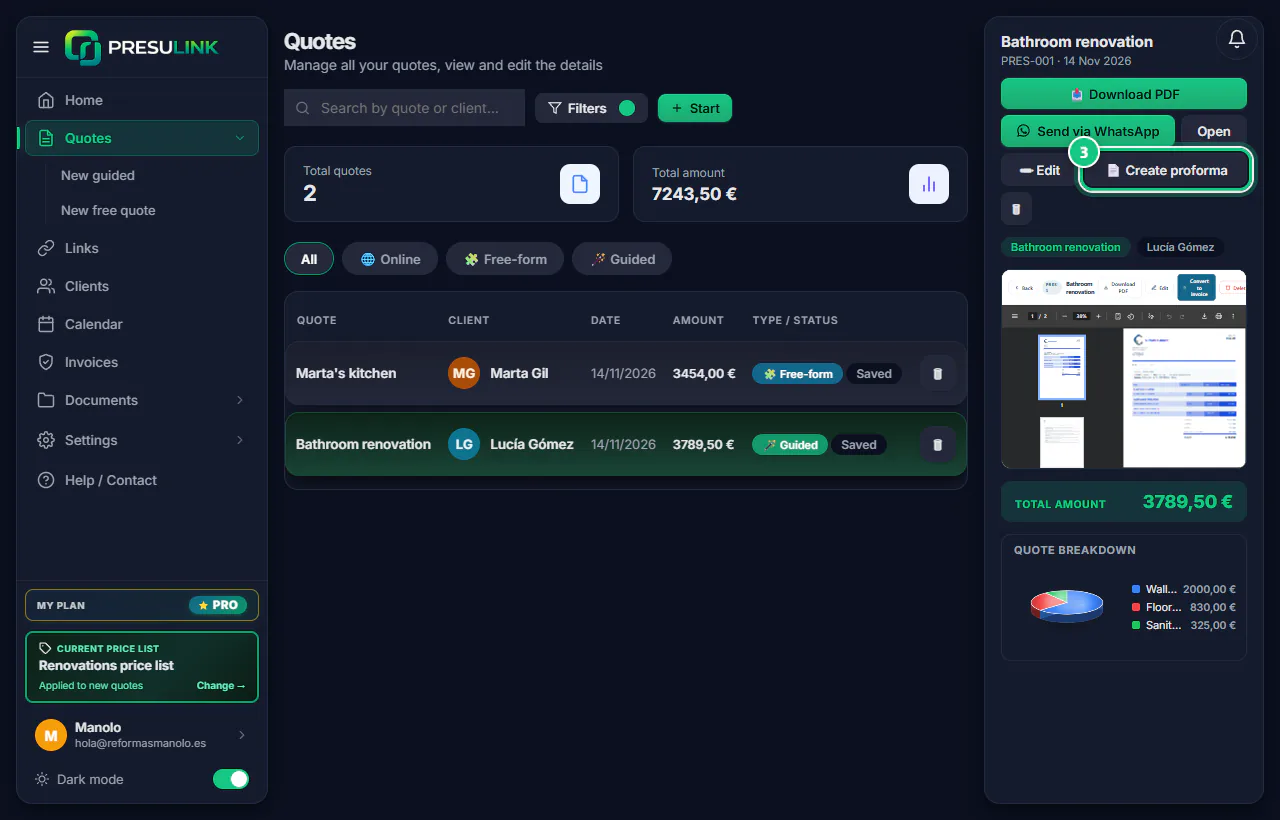
In Quotes, open the quote and click 📄 Create proforma.
-
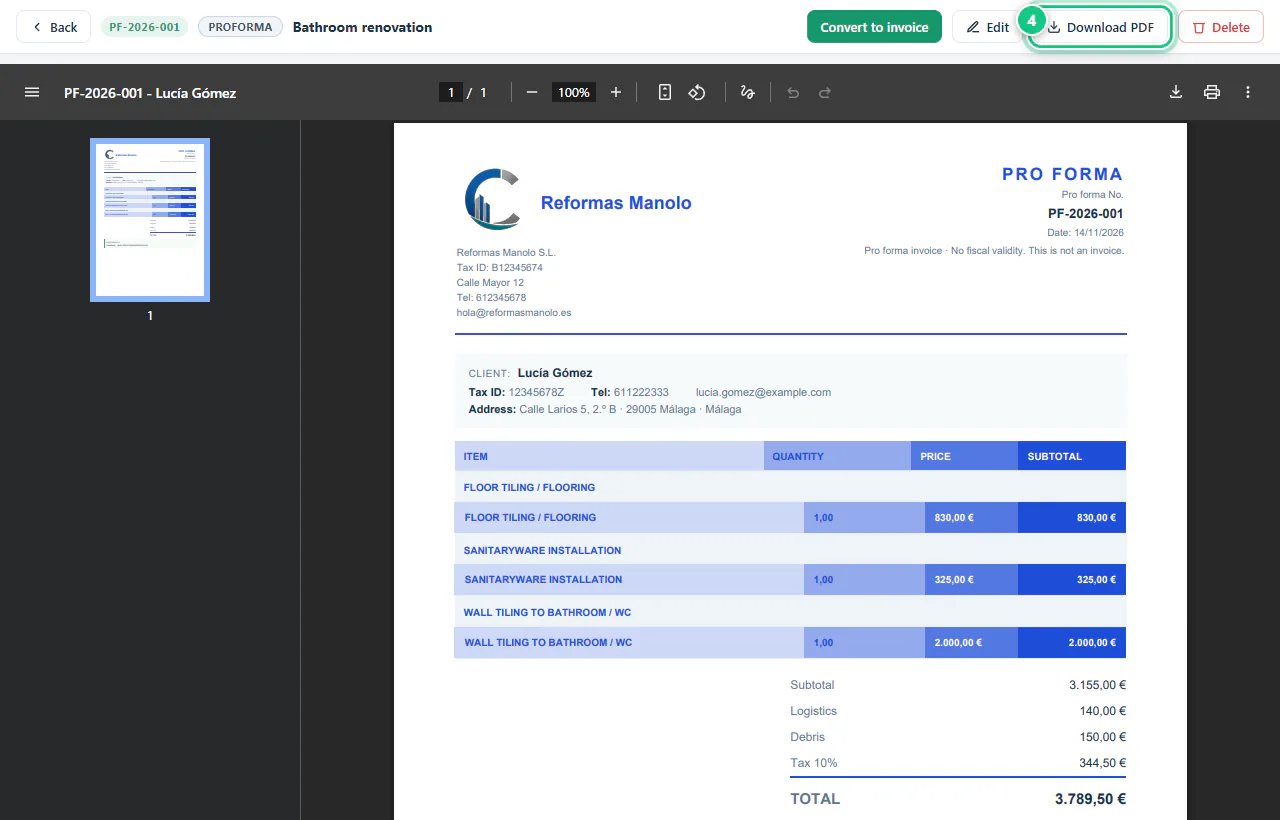
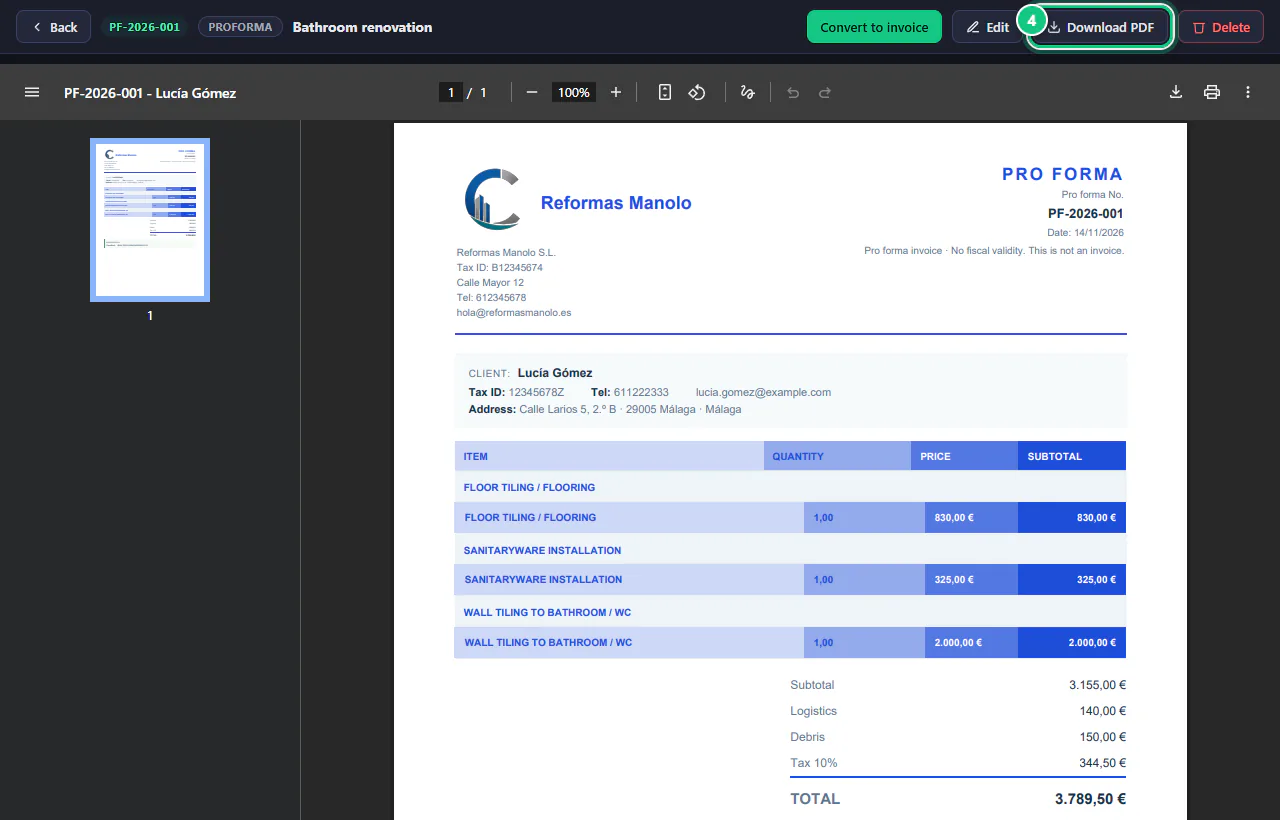
In the proforma, click Download PDF and send it.
-
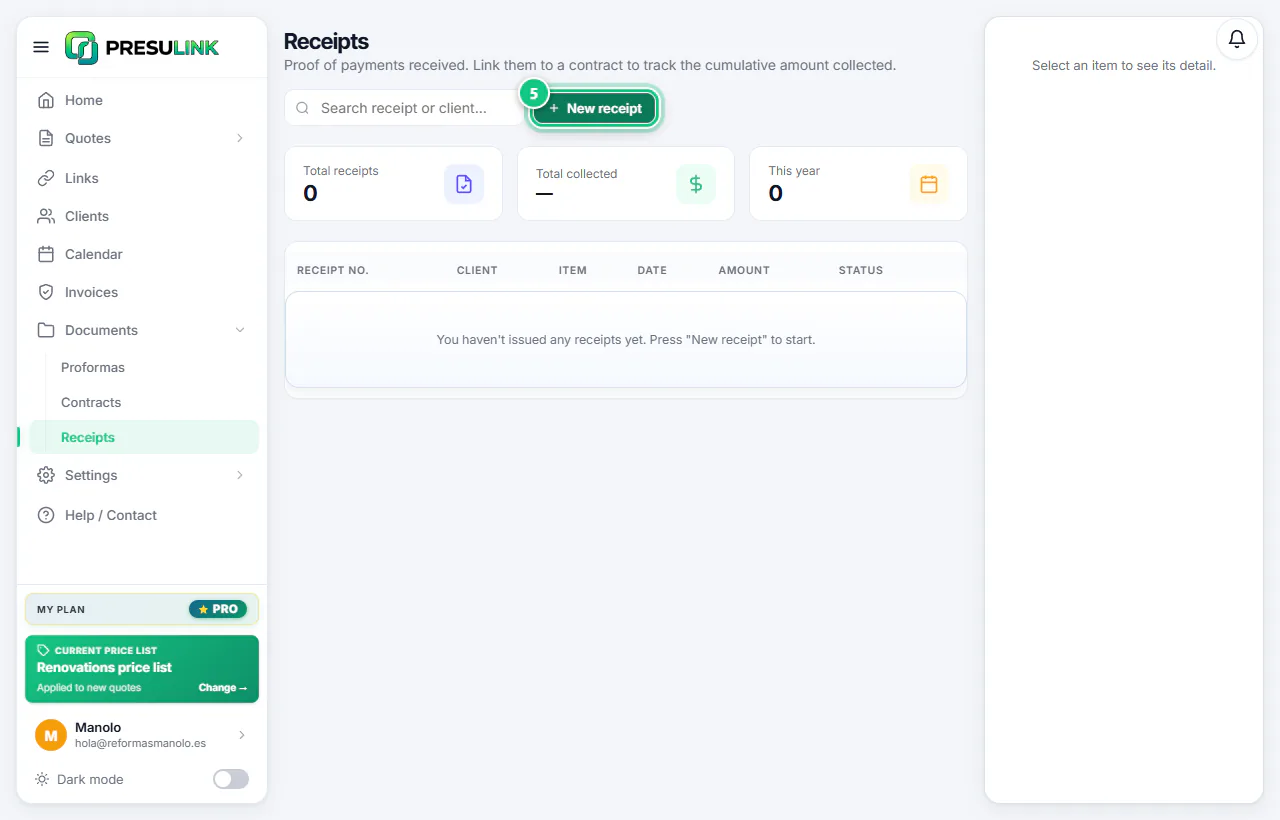
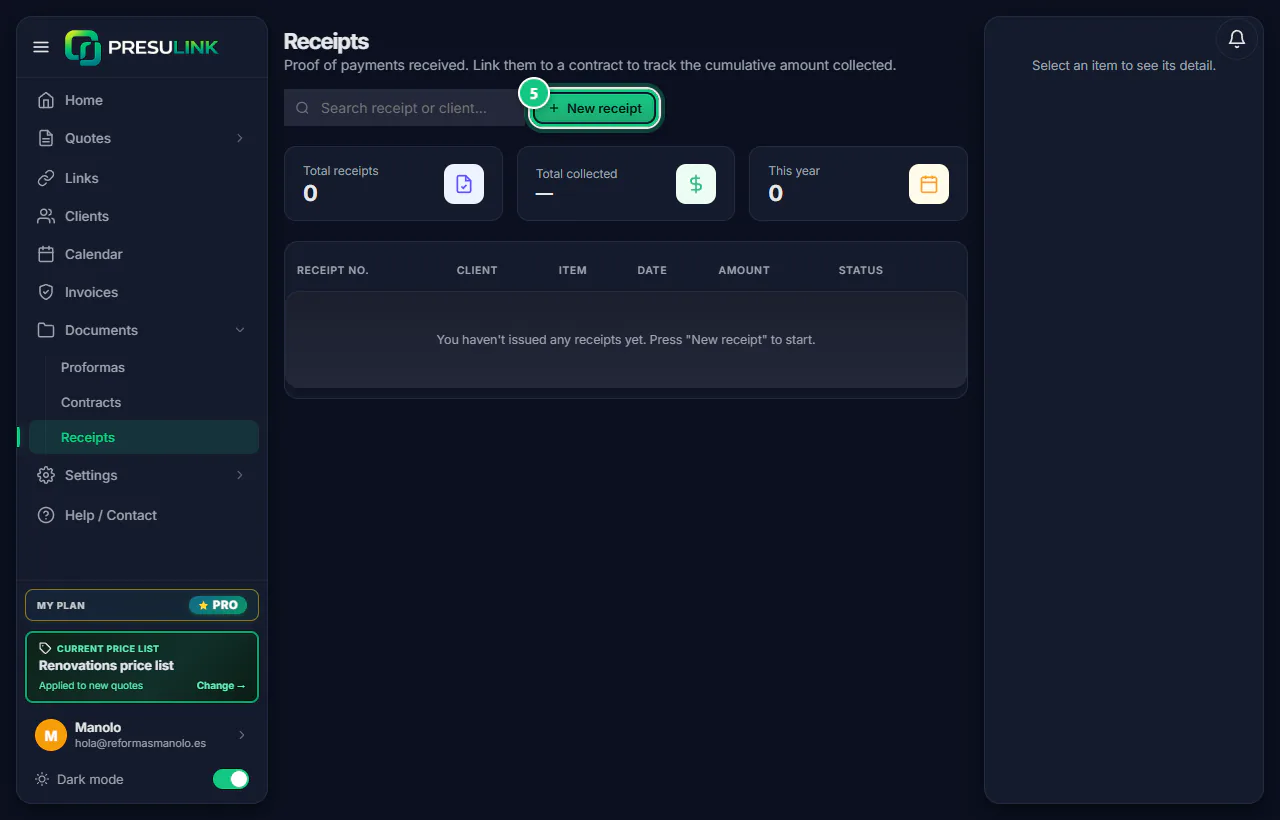
When you get paid: Documents › Receipts › New receipt.
-
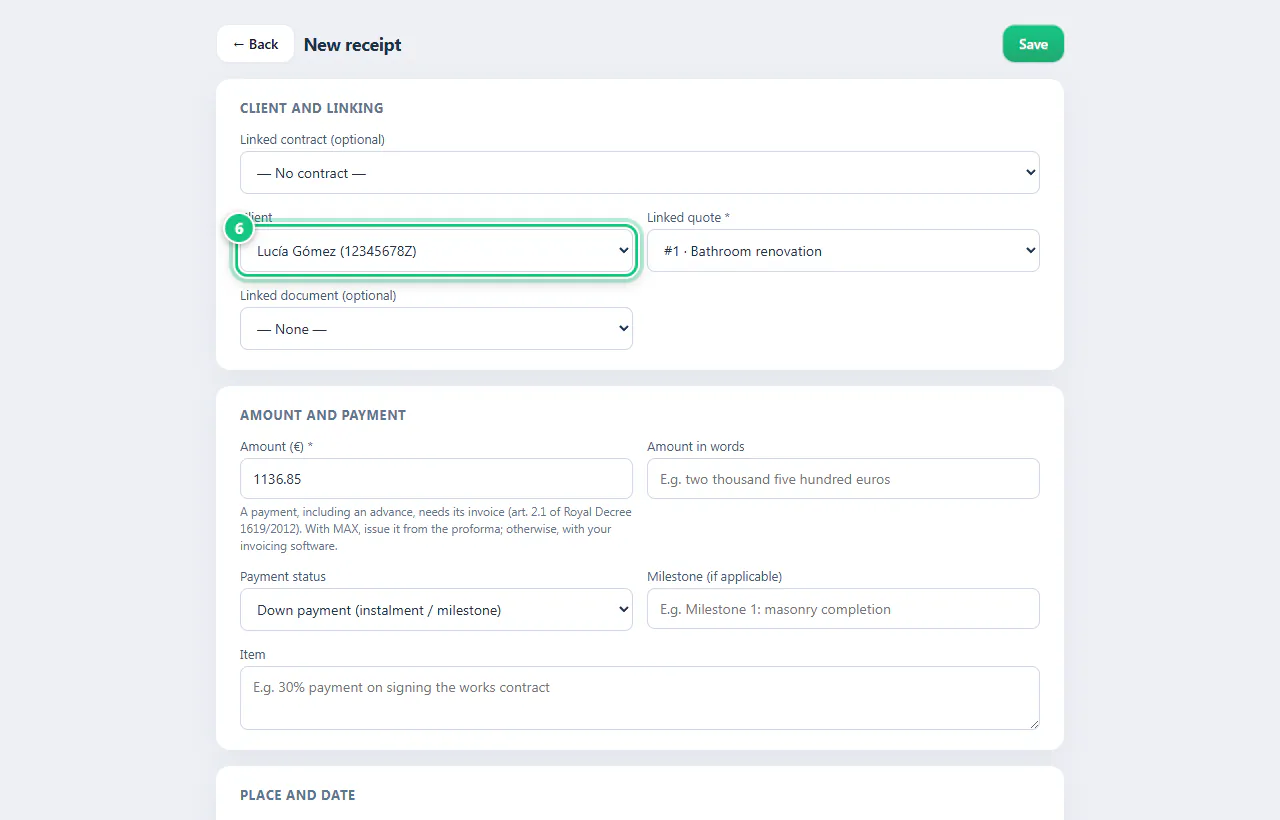
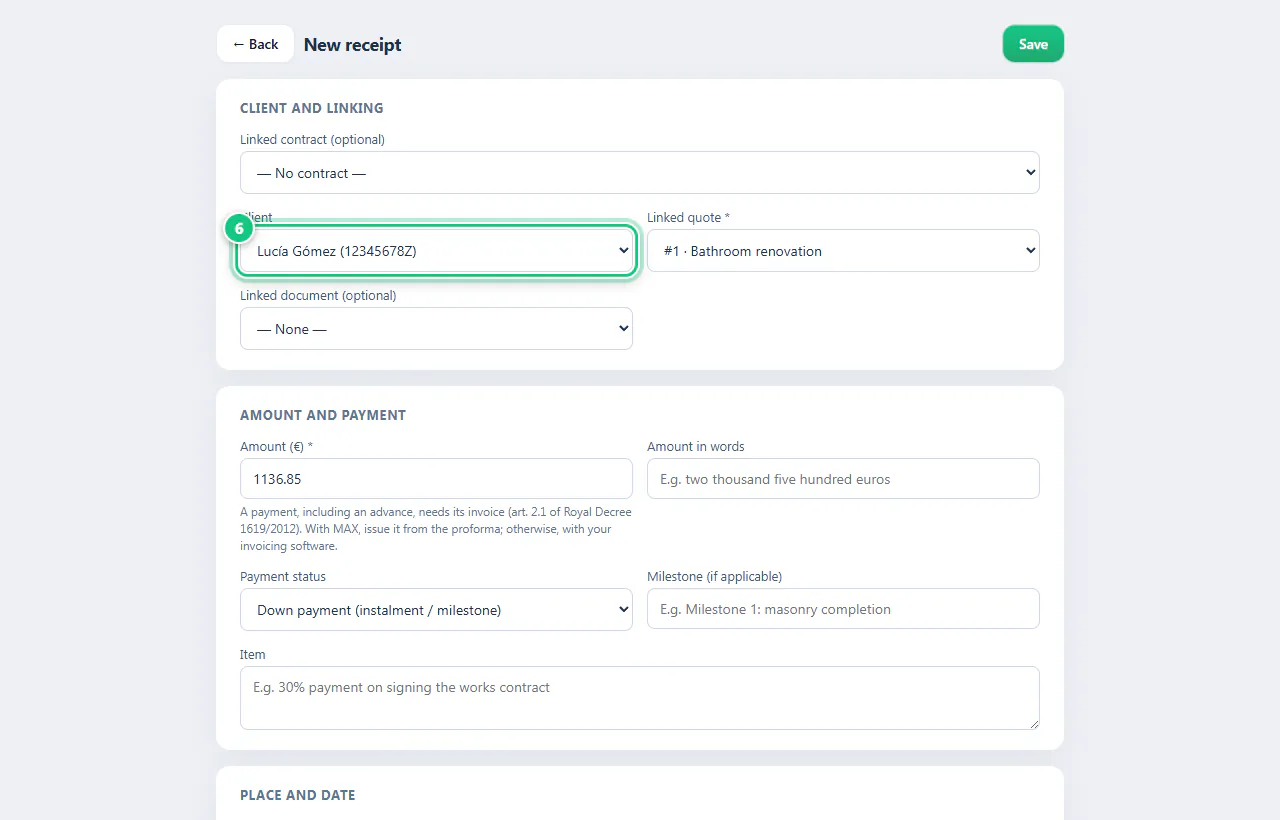
Pick the client and the quote, and type the amount paid.
Note: Picking the contract doesn’t fill in the rest: choose the client and quote yourself.
-
Pick the Payment status, type the item and click Save.
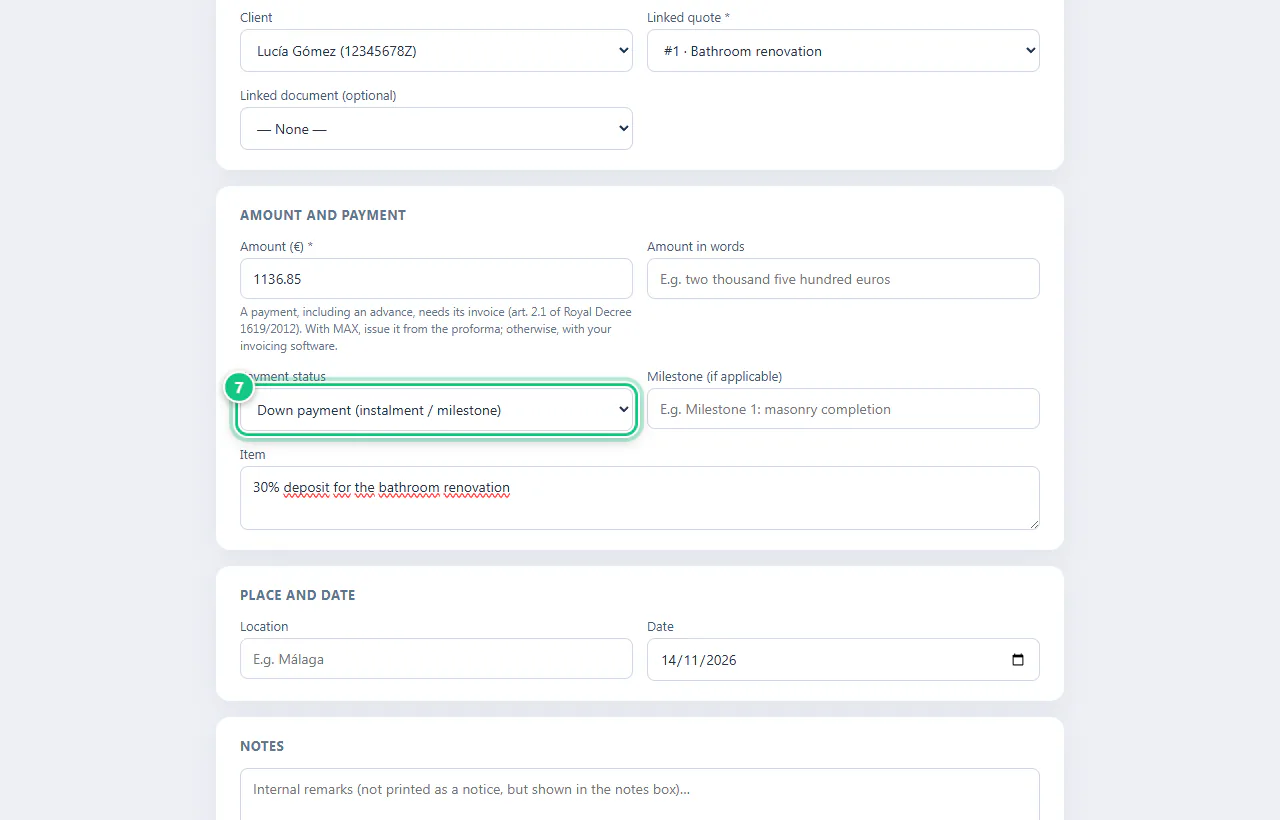
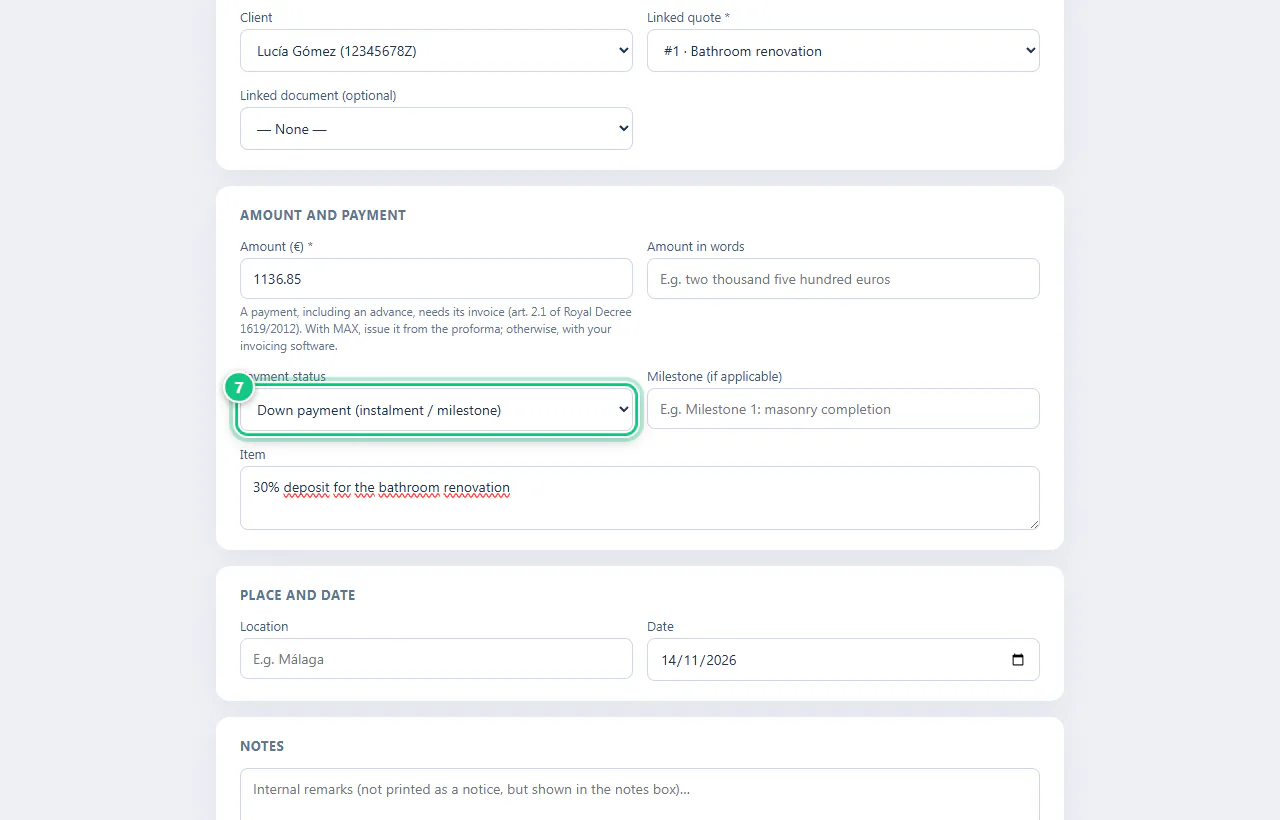
-
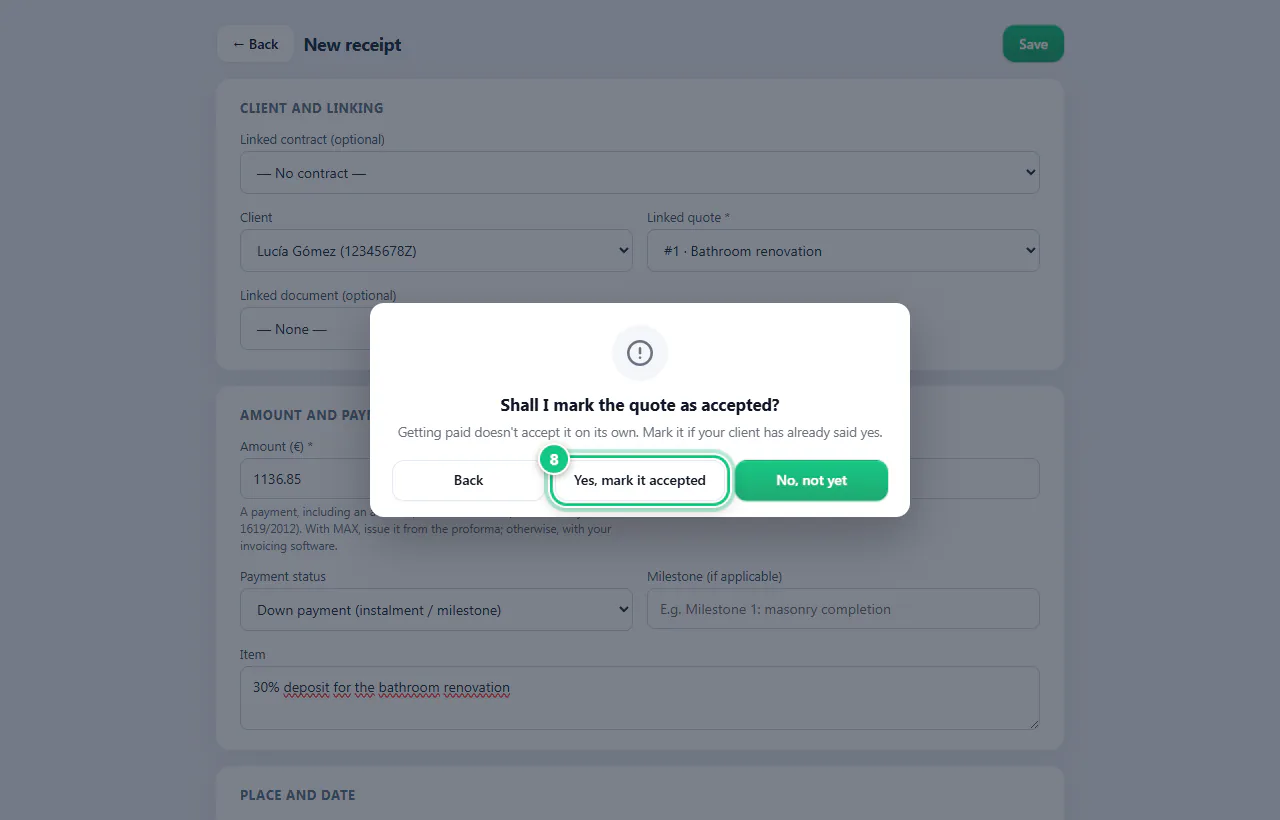
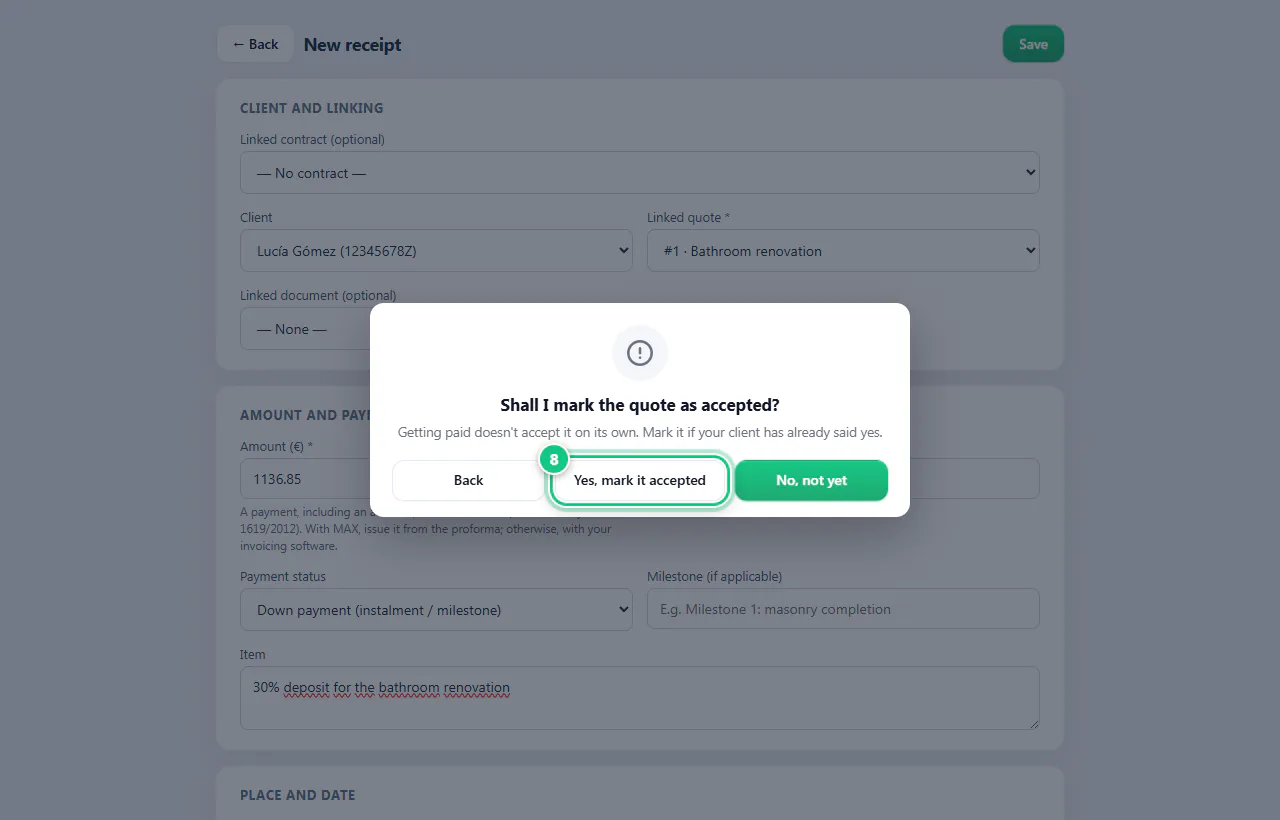
With no proforma yet, it asks to mark it accepted: Yes, mark it accepted.
Note: Once the proforma exists it already counts as accepted and doesn’t ask.
-
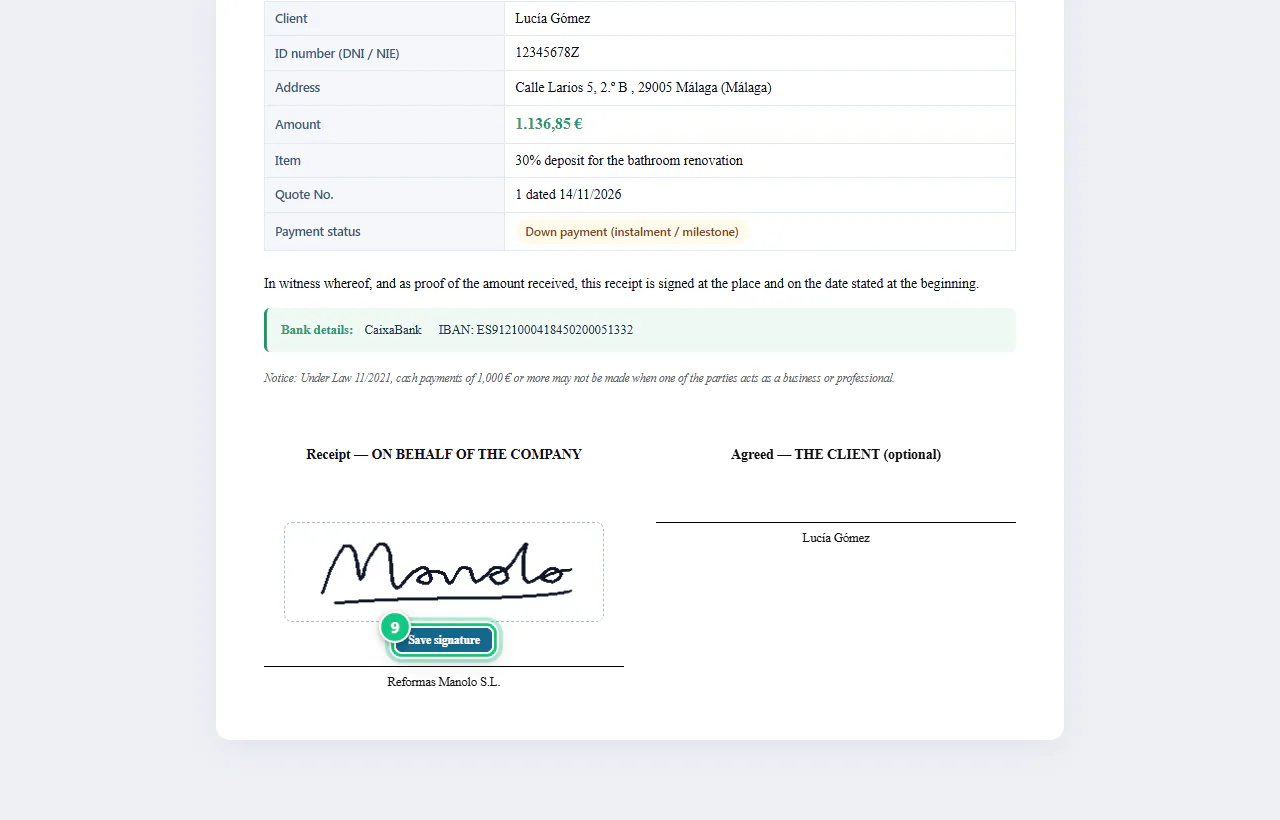
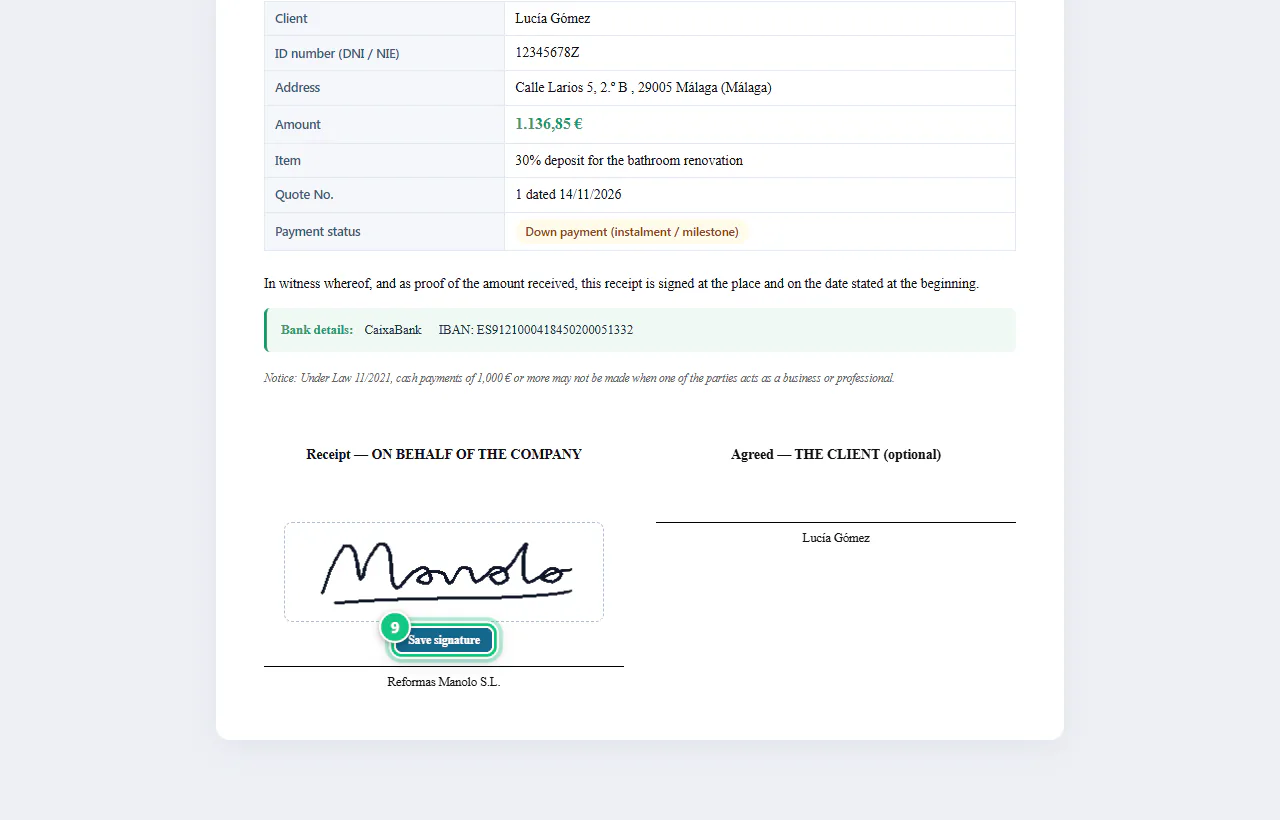
Sign the receipt and click Save signature.
-
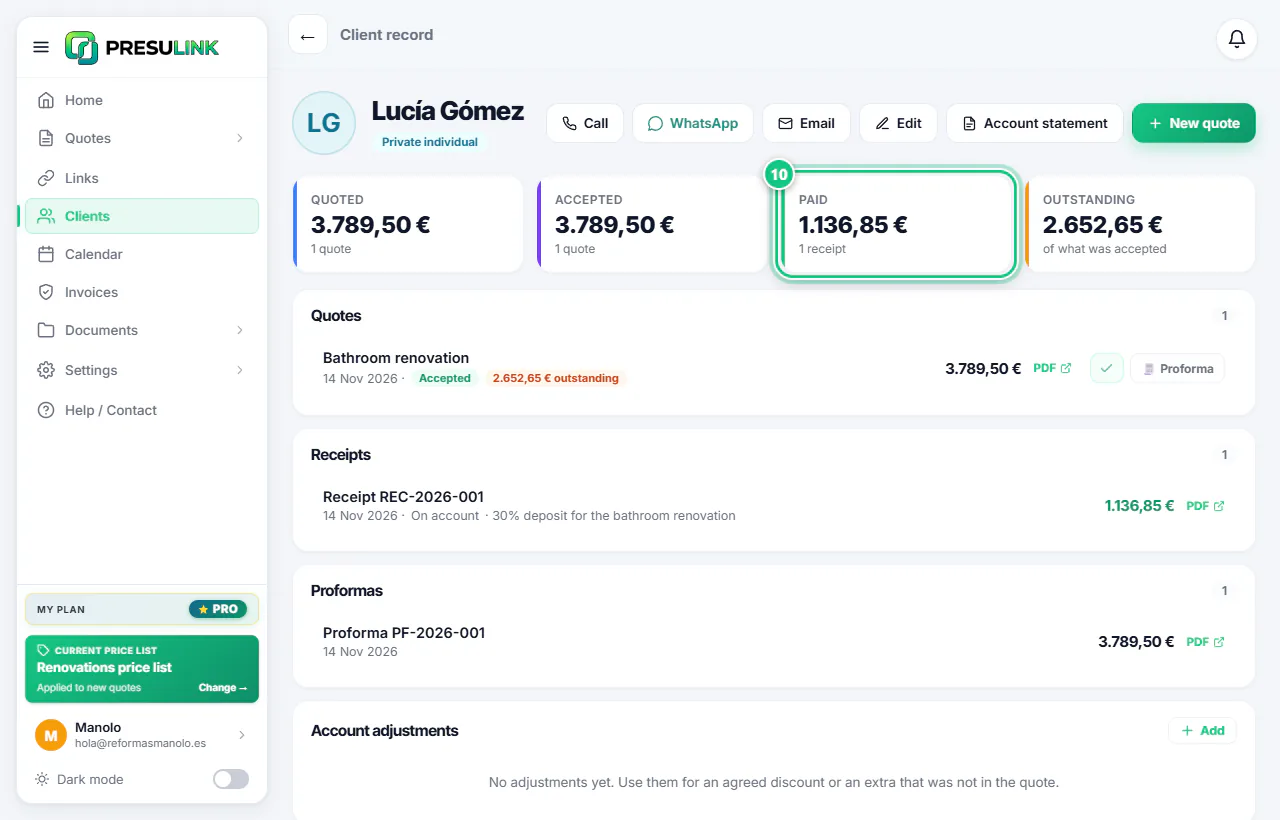
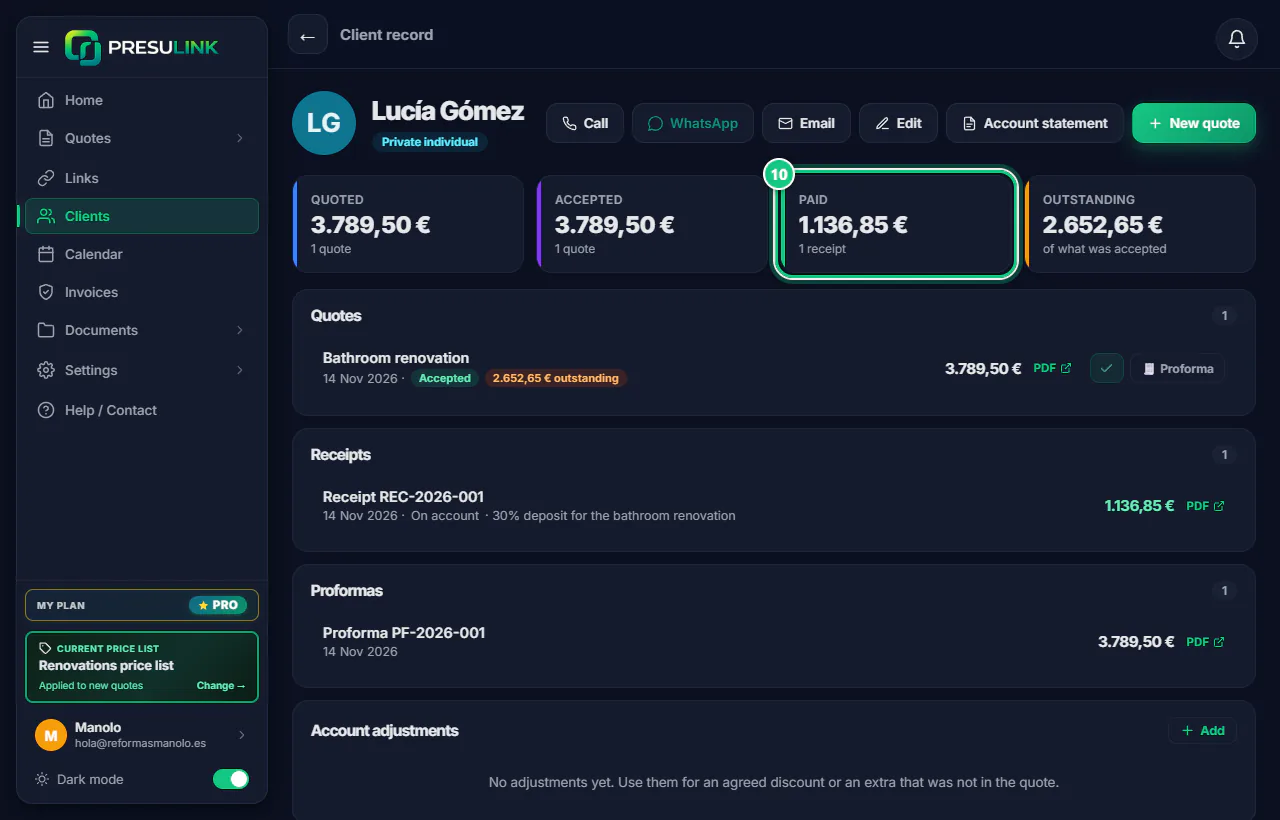
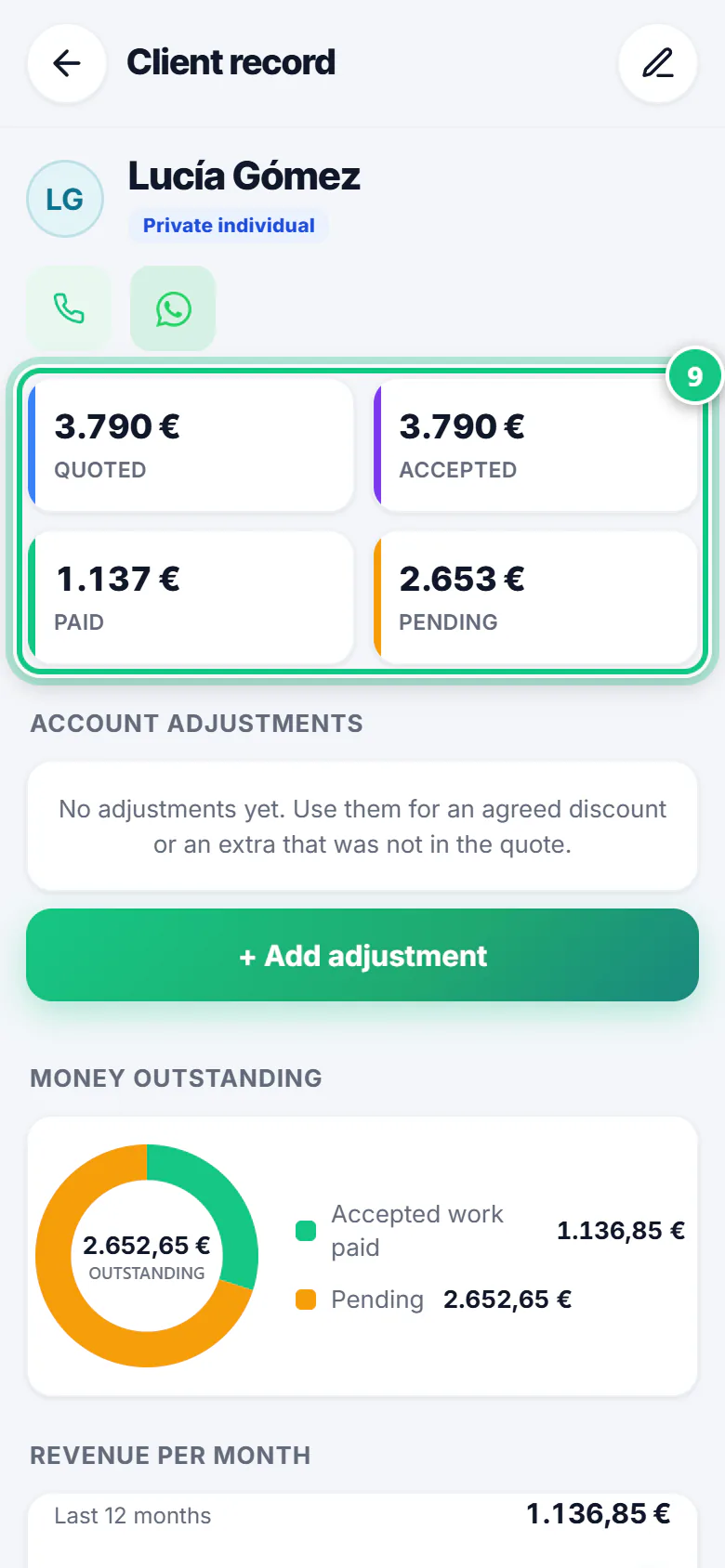
On the client’s page: Paid, Outstanding and Account statement.
Note: Account adjustments for discounts or extras.
-
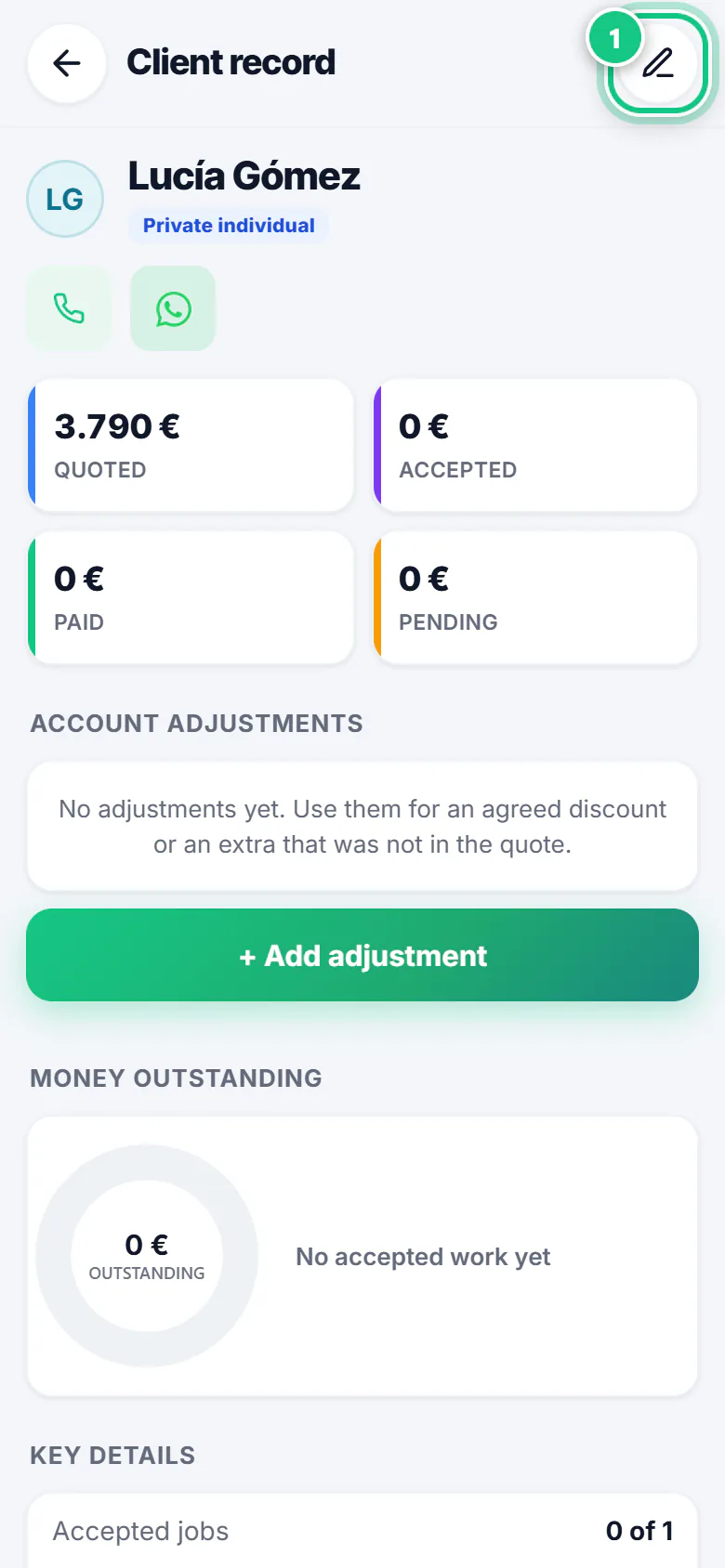
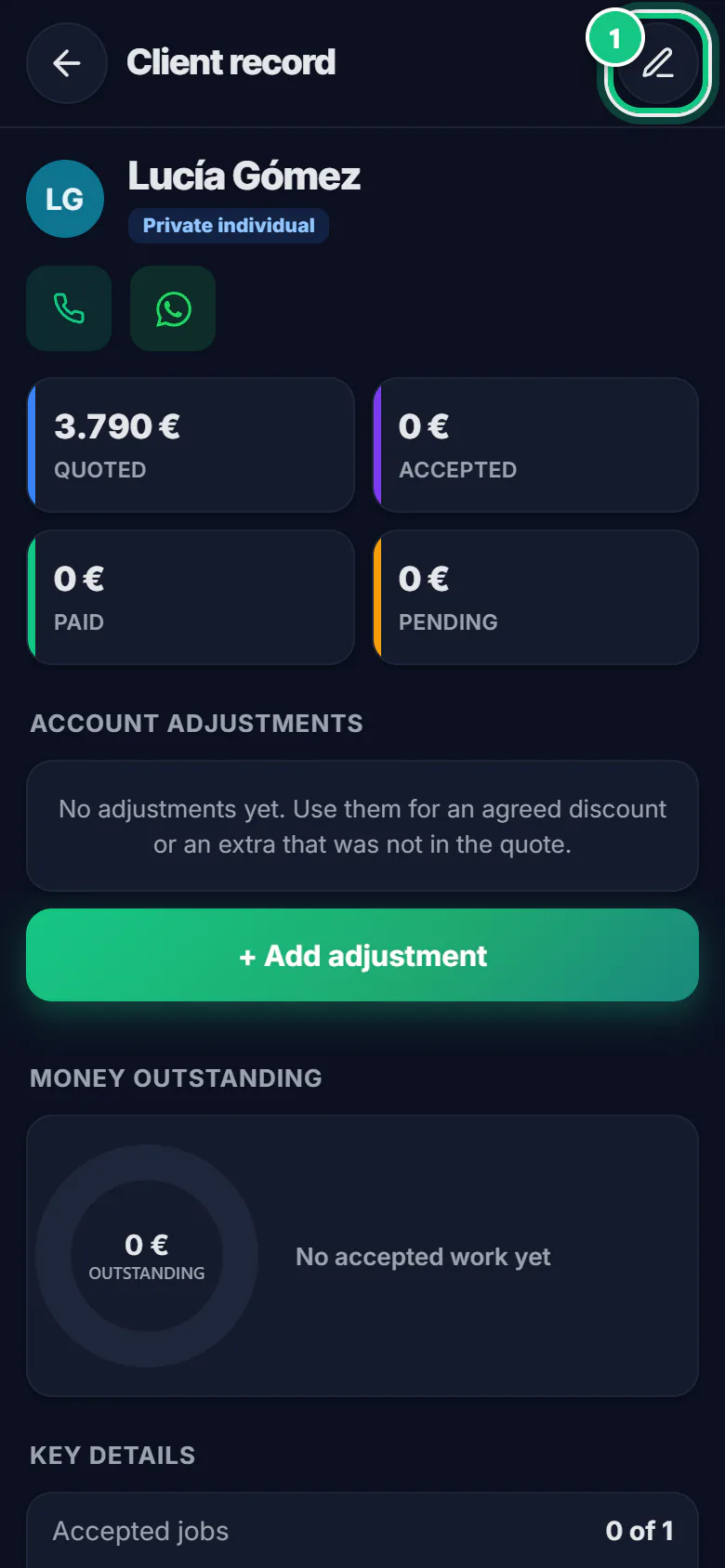
First, their tax ID: tap Clients, open the client and edit their details.
Note: Without the client’s tax ID you can’t create the proforma. Nor without your company’s tax ID.
-
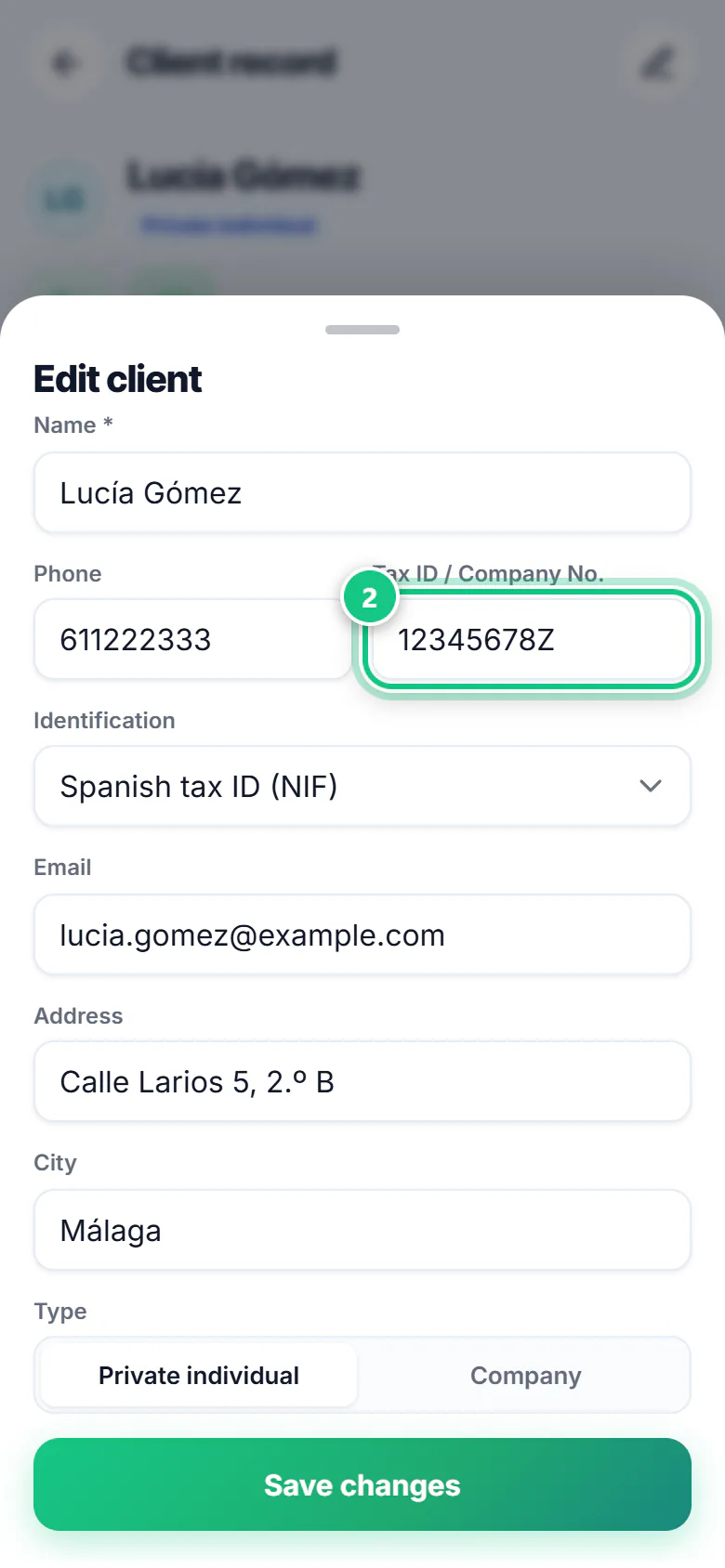
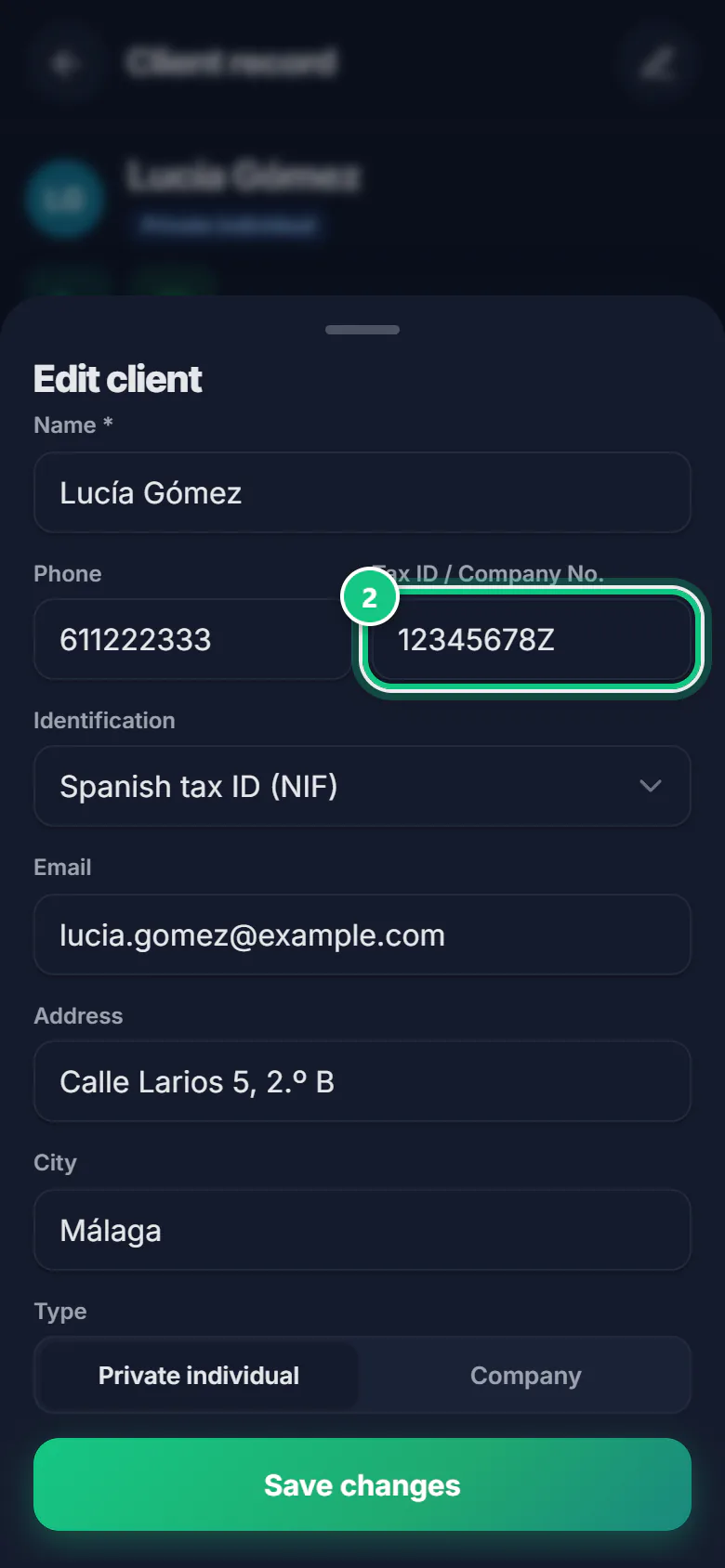
Type their Tax ID / Company No. and tap Save changes.
-
Tap Create › Proforma and, under From a quote, pick yours.
Note: Look at the PRES-… number and the amount. Confirm with Create proforma.
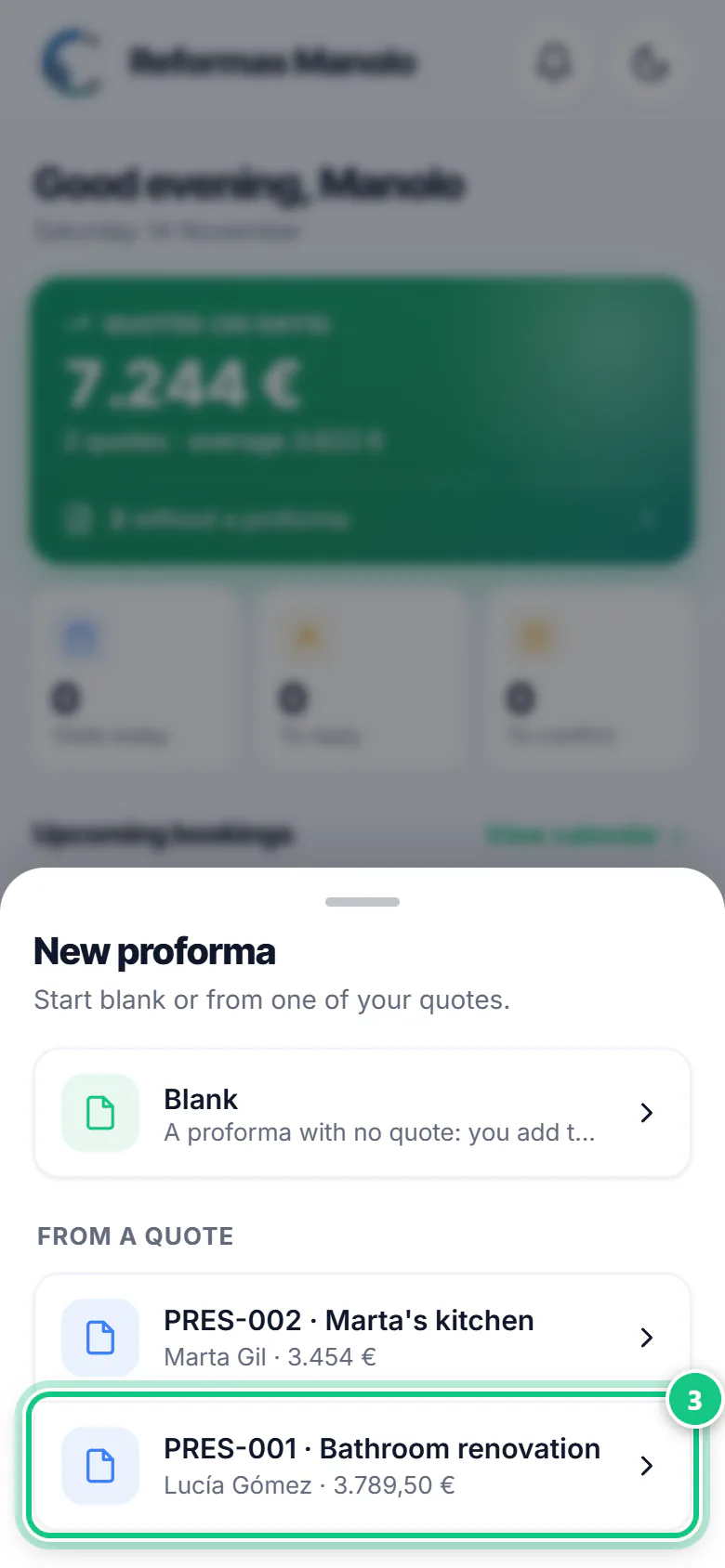
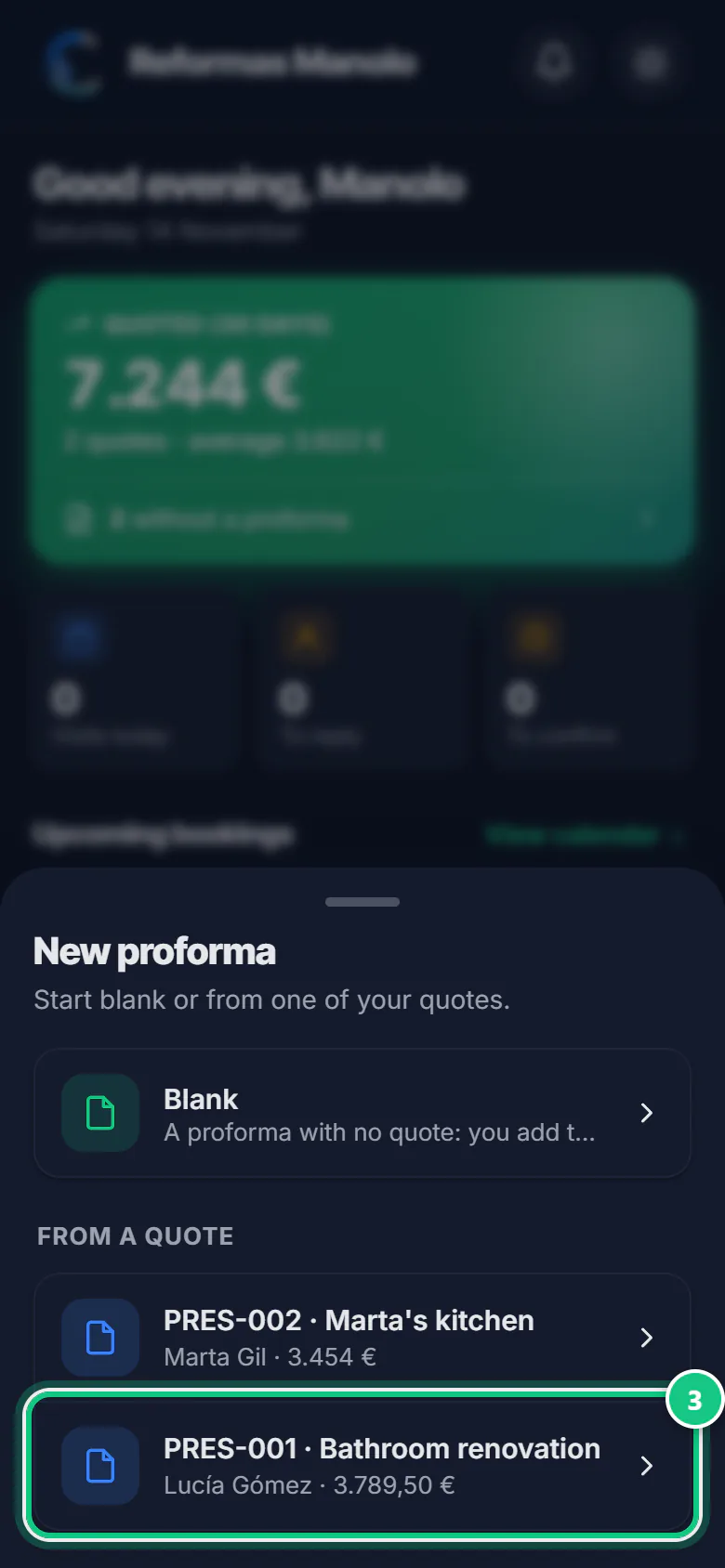
-
Check the proforma and send it from Documents › Proformas.
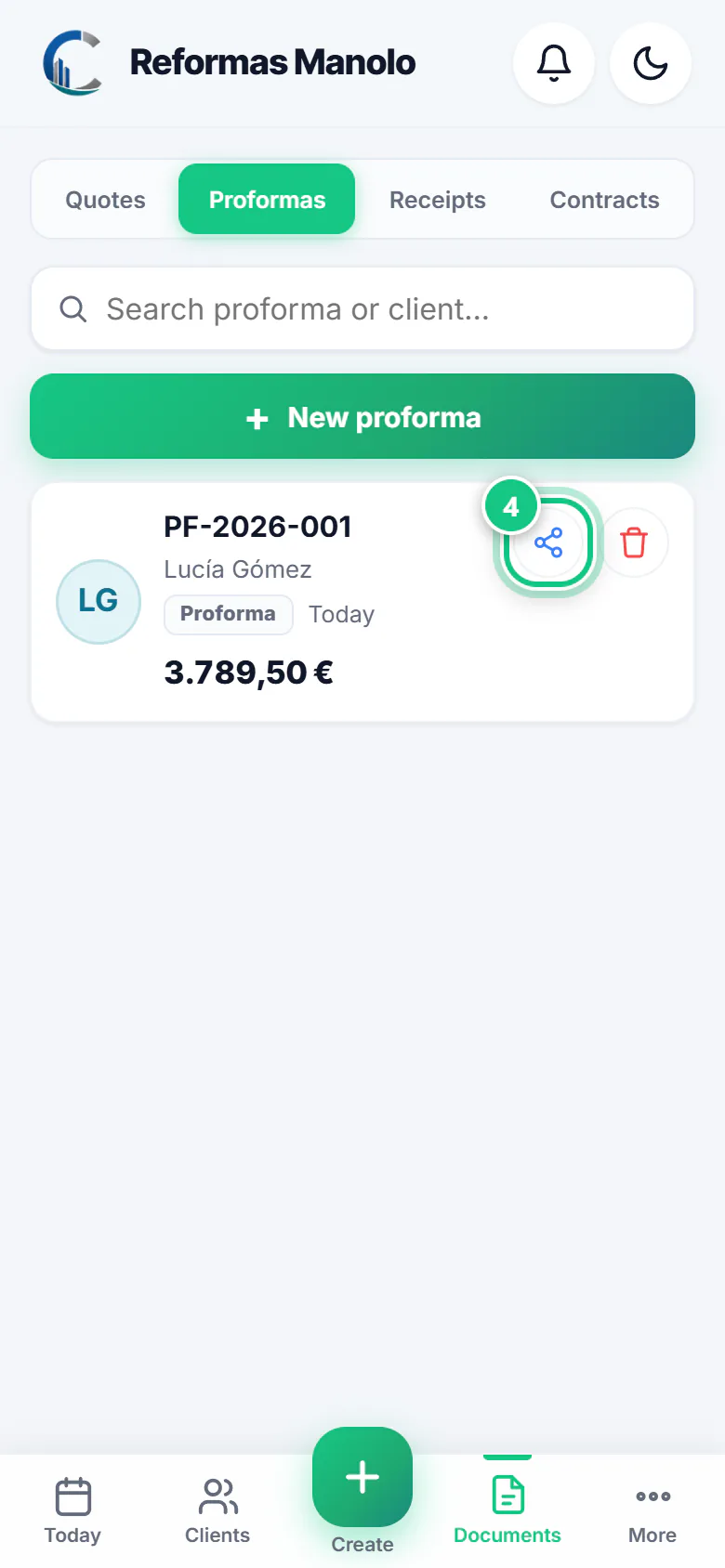
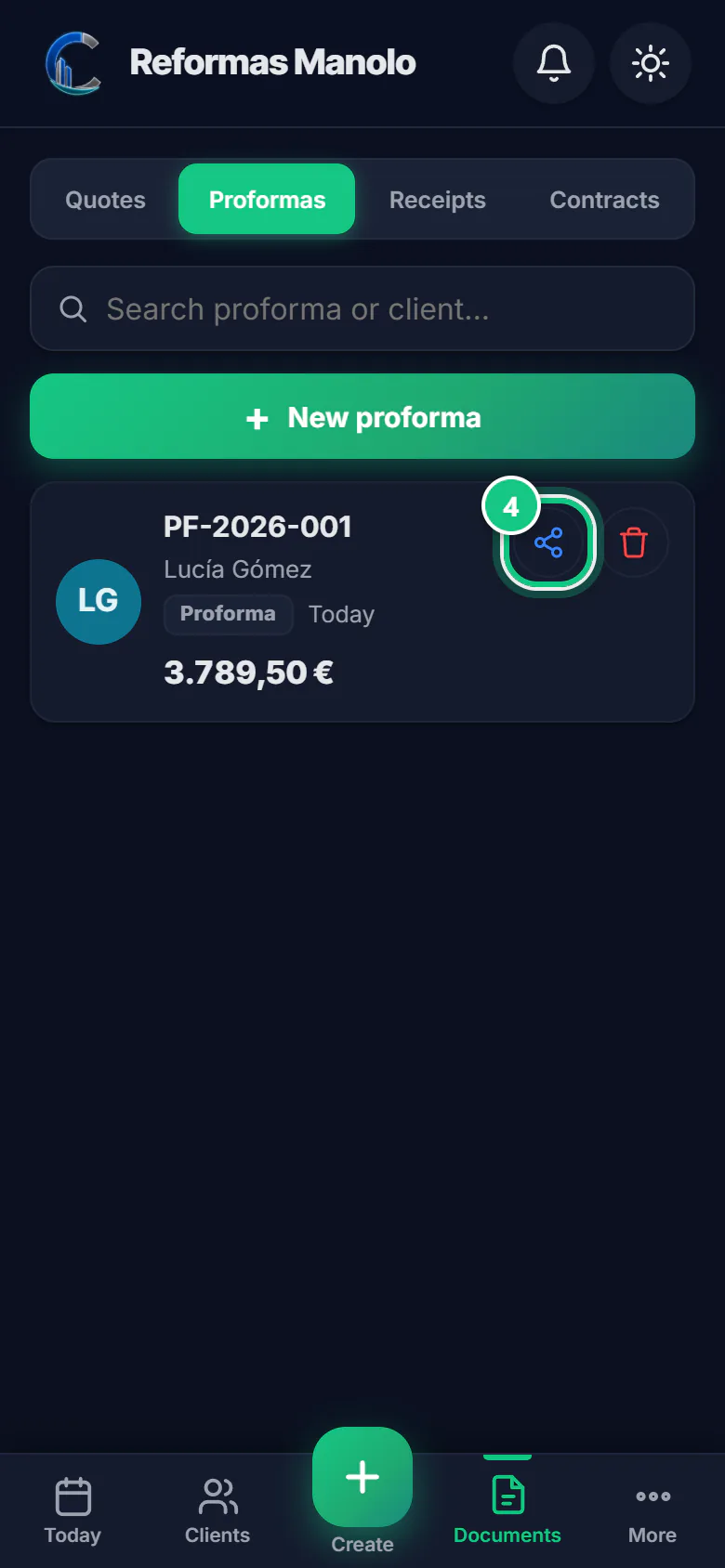
-
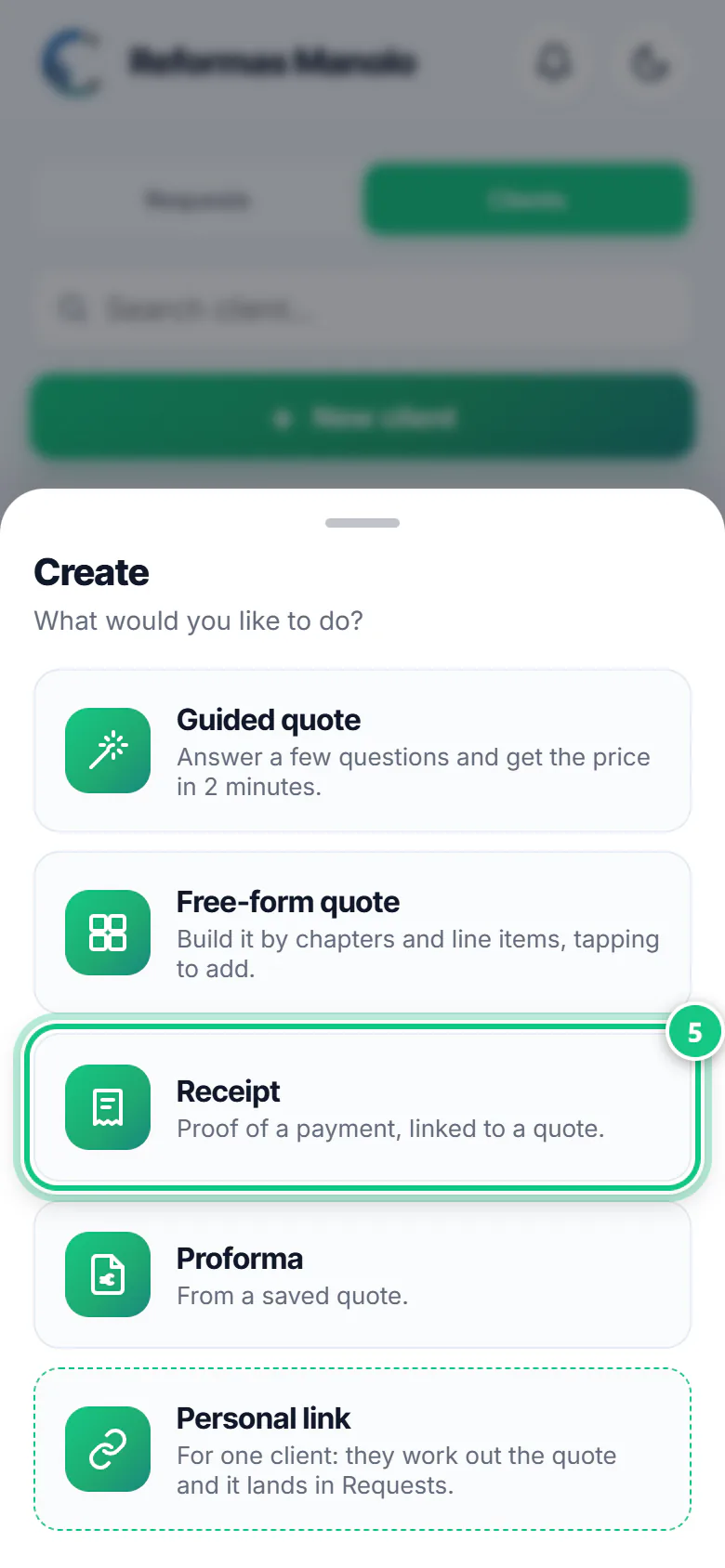
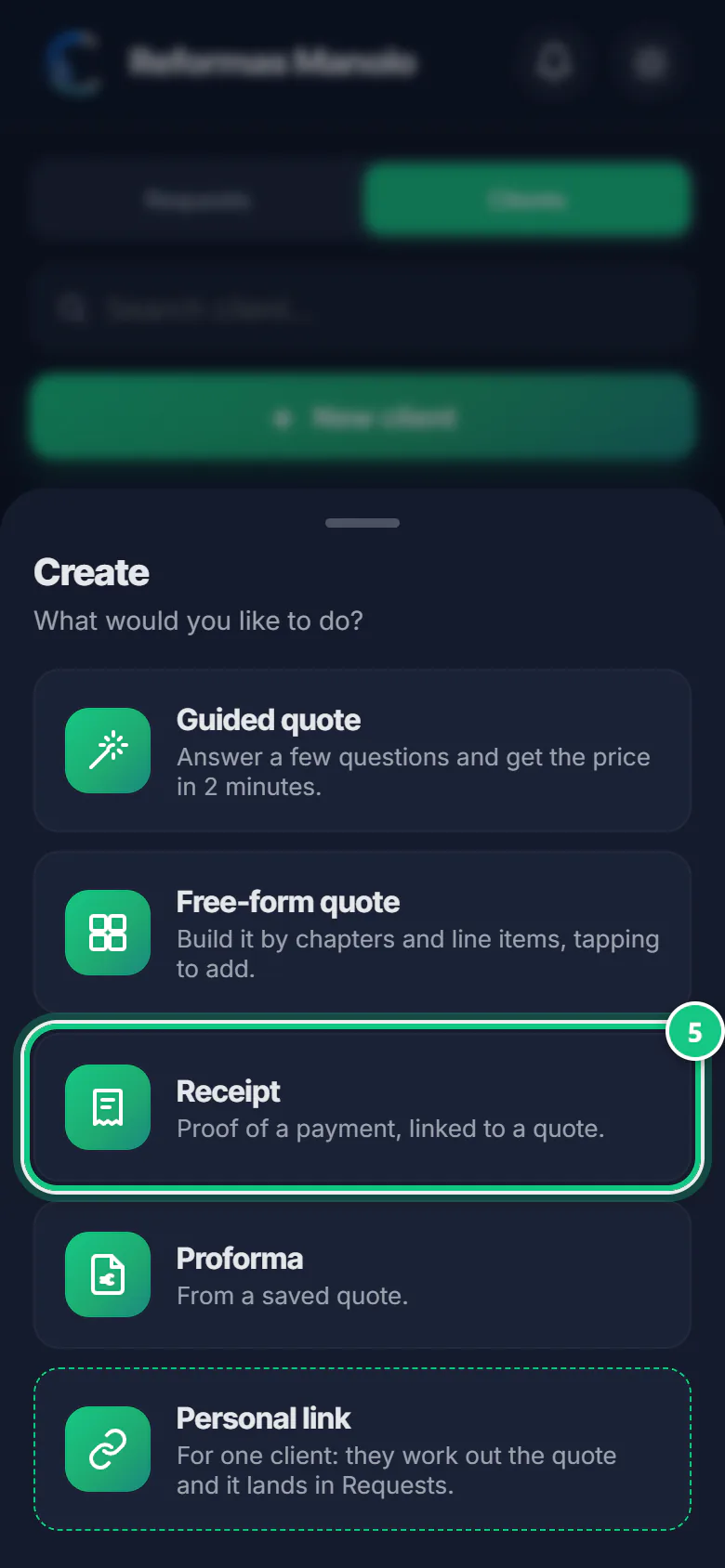
When you get paid: tap Create › Receipt.
-
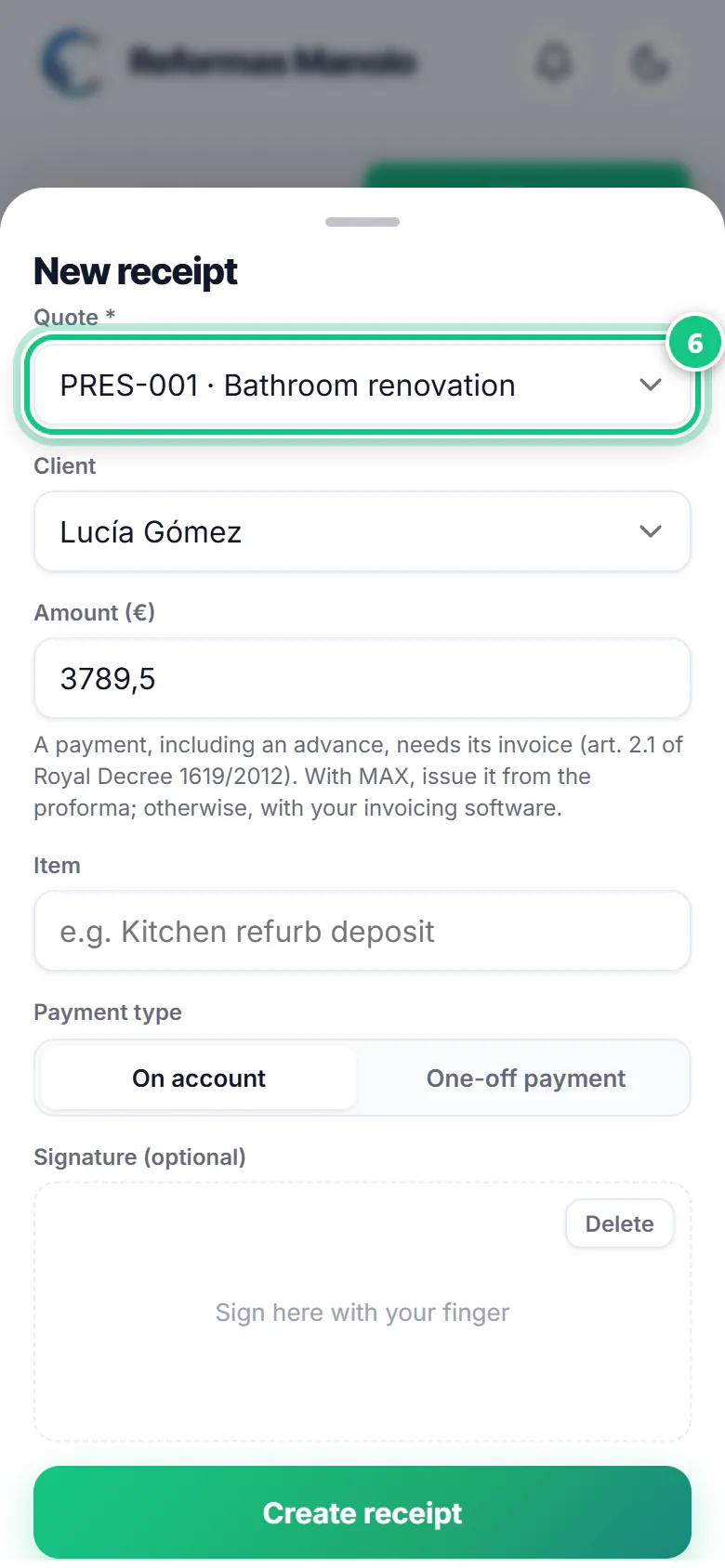
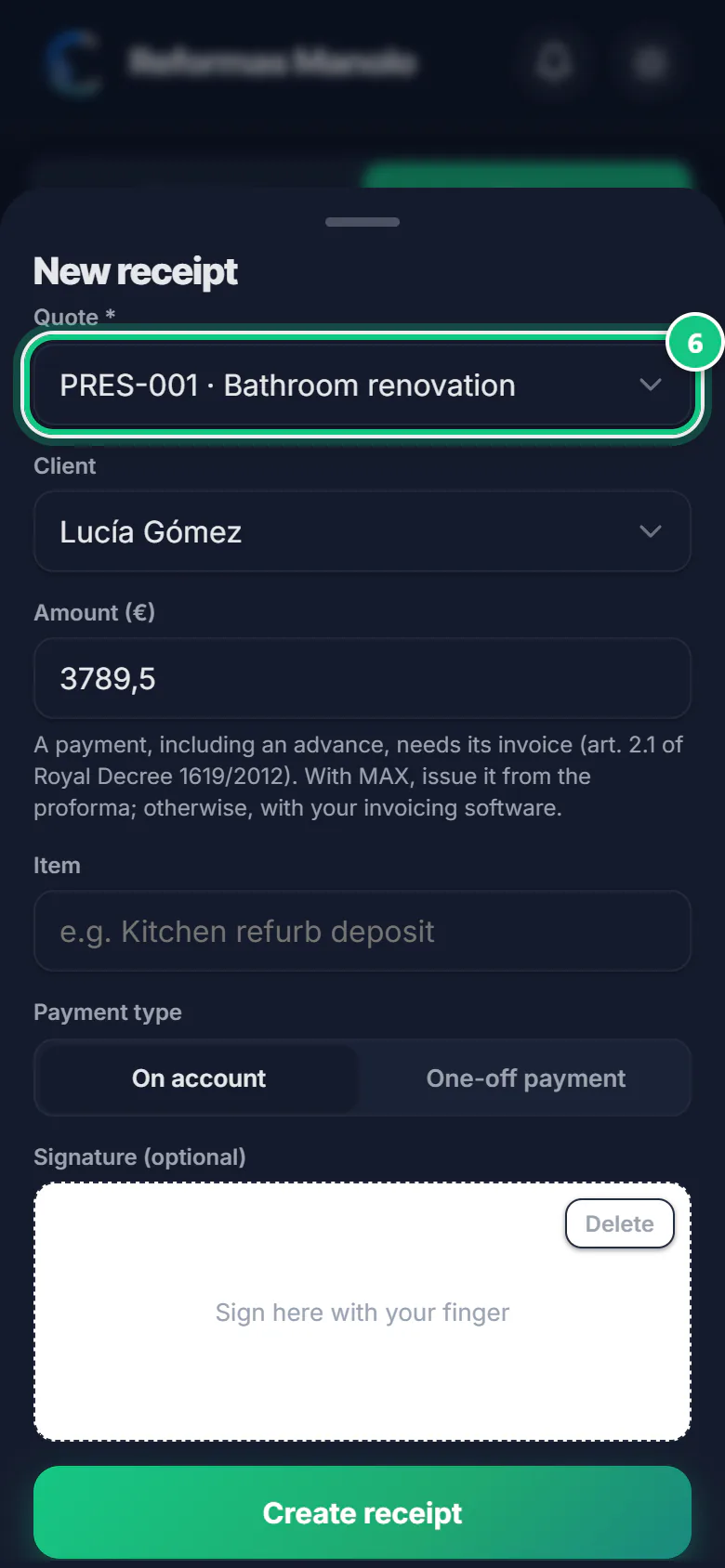
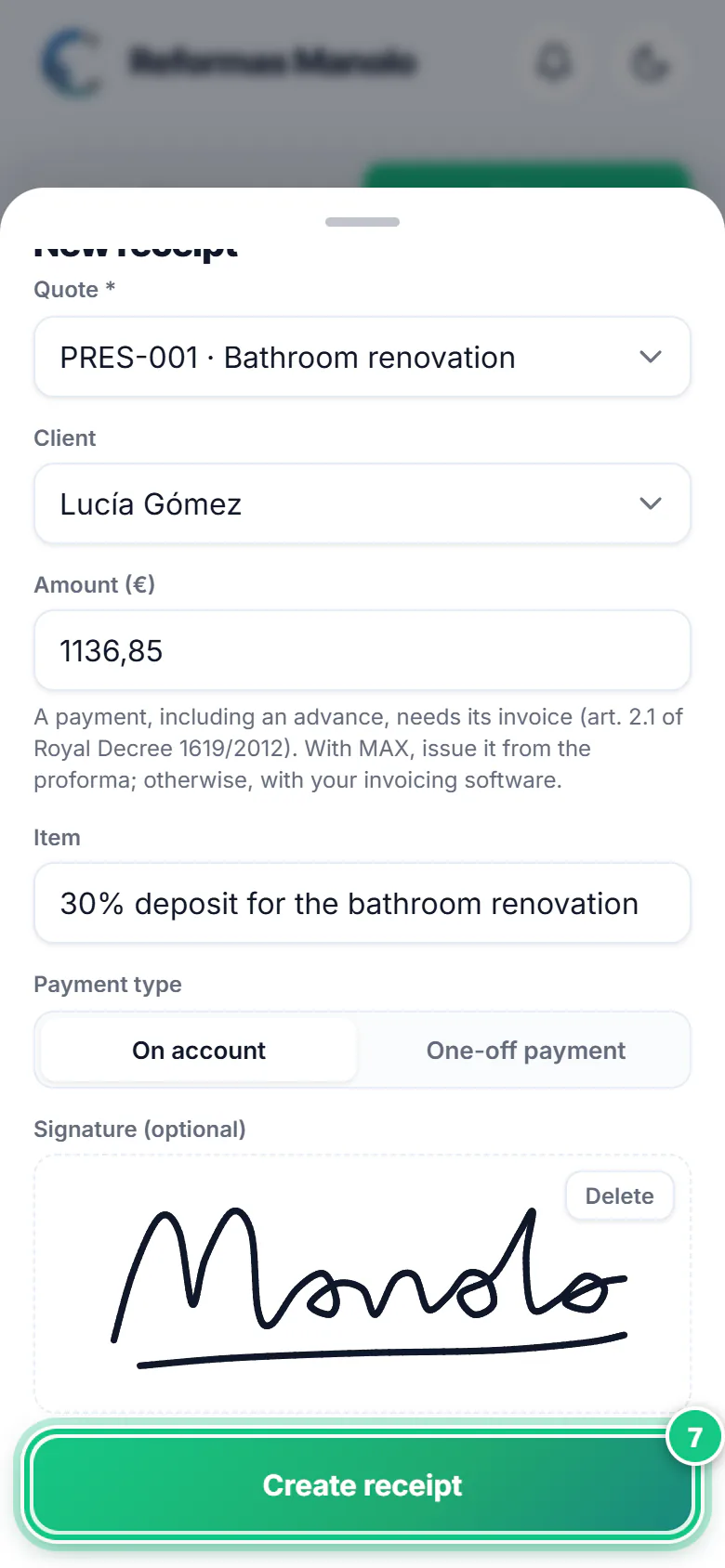
Pick the quote (check its PRES-… number): the client fills in by itself.
Note: The amount shows the full total: delete it and type what you were paid.
-
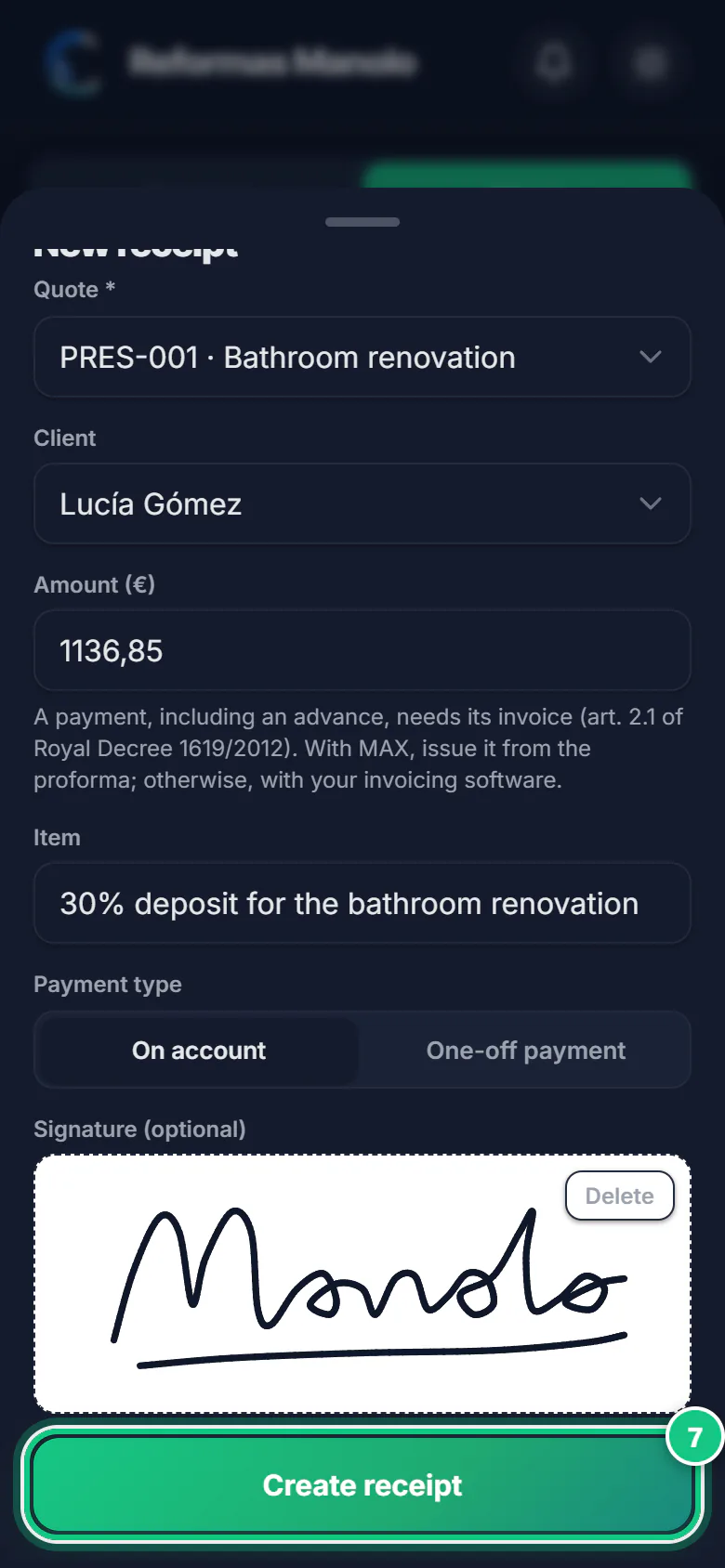
Enter what you were paid, the item and the payment type. Sign and tap Create receipt.
-
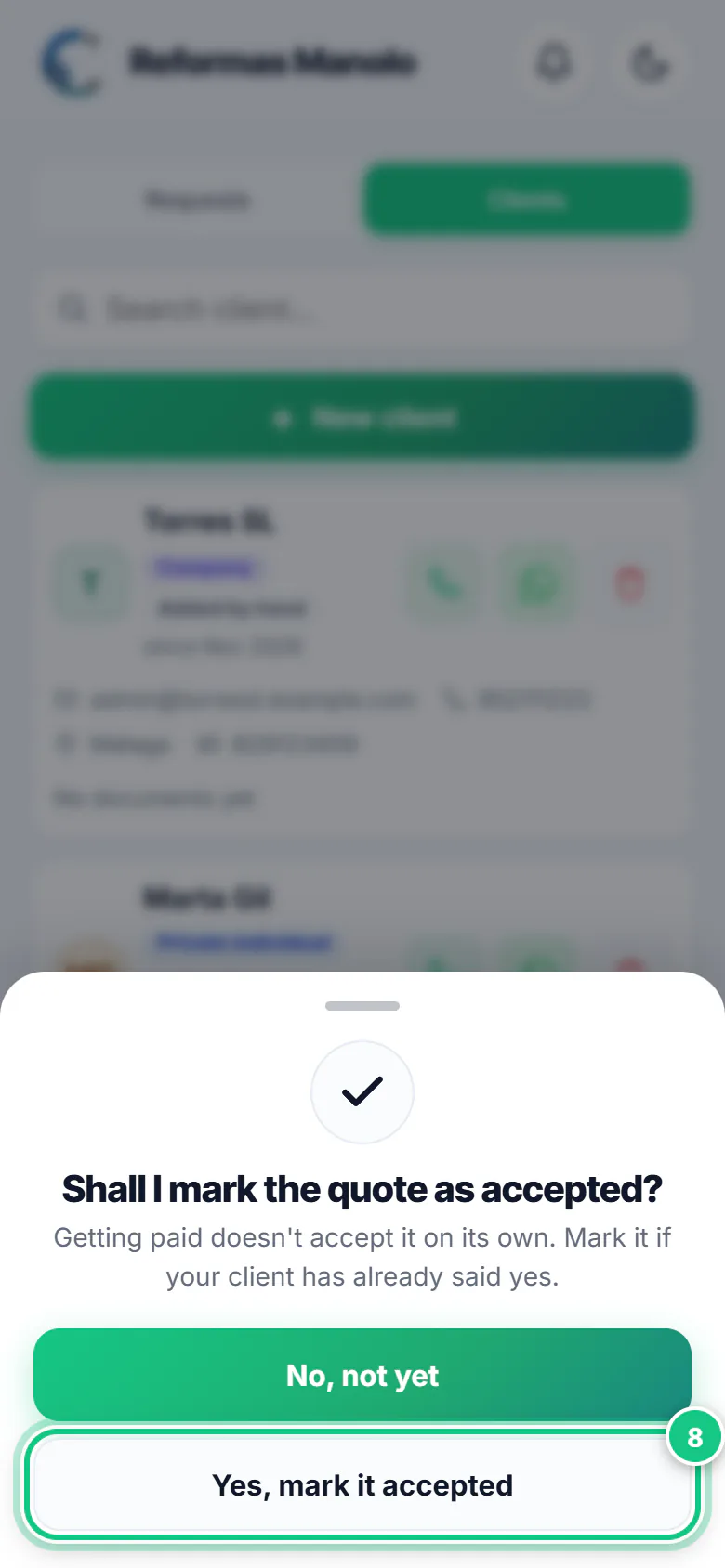
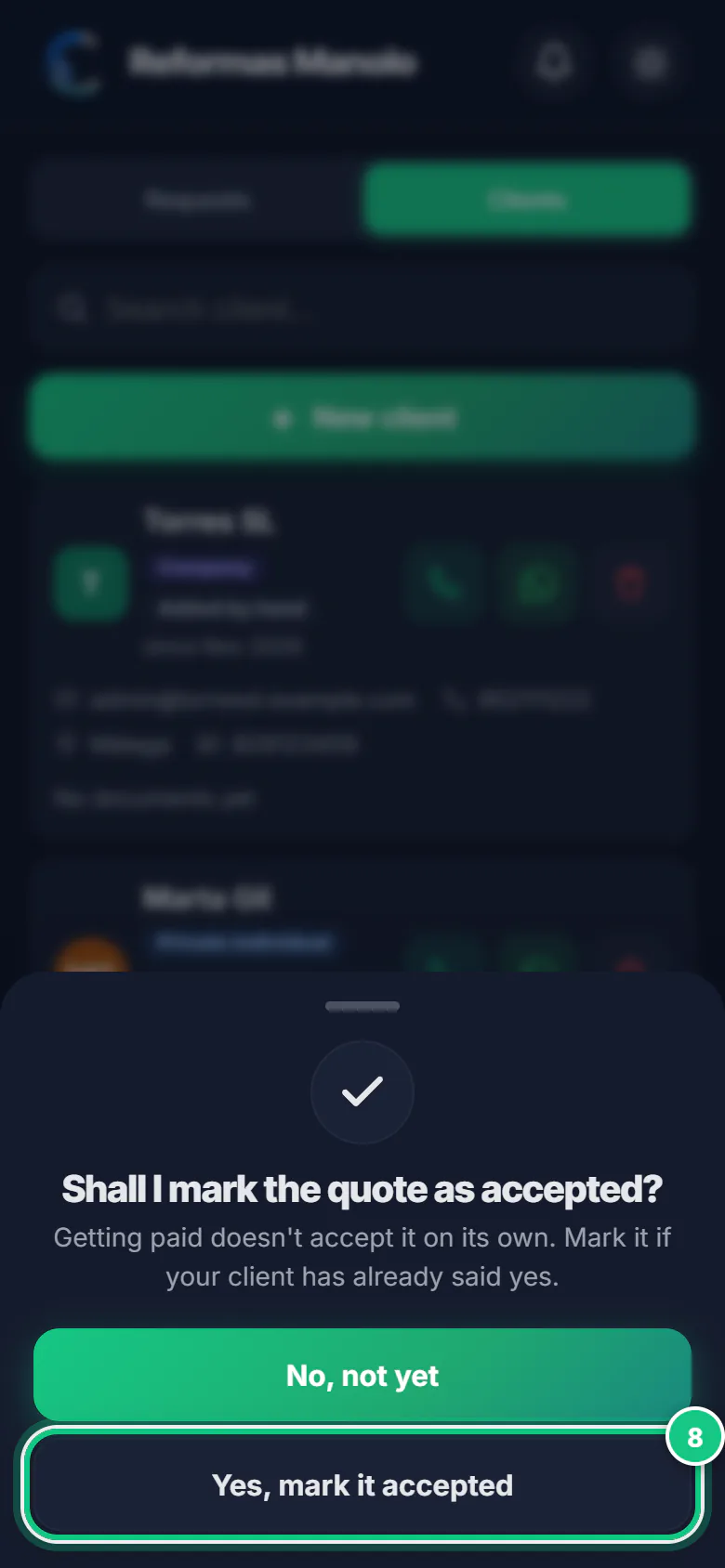
With no proforma yet, it asks to mark it accepted: Yes, mark it accepted.
Note: Once the proforma exists it already counts as accepted. Accept it by hand? On the client’s page, Accept.
-
In Clients, open the client: you see Paid and Pending.
Note: Further down, Account statement as PDF to send it. And + Add adjustment for discounts or extras.
Where people get stuck
- It won’t let you create the proforma? The client’s tax ID (step 1) or yours is missing: More › your business name › Details.
- It won’t let you create the proforma? The client’s tax ID (step 2) or yours is missing: Settings › My company.
- Amounts without thousands separators: 1136.85, not 1,136.85.
- Cash of €1,000 or more: not allowed between a business and an individual. Spanish Law 11/2021: the receipt reminds you.
- A proforma is not an invoice. The verified invoice (Verifactu) comes with the MAX plan, which is in a pilot today.
Open it in the app
On your phone
Open the PRESULINK app and go to:
Create›Receipt
On your computer
Takes you to that screen. If you are not logged in, it asks you to log in first and then takes you there.
Open ReceiptsOn a computer, at app.presulink.es: Documents›Receipts
Proforma, invoice, receipt and Verifactu explained in pro-forma invoices and documents.