

Links: let your client work out their own quote
Which link to send when, how to send it on WhatsApp or as a QR code, and what your client sees on the other side.
Your links at a glance
Each one has its QR code. Each one does one thing:
🏠Your page
Your public link with a QR code: it is already made, you just share it. On the computer it is called “Public”. Clients ask for a price, a visit or a call.
Phone: More › Your page · presulink.es/p/your-business
👤Personal link
For ONE specific client. Their quote reaches you with their name.
Phone: Create › Personal link · Computer: Links › Individual
📅Booking link
Only for booking a visit in your free slots.
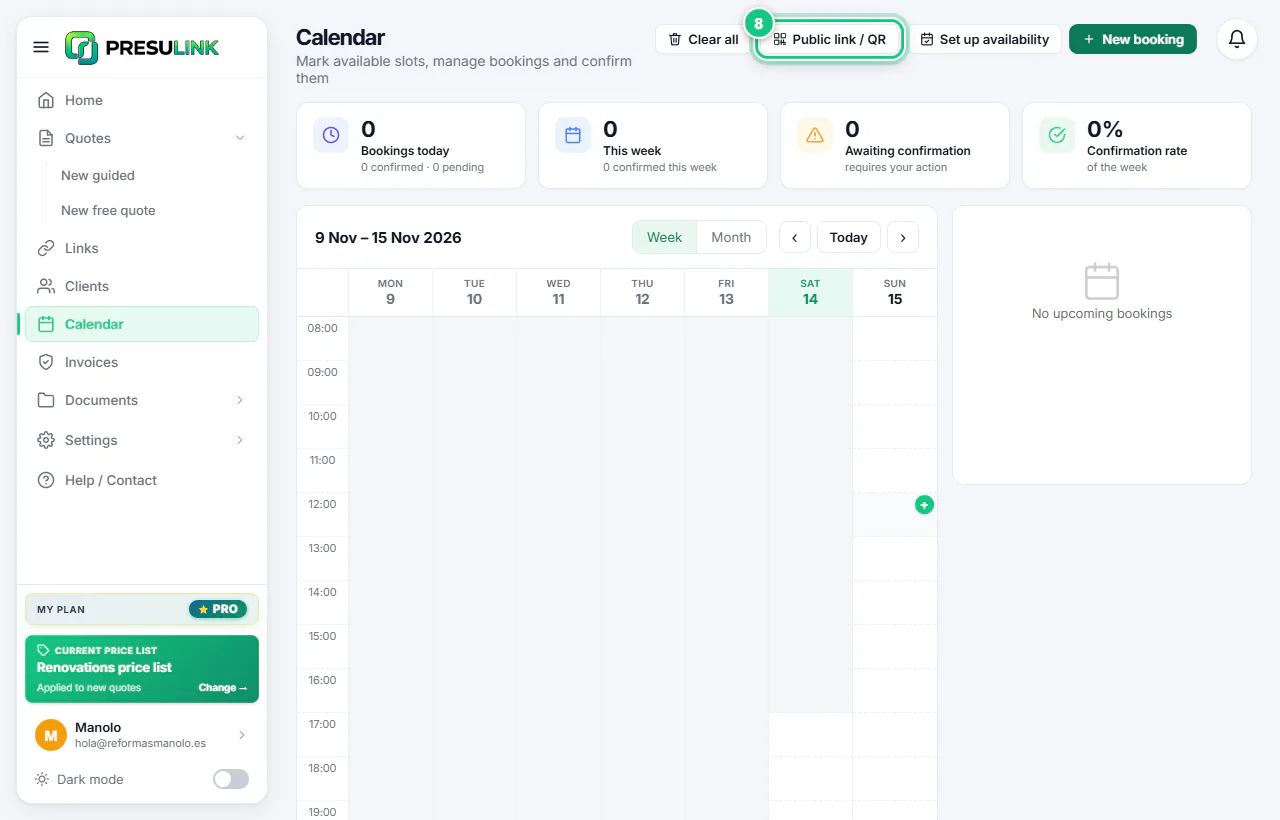
Computer: Calendar › Public link / QR · calendar
Step by step
“Your page” is managed from the phone only. On the computer you have quote links and the booking link.
-
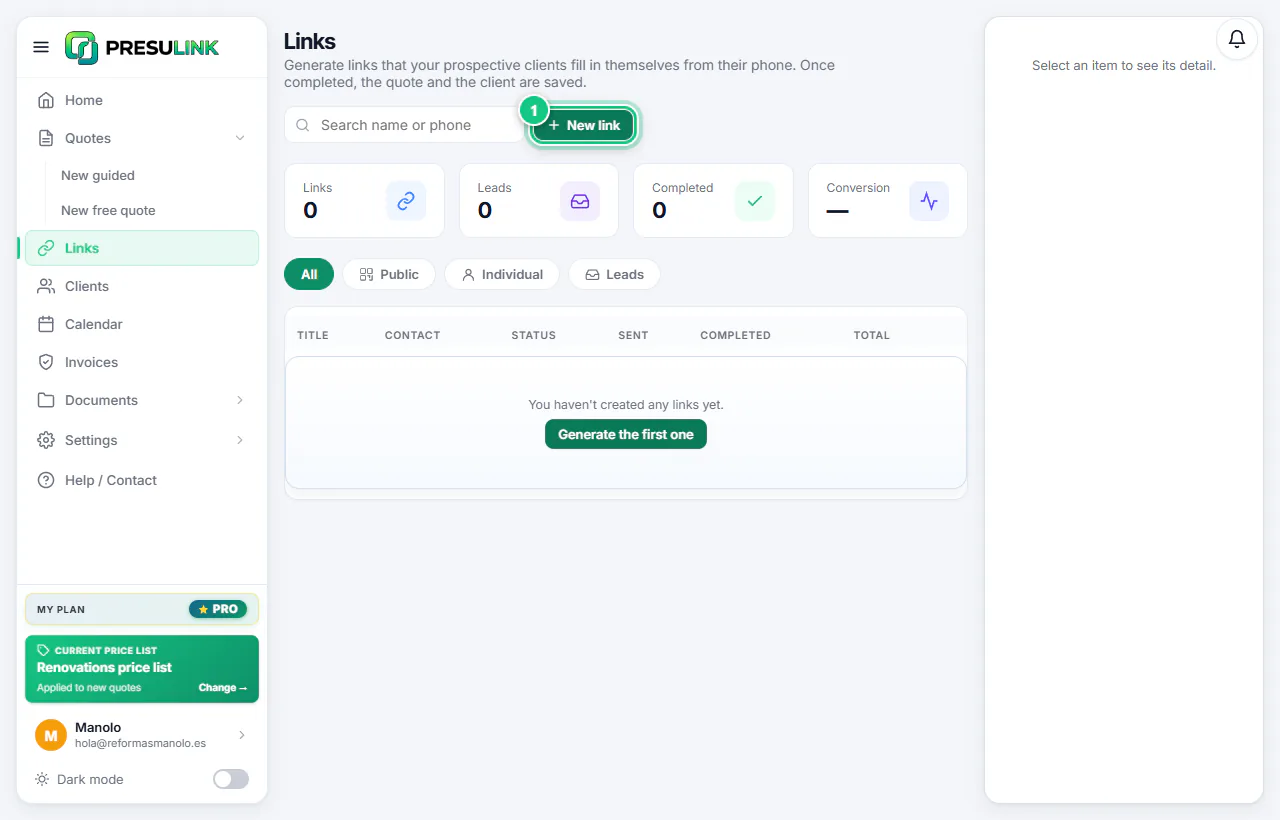
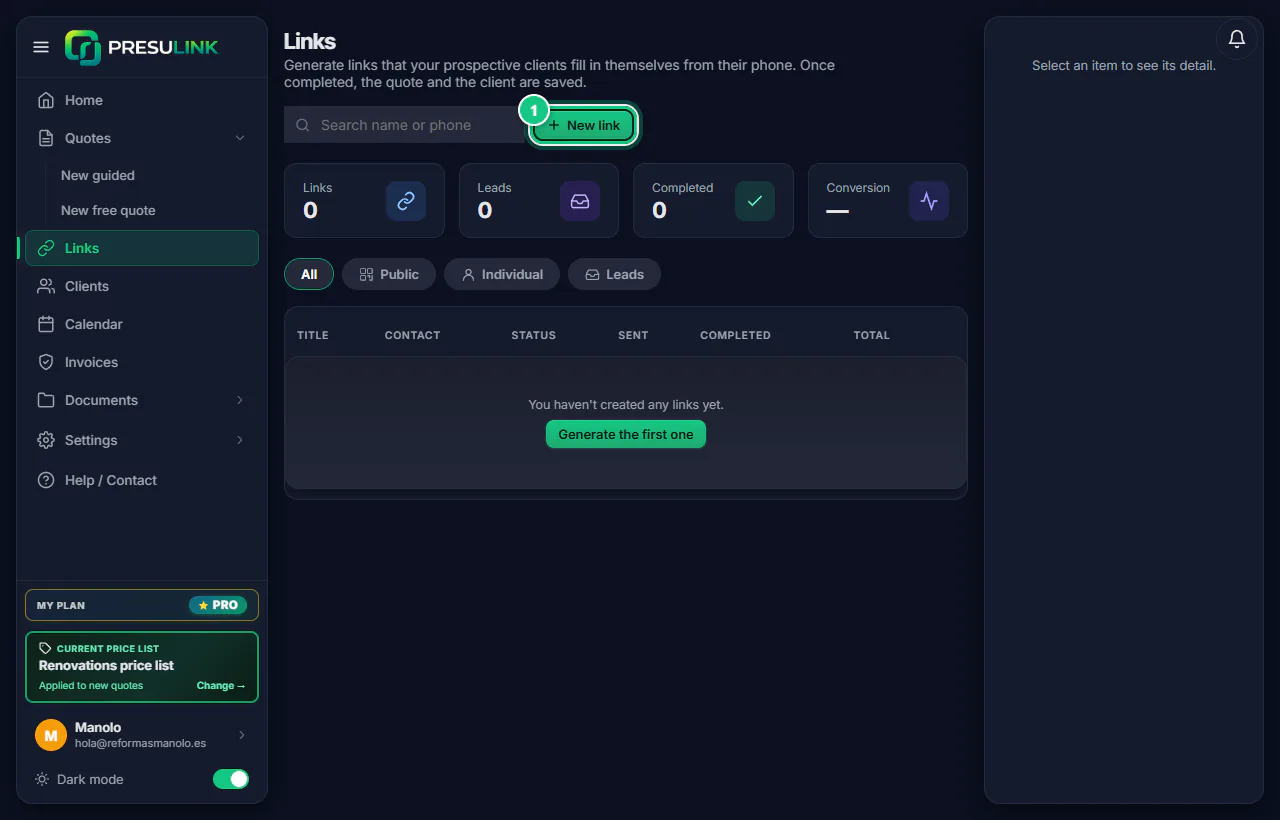
Click Links, then New link.
-
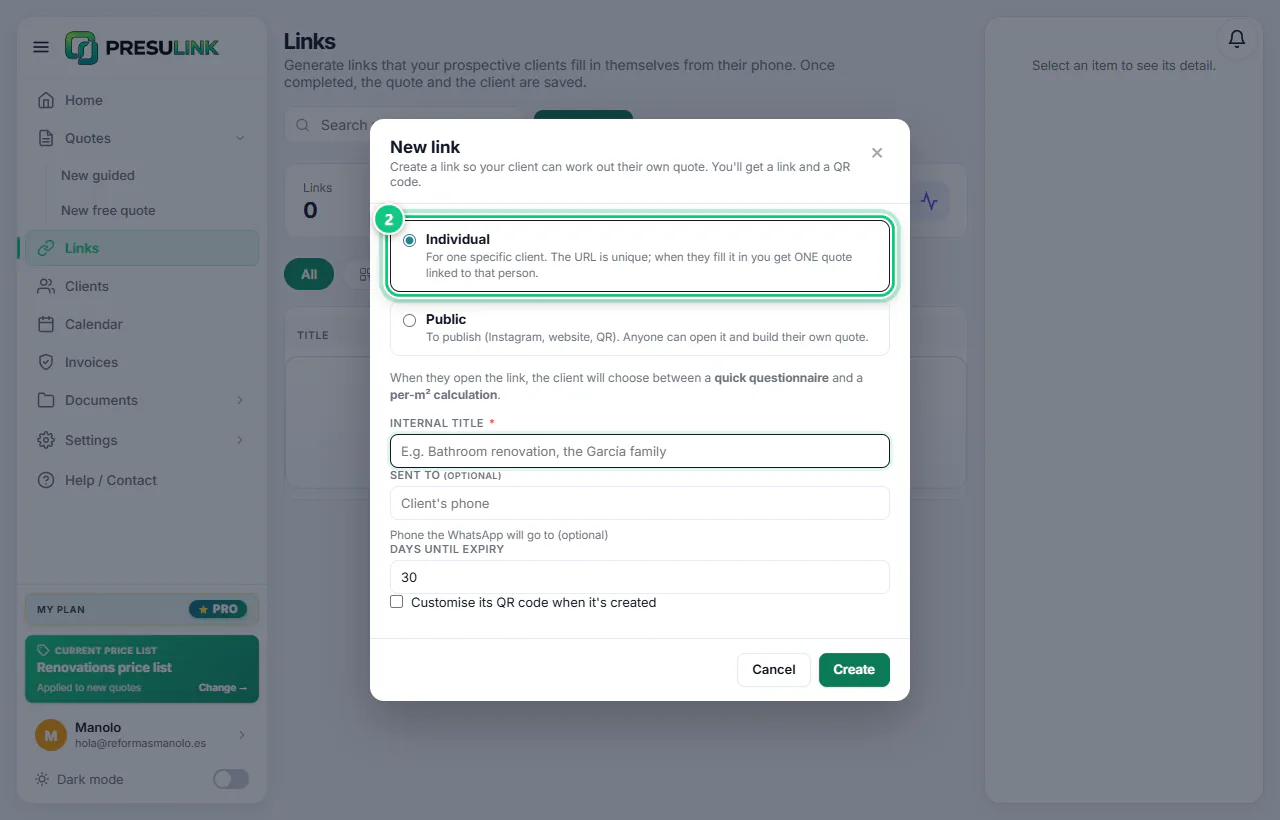
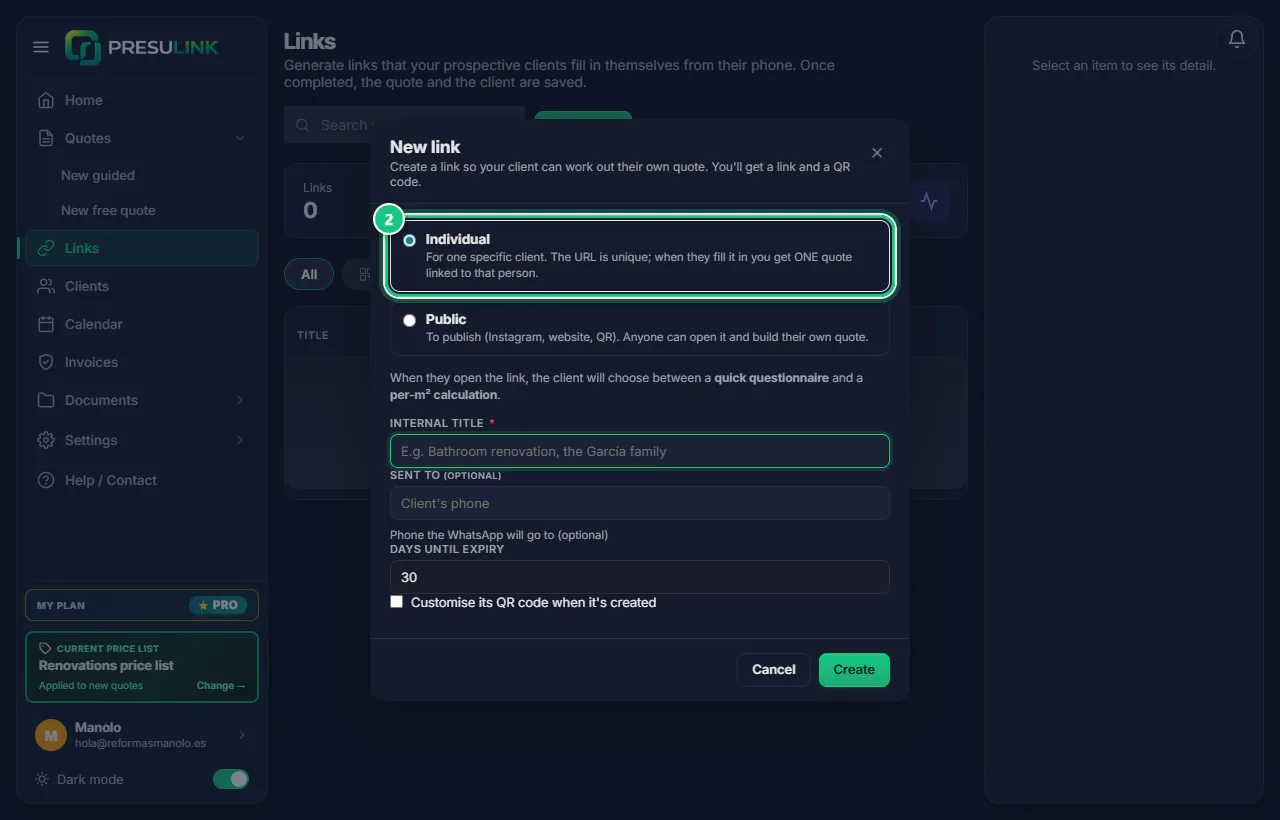
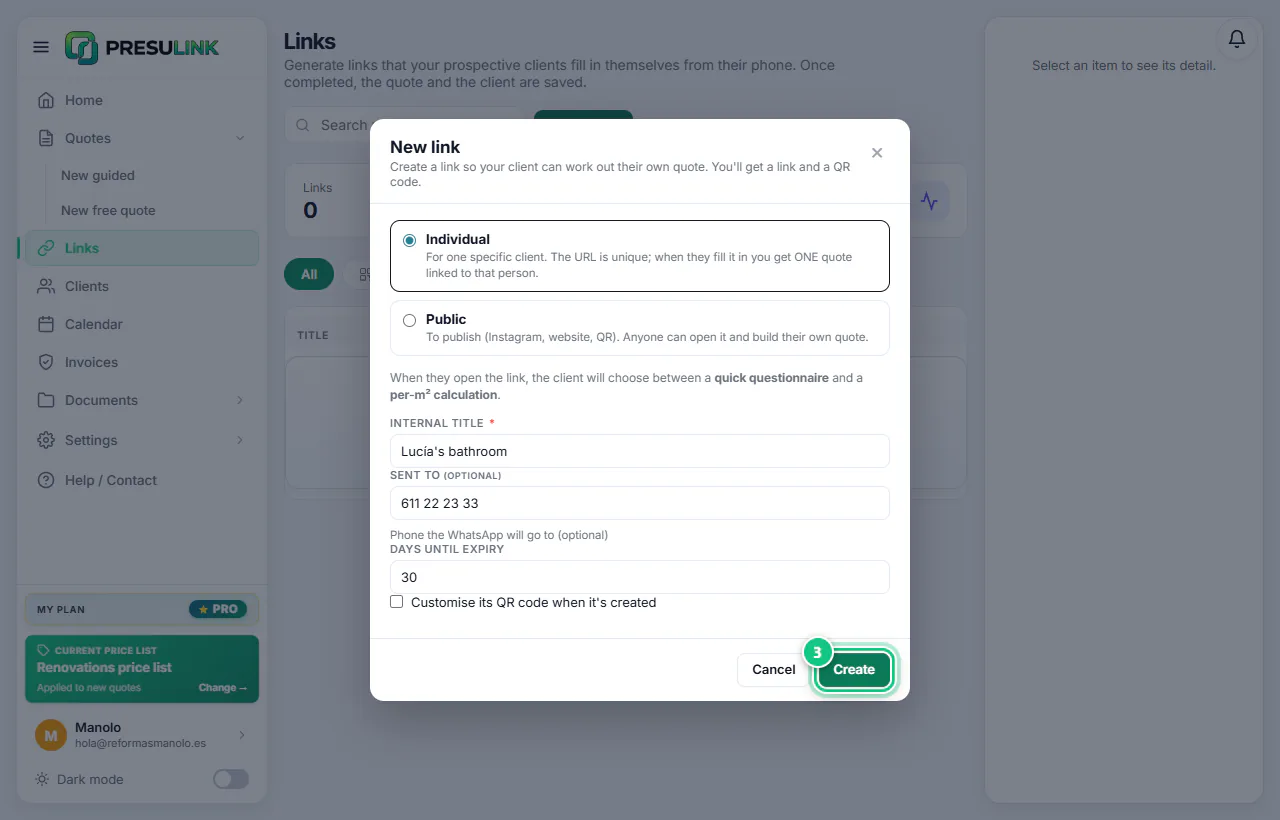
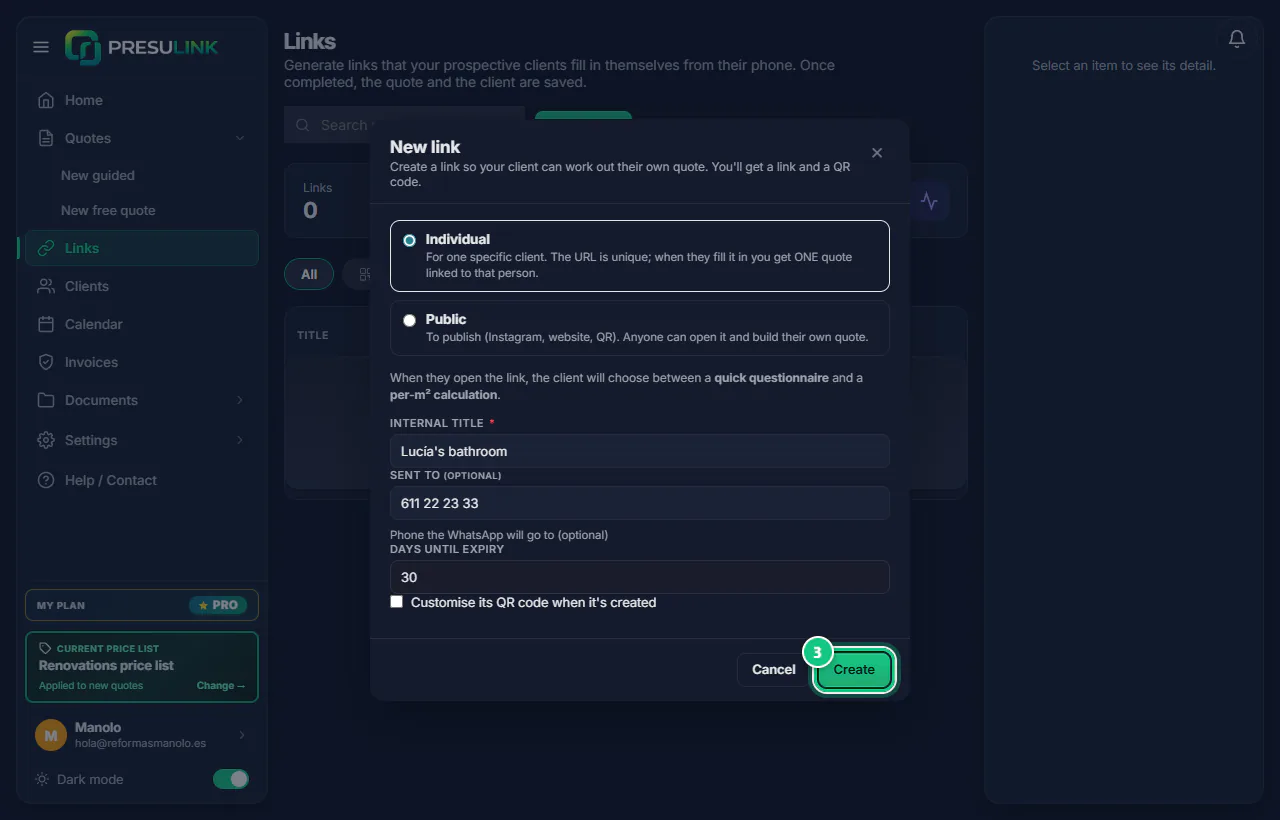
Choose Individual (one client) or Public (for everyone, with a QR code).
-
Type a title (only you see it) and click Create.
-
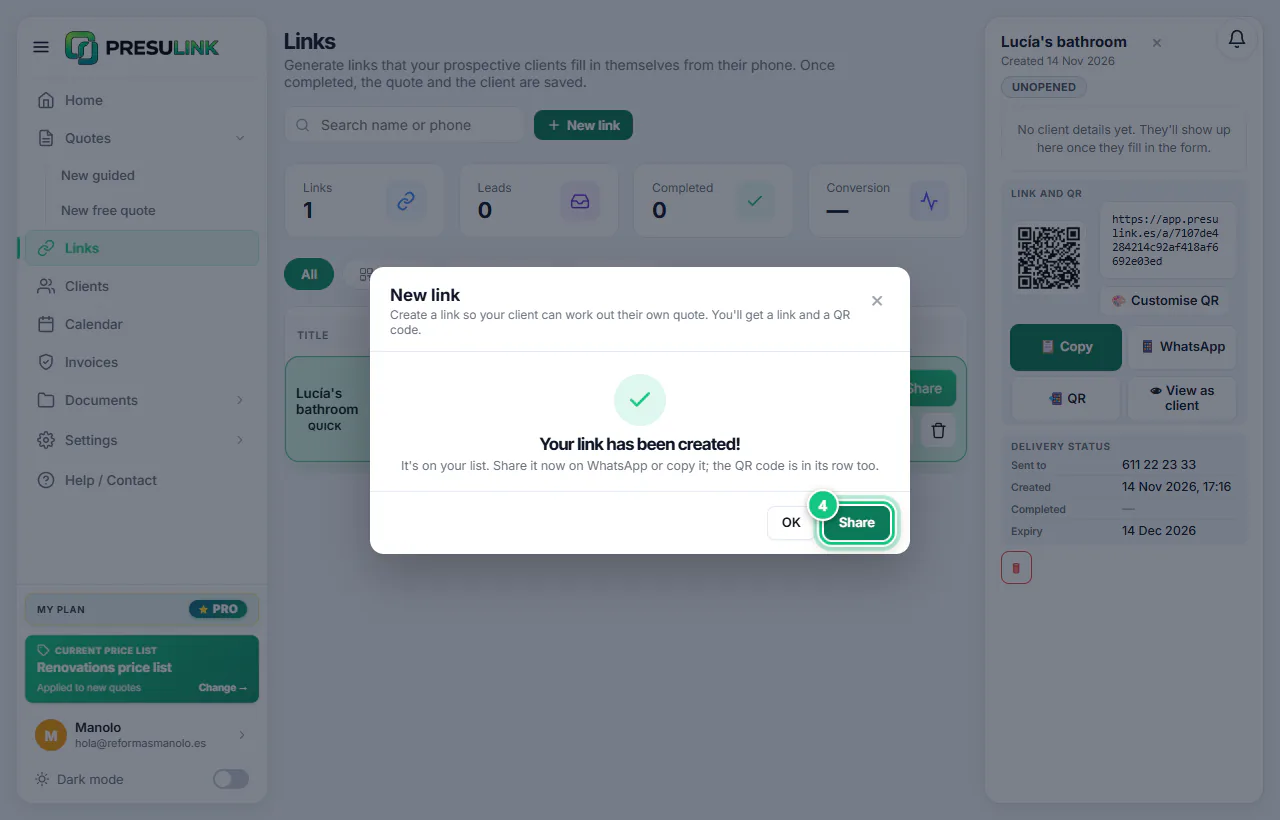
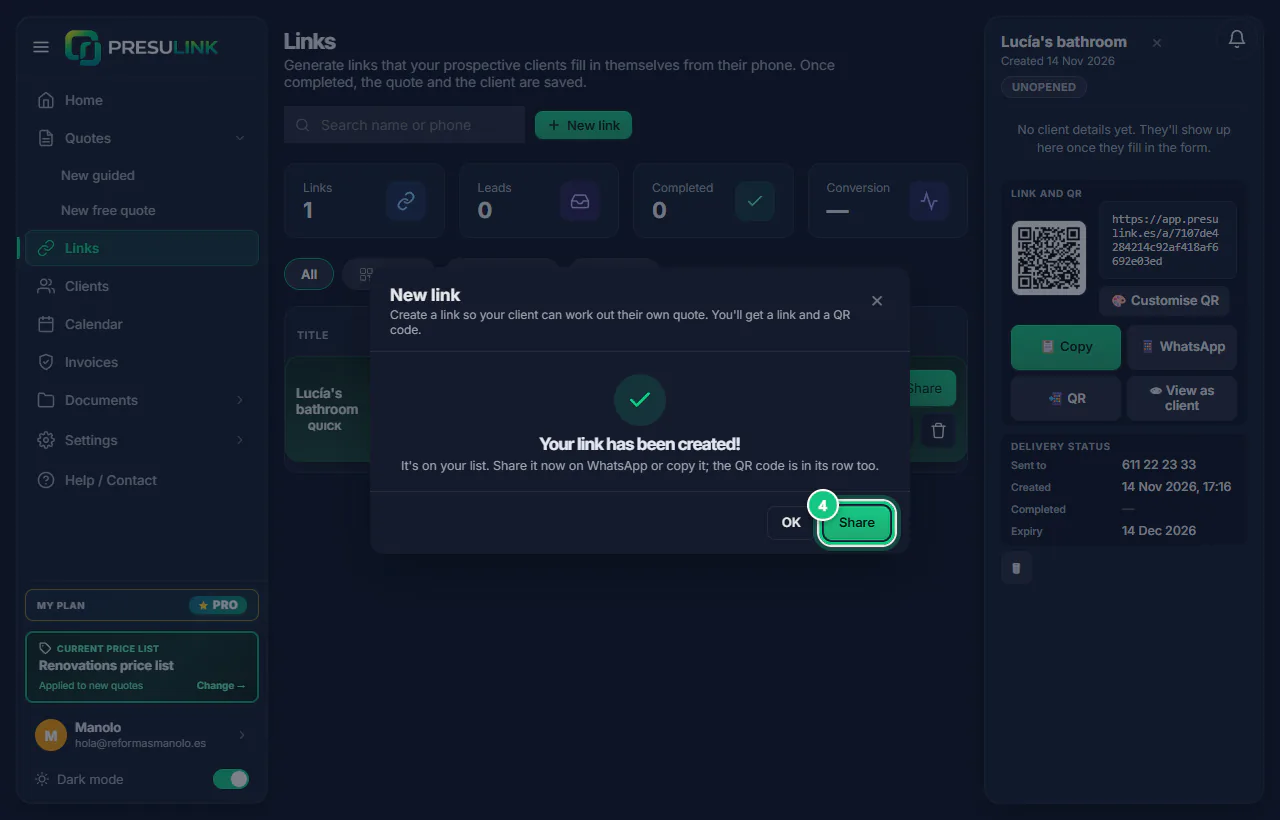
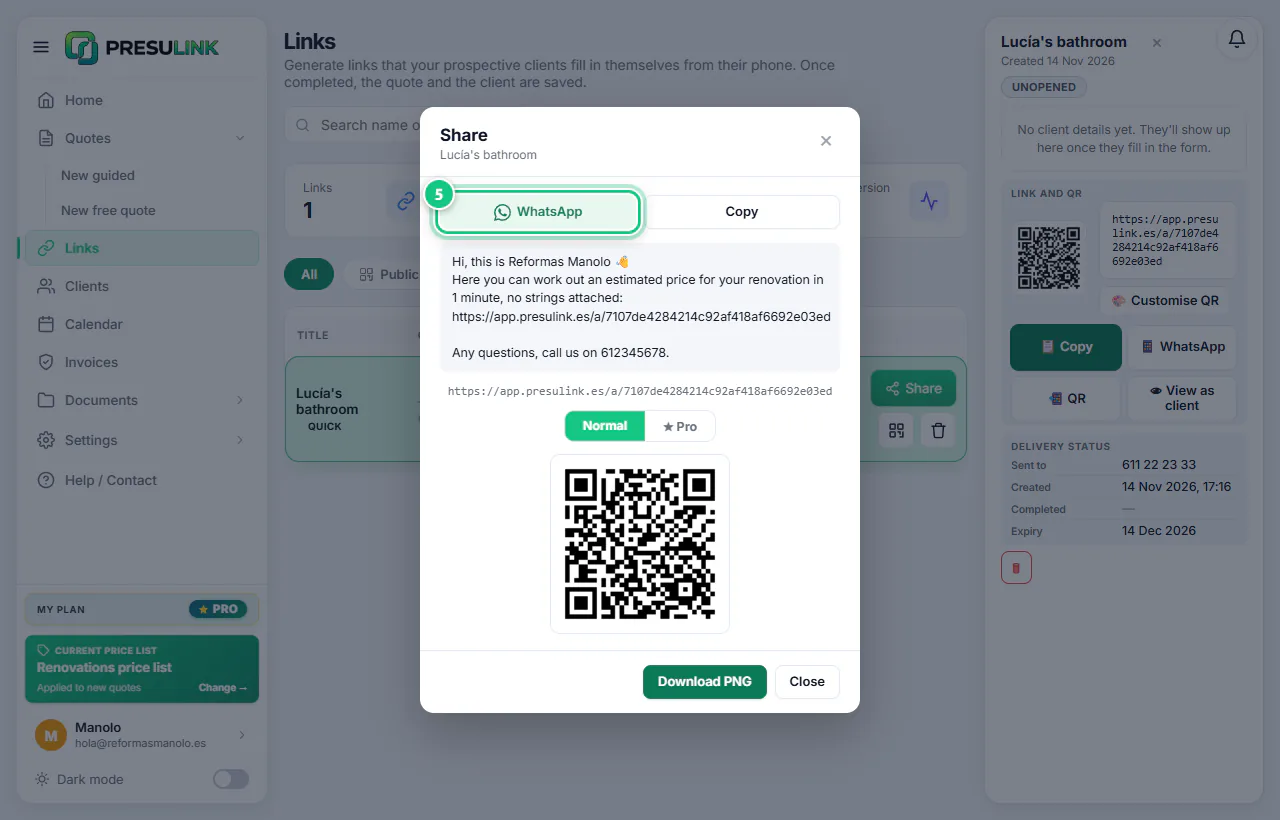
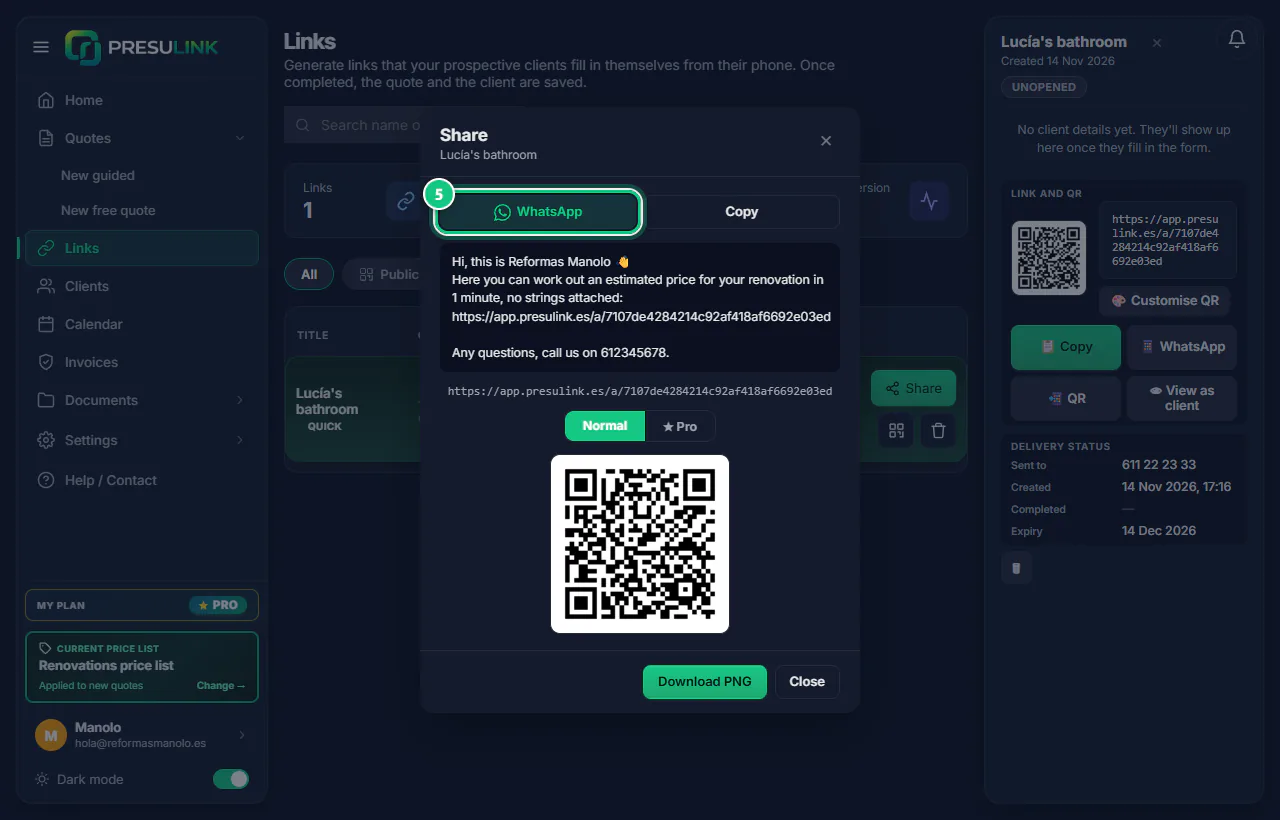
Click Share: the message is already written.
Note: “★ Pro” is the QR code style, not a payment.
-
Choose WhatsApp or Copy and send it.
-
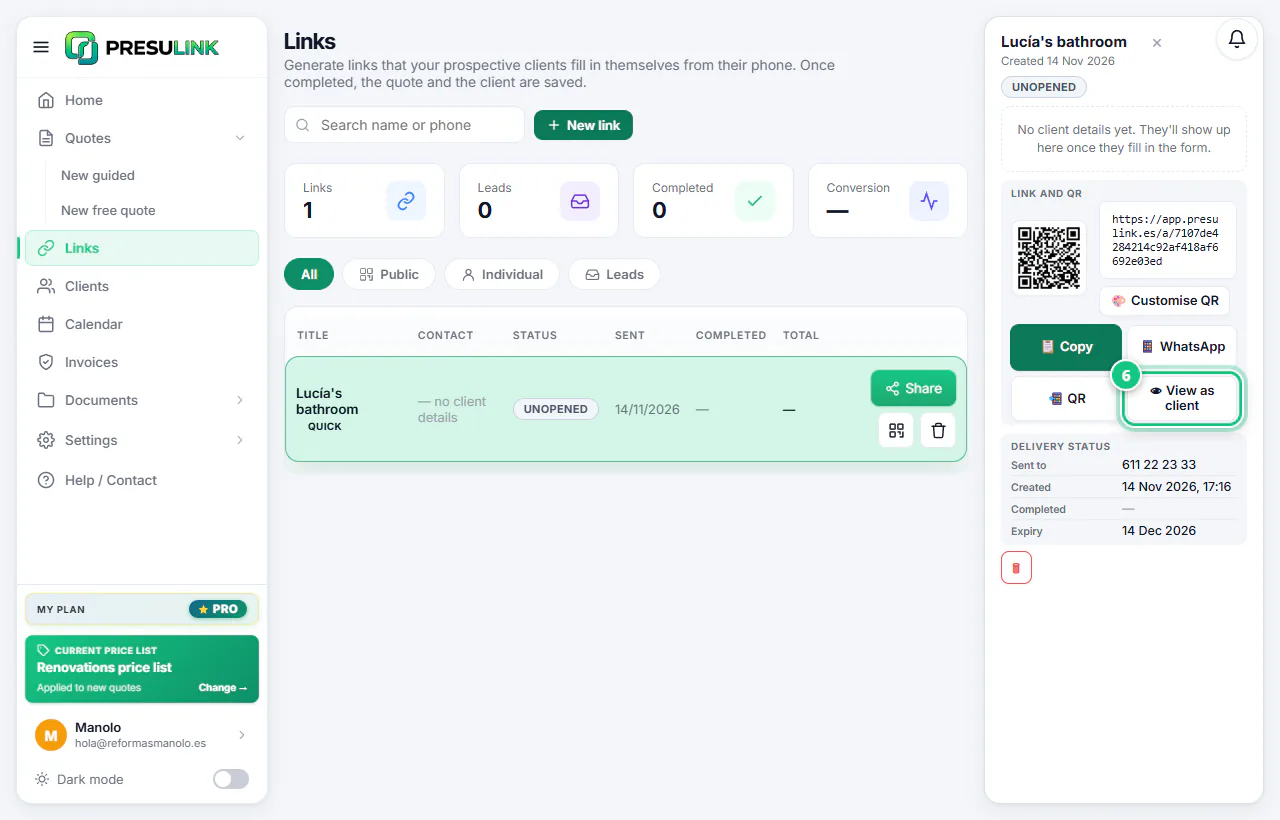
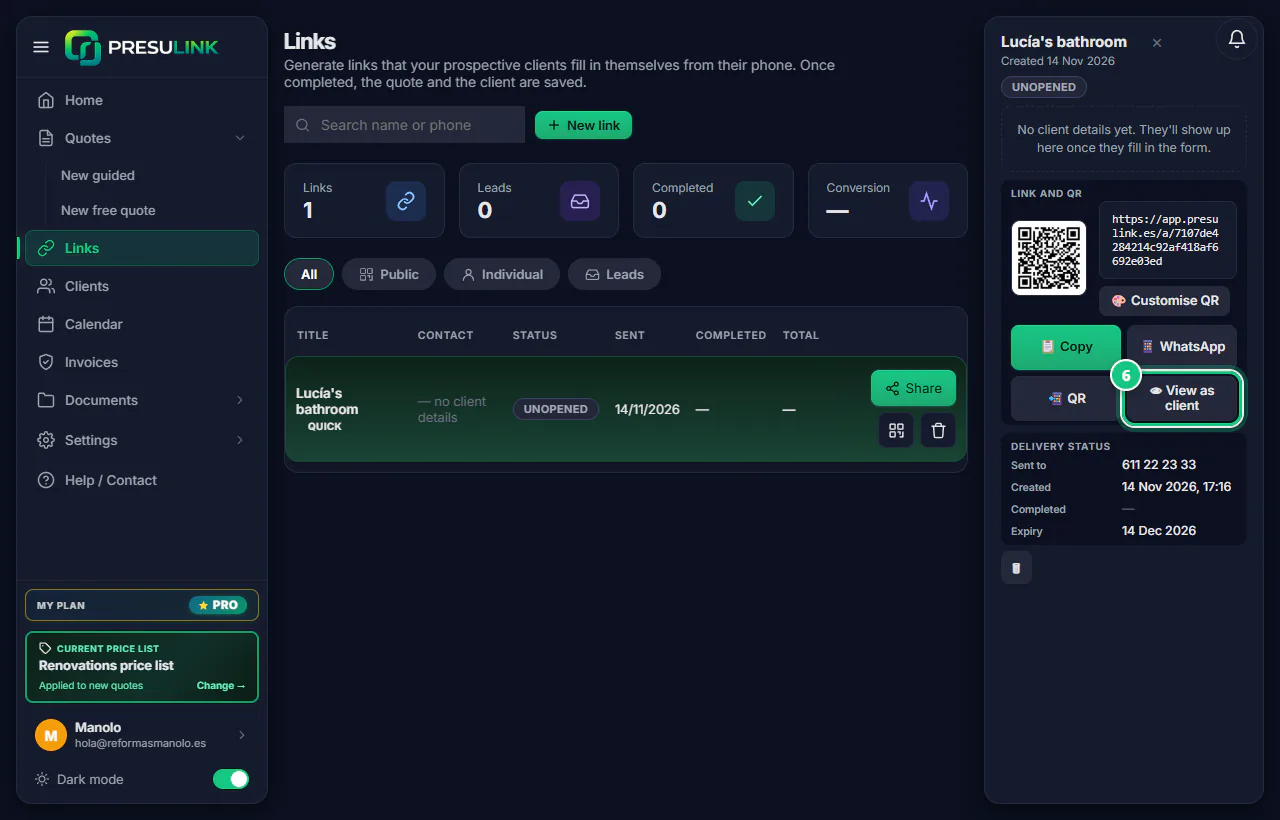
To see it as your client, click 👁 View as client.
-
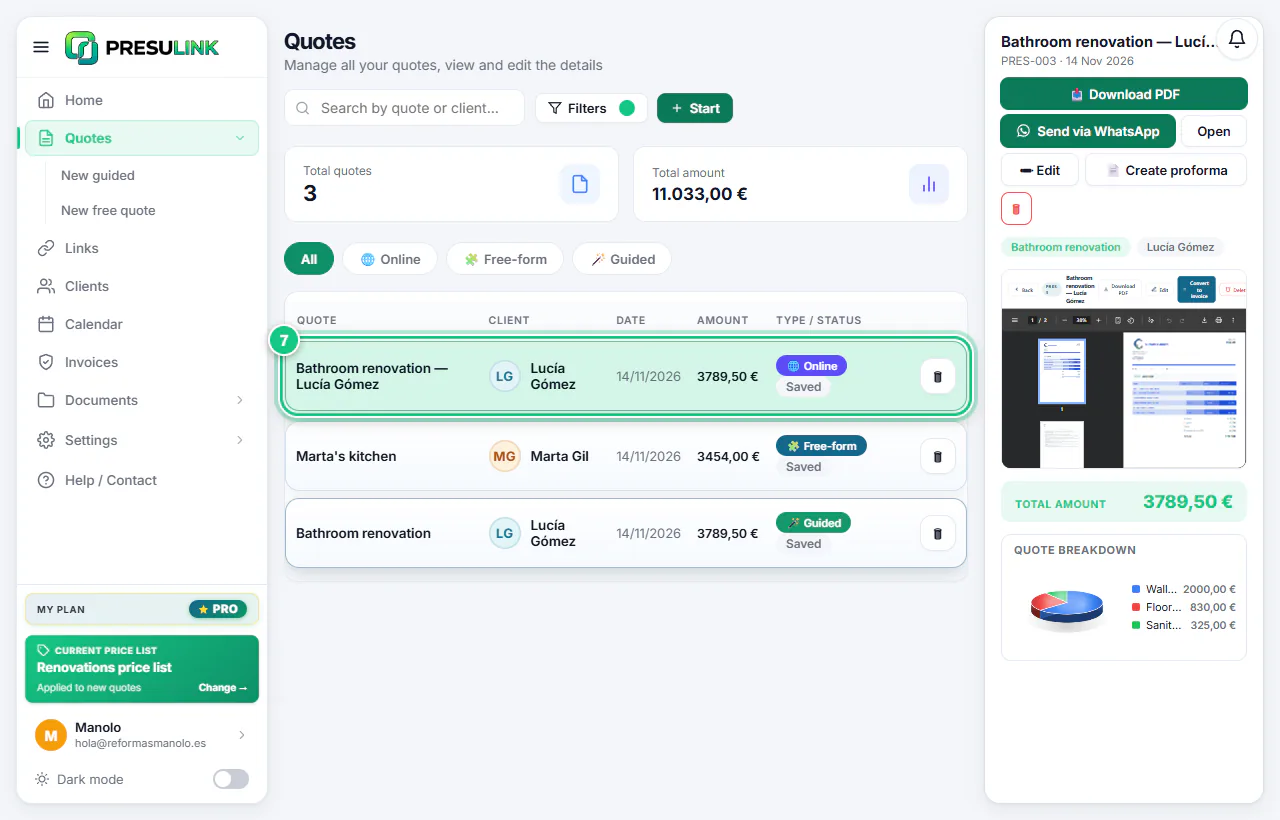
When your client fills it in, their quote arrives in Quotes.
-
The booking link: Calendar › Public link / QR.
Note: ⚠ Regenerate (invalidates the current one) breaks any QR codes you already printed.
Your page: one link for everyone
-
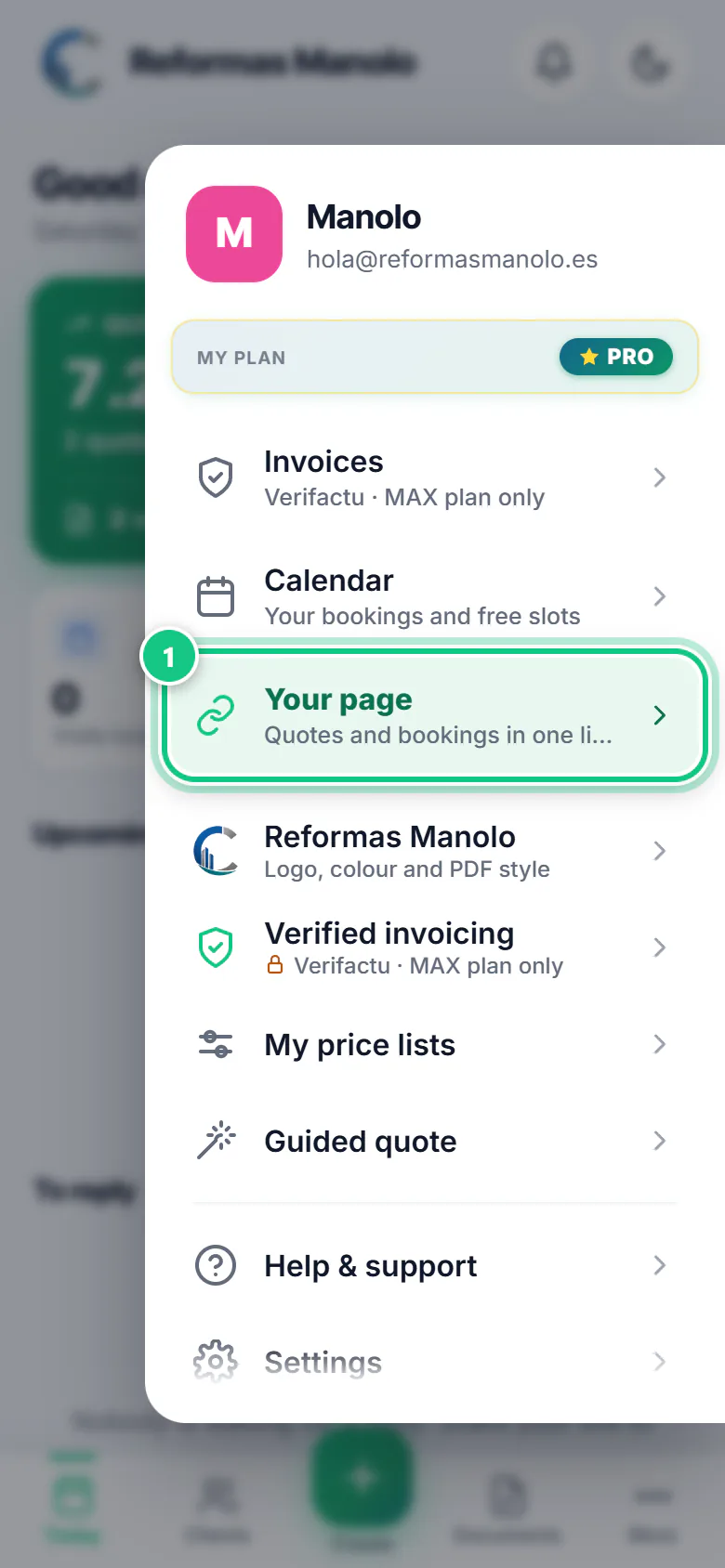
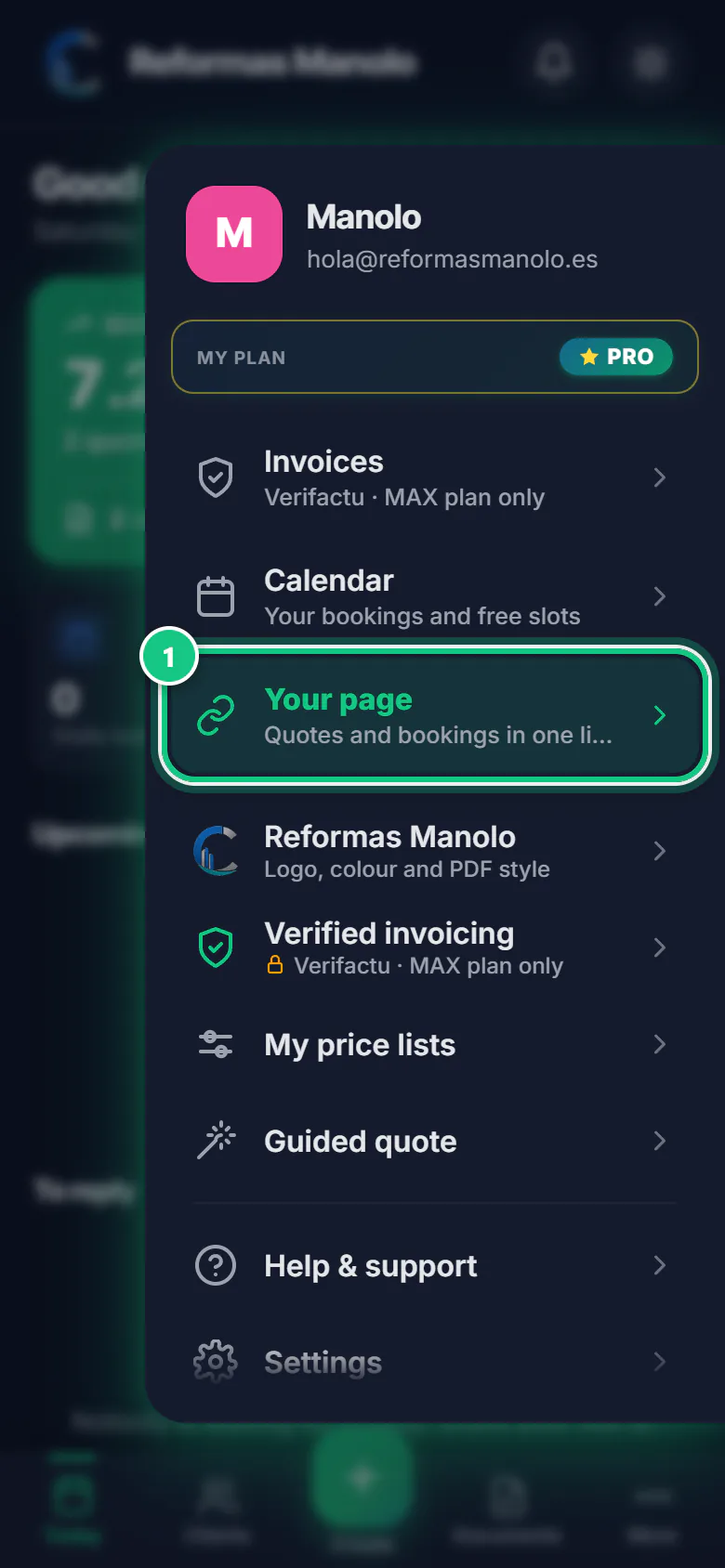
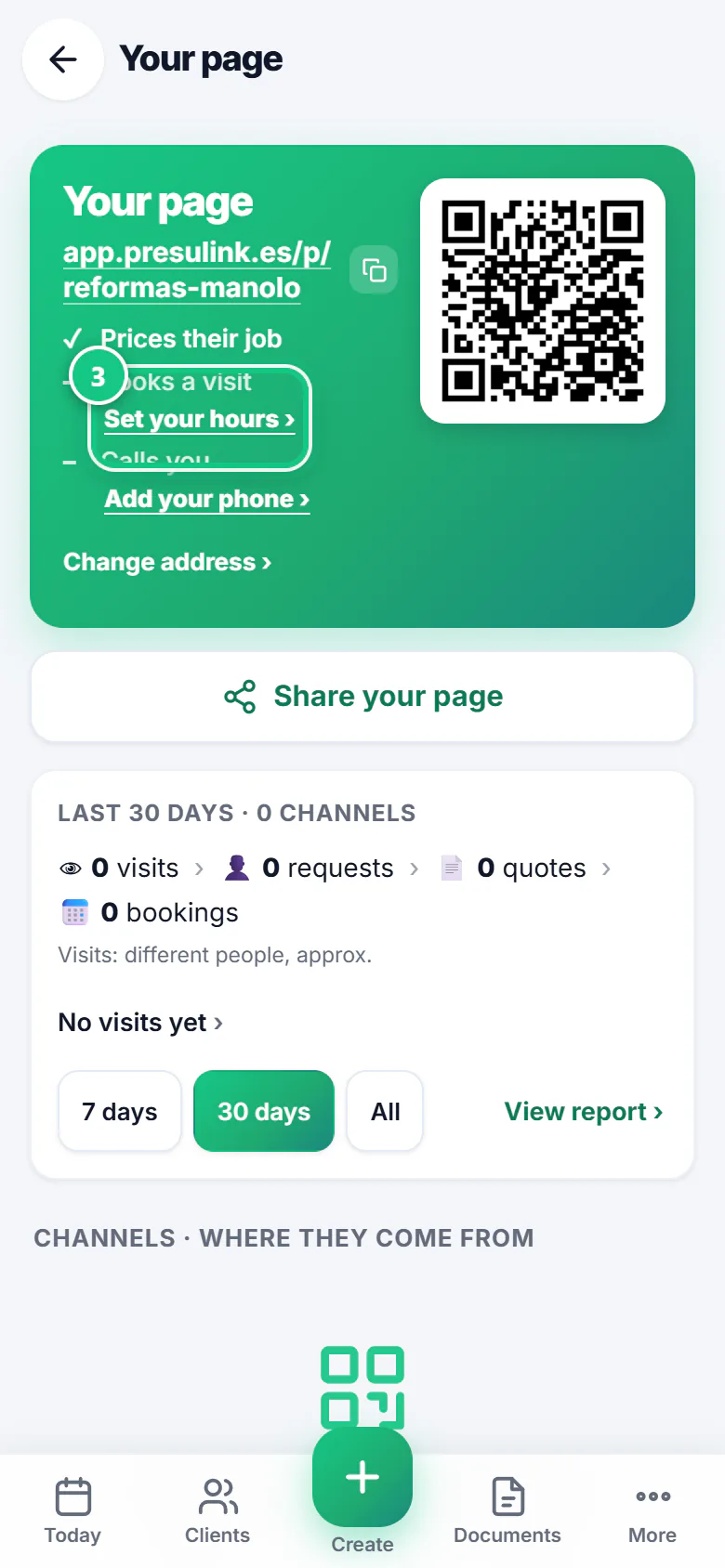
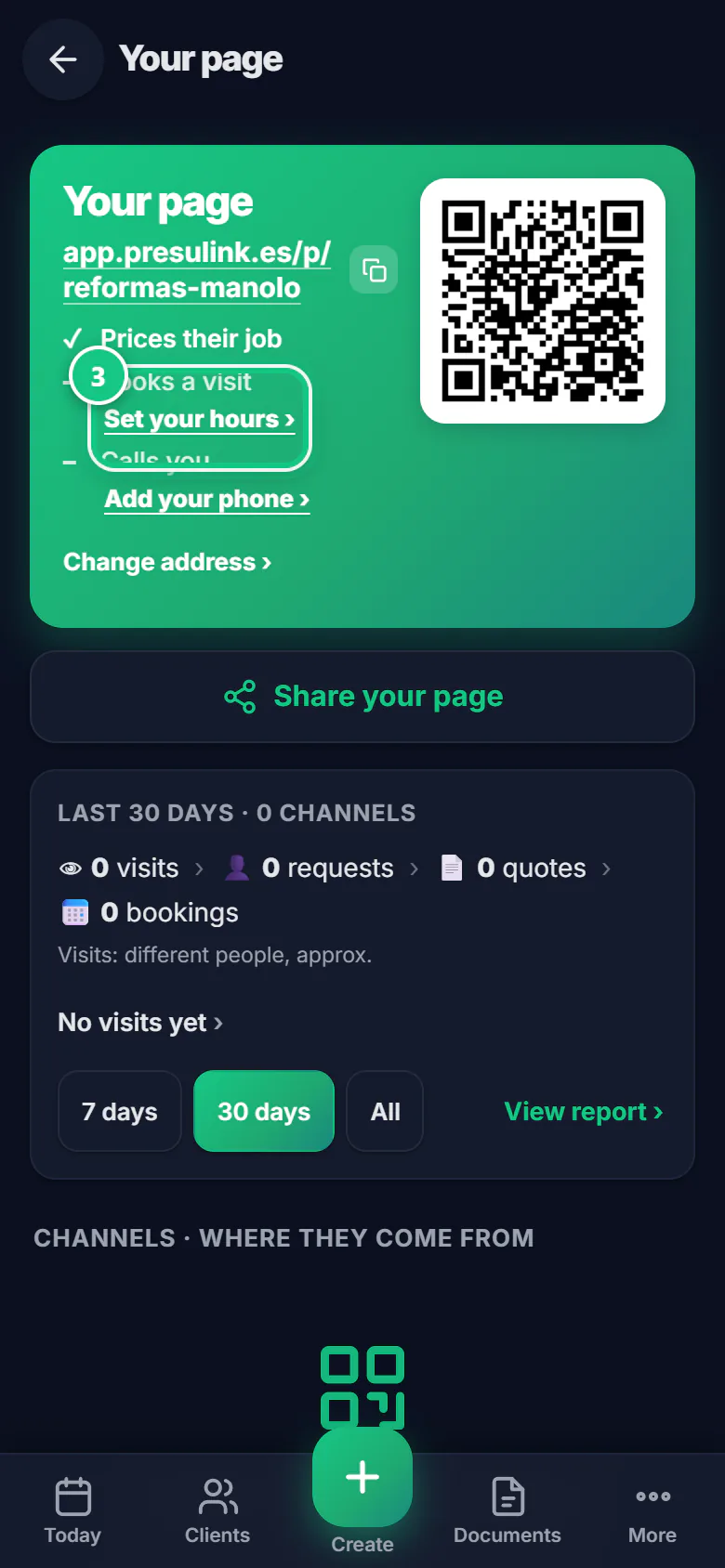
Tap More, then Your page.
-
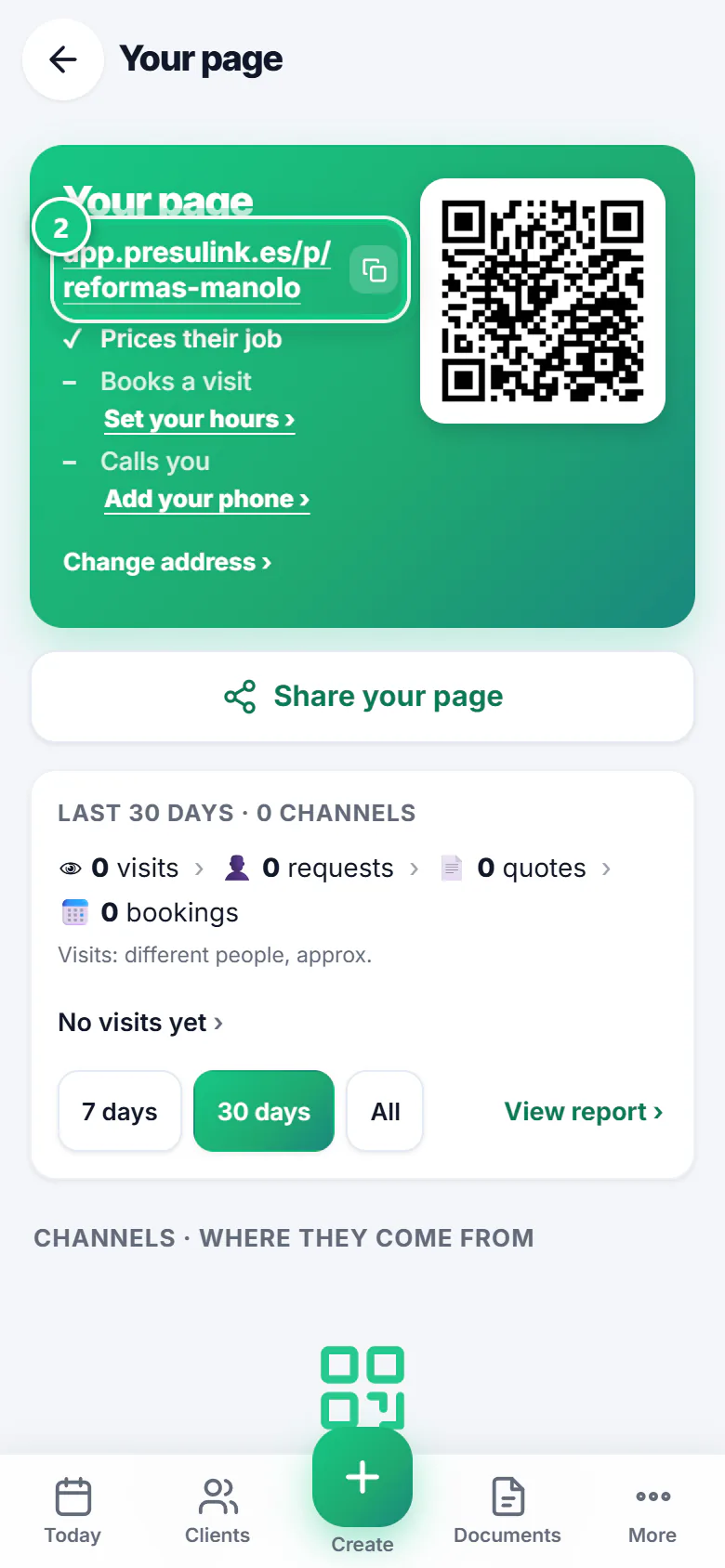
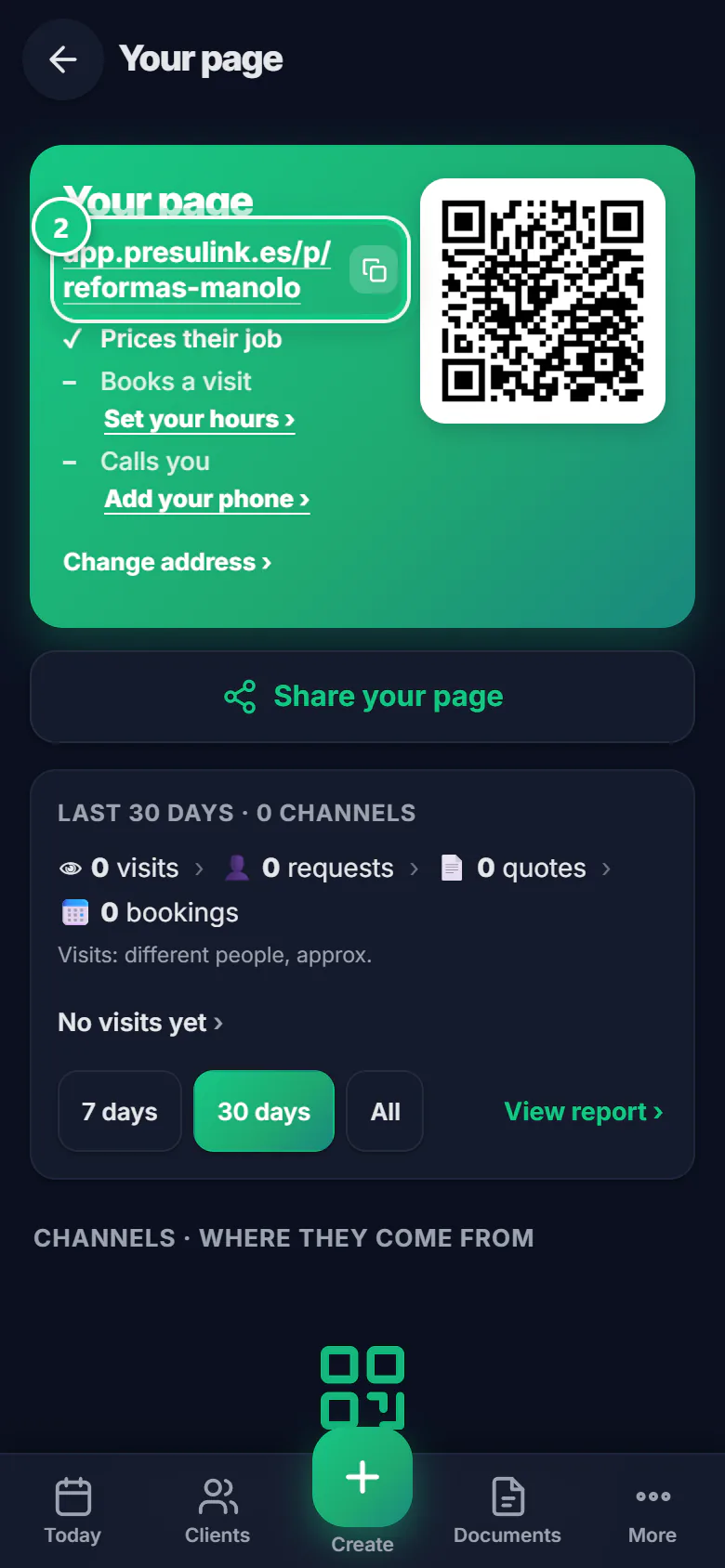
Tap your address to copy it, or Share your page.
Note: The QR code at the top is the same link. Put it on the van or your cards.
-
Open more doors: Set your hours › (visits) and Add your phone › (calls).
-
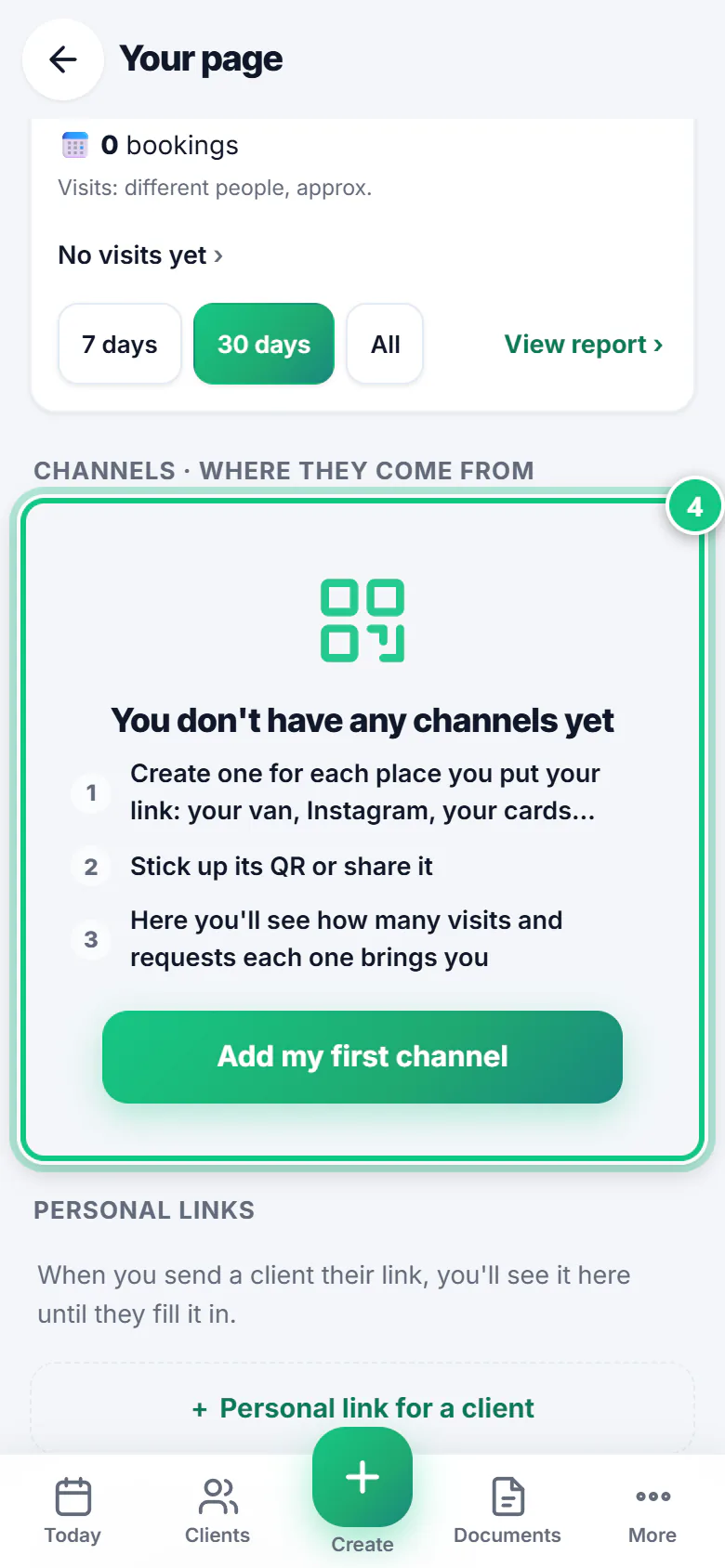
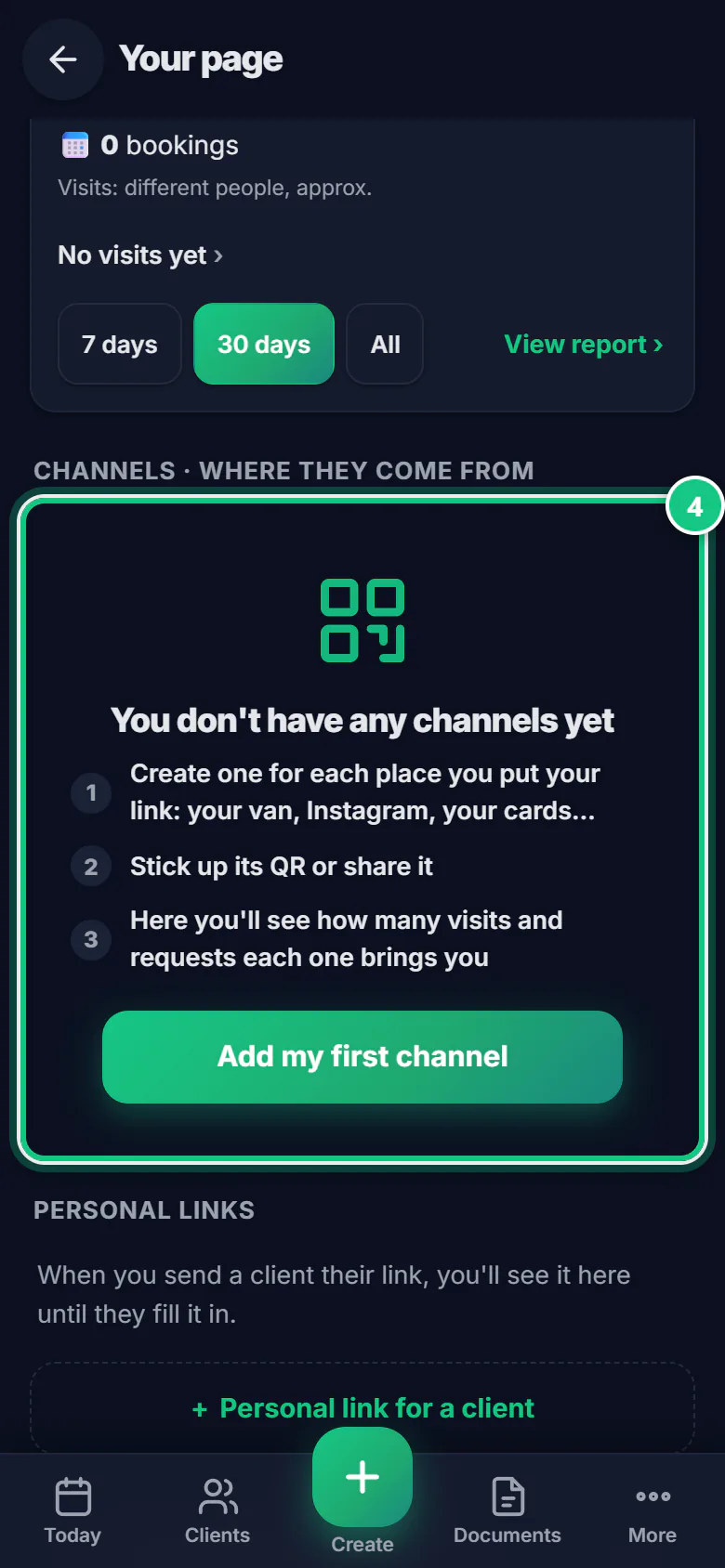
Under Channels, tap Add my first channel: one per place (Instagram, the van…).
Note: So you know where each client comes from.
A link for ONE client
-
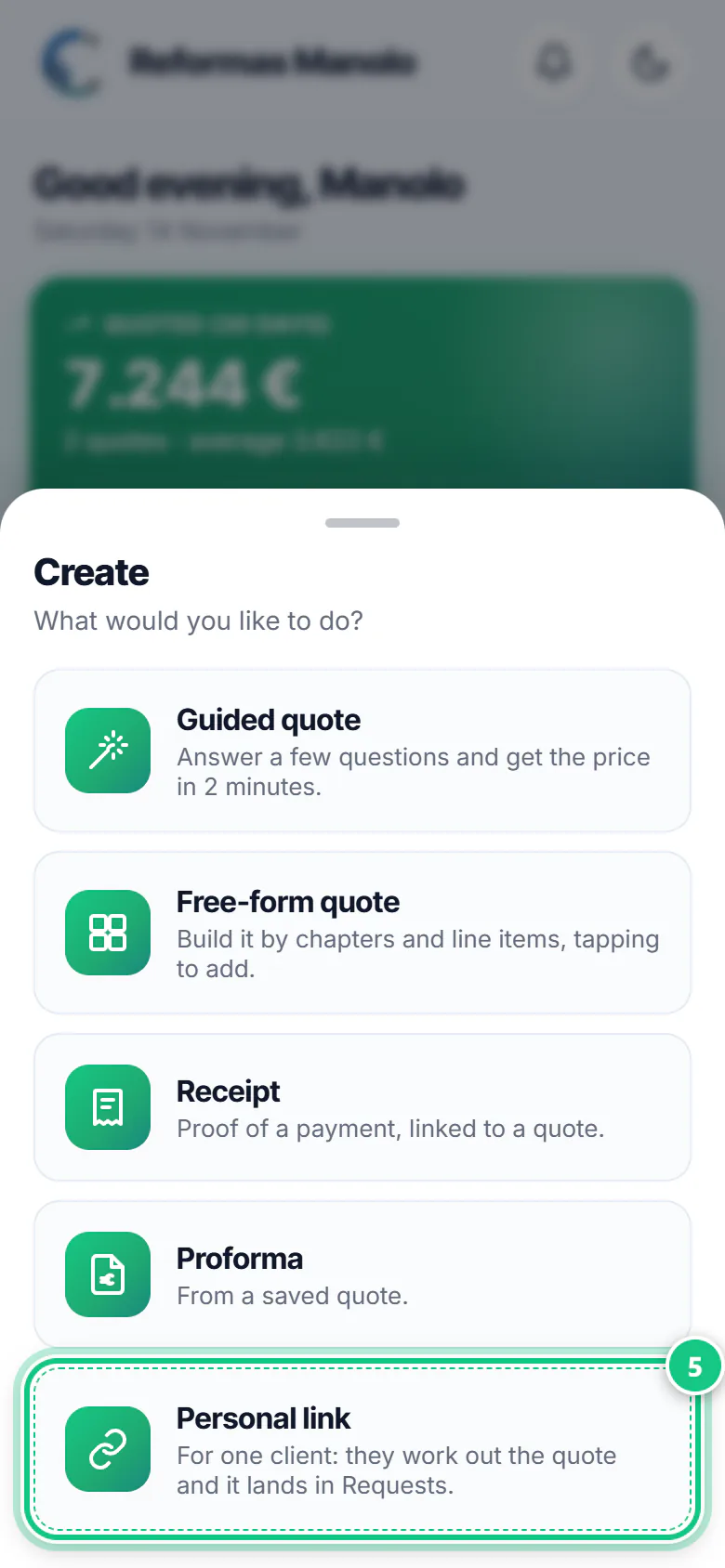
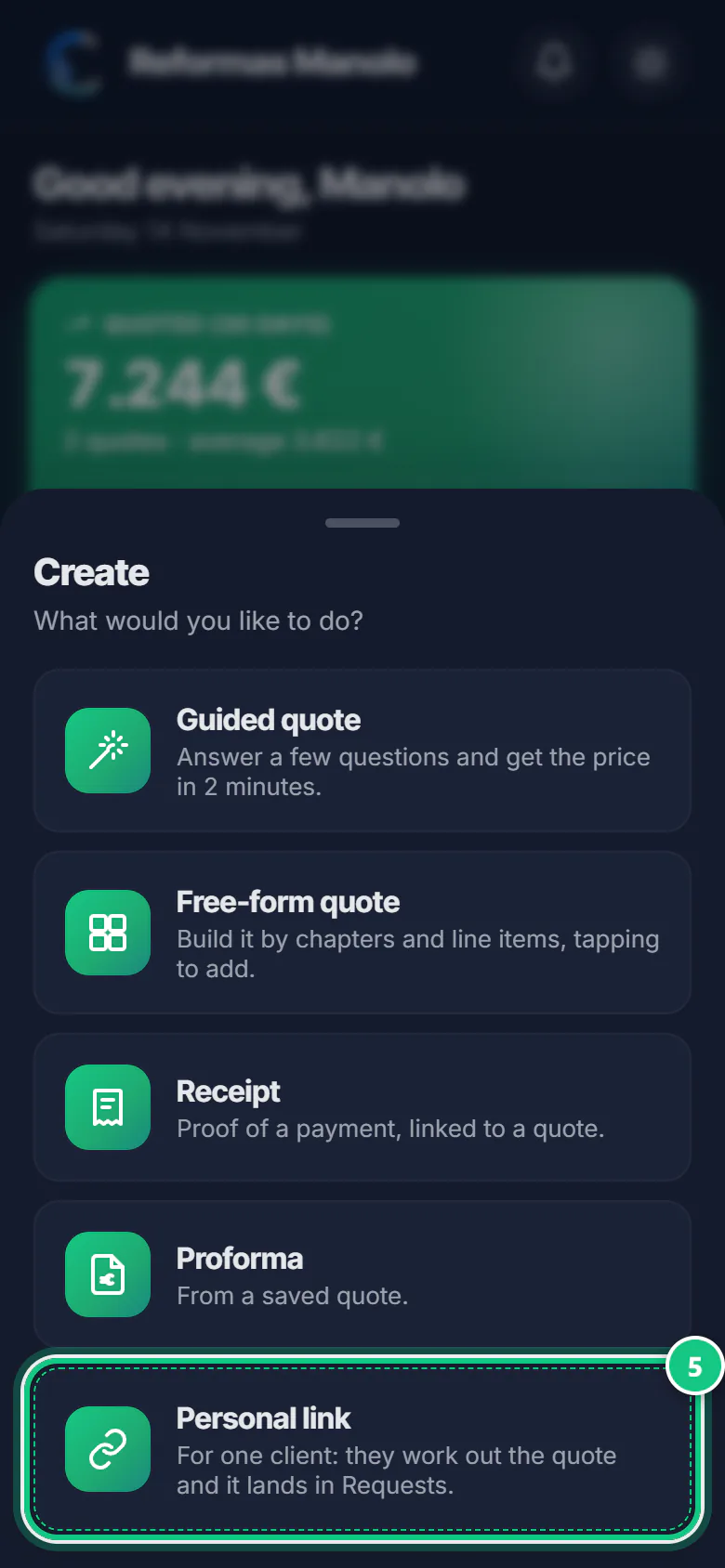
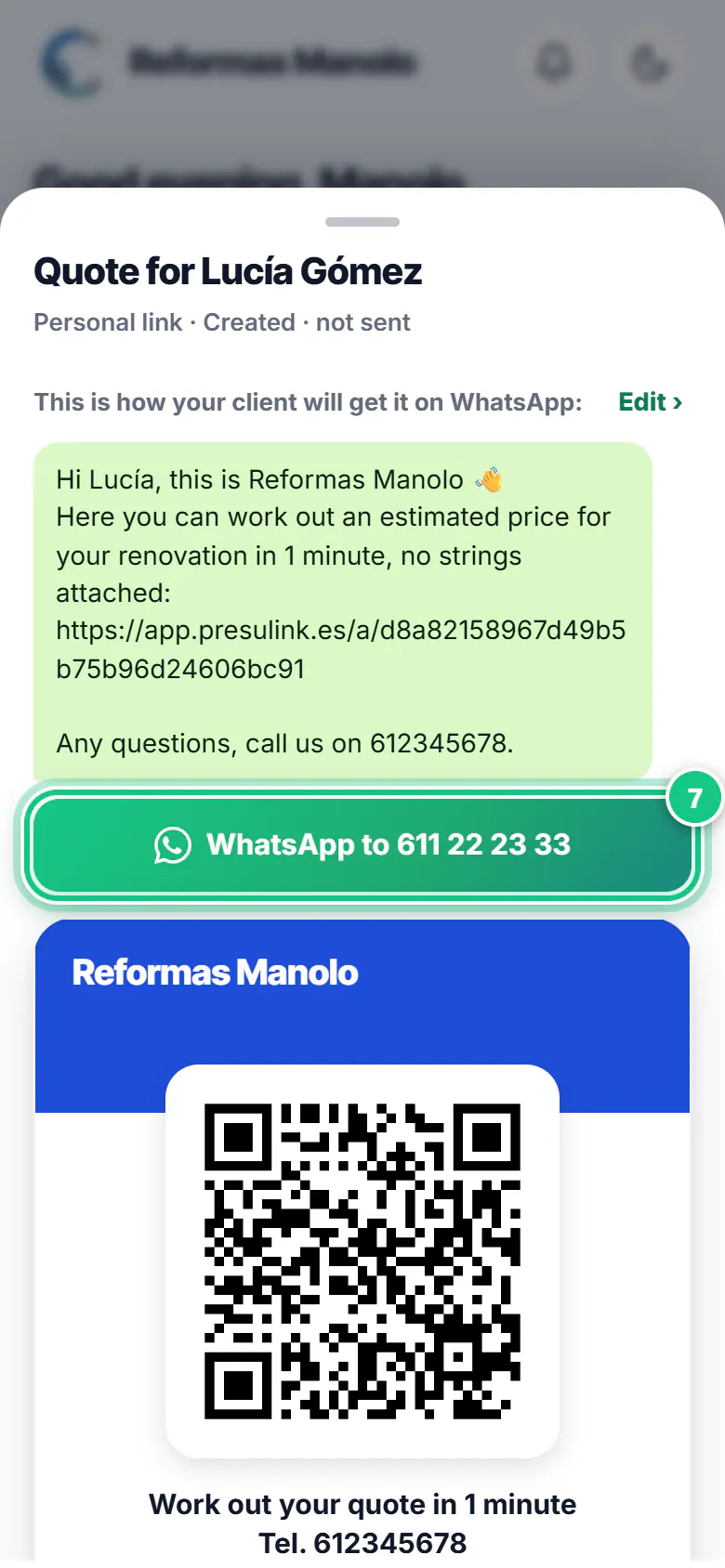
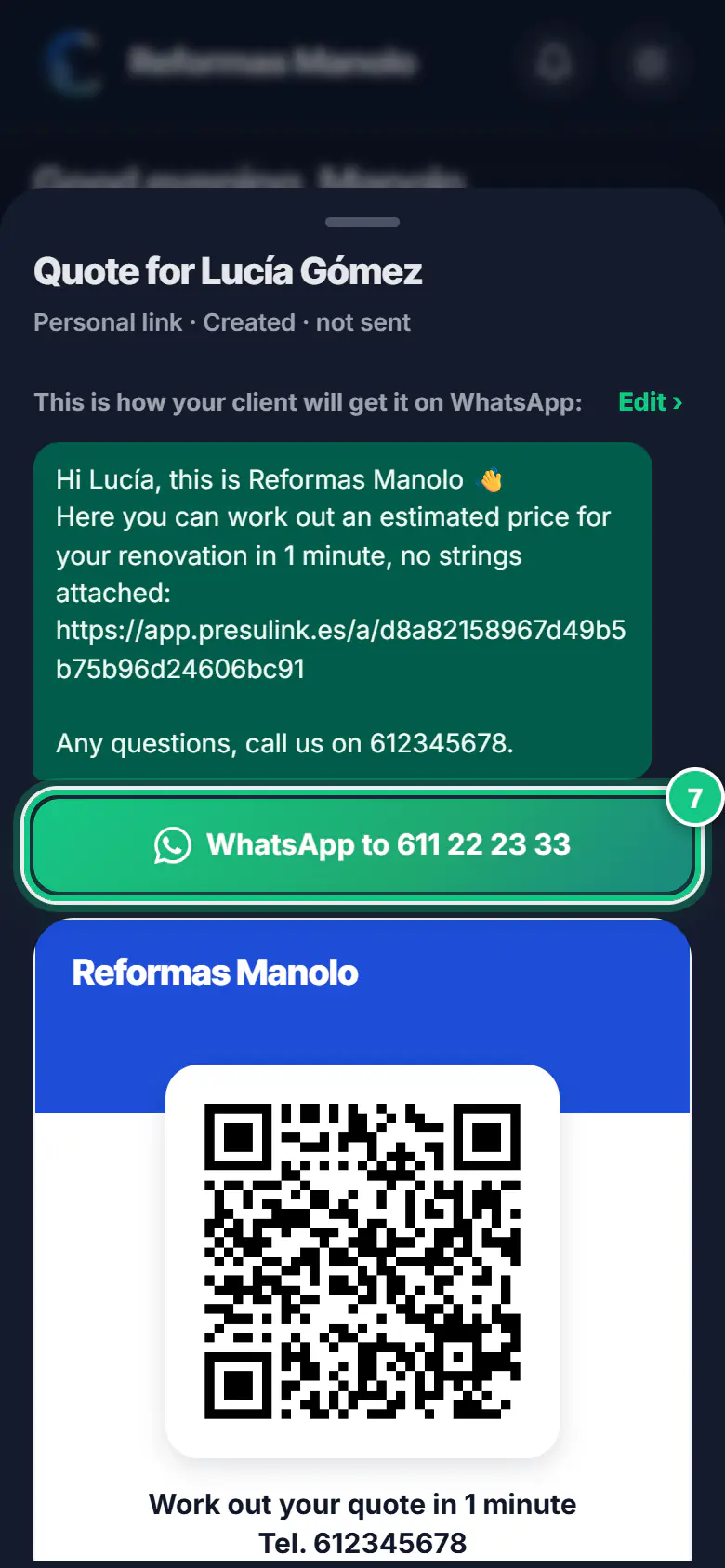
Tap Create, then Personal link.
-
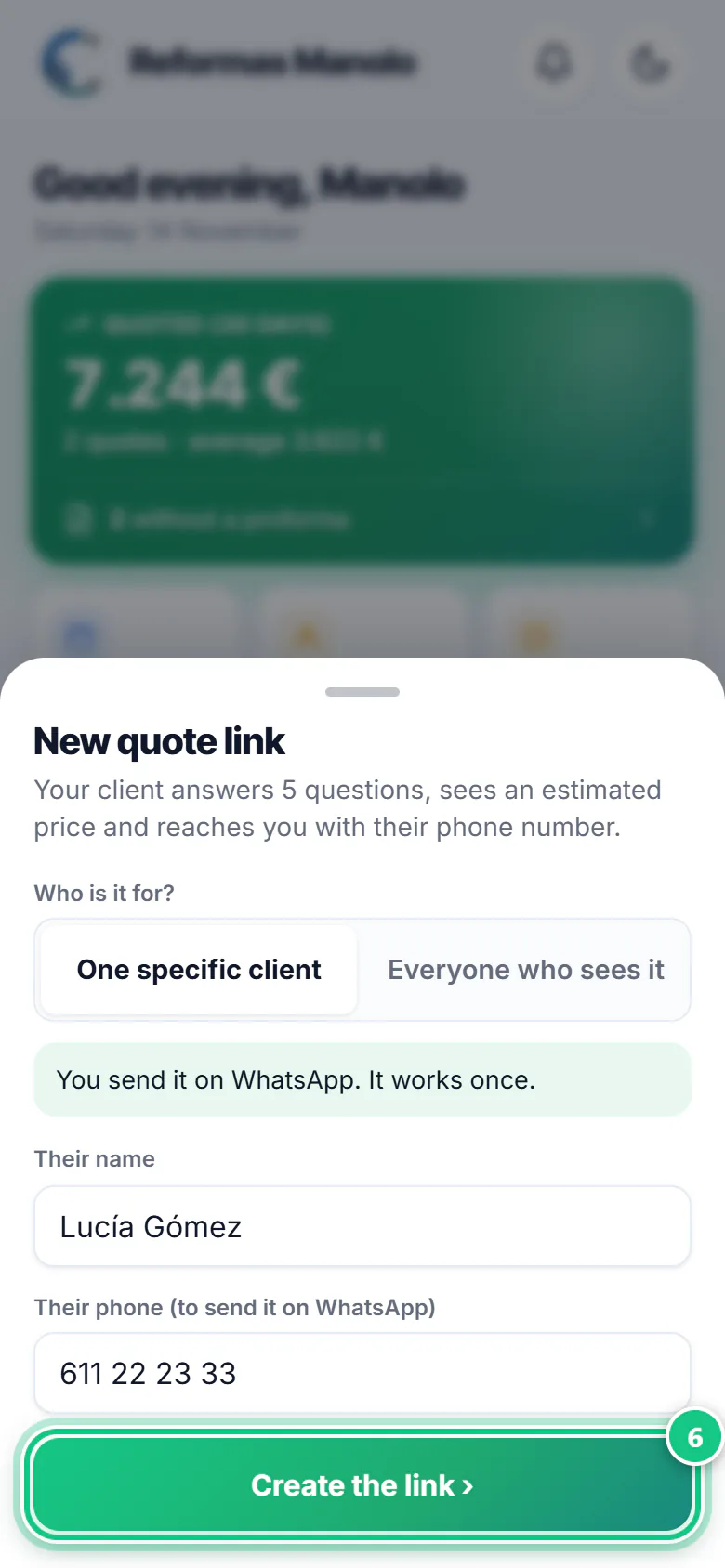
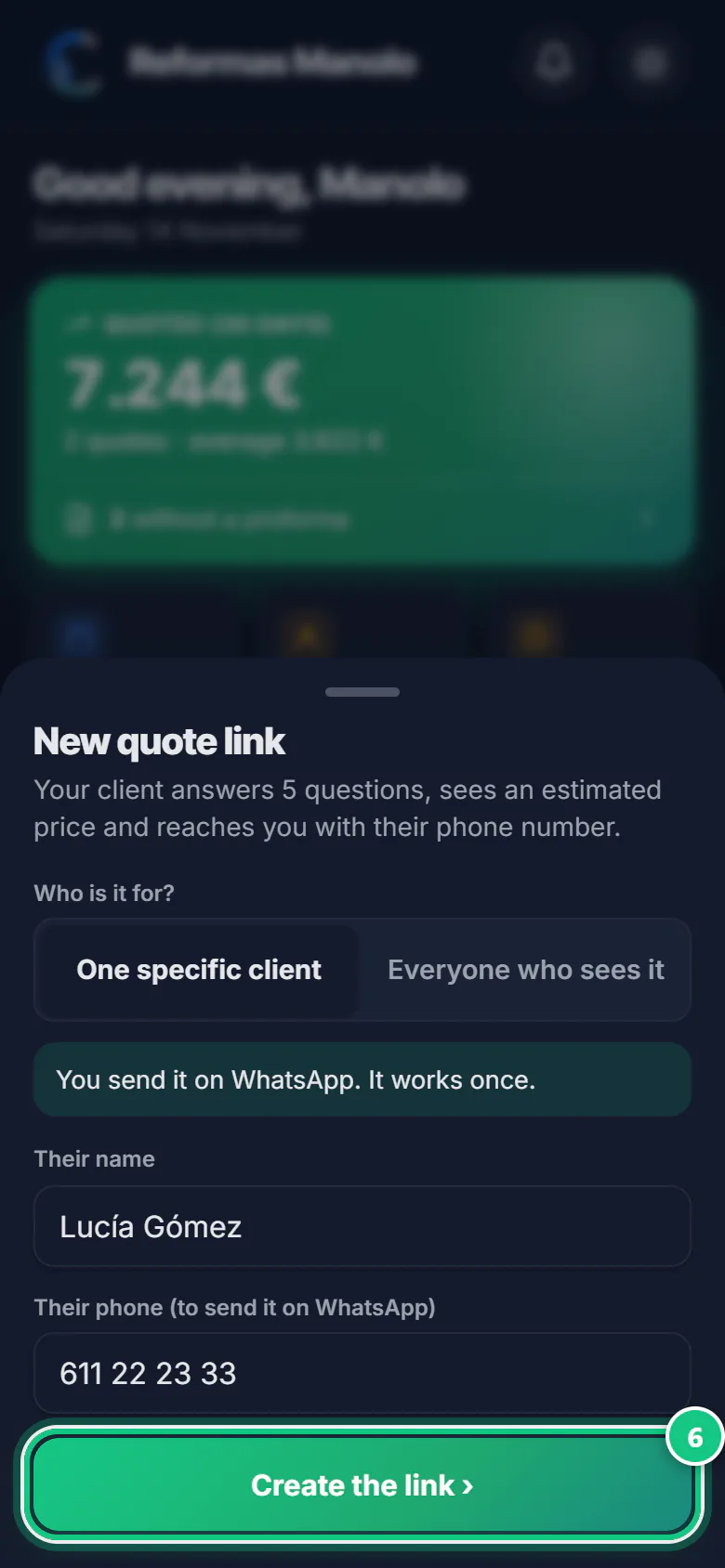
Type their name and phone, and tap Create the link ›.
-
Tap WhatsApp to … (their number): the message is already written.
Note: Creating the link is not sending it. Your client doesn’t have it until you send it.
What your client sees
-
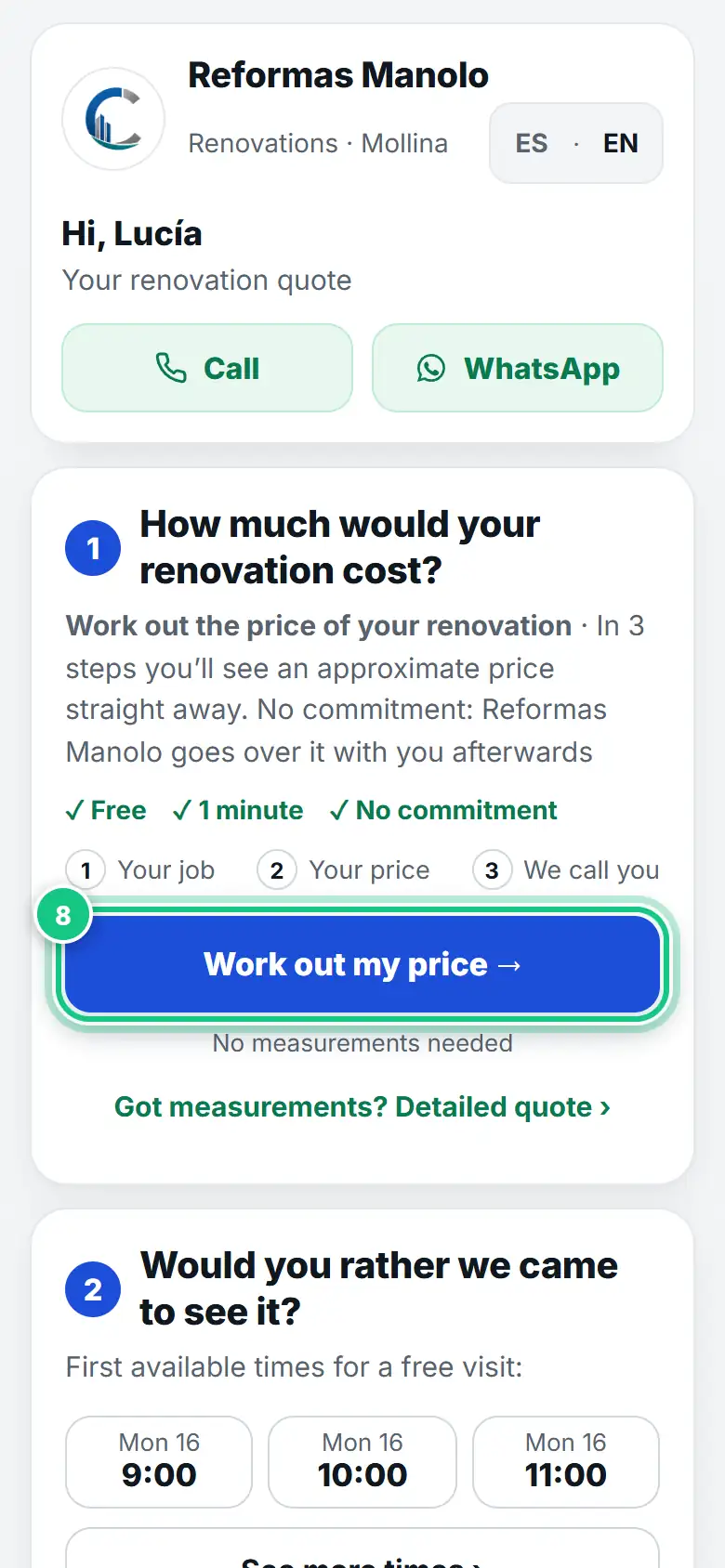
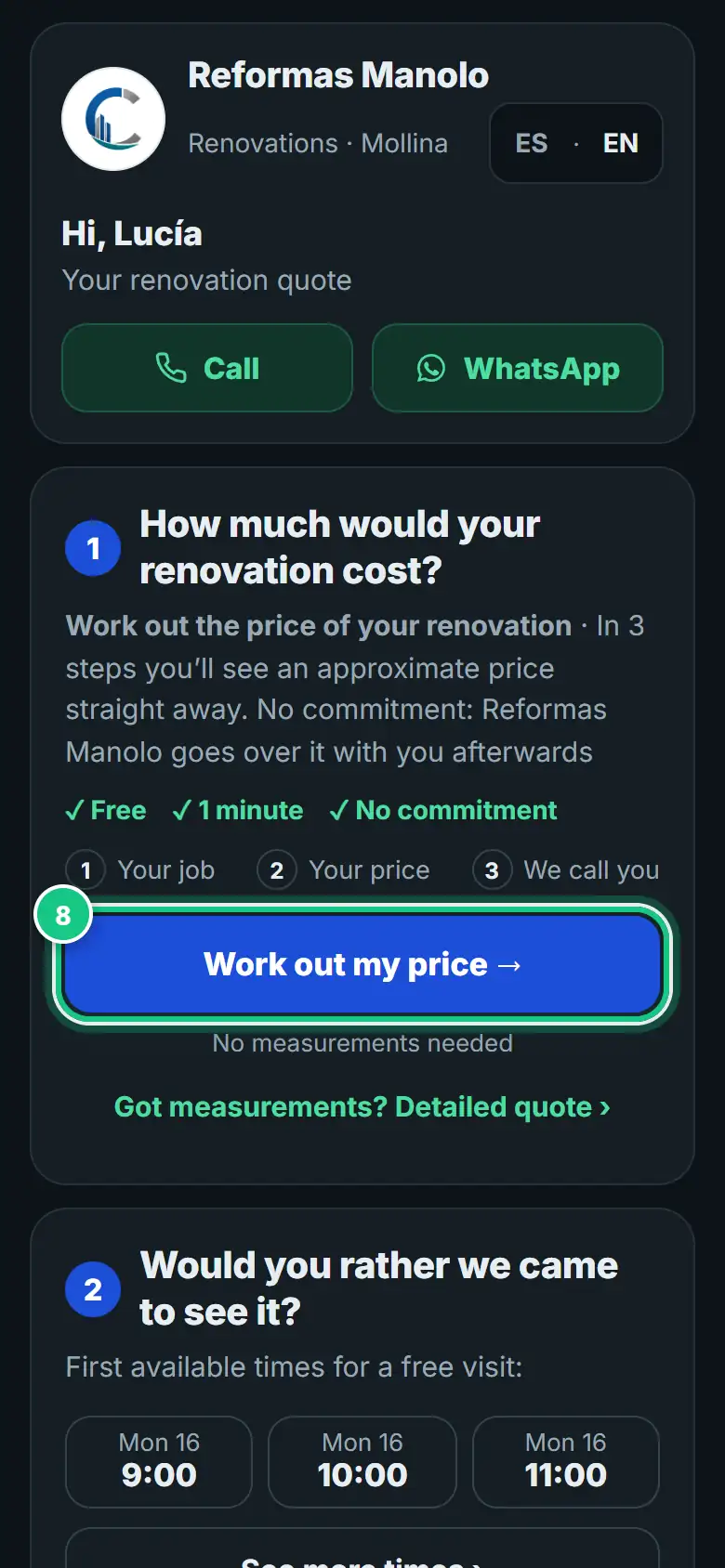
Your client opens the link and taps Work out my price →.
-
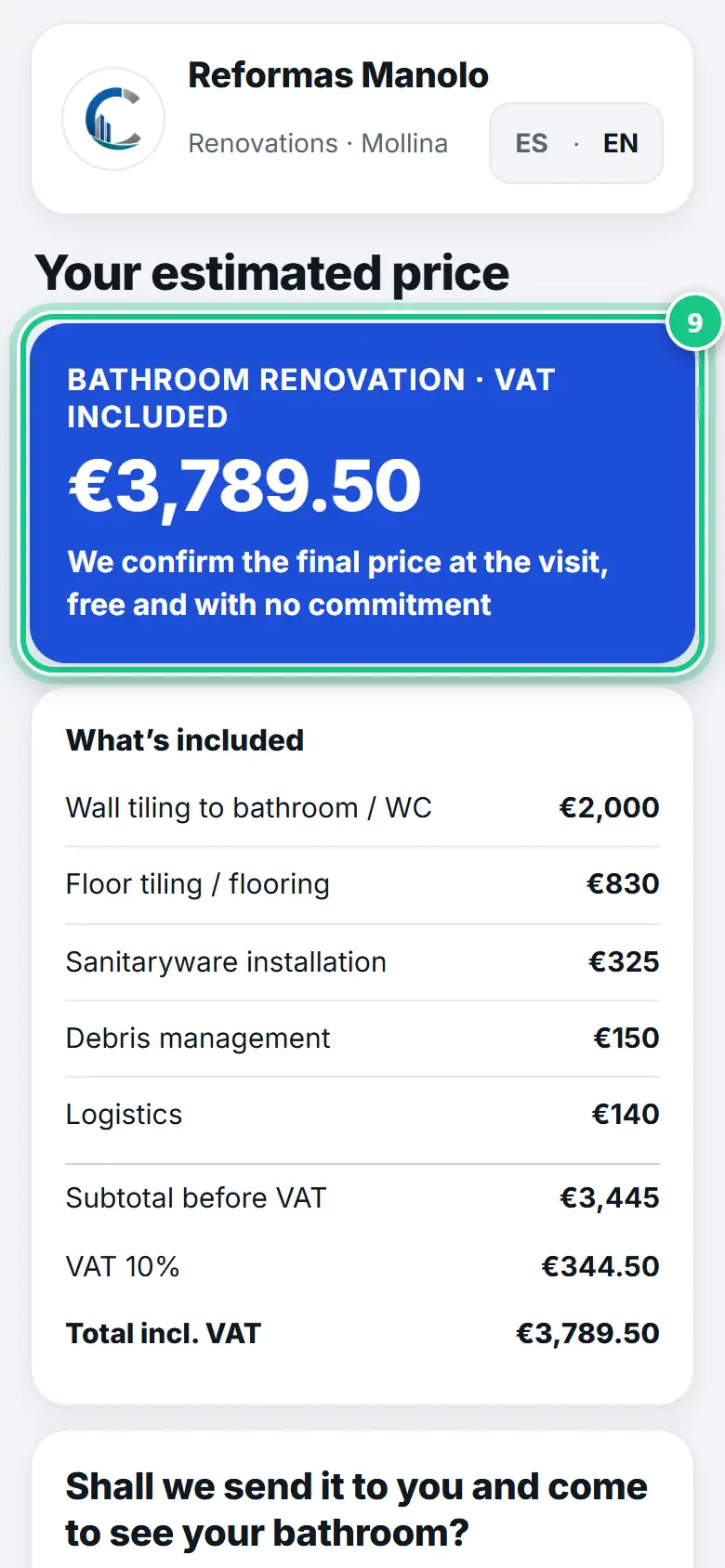
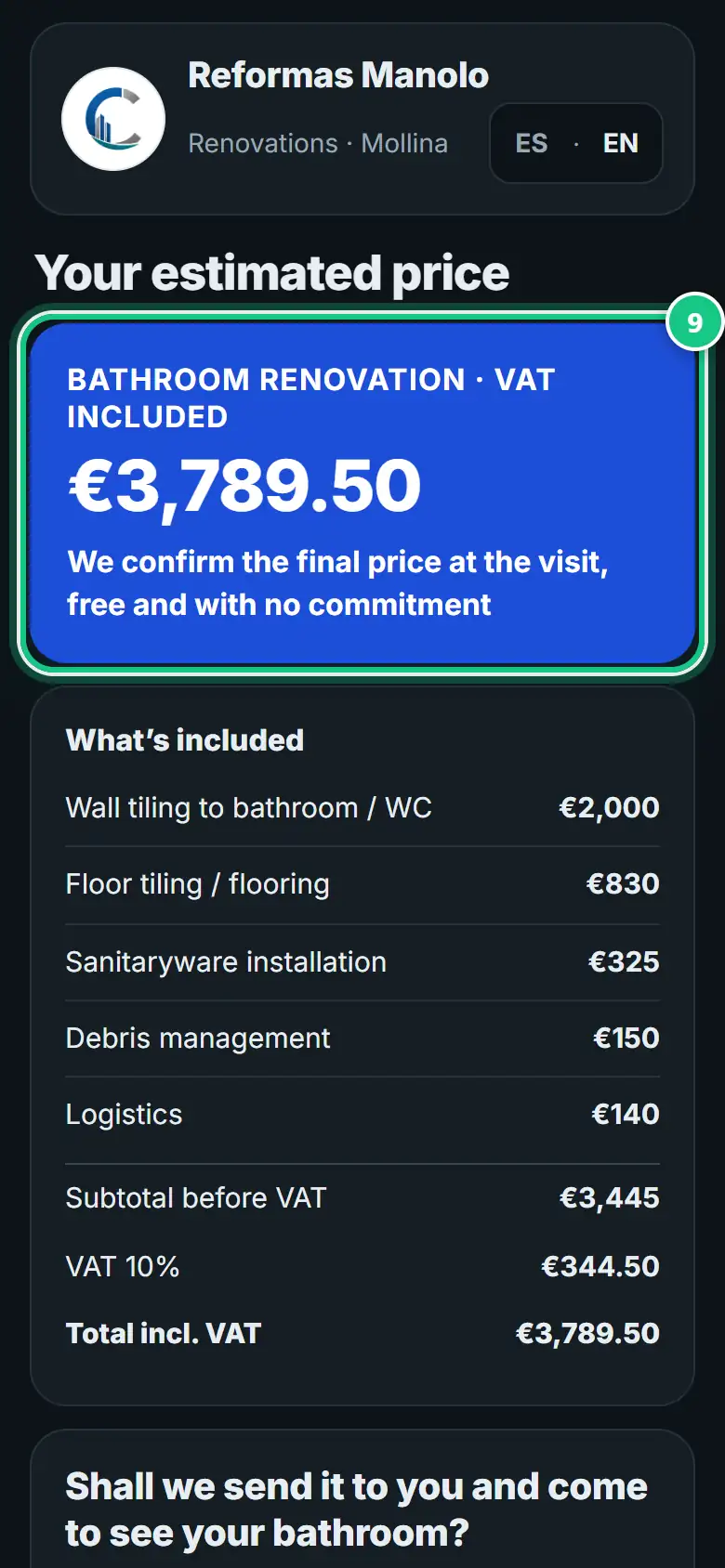
They tick their job and see an estimated price straight away.
-
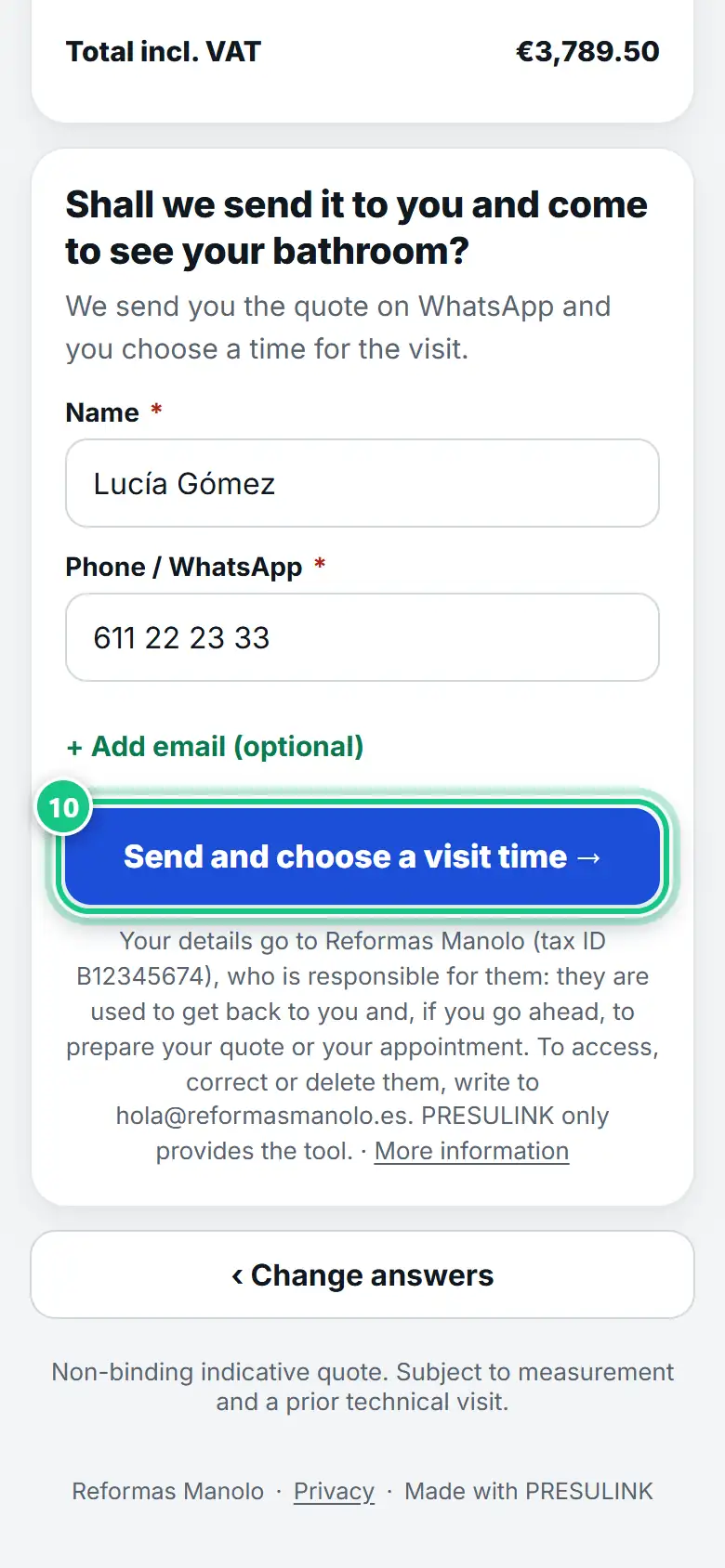
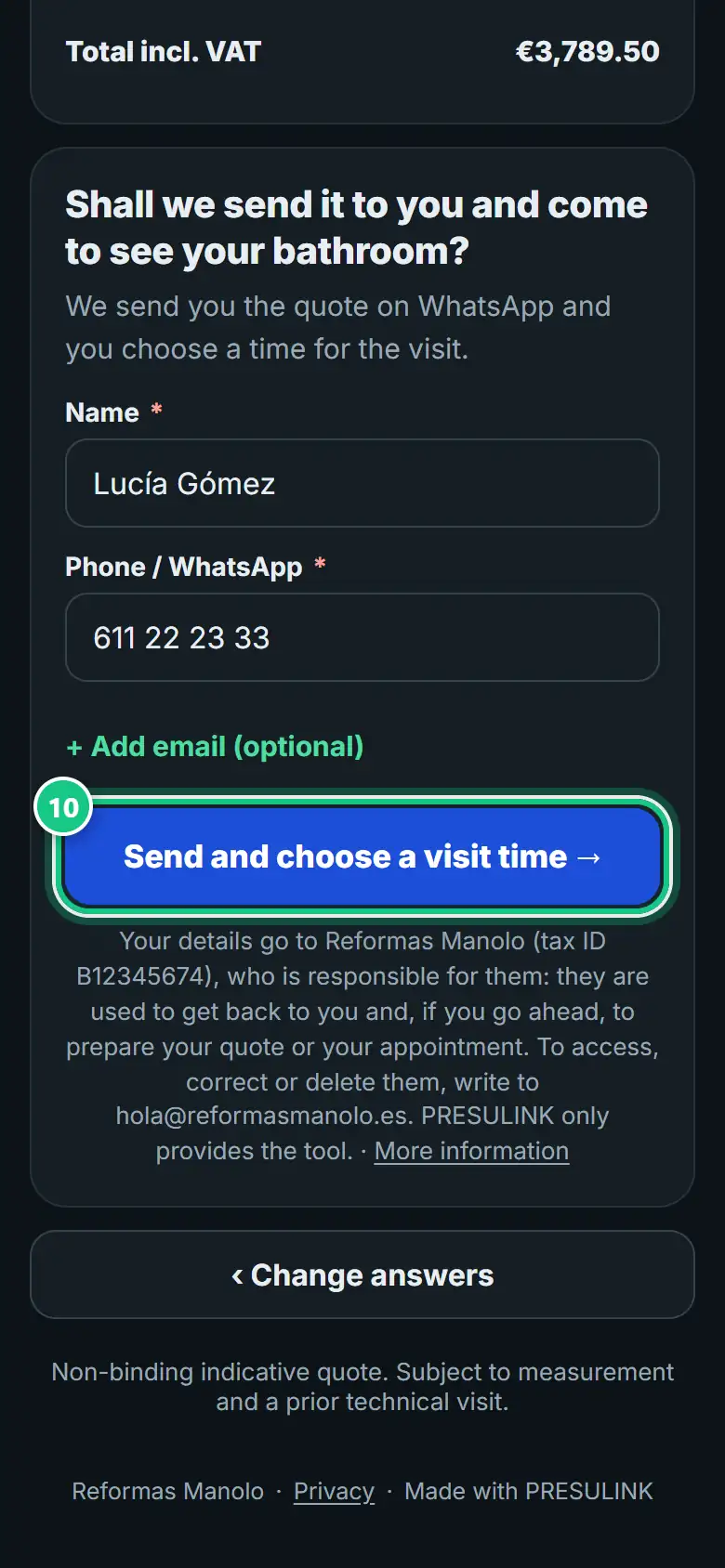
They leave their name and WhatsApp, and send it.
-
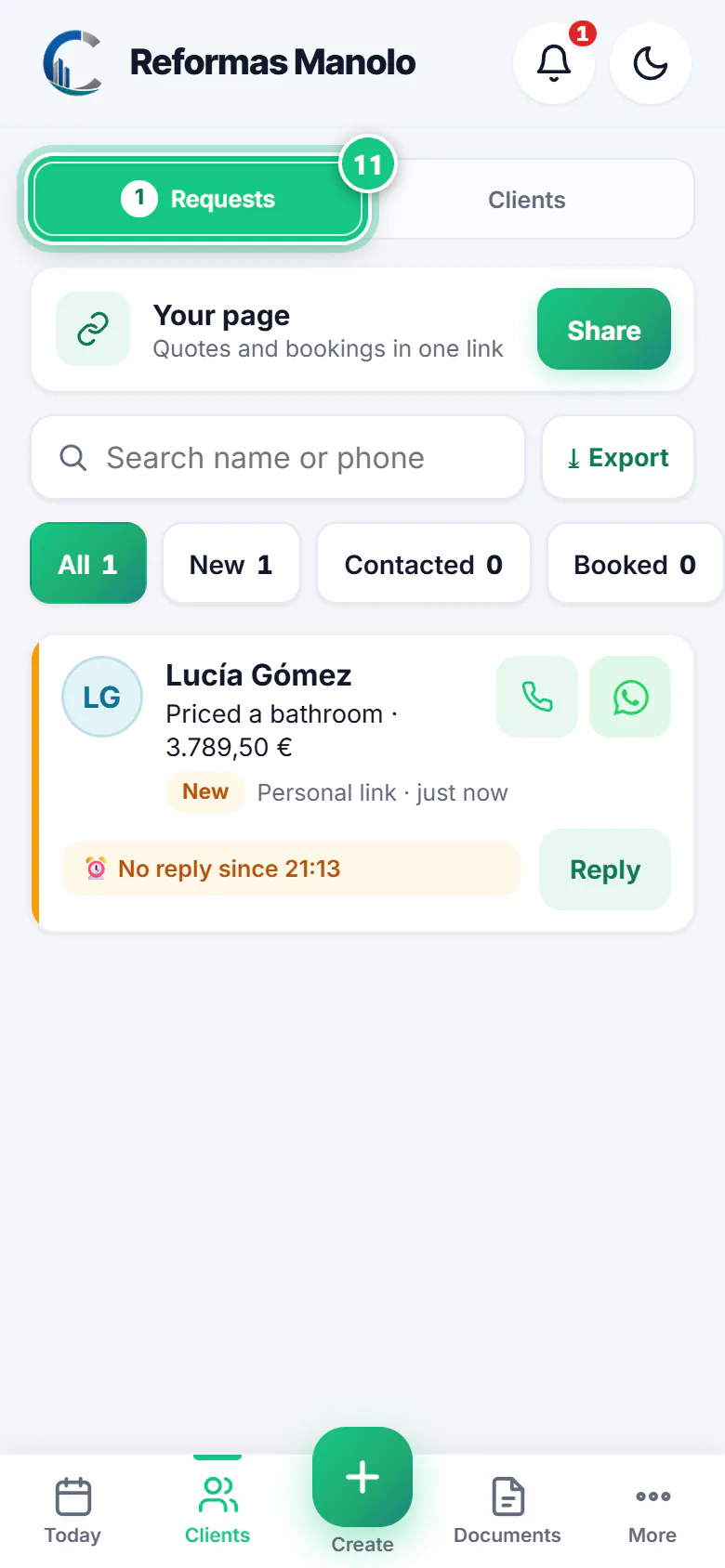
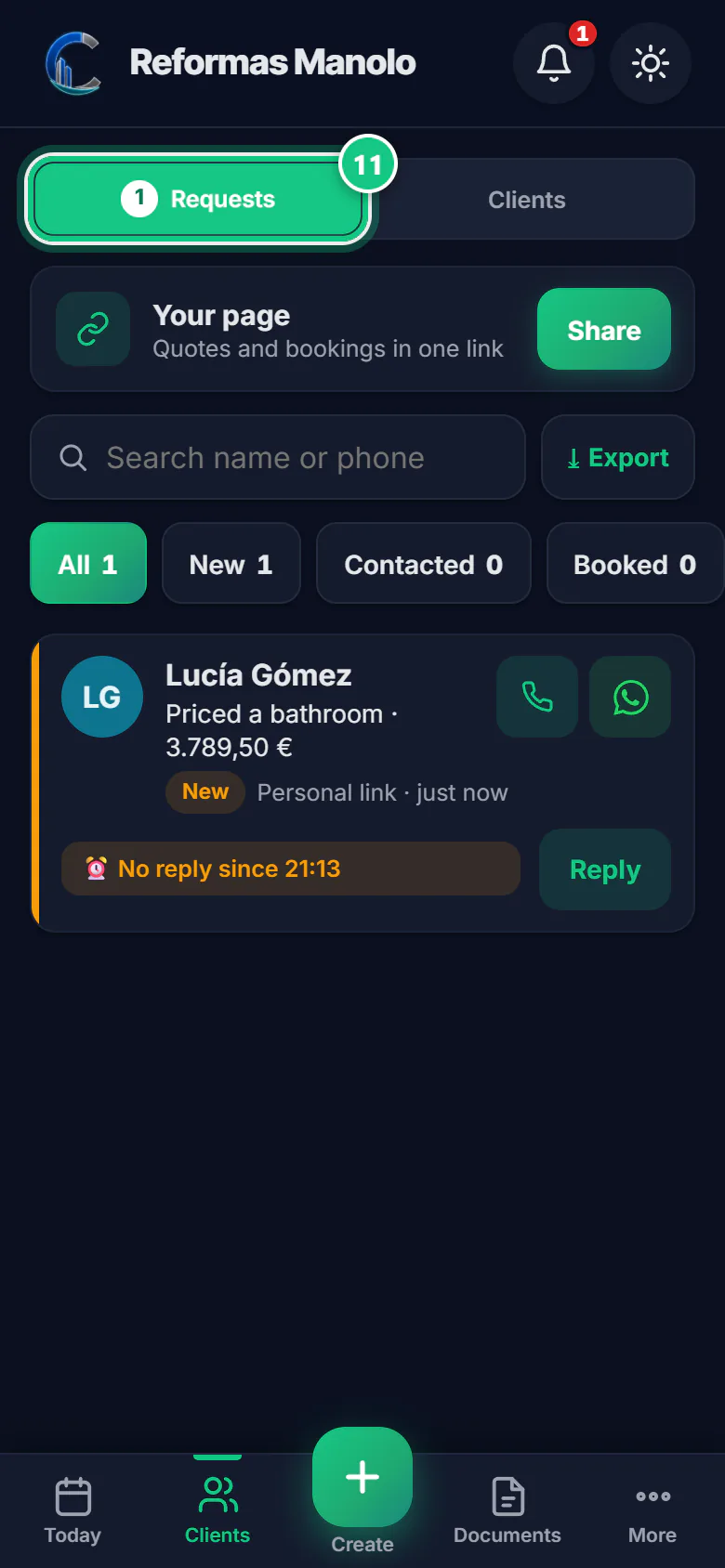
It reaches you in Clients › Requests and the bell rings.
Where people get stuck
- “I created it” is not “I sent it”. Tap WhatsApp to … or Copy: step 7.
- “I created it” is not “I sent it”. Click Share: step 4.
- Set your hours before sending links. If not, your client reads “hasn’t opened their calendar yet”: calendar.
- “★ Pro” on the QR code is not a paid extra. It is the QR style, with your logo and colours.
- Clients who come through a link are in Requests, not in Clients. To make them a contract or proforma, add them with their tax ID.
Open it in the app
On your phone
Open the PRESULINK app and go to:
More›Your page
On your computer
Takes you to that screen. If you are not logged in, it asks you to log in first and then takes you there.
Open LinksOn a computer, at app.presulink.es: Links
More about quoting by link or QR code in online renovation quotes.