

Your first quote in 2 minutes, sent on WhatsApp
A bathroom quoted with the guided quote and the PDF in your client’s WhatsApp.
Step by step
-
Click Quotes › New guided.
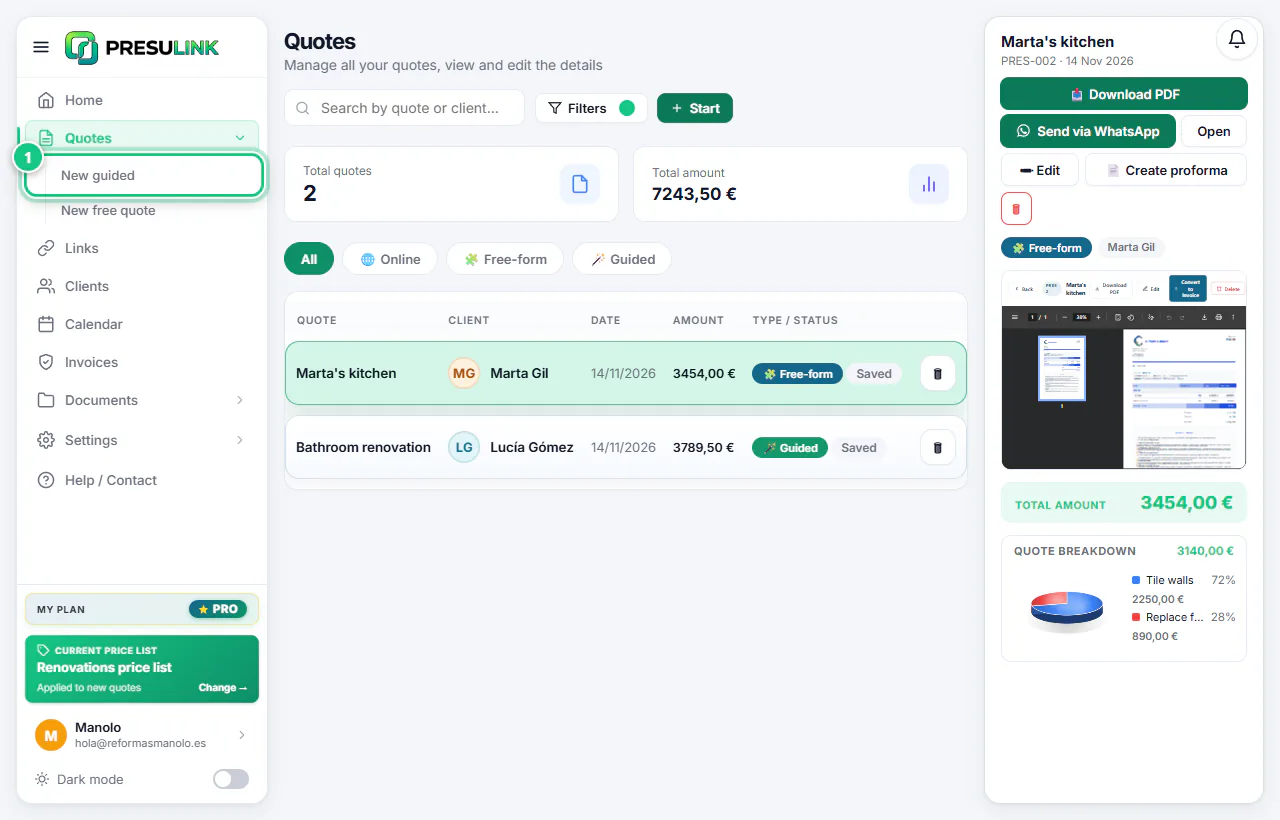
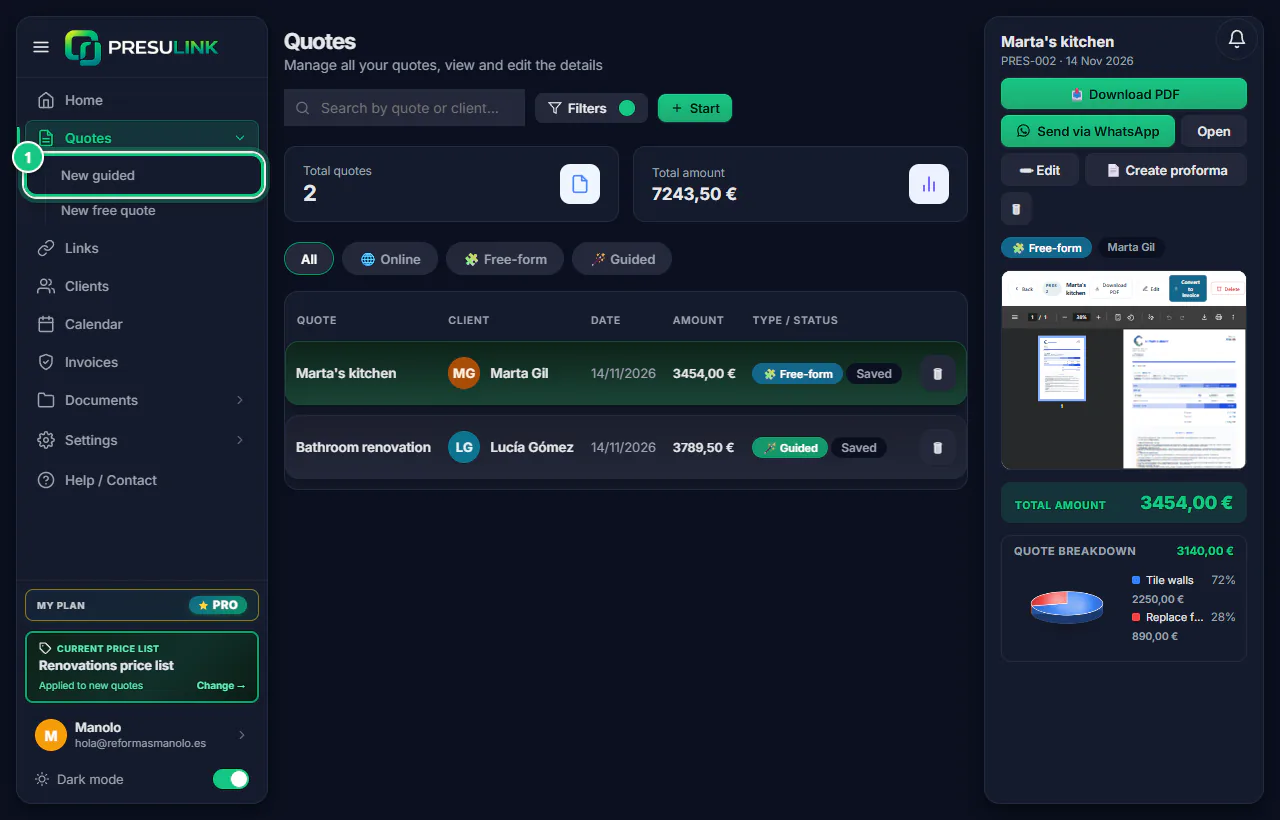
-
Leave Quick quote (1 minute) and click Start quote.
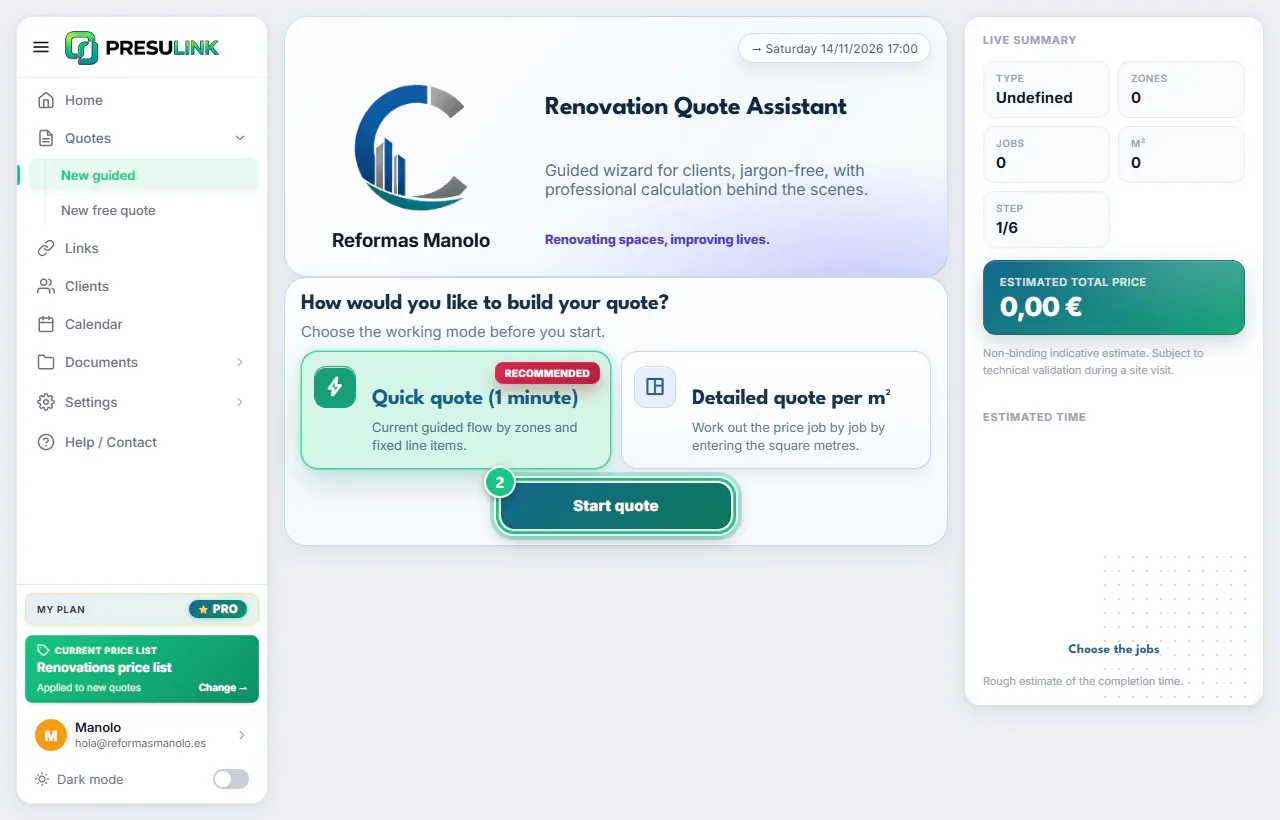
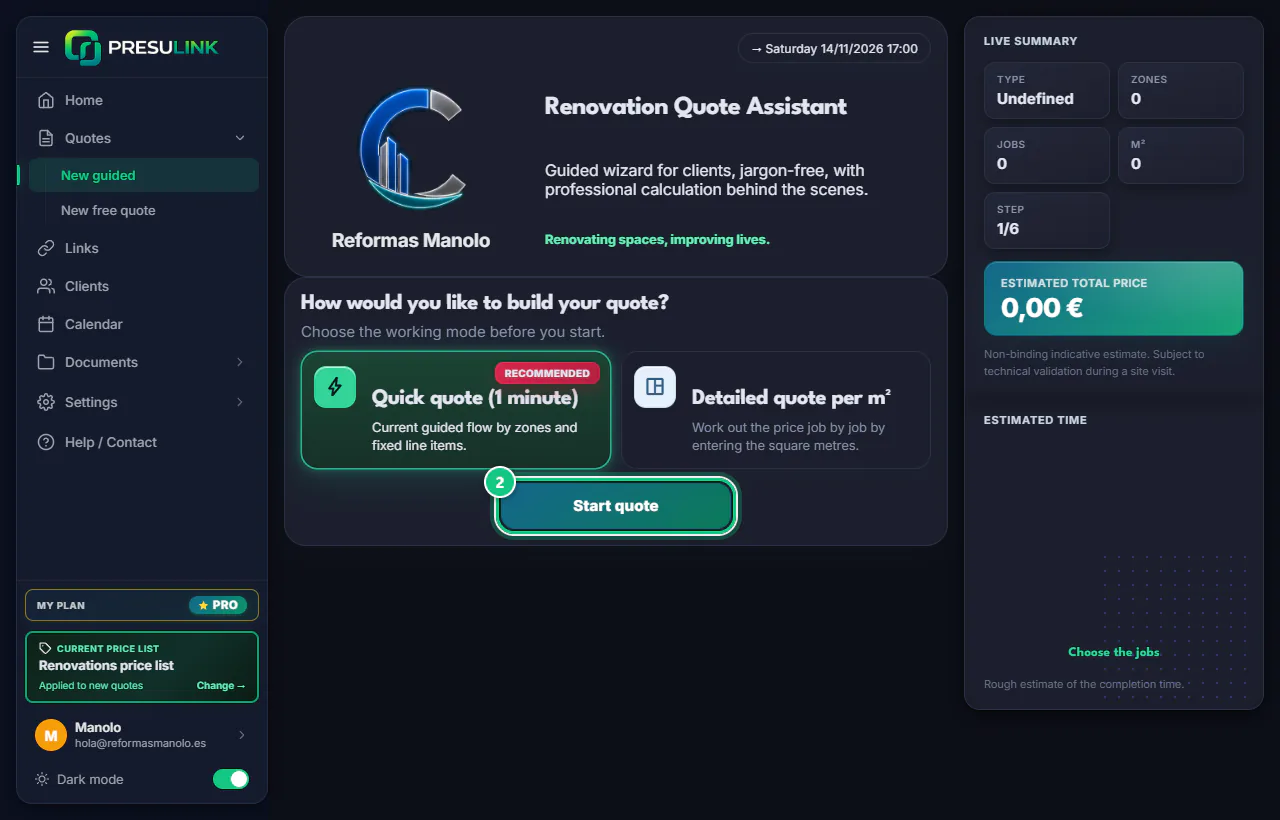
-
Choose Bathroom and click Next.
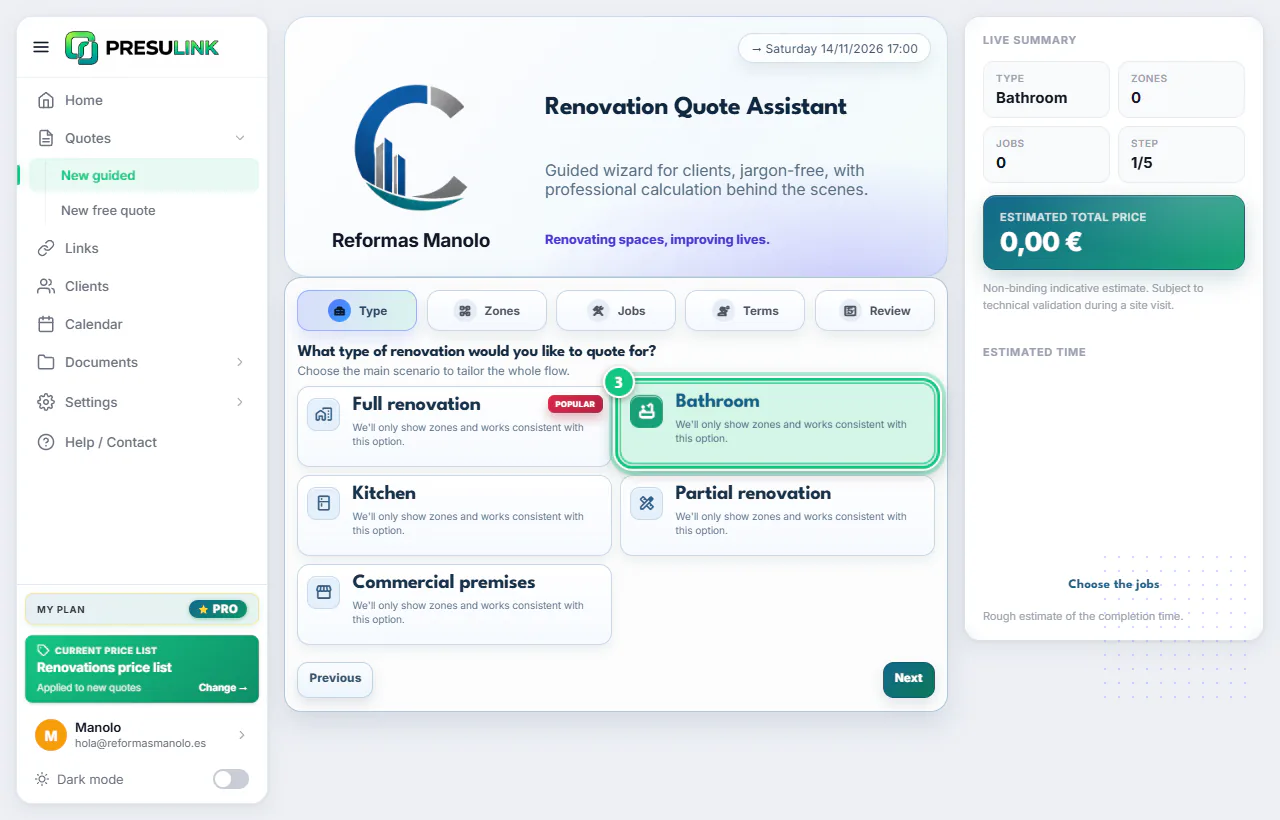
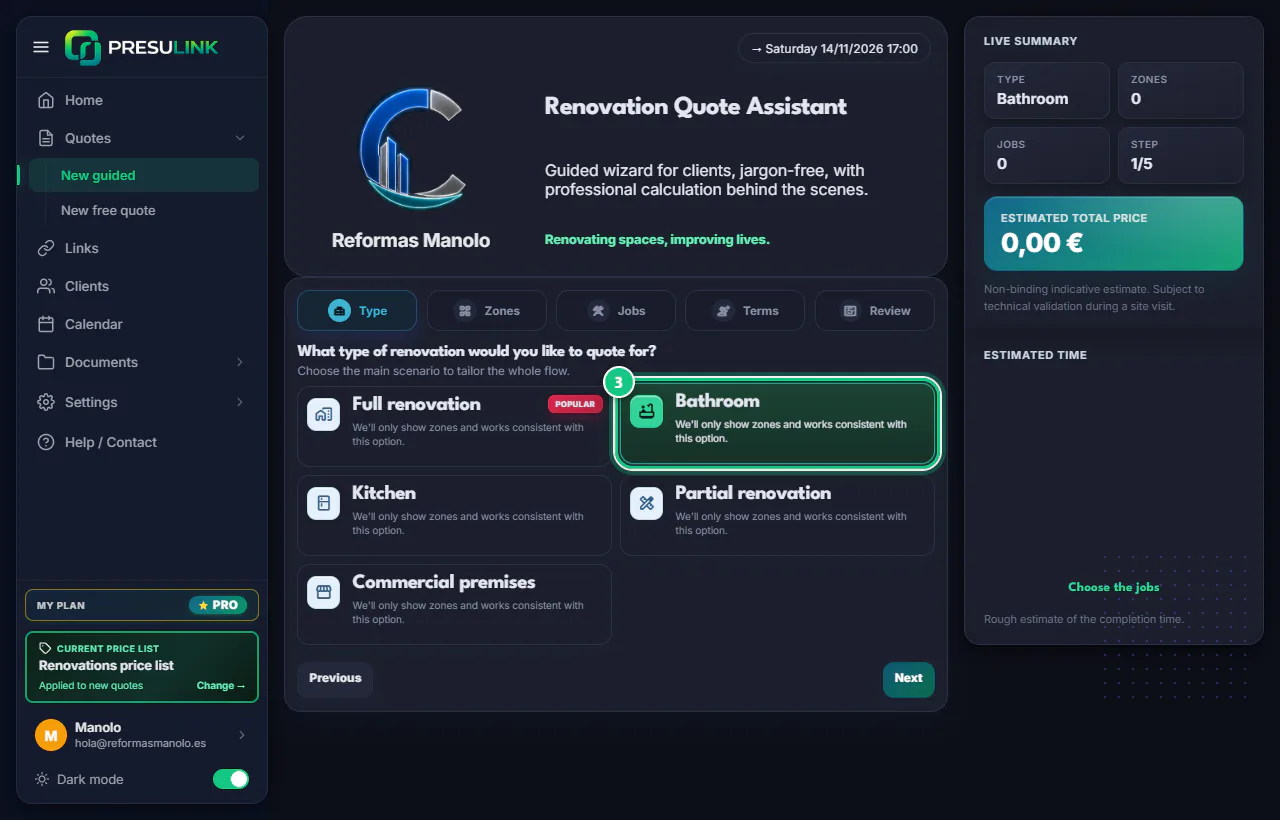
-
Tick the area Bathroom (or WC (no shower)) and click Next.
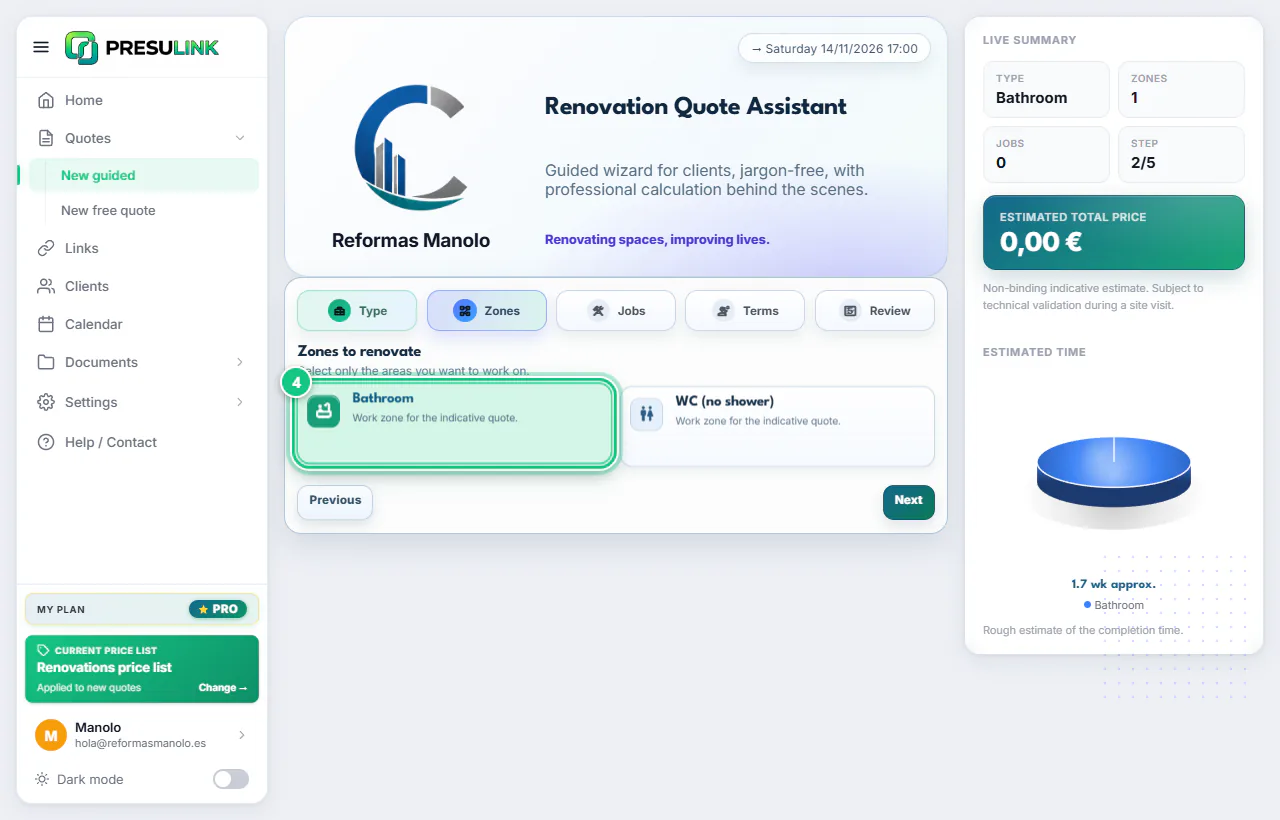
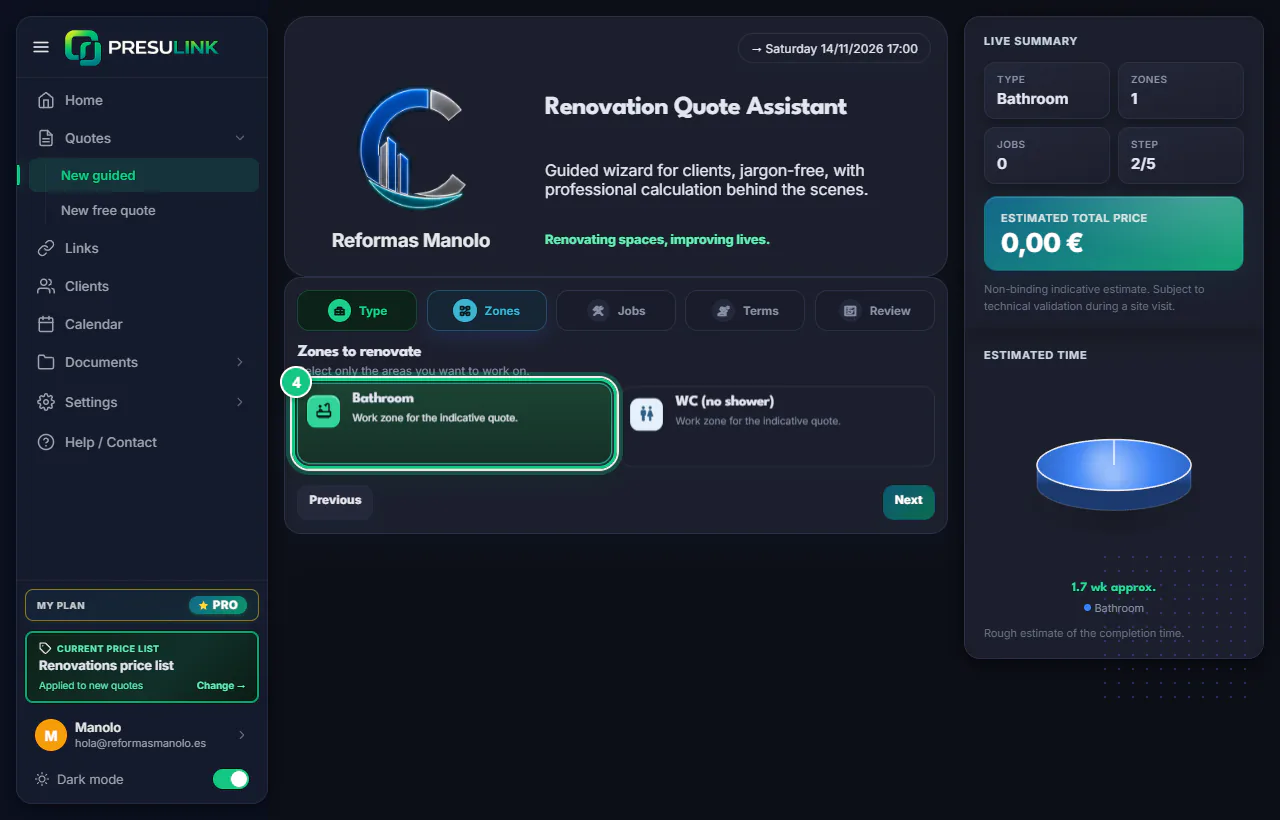
-
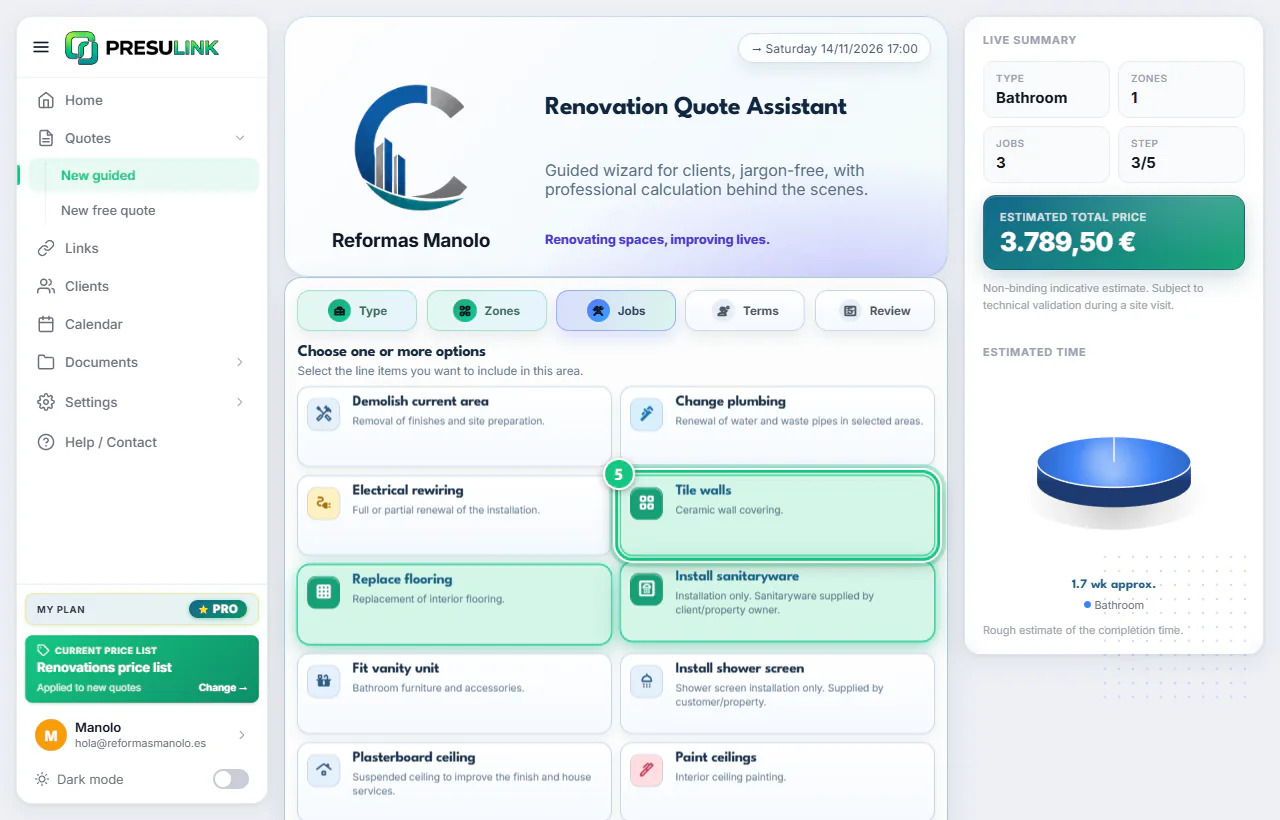
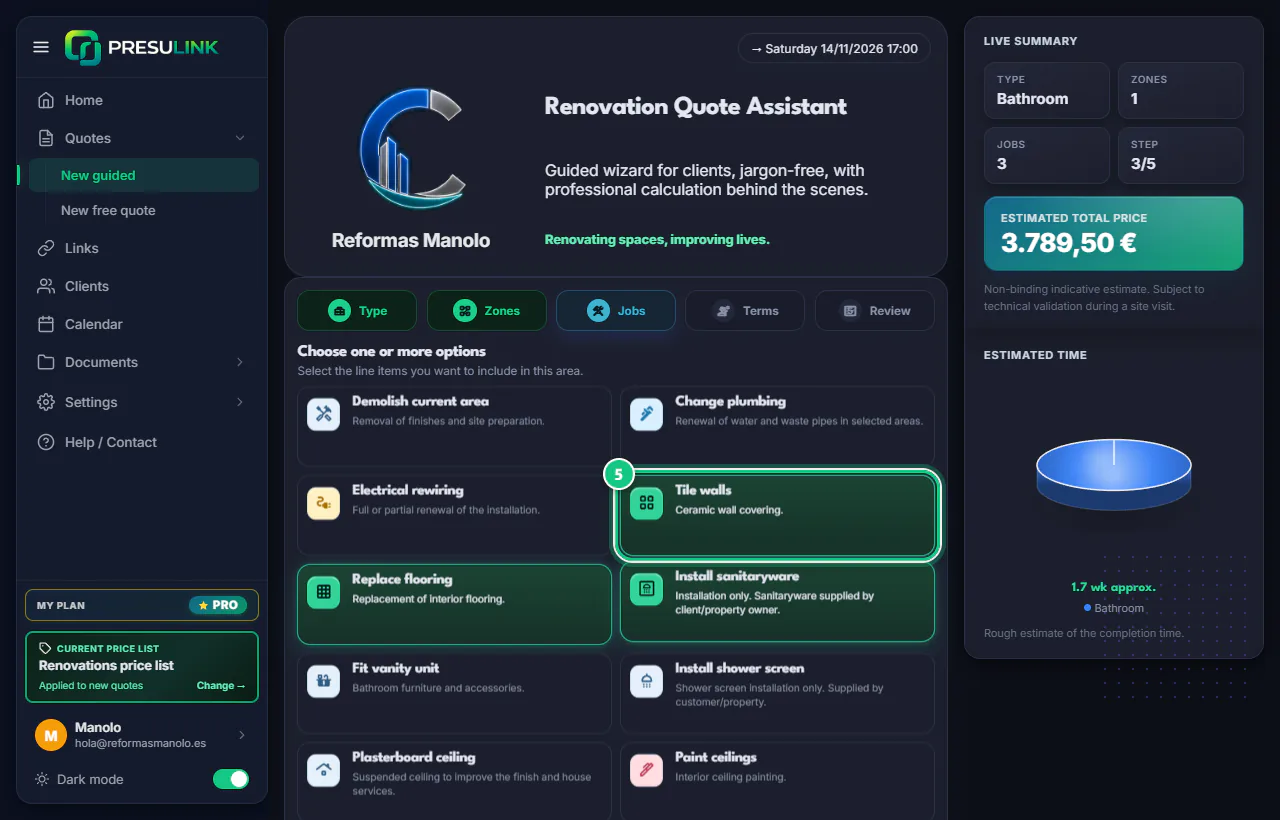
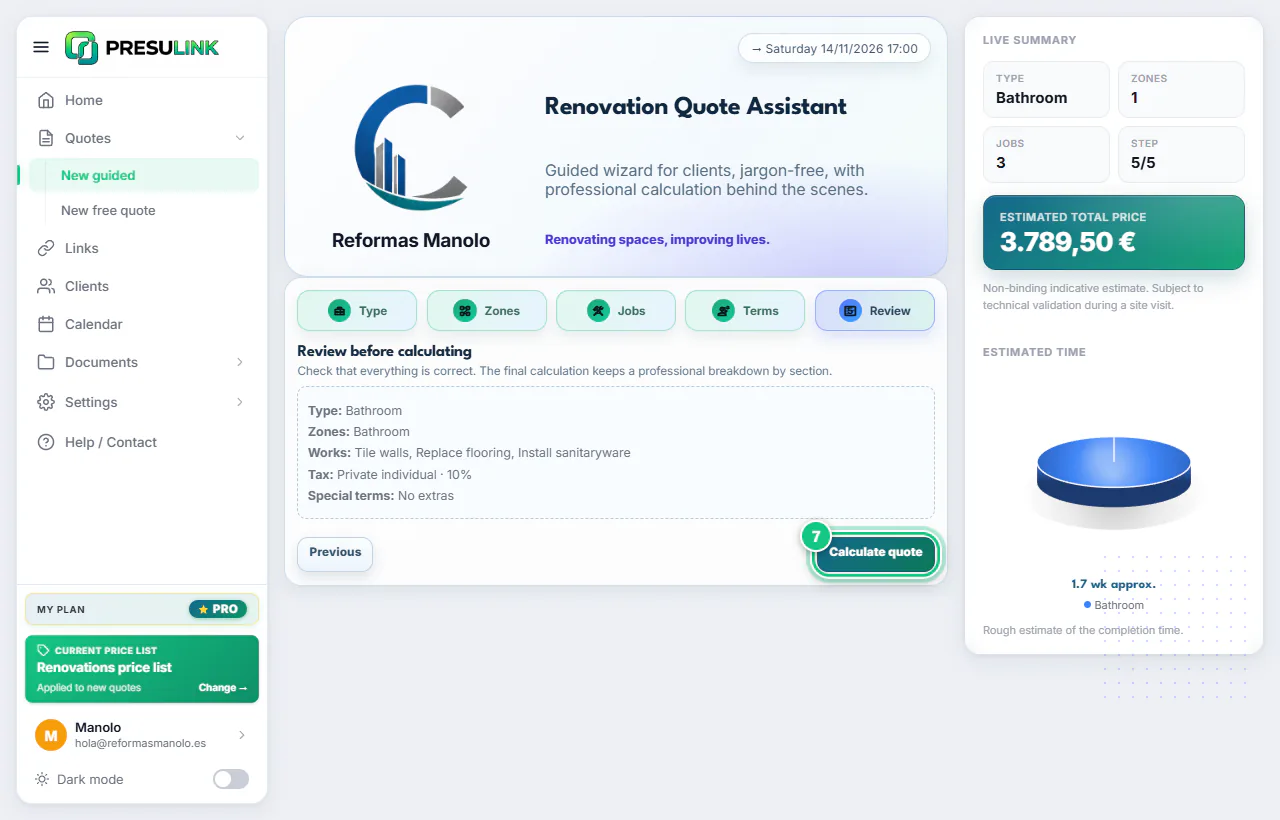
Tick the jobs. The price adds up on the right.
-
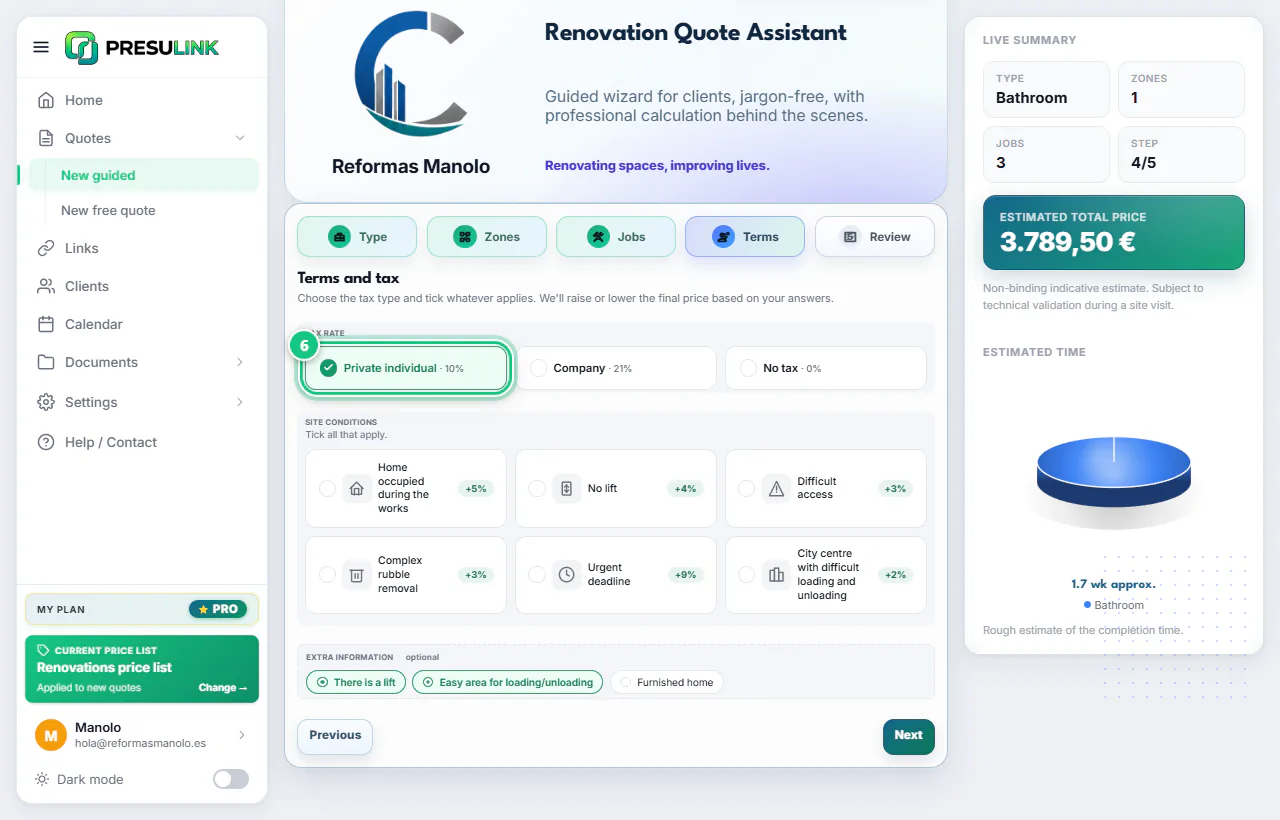
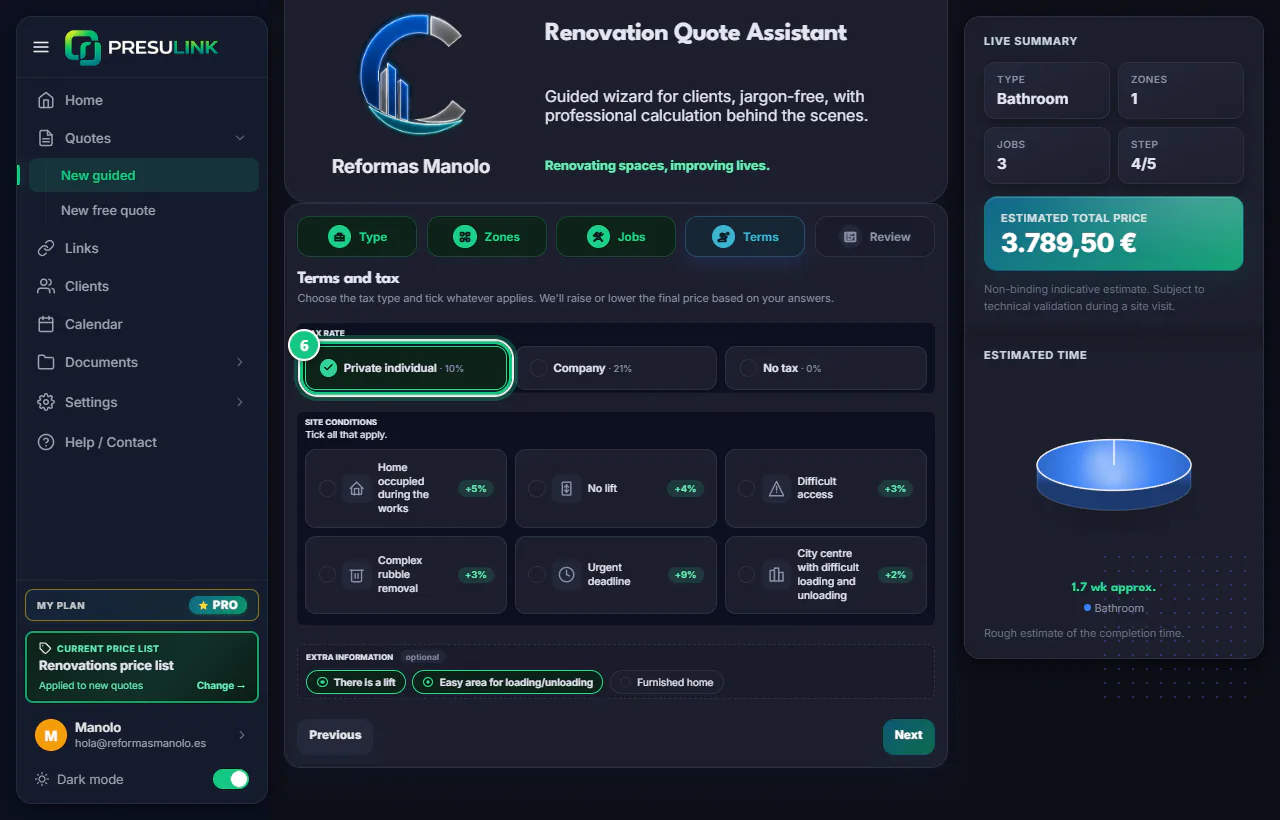
Pick the VAT: Private individual for a home, Company for a business.
Note: There is a third option: No VAT · 0%. Each site condition you tick adds a % to the price.
-
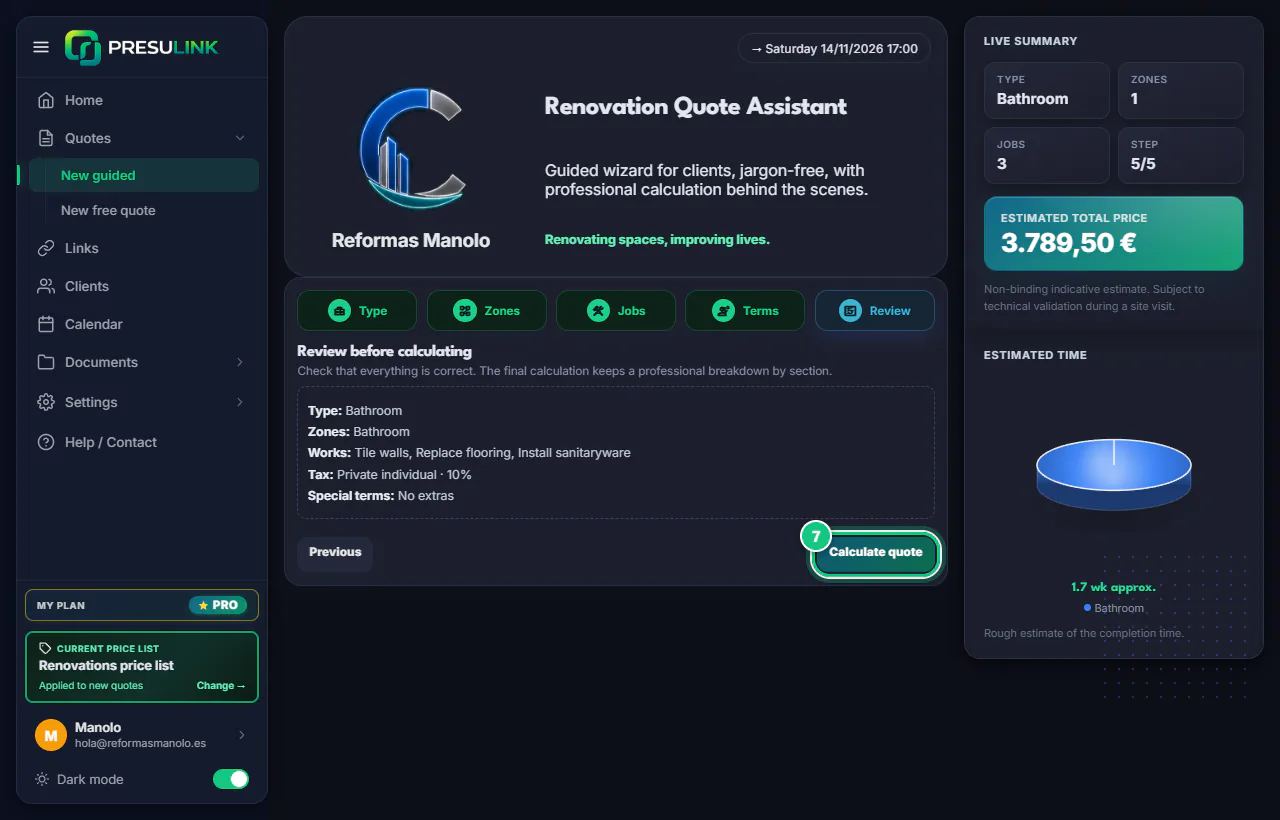
Check the summary and click Calculate quote.
-
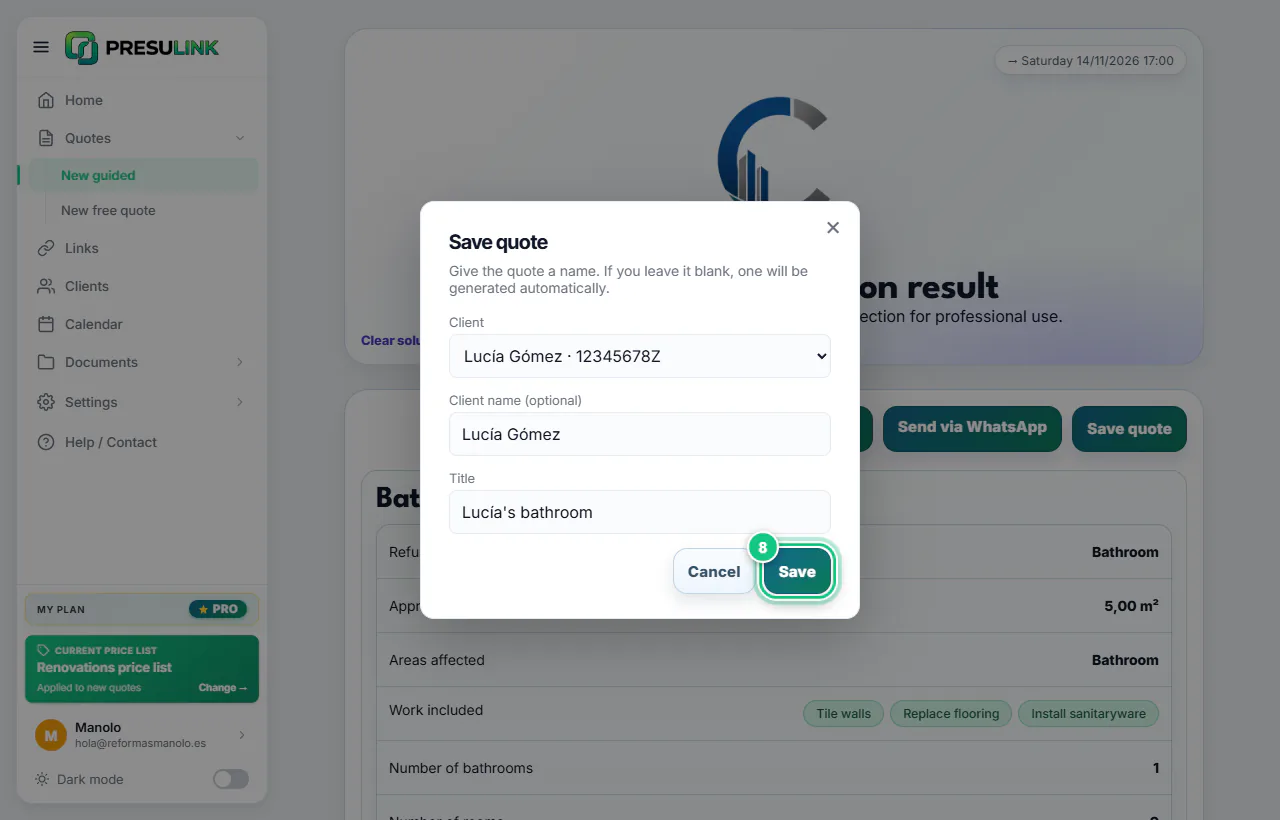
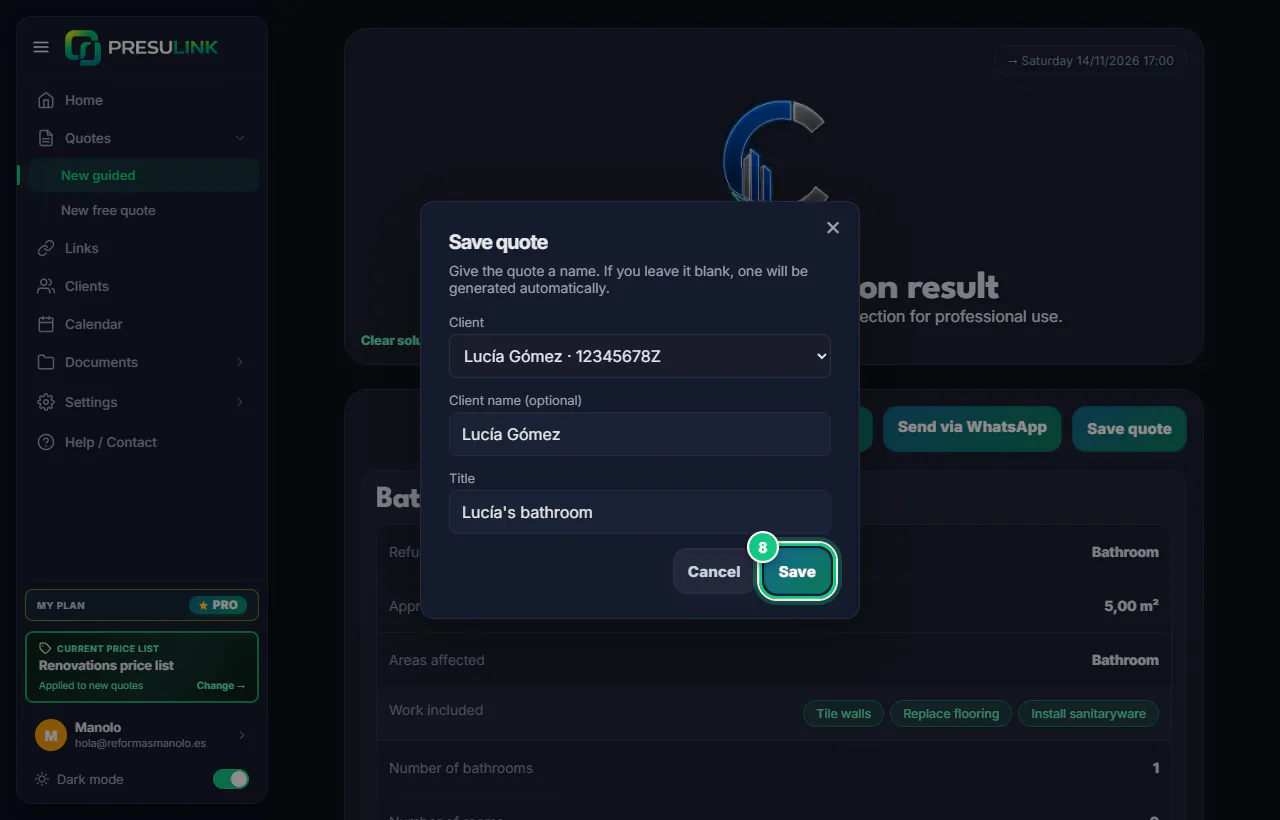
Click Save quote, pick the Client and click Save.
Note: New client? Create them first in Clients with their phone, or WhatsApp opens without a number.
-
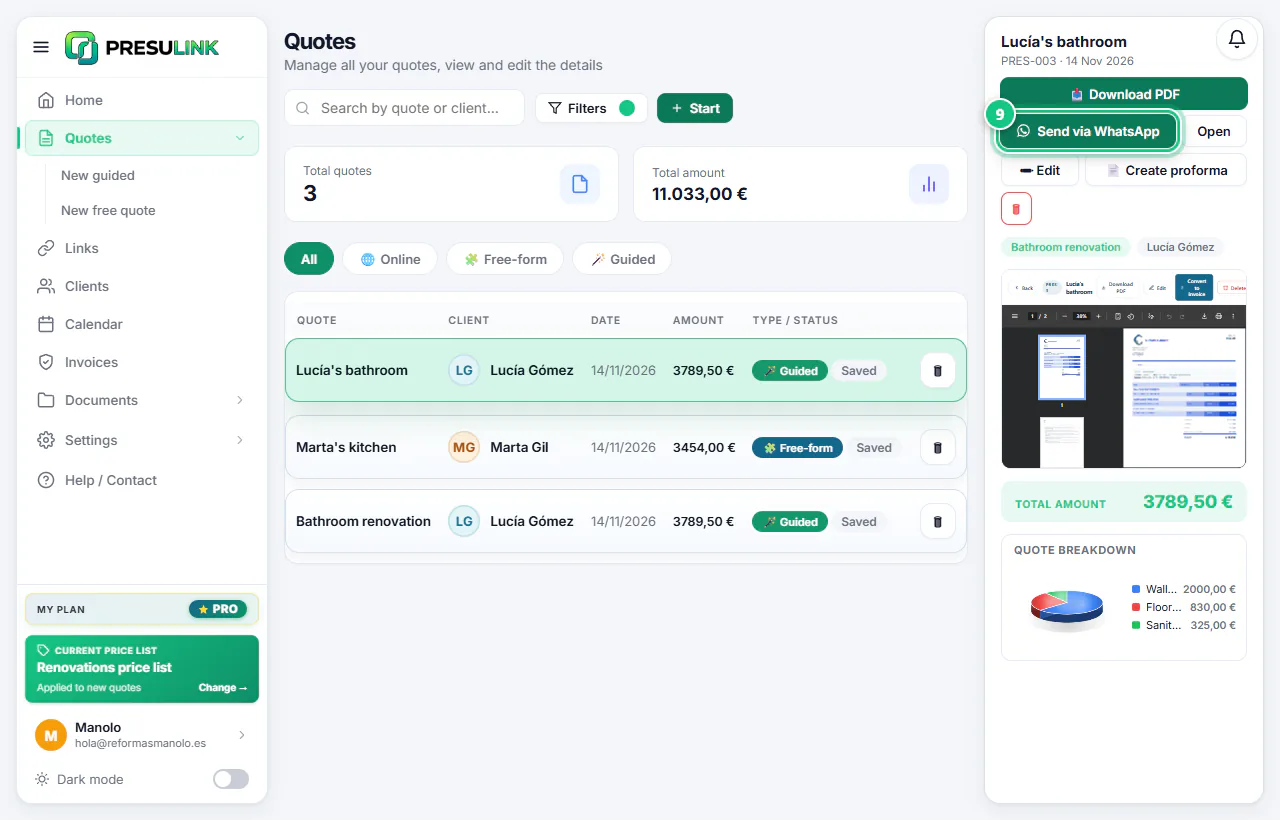
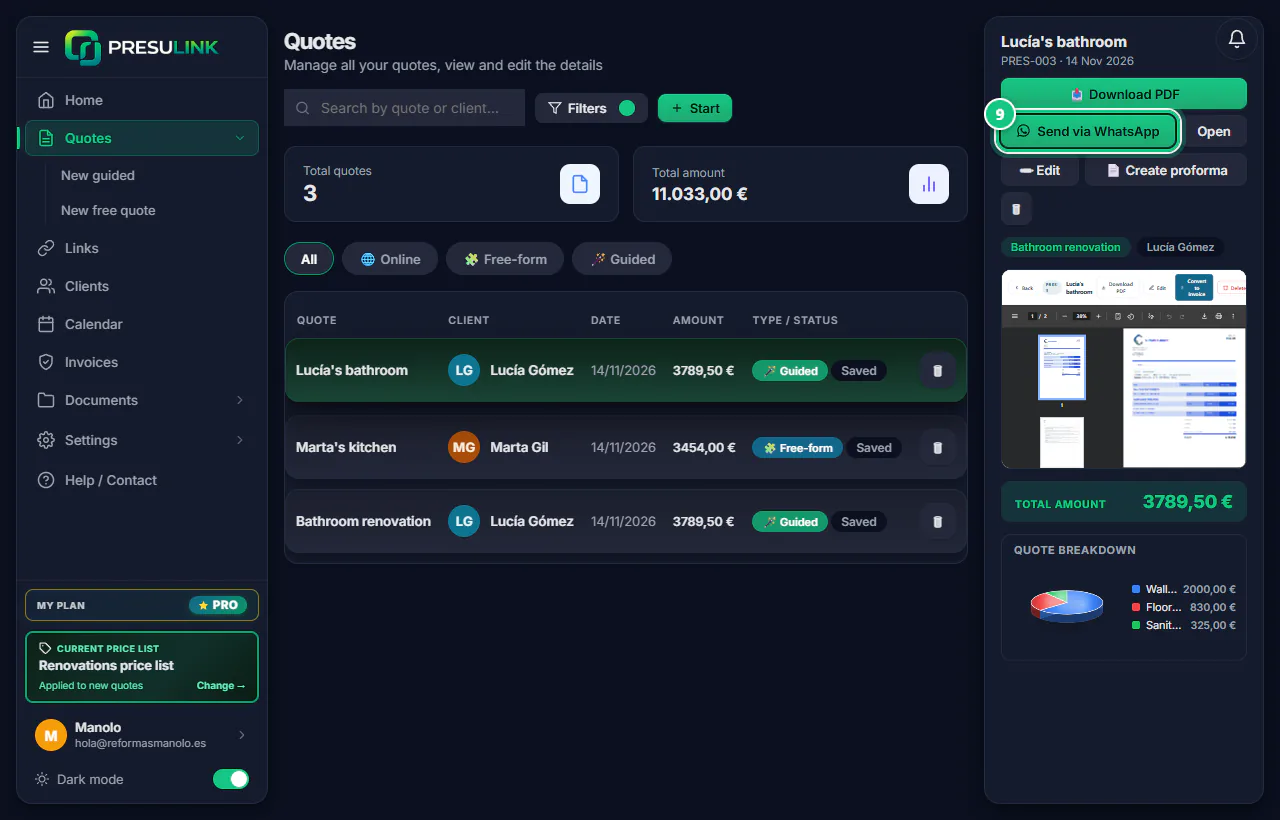
In Quotes, open the quote and click Send via WhatsApp.
Note: It downloads the PDF and opens WhatsApp with their phone: attach the PDF. For email, 📥 Download PDF.
-
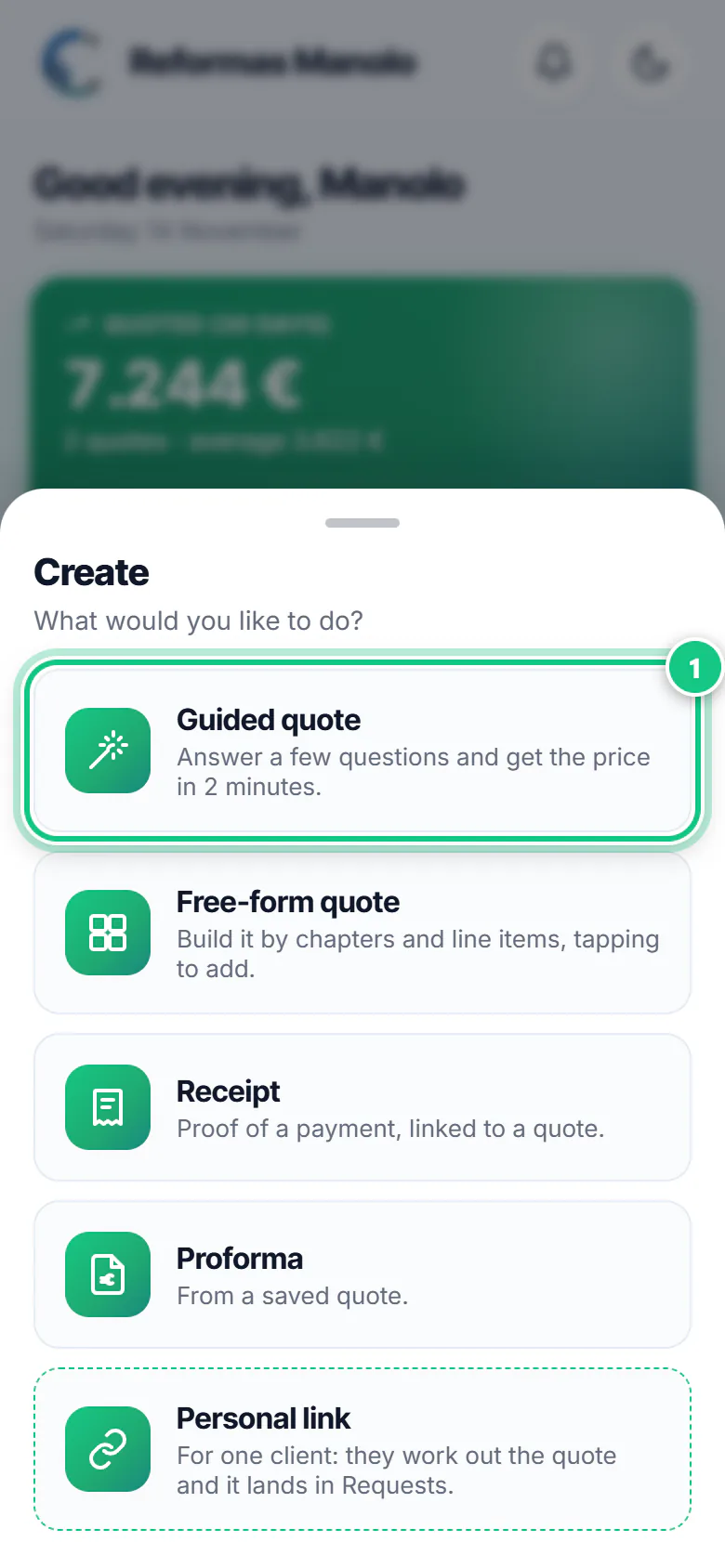
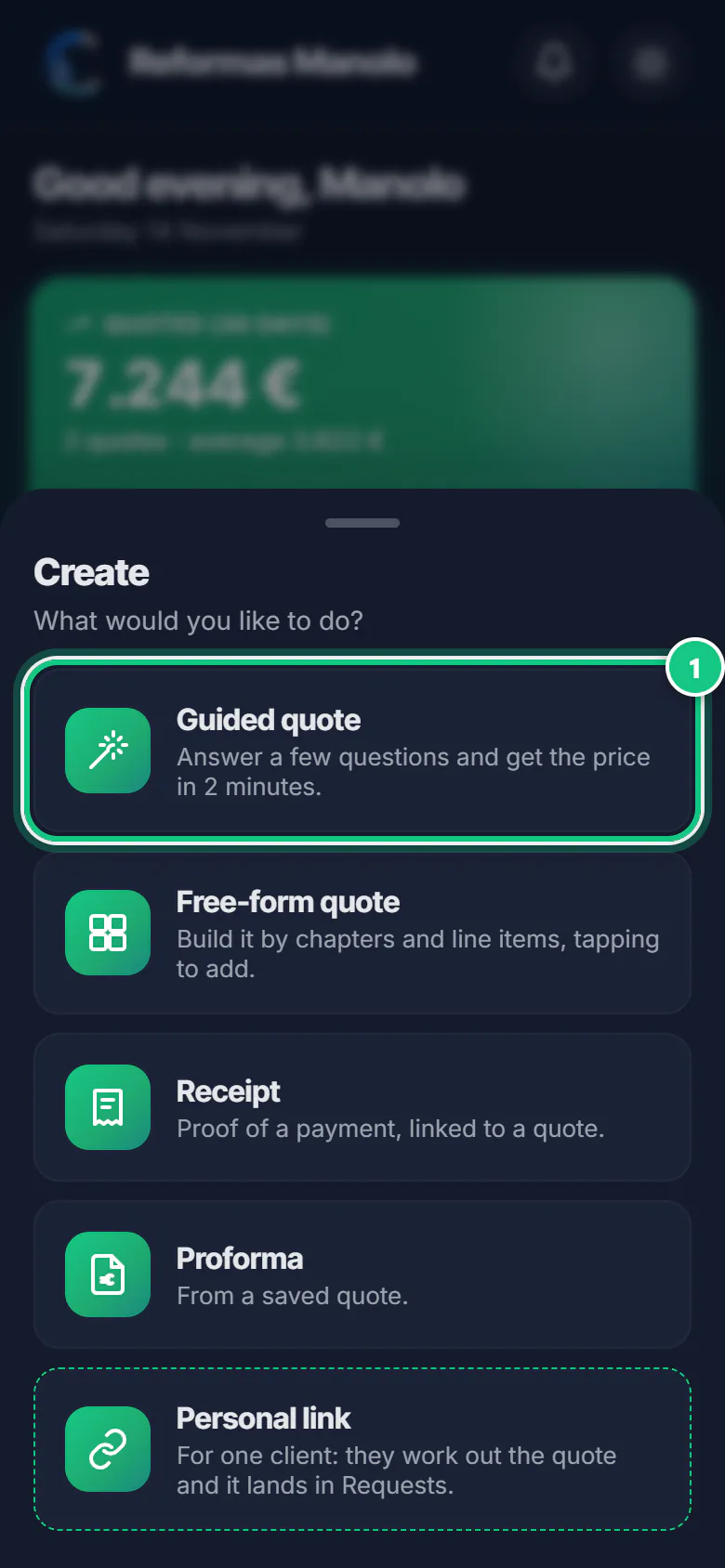
Tap Create (bottom centre), then Guided quote.
Note: Always start from Create. See New simulation? You are not in the app: go in through Create › Guided quote.
-
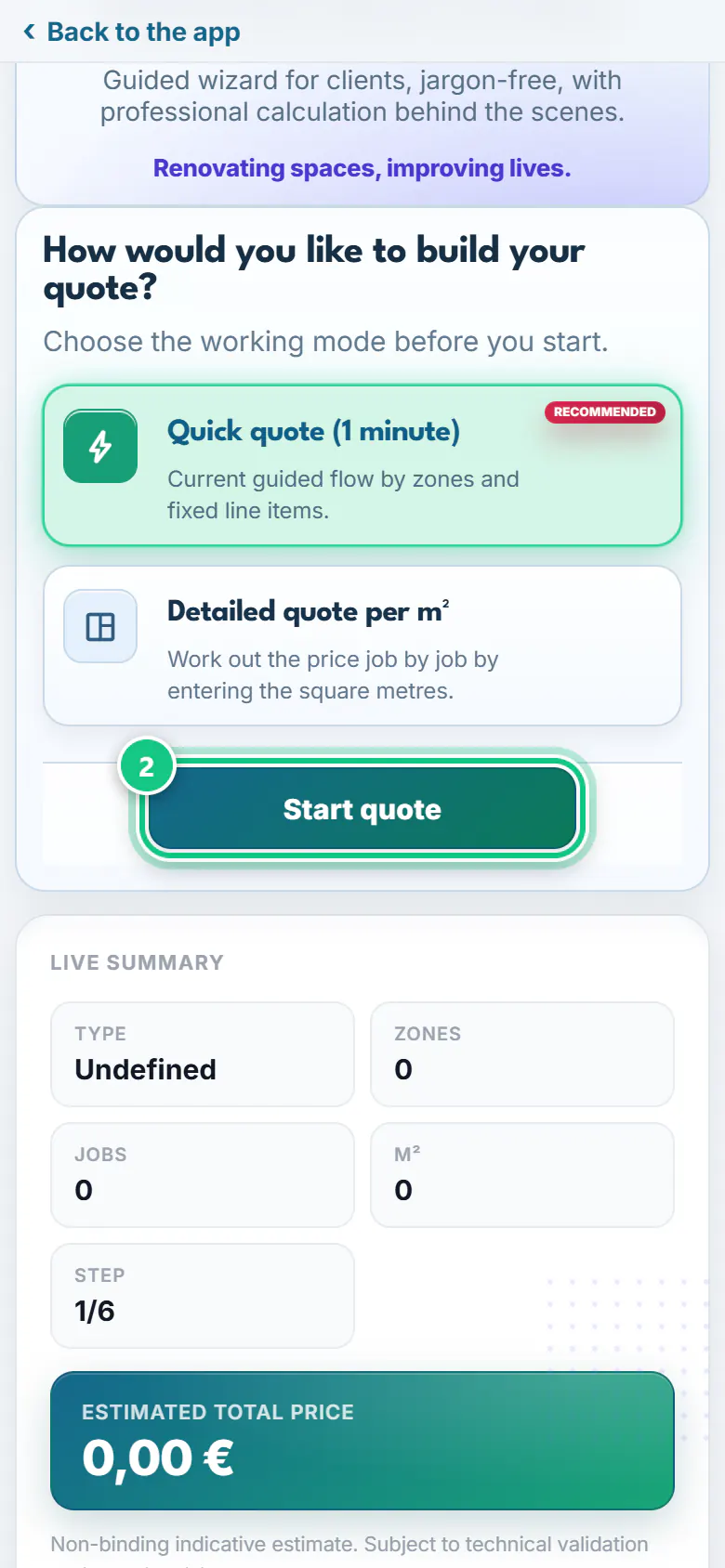
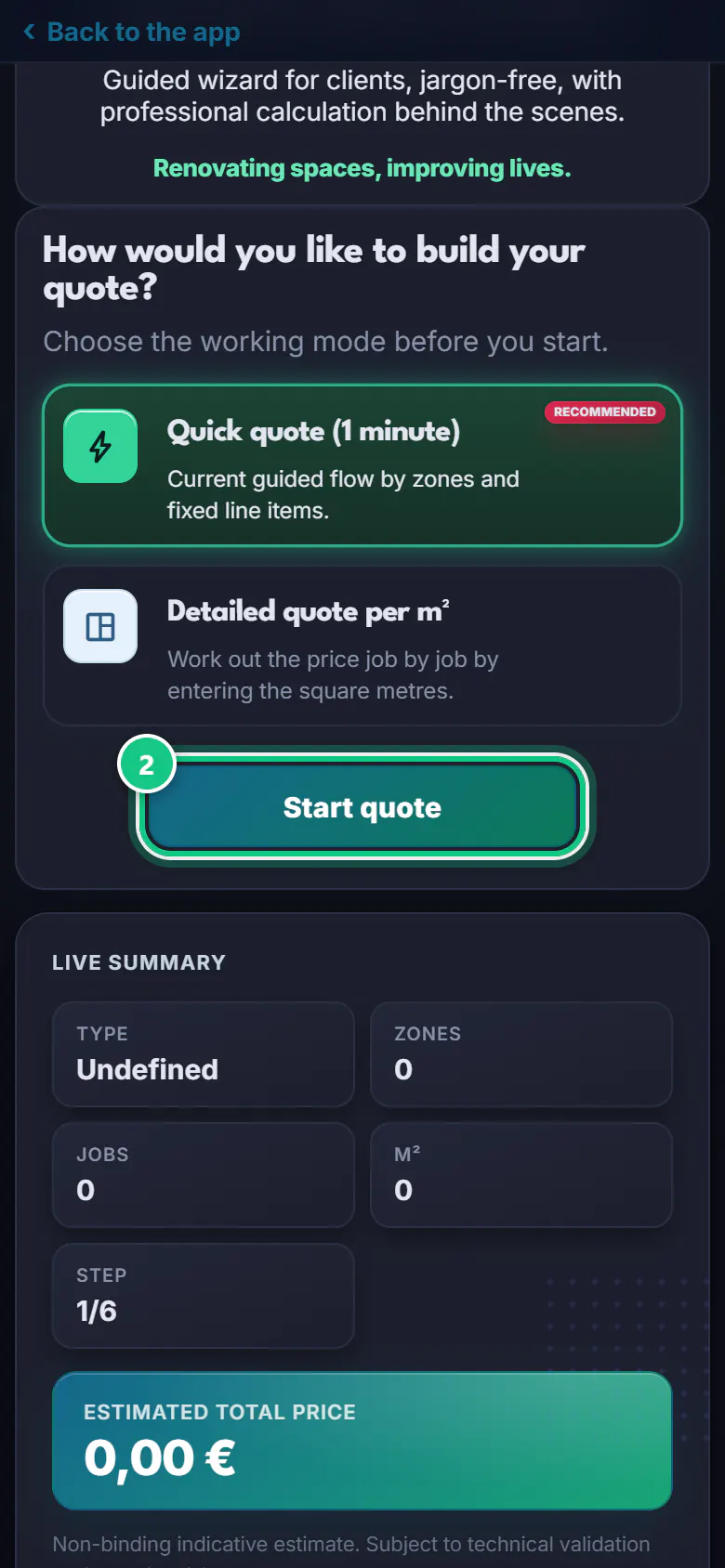
Leave Quick quote (1 minute) and tap Start quote.
-
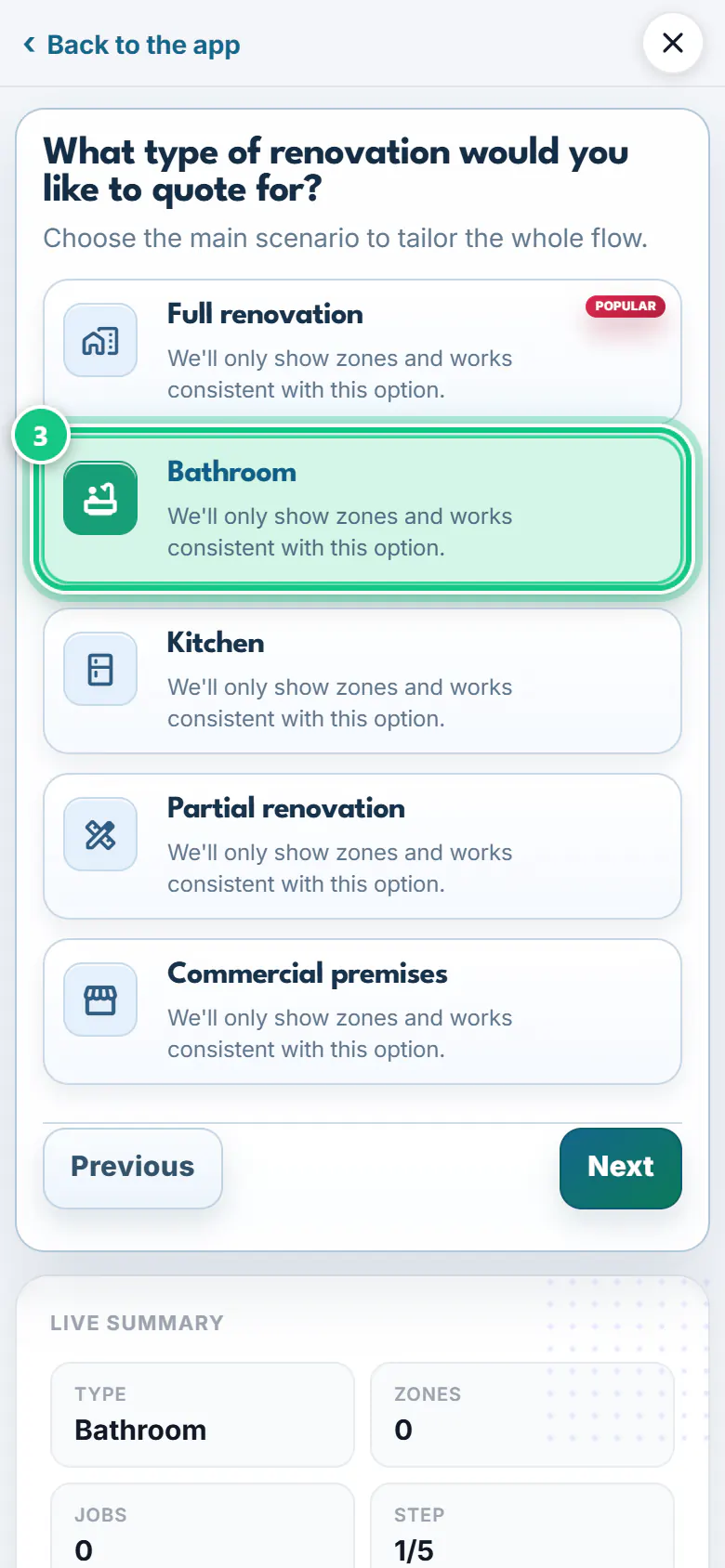
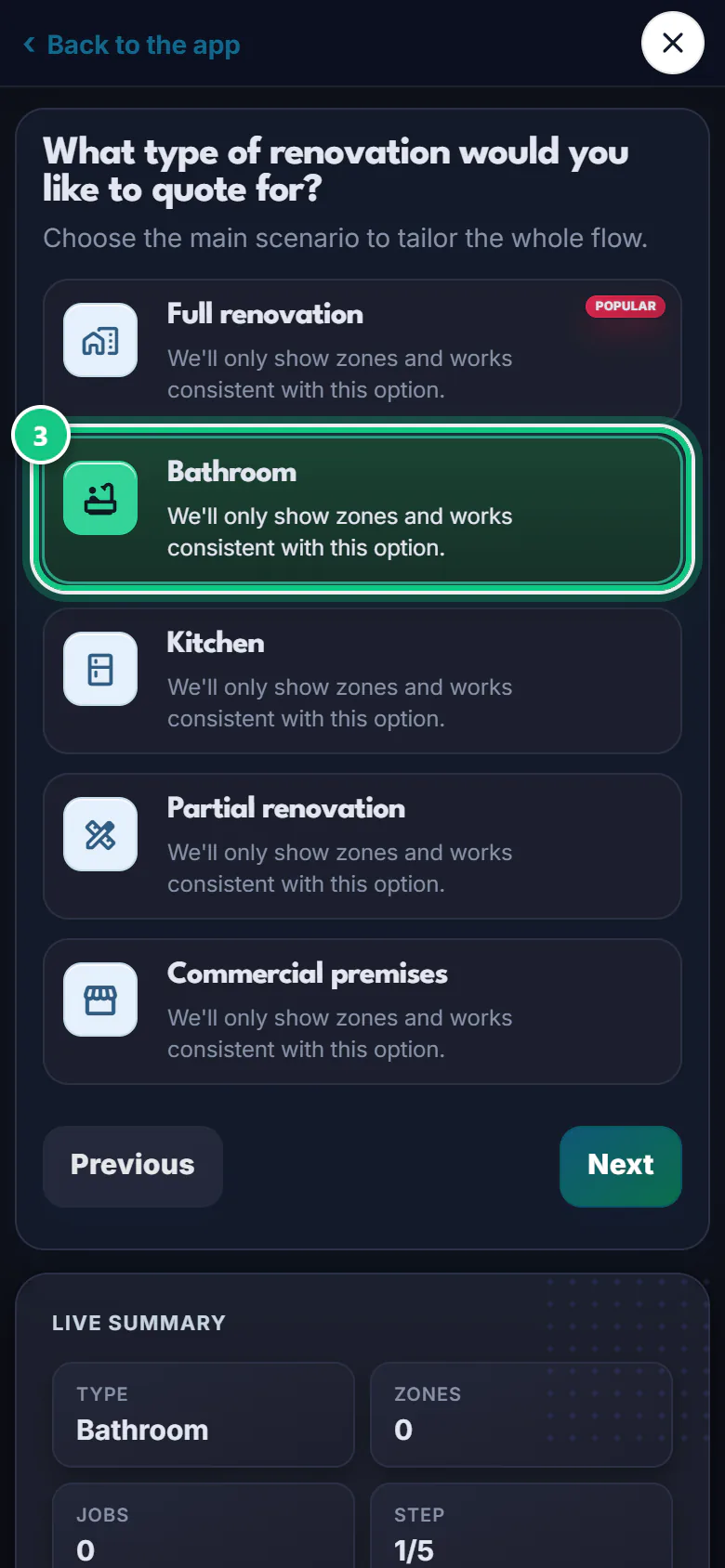
Choose Bathroom and tap Next.
-
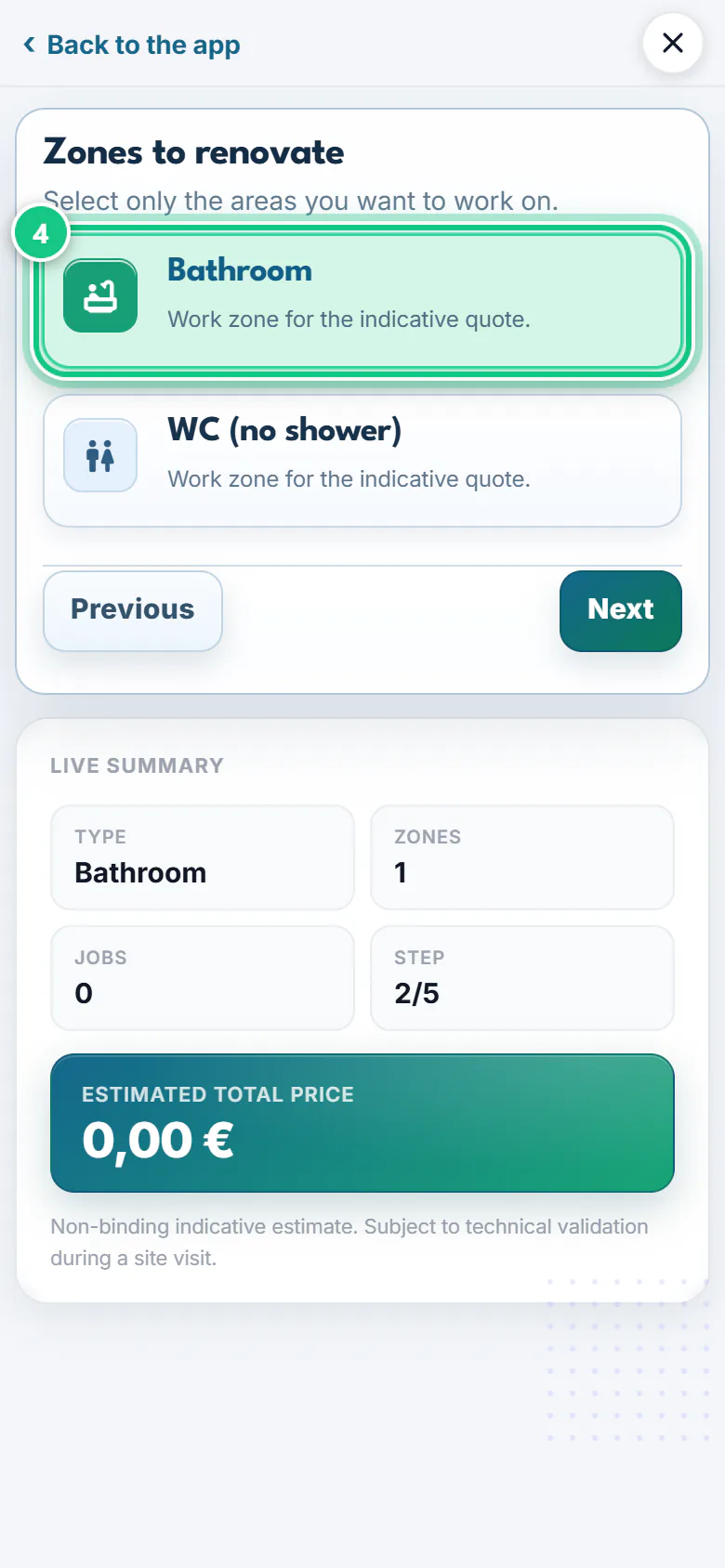
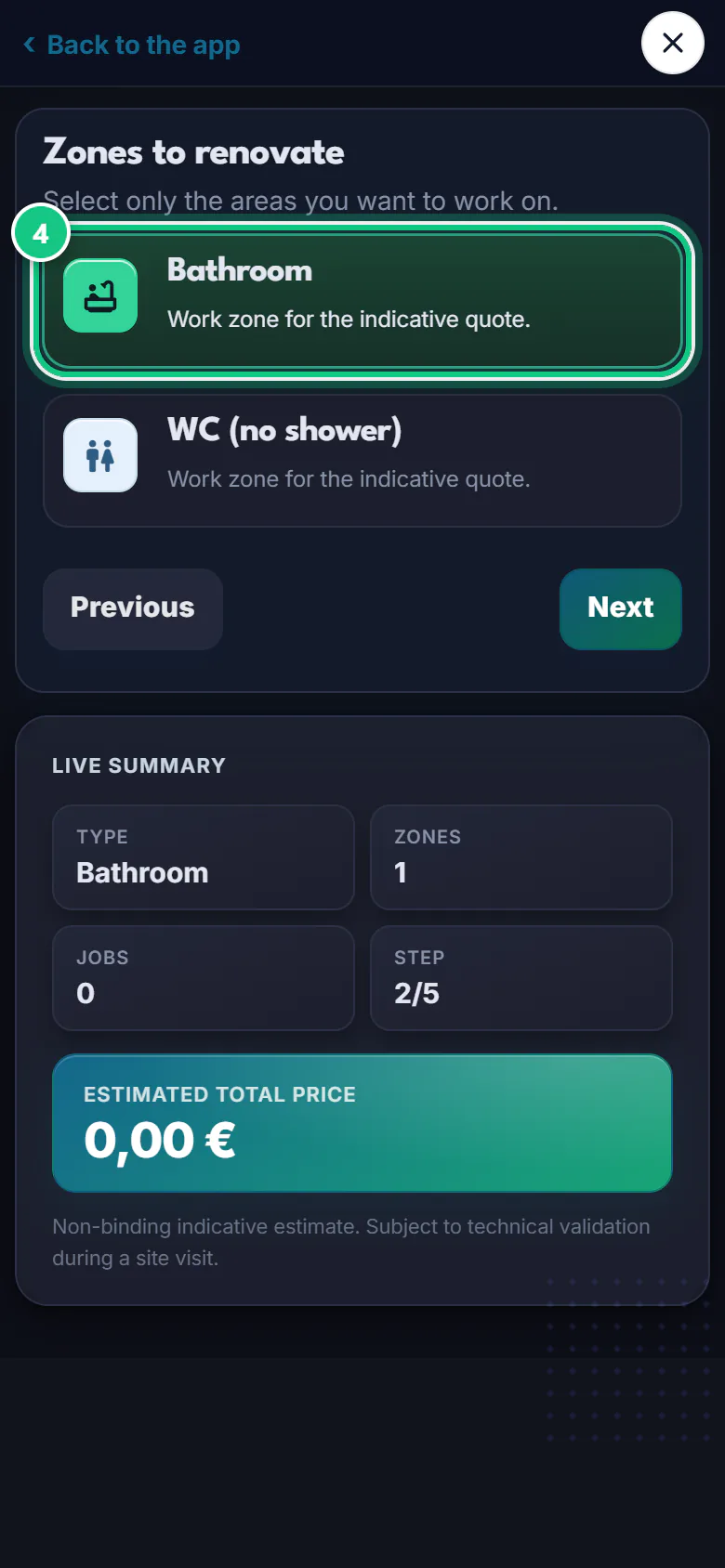
Tick the area Bathroom (or WC (no shower)) and tap Next.
-
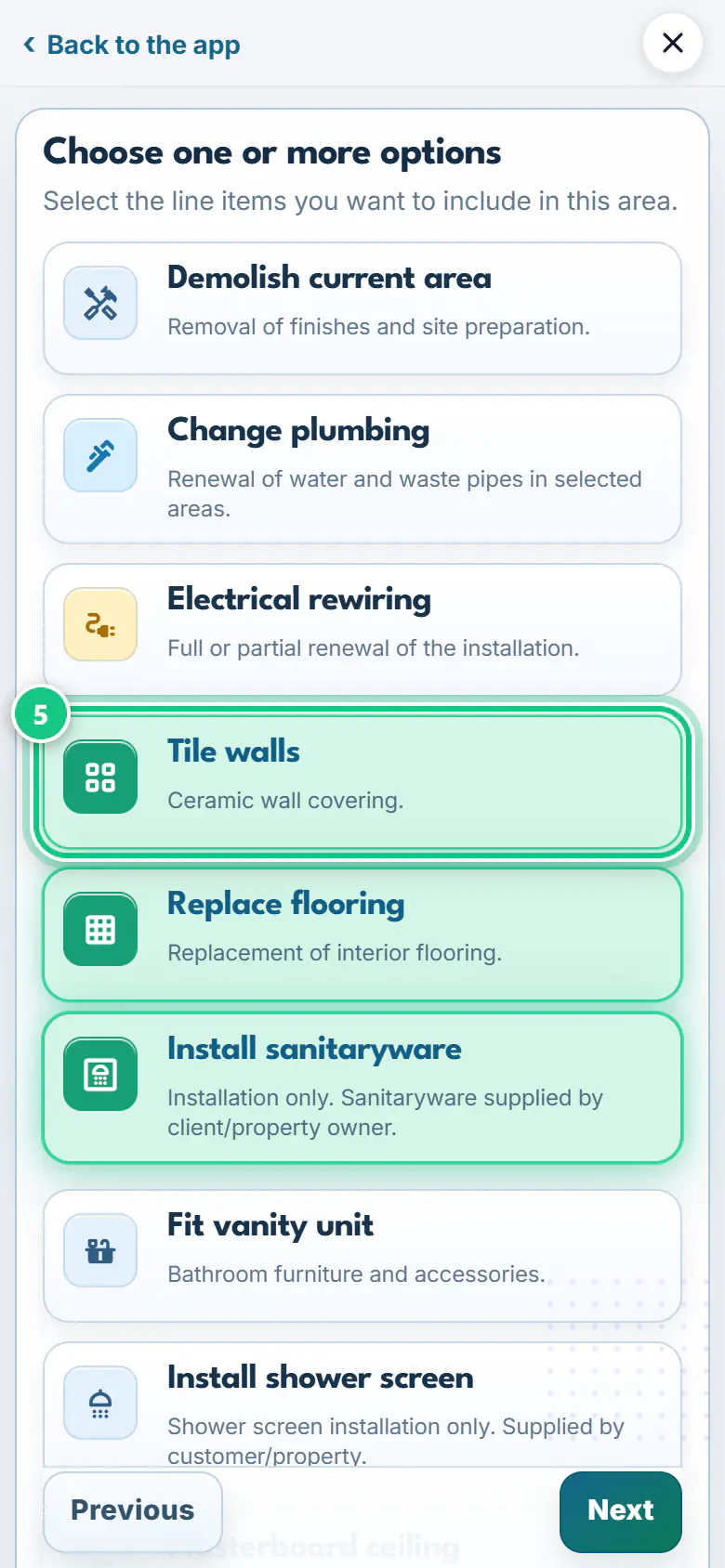
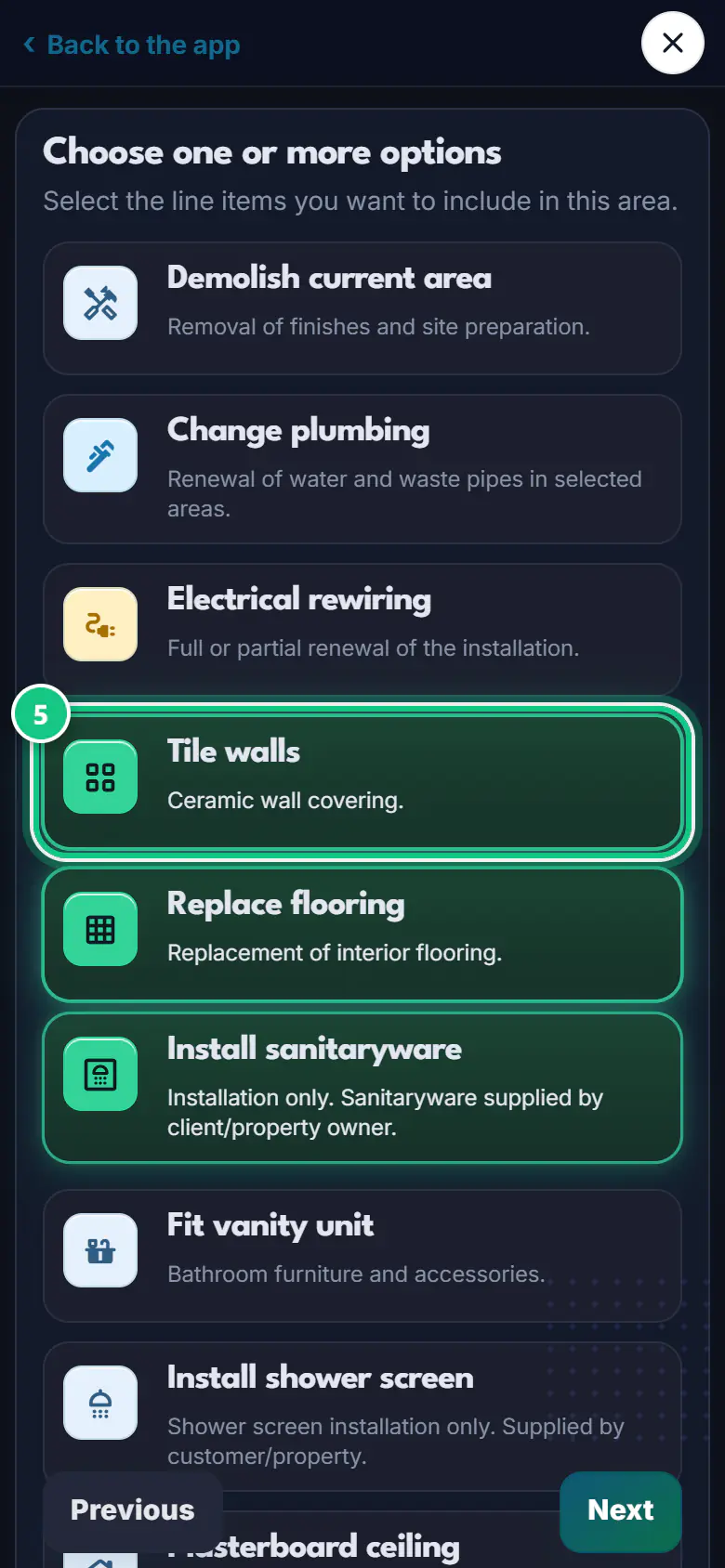
Tick the jobs you are going to do and tap Next.
-
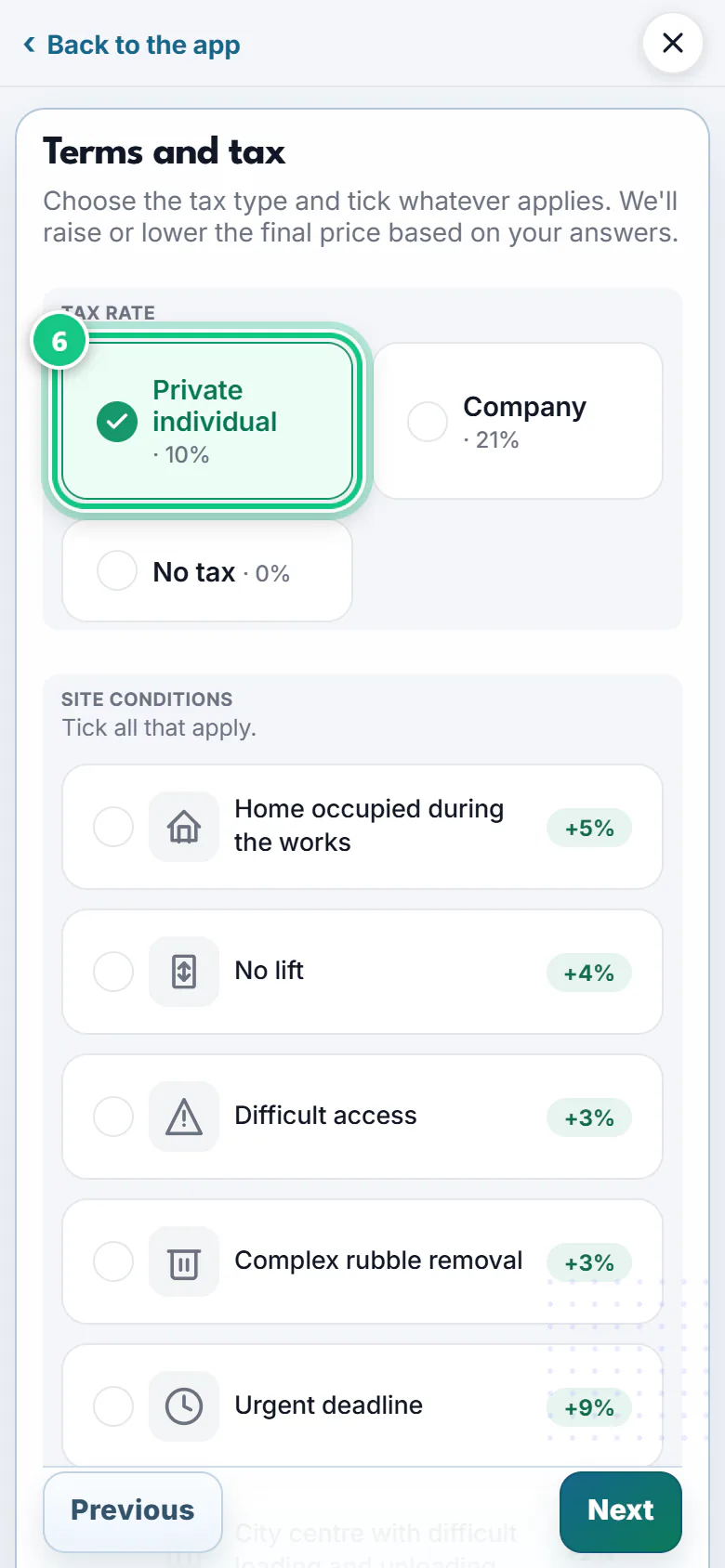
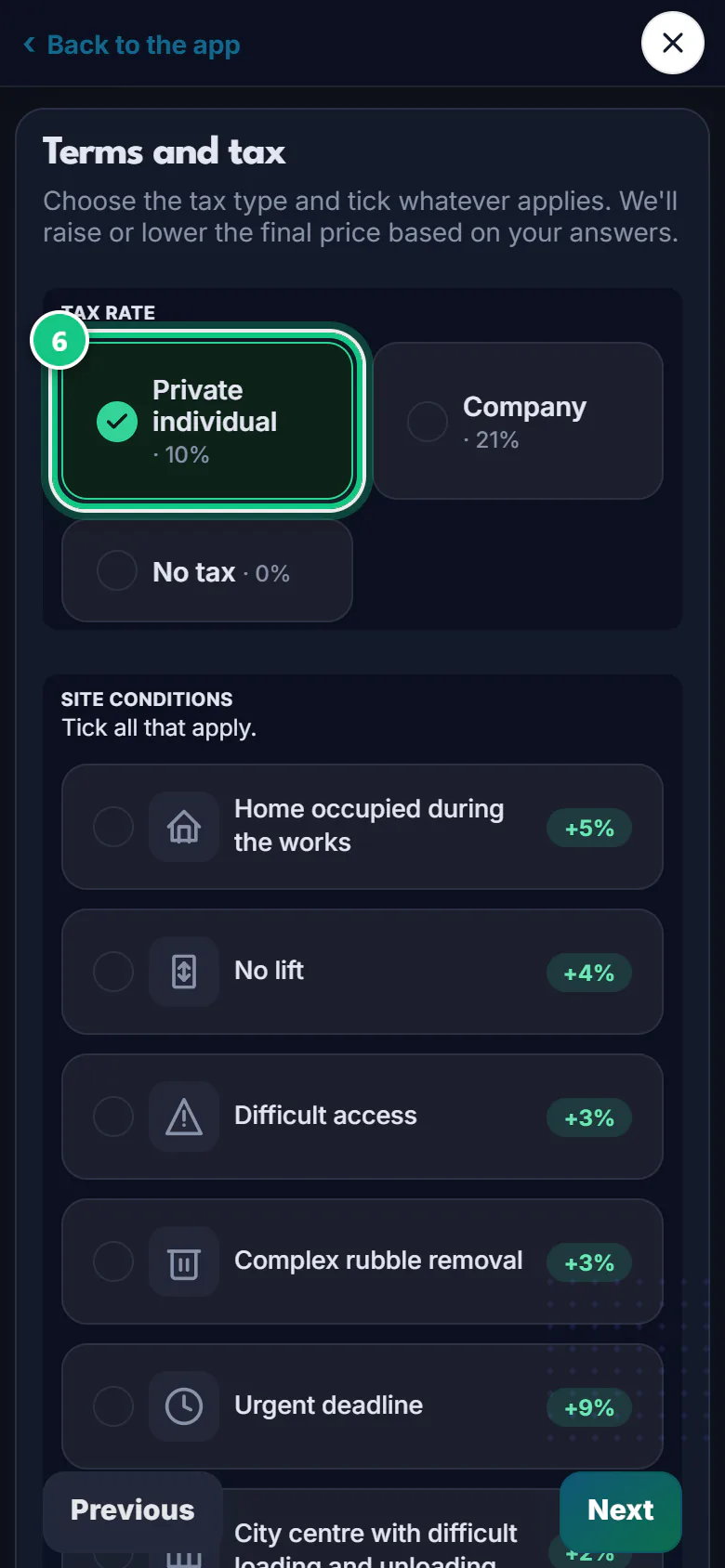
Pick the VAT: Private individual for a home, Company for a business.
Note: There is a third option: No VAT · 0%. Site conditions (no lift, urgent…) add a %: tick only the ones that apply.
-
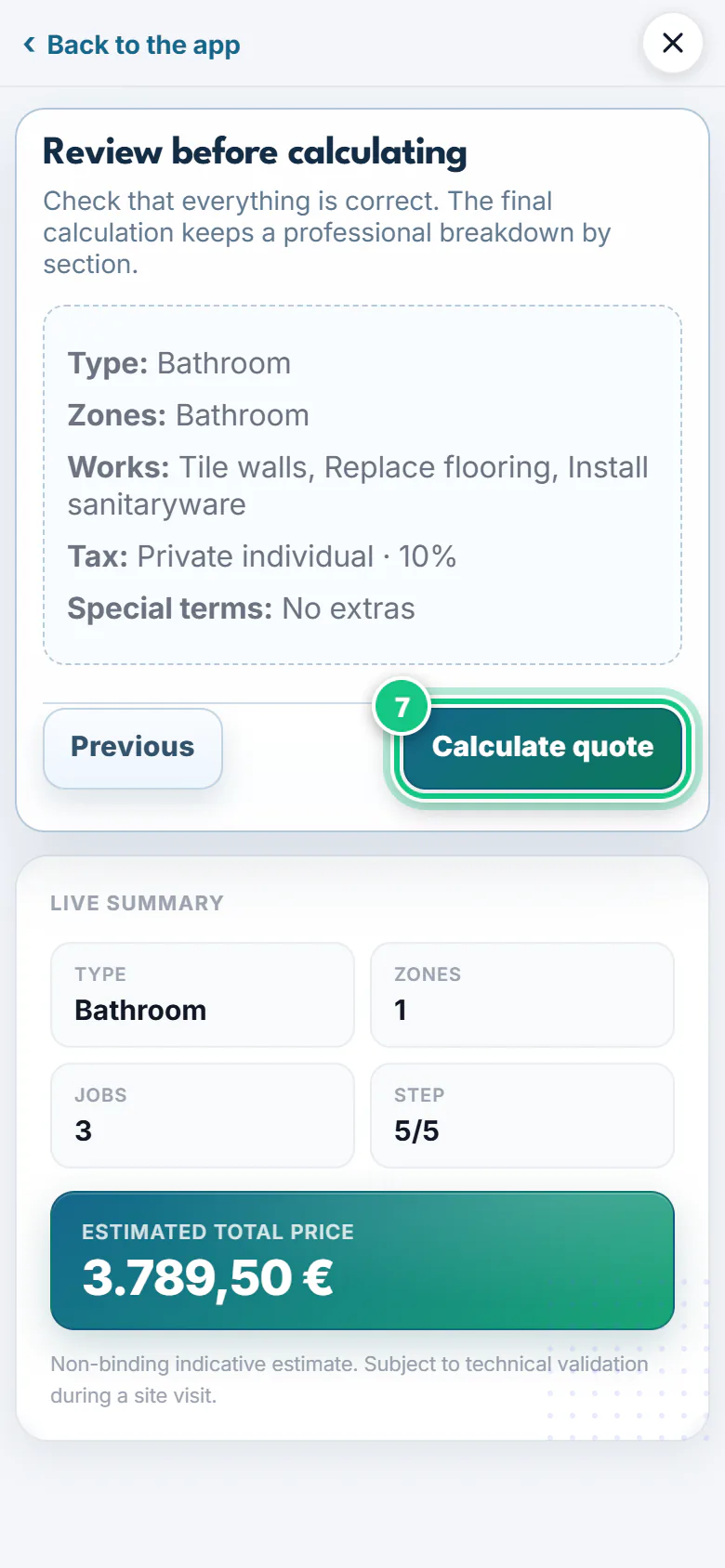
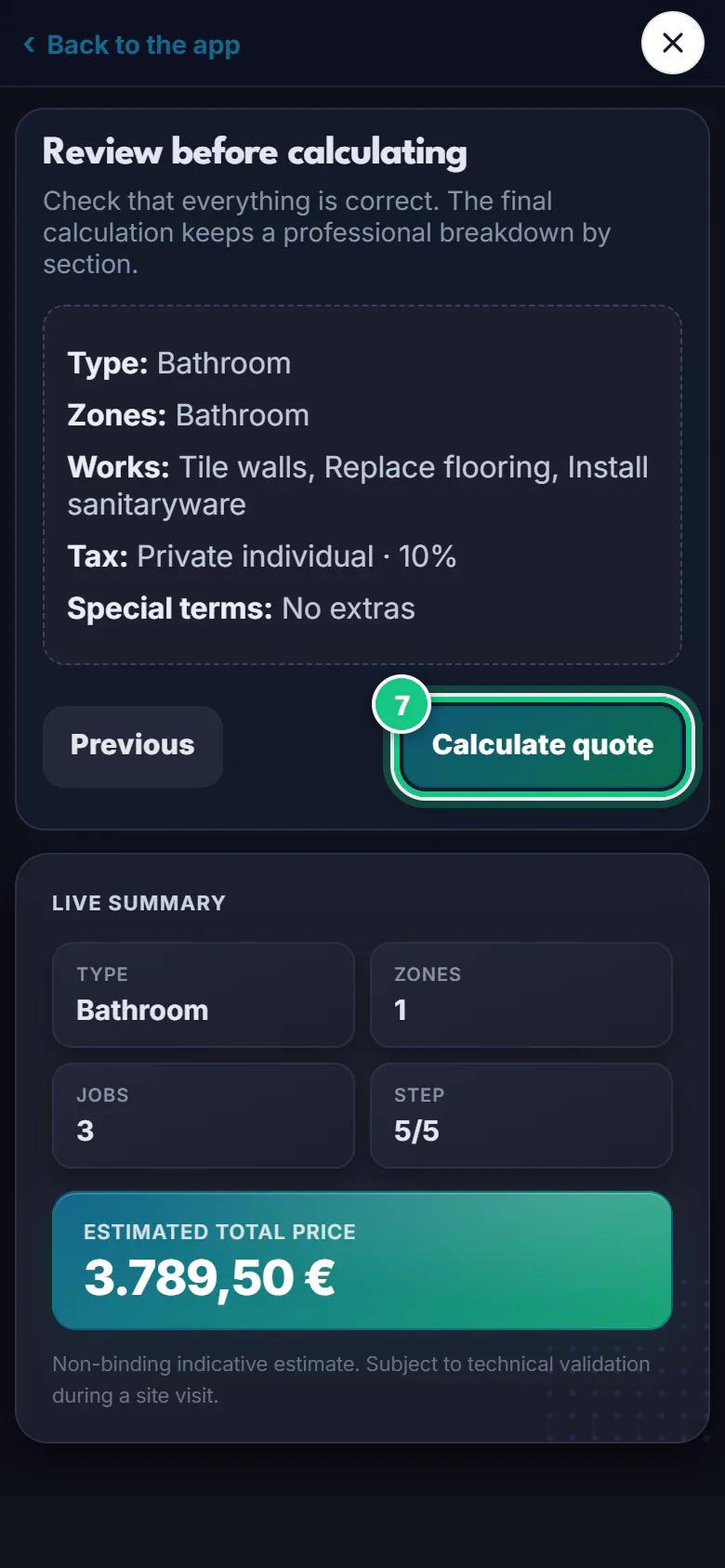
Check the summary and tap Calculate quote.
-
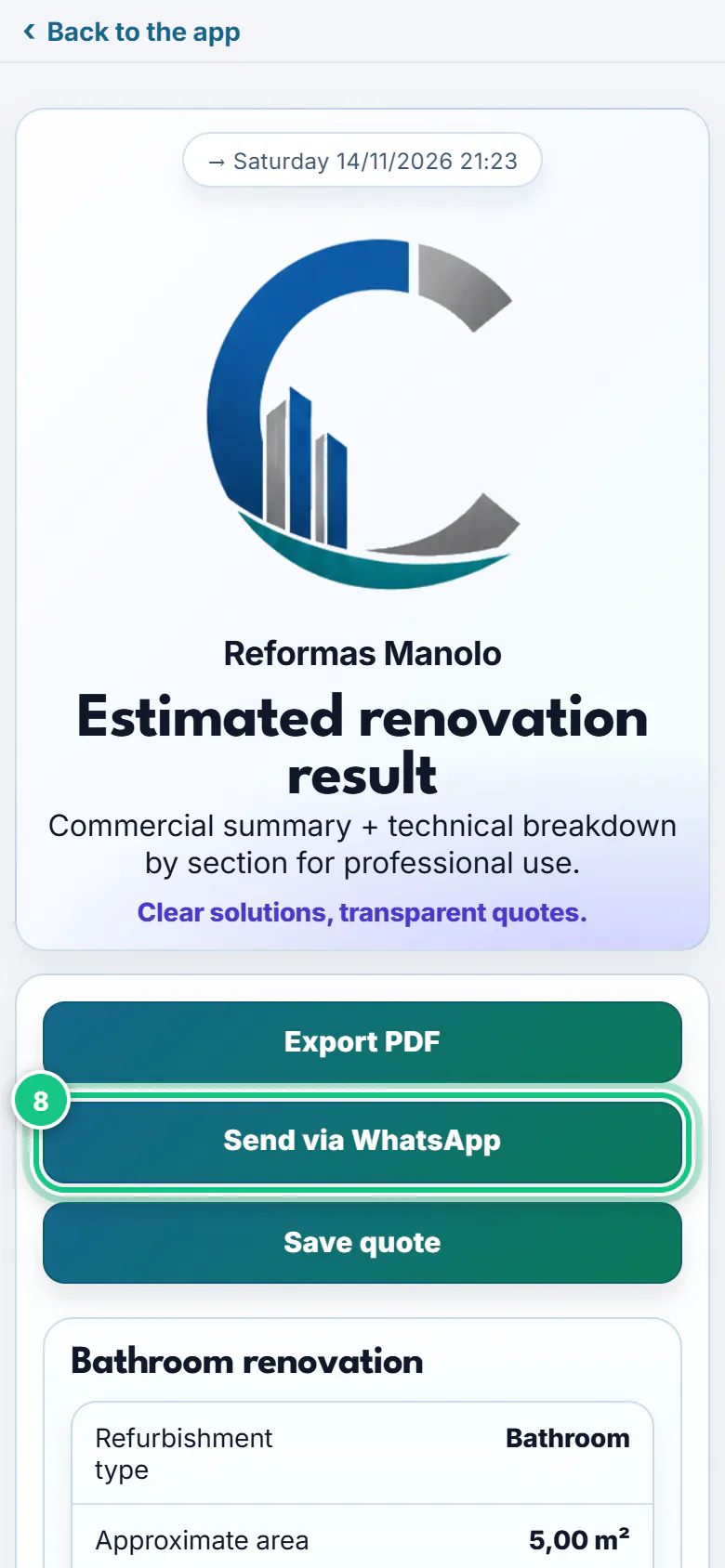
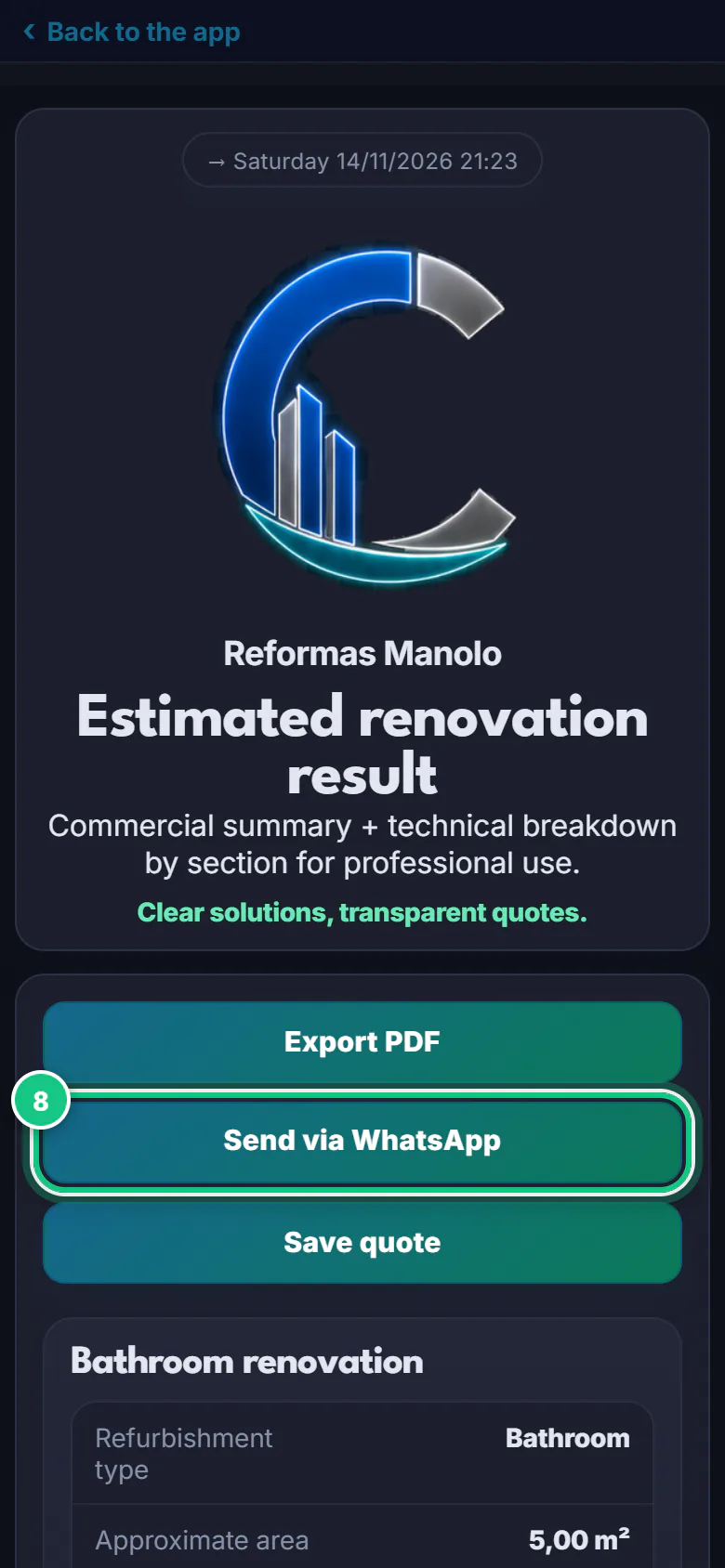
Tap Send via WhatsApp.
-
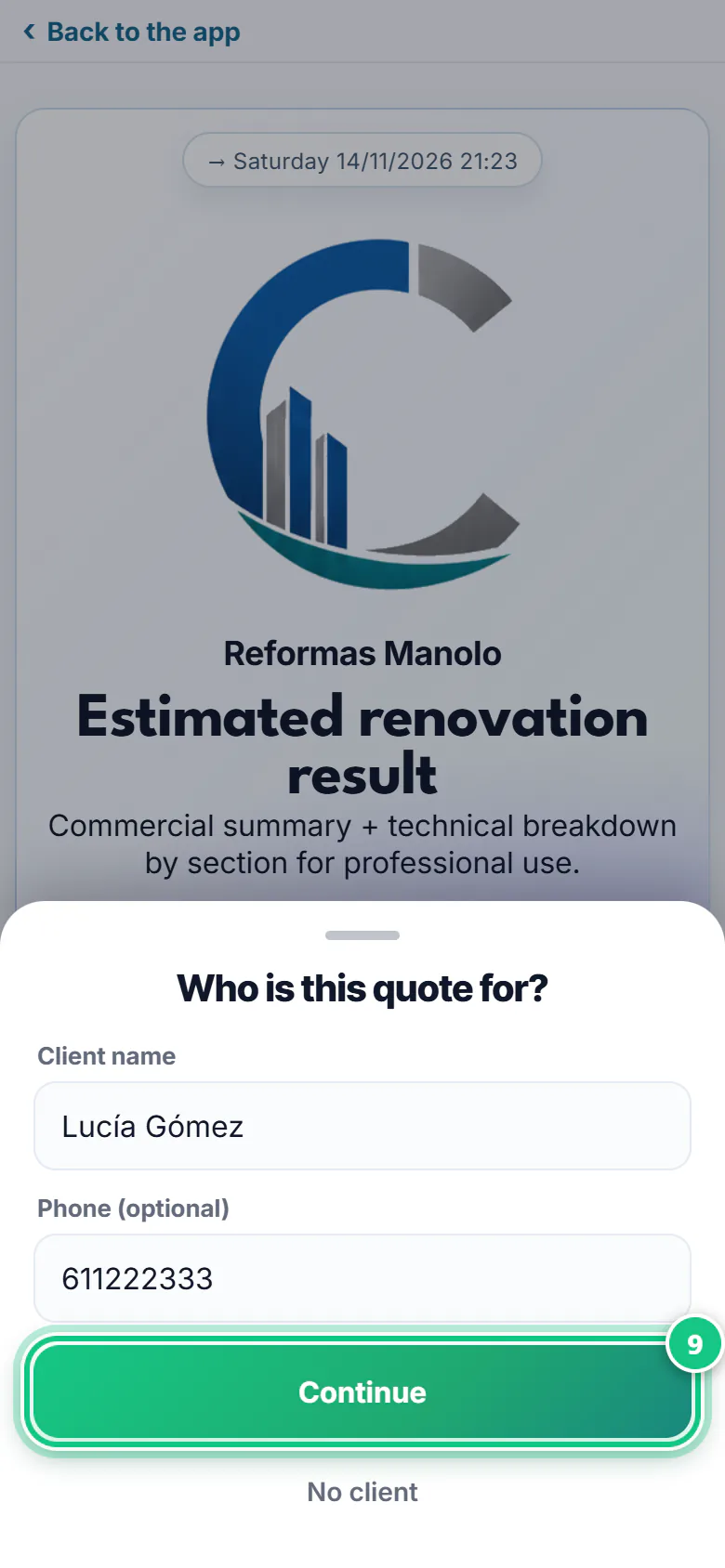
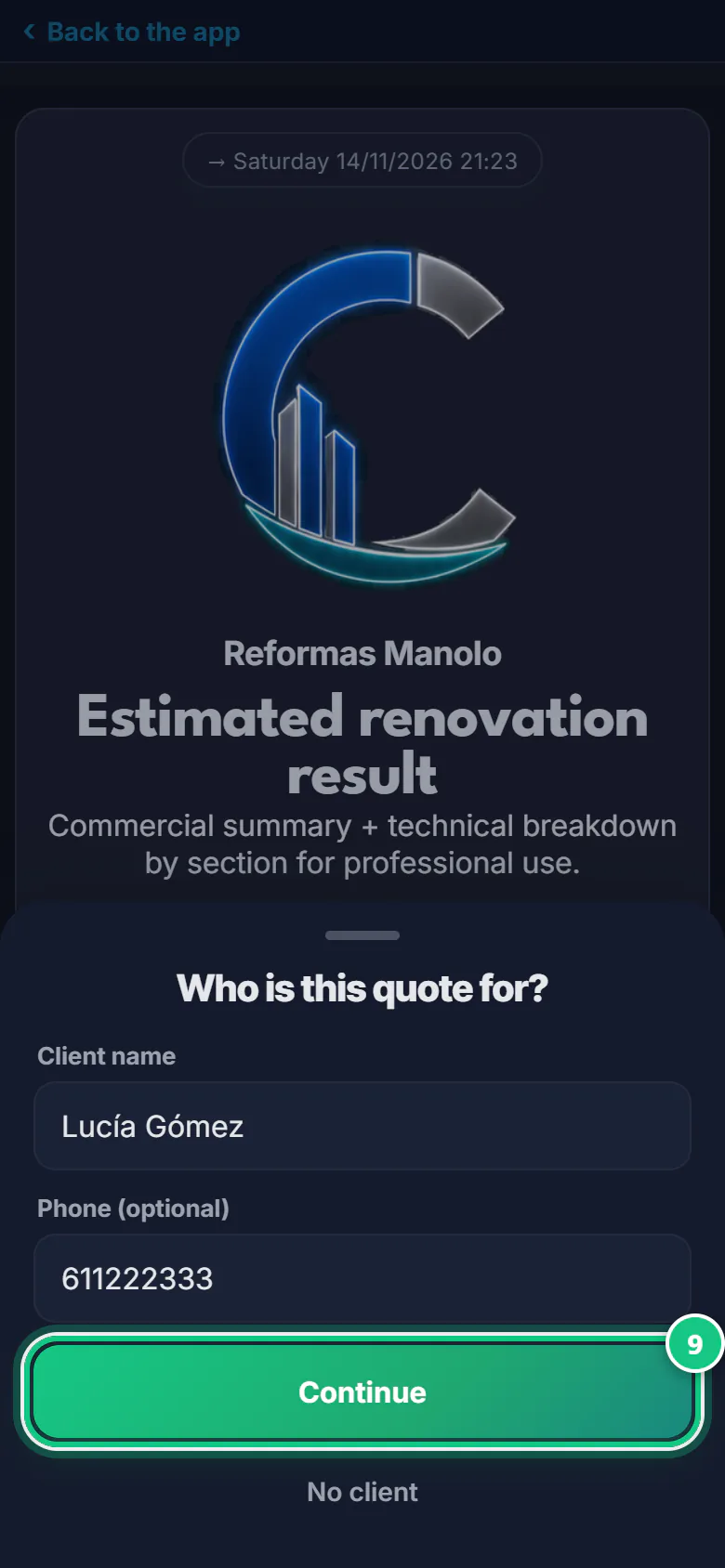
Type the Client name and tap Continue.
Note: It saves (“Saved in Documents”) and opens your phone’s Share menu with the PDF. Pick WhatsApp and your client.
Where people get stuck
- “Export PDF gives me an almost blank page.” It prints the screen. The proper PDF comes with Send via WhatsApp: step 8.
- “Export PDF gives me an almost blank page.” It prints the screen. The proper PDF comes after saving: step 9.
- Seeing “New simulation”? You opened the guided quote outside the app and nothing is saved. Go in through Create: step 1.
- On the computer you save before you send. First Save quote; then, from Quotes.
- If you only type the client’s name, you can’t make their proforma later. Add their tax ID in Clients when they accept.
- Conditions multiply: no lift and urgent both apply at once. Tick only the ones that are true.
Open it in the app
On your phone
Open the PRESULINK app and go to:
Create›Guided quote
On your computer
Takes you to that screen. If you are not logged in, it asks you to log in first and then takes you there.
Open QuotesOn a computer, at app.presulink.es: Quotes›New guided
Want to know which items and terms a good quote needs? Read how to write a renovation quote step by step.