

Your first 5 minutes: business, logo and colour
When you finish, your quotes will carry your name, your tax ID, your logo and your colours.
Step by step
-
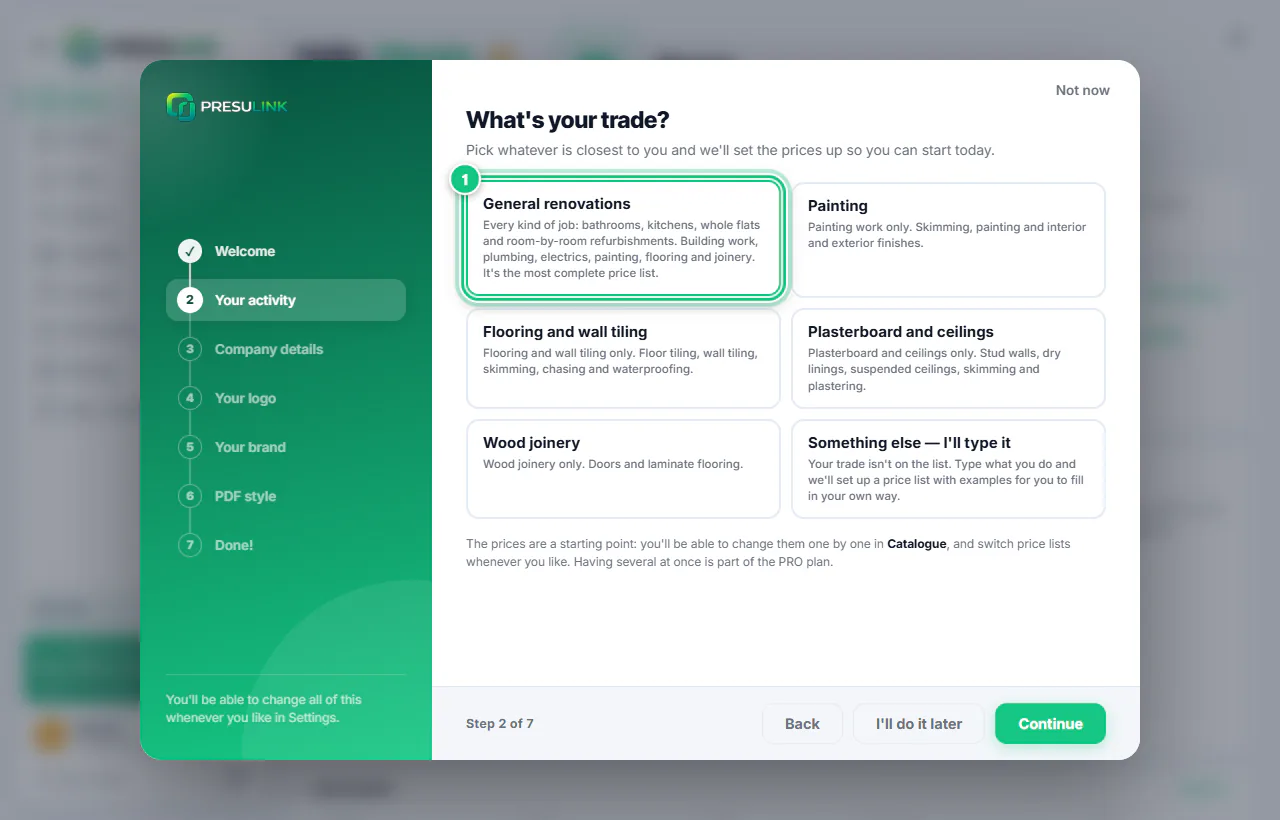
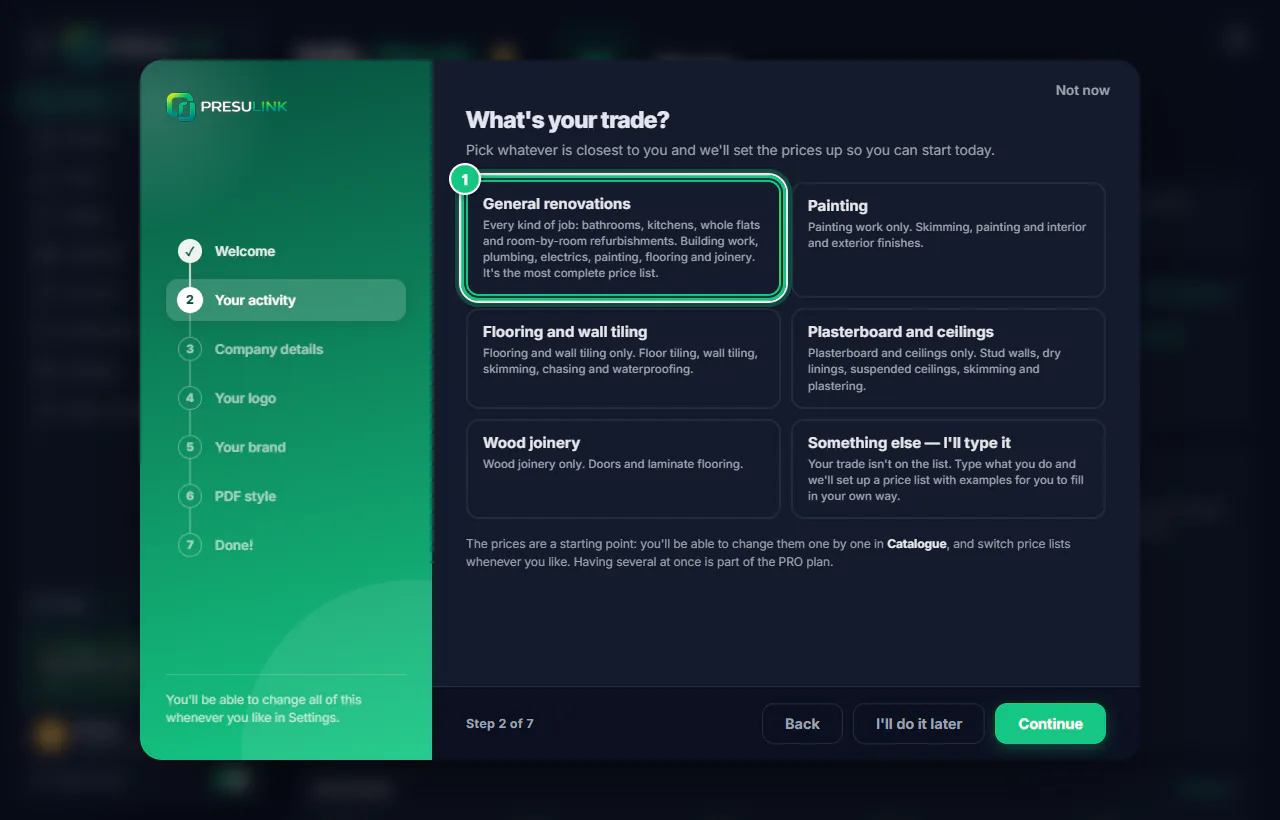
Pick your trade and click Continue.
Note: If you do a bit of everything, choose General renovations.
-
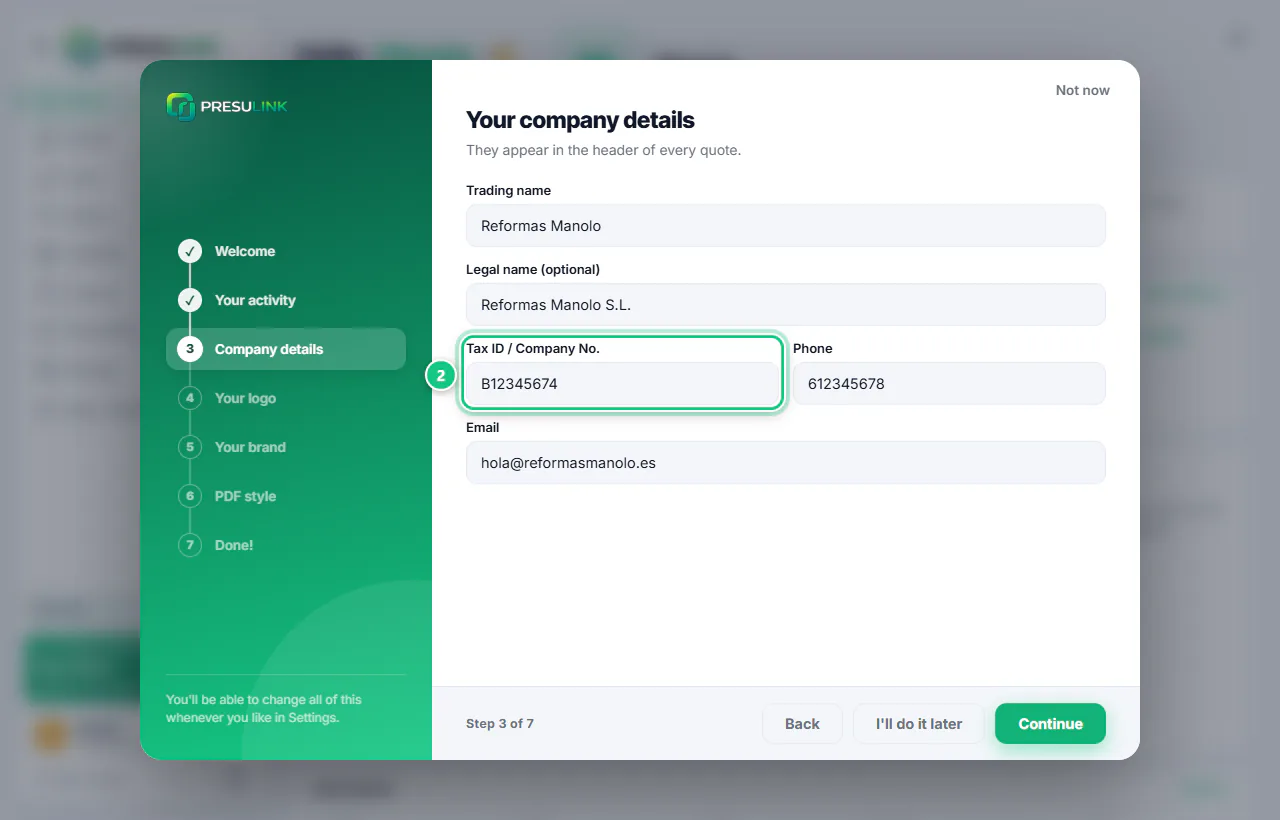
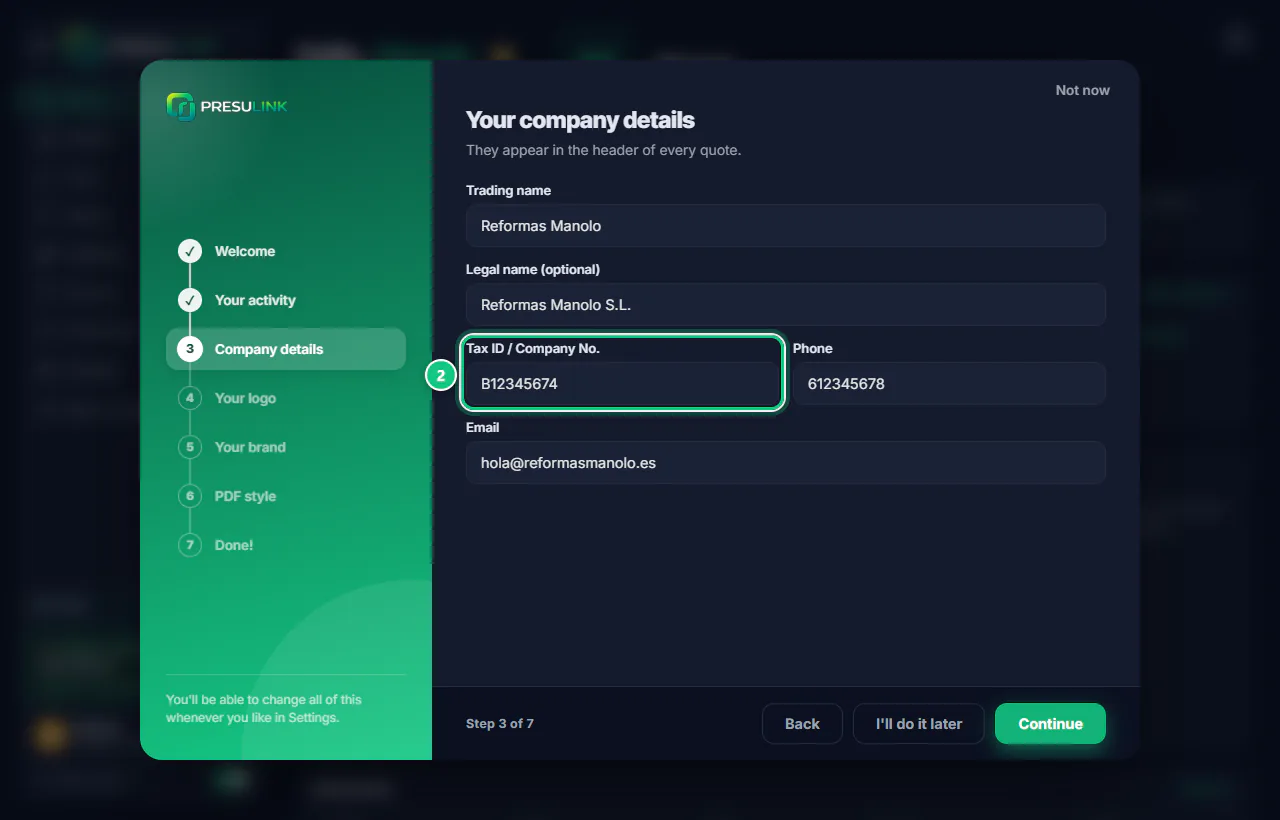
Fill in name, tax ID, phone and email, then click Continue.
Note: All four are required. If the tax ID is not valid, it tells you under the field.
-
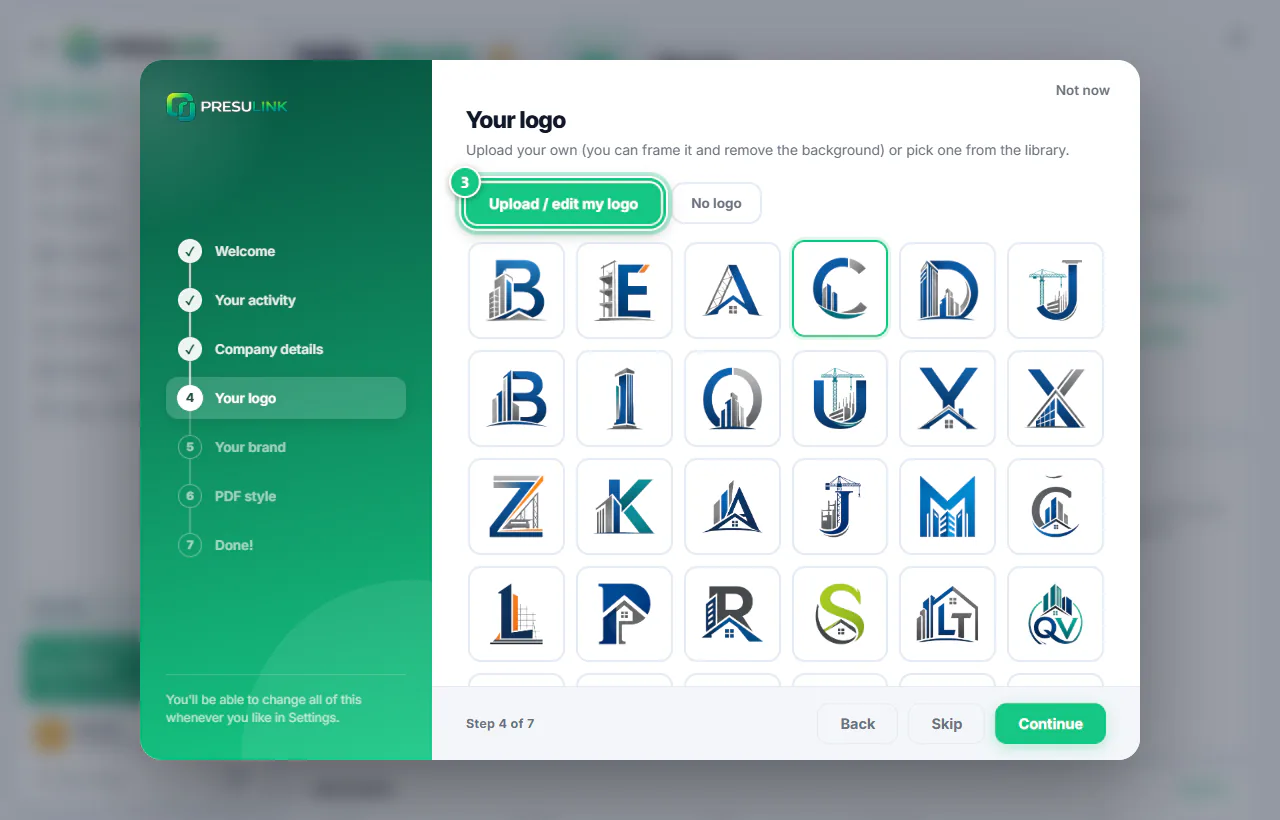
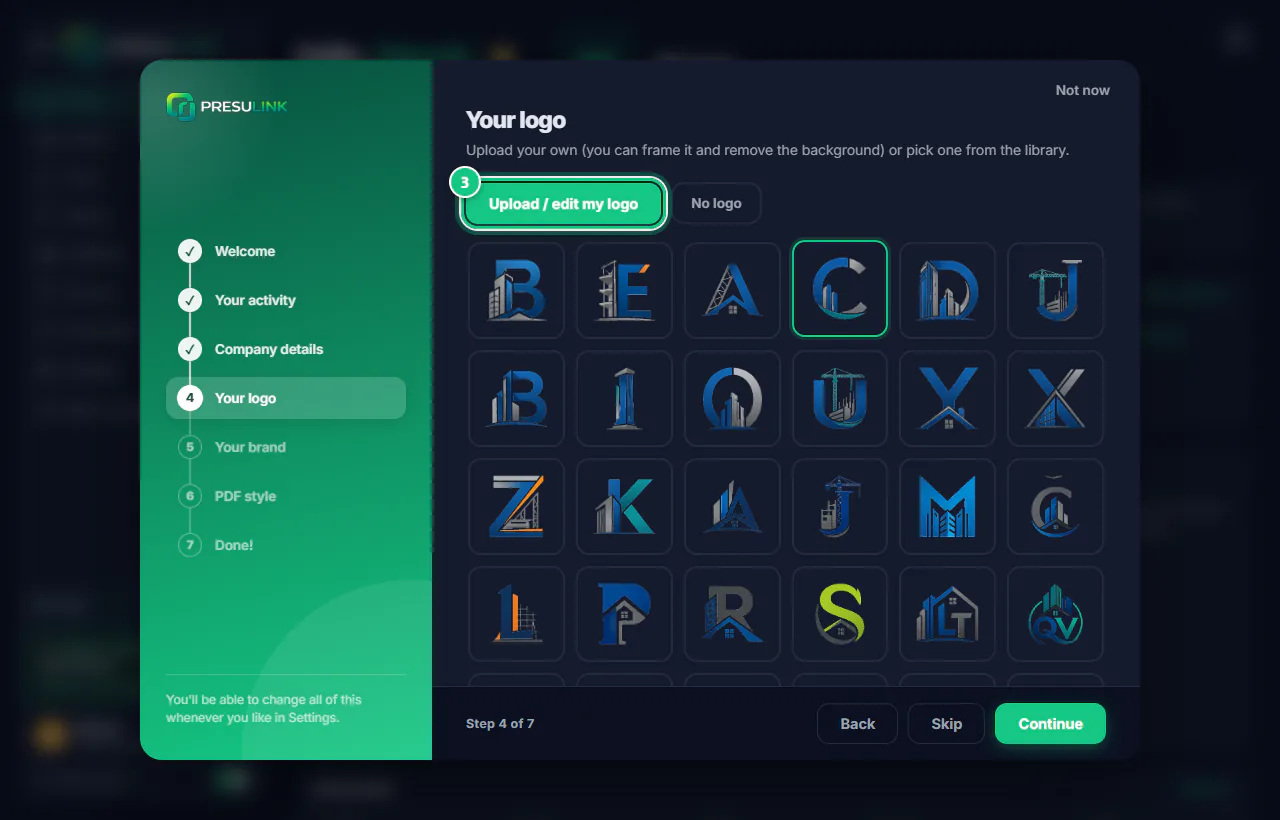
Click Upload / edit my logo or pick one from the list.
Note: No logo yet? Click No logo.
-
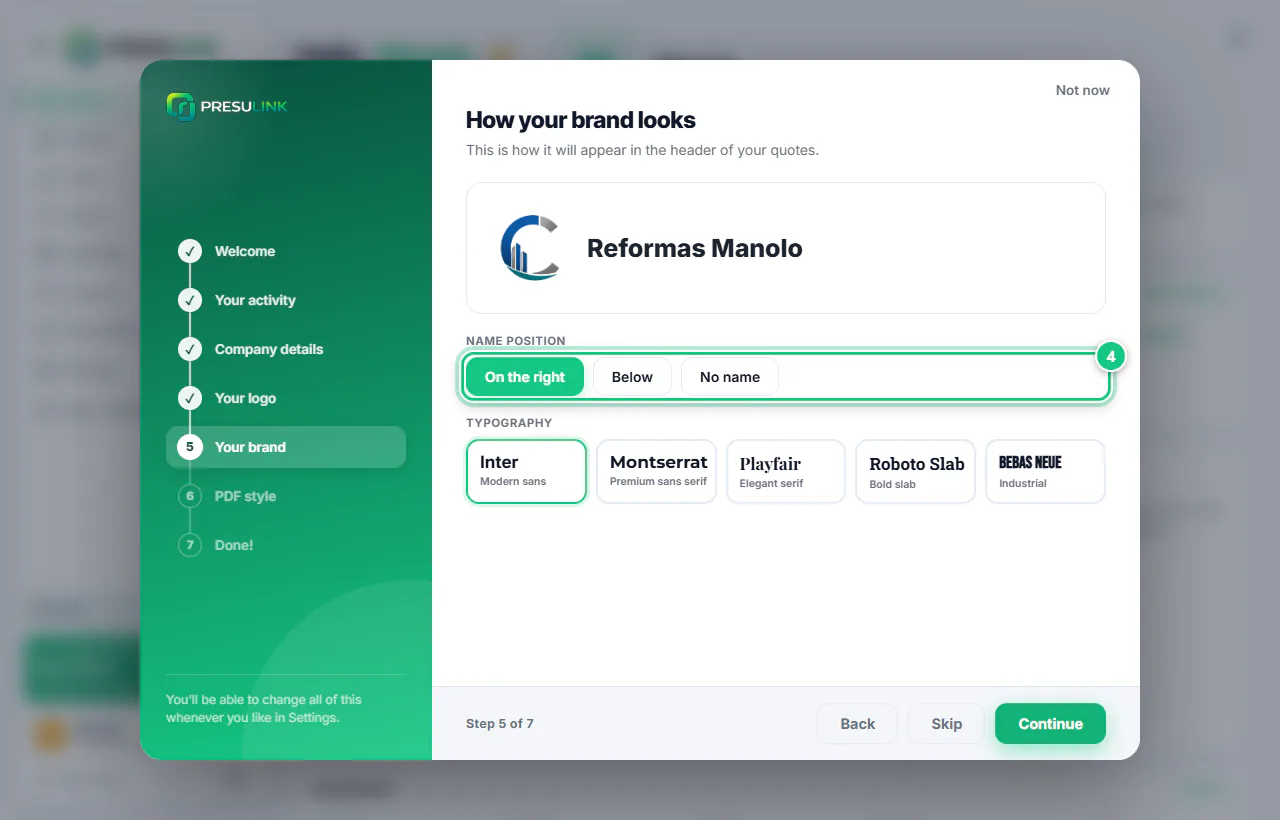
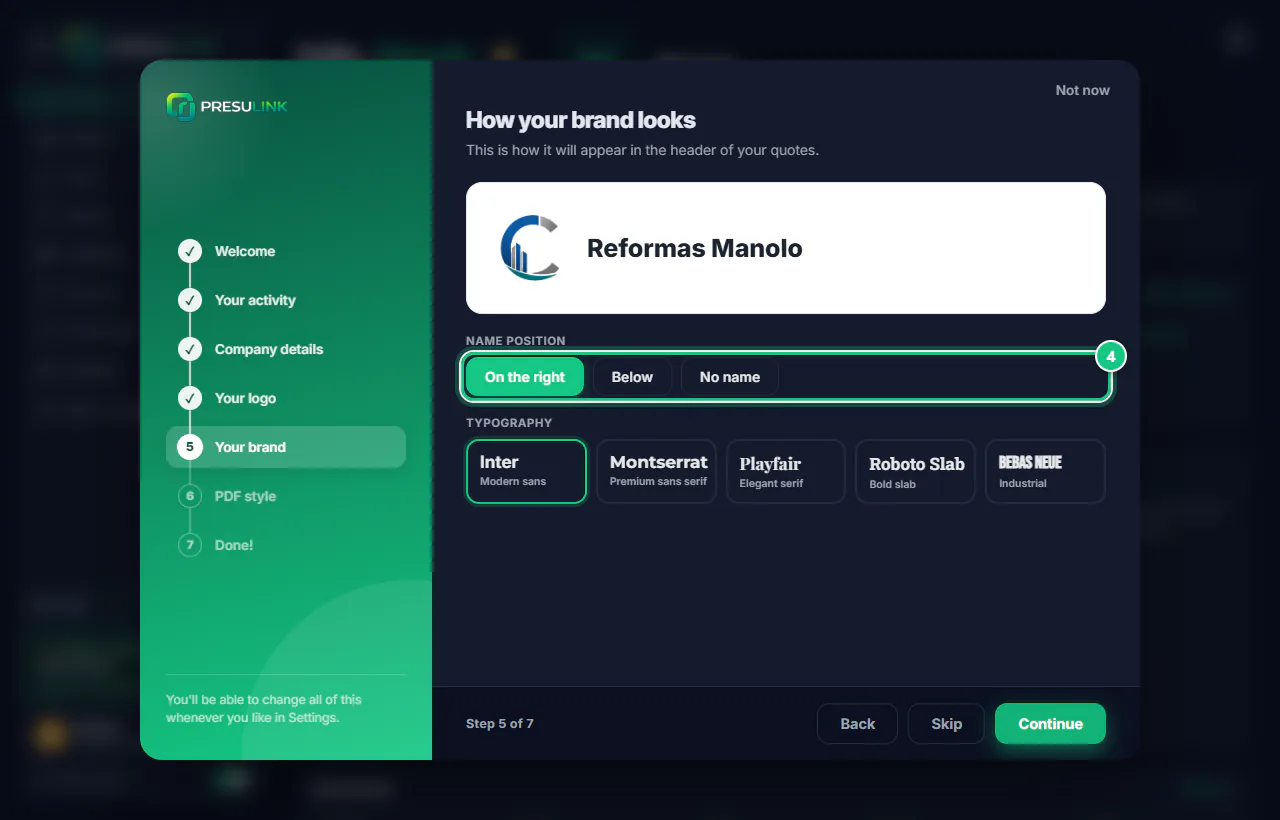
Choose where your name goes and its font. Click Continue.
-
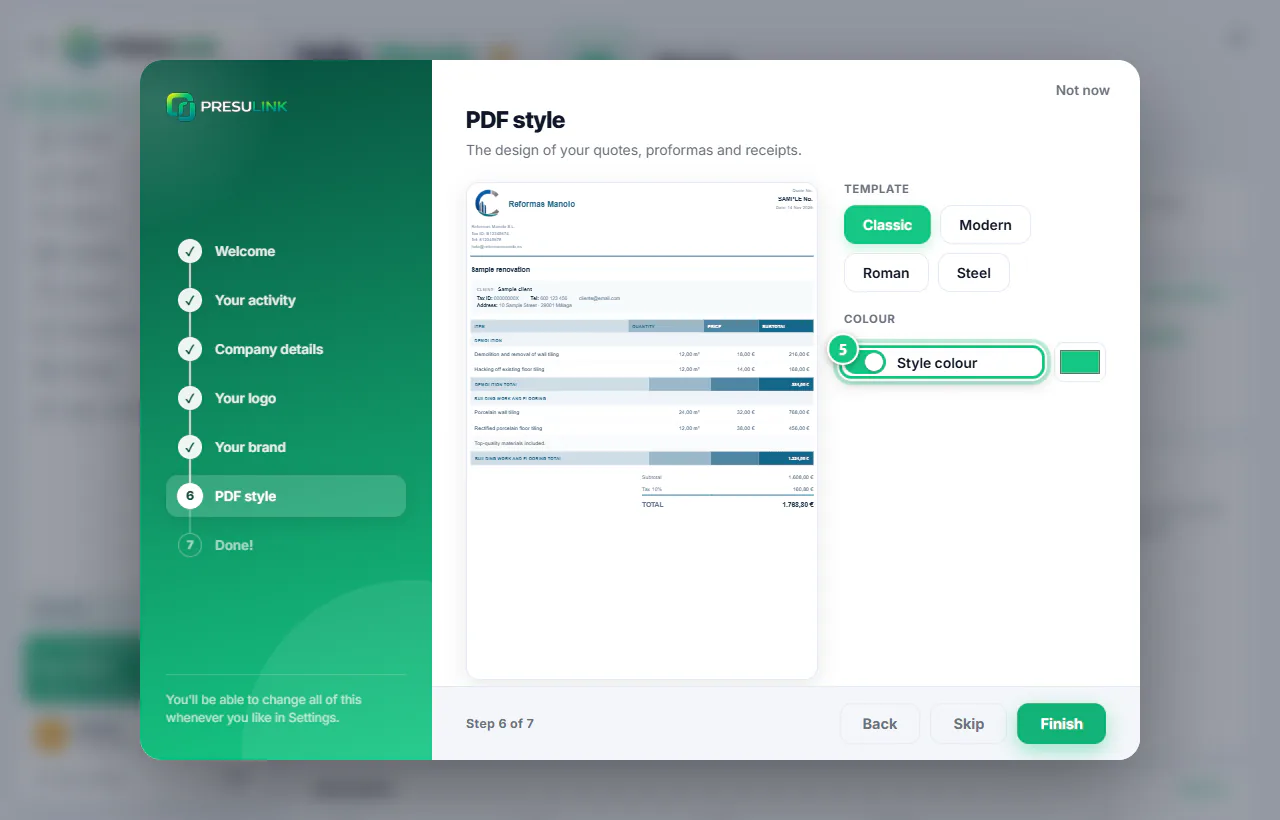
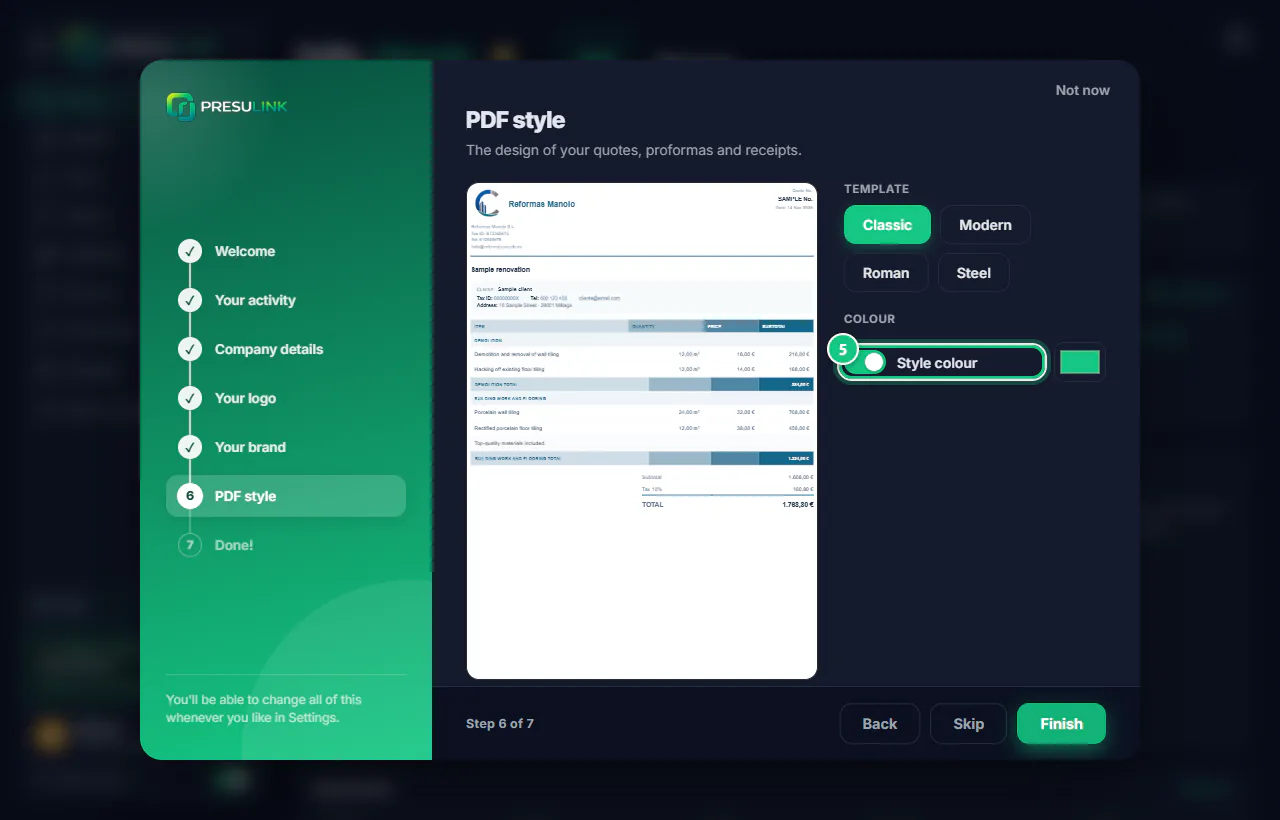
Choose the PDF style and click Finish.
Note: For your own colour, switch off Style colour first.
-
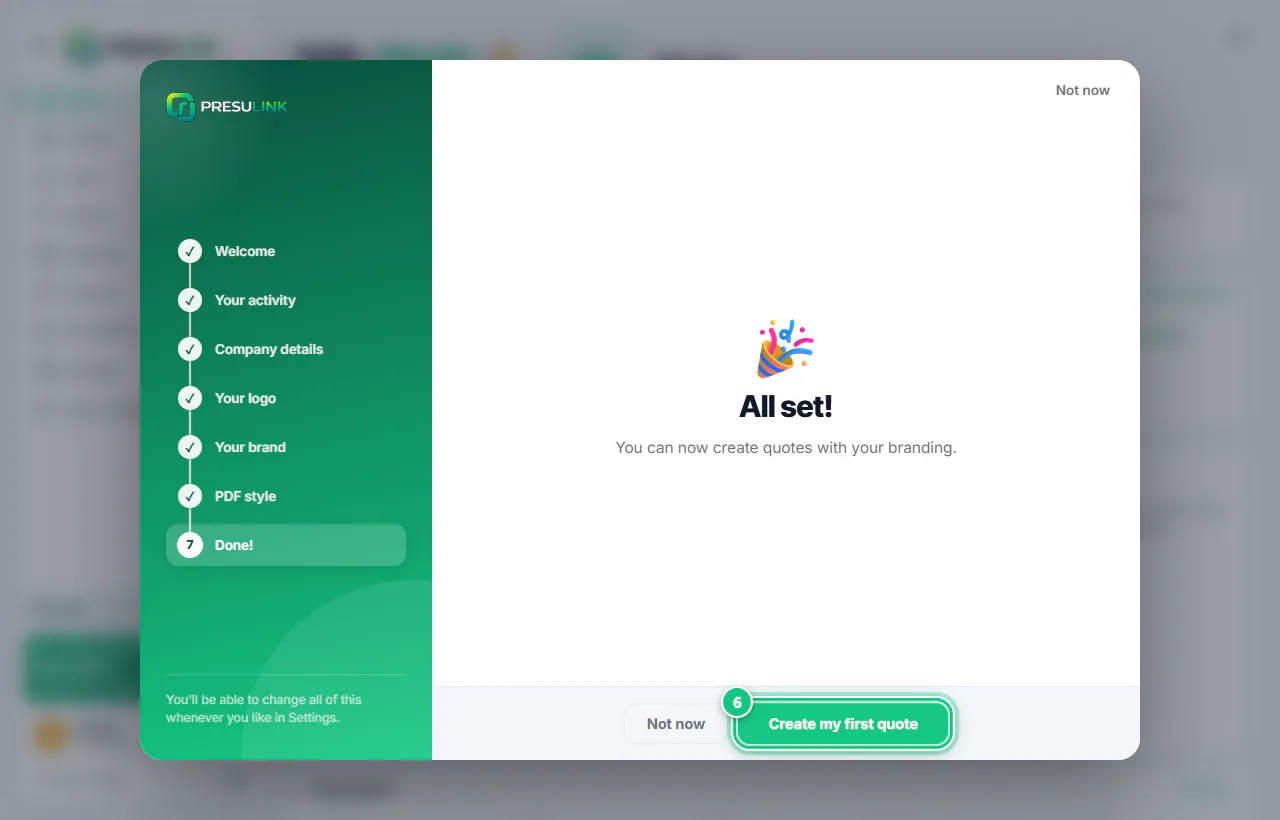
Click Create my first quote or Not now.
-
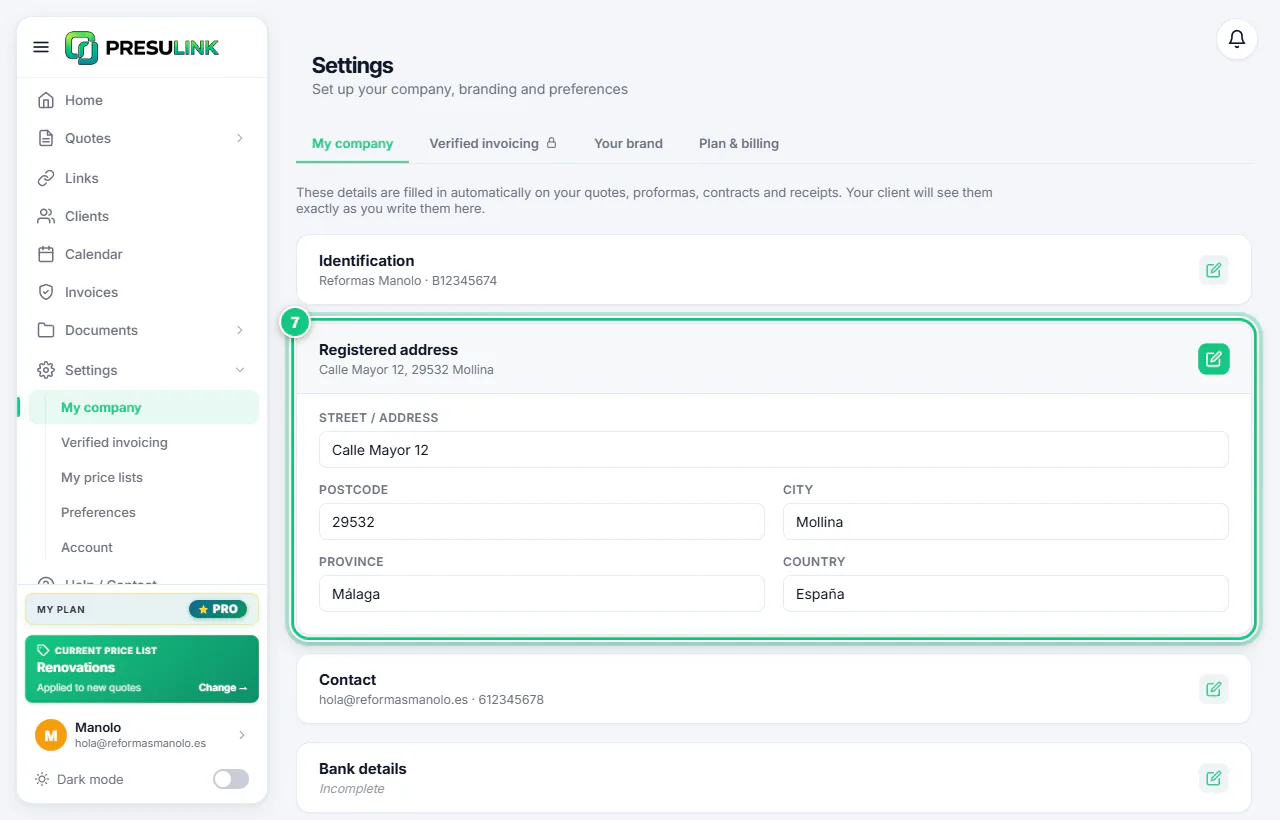
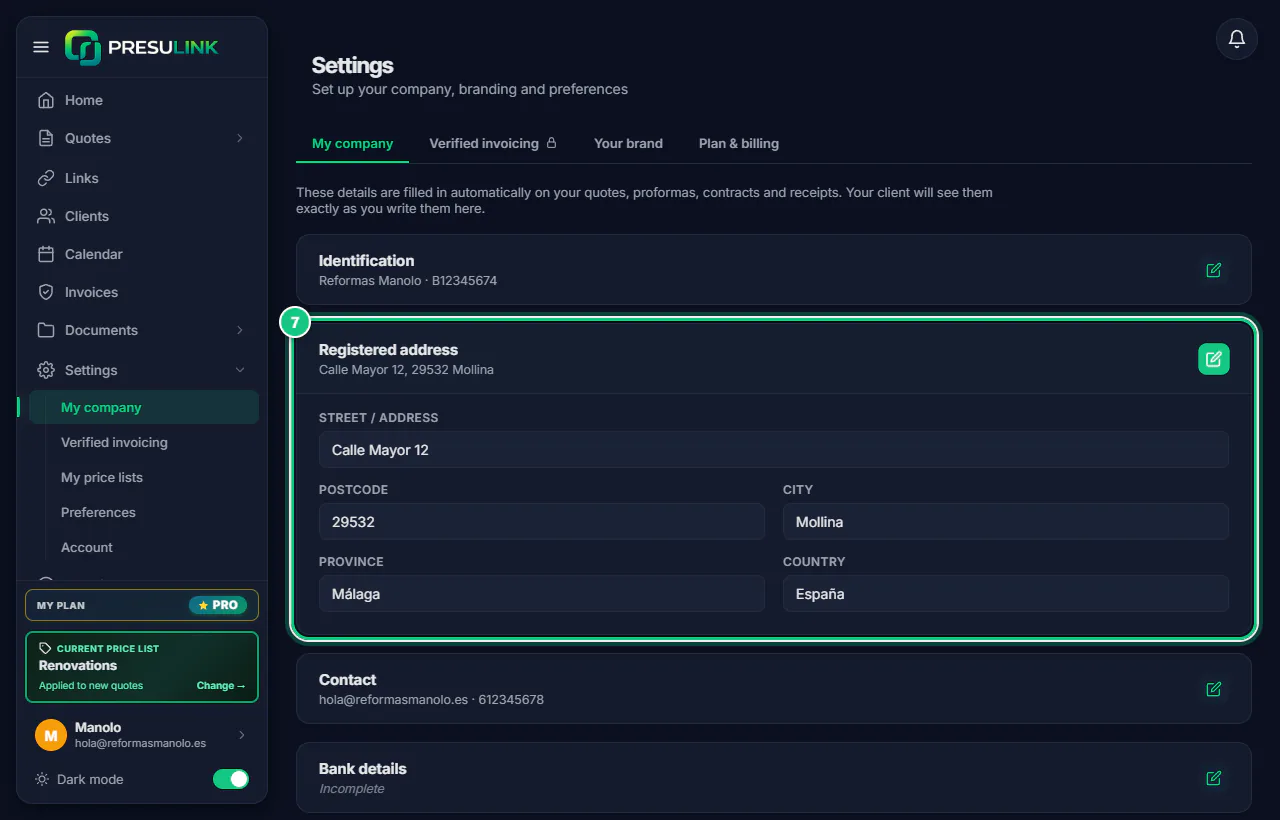
Go to Settings › My company and open Registered address.
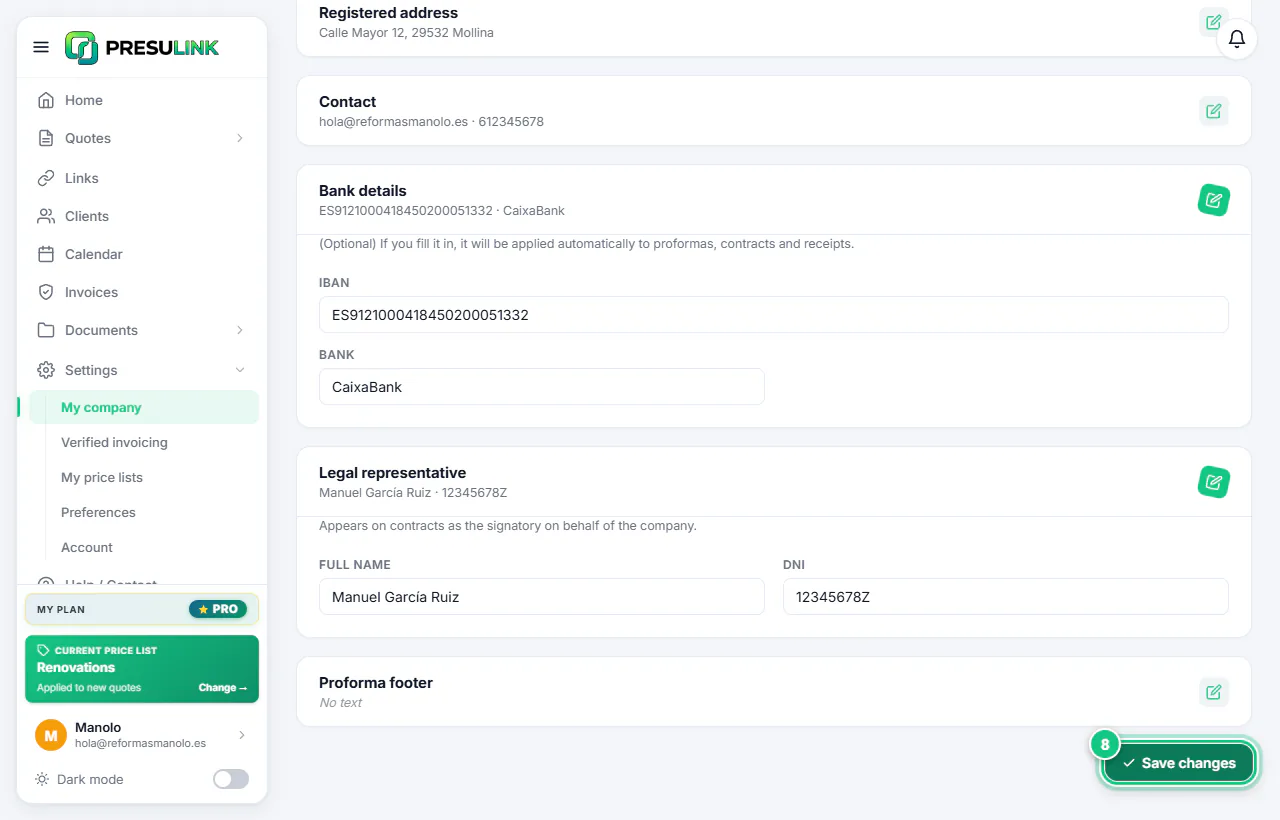
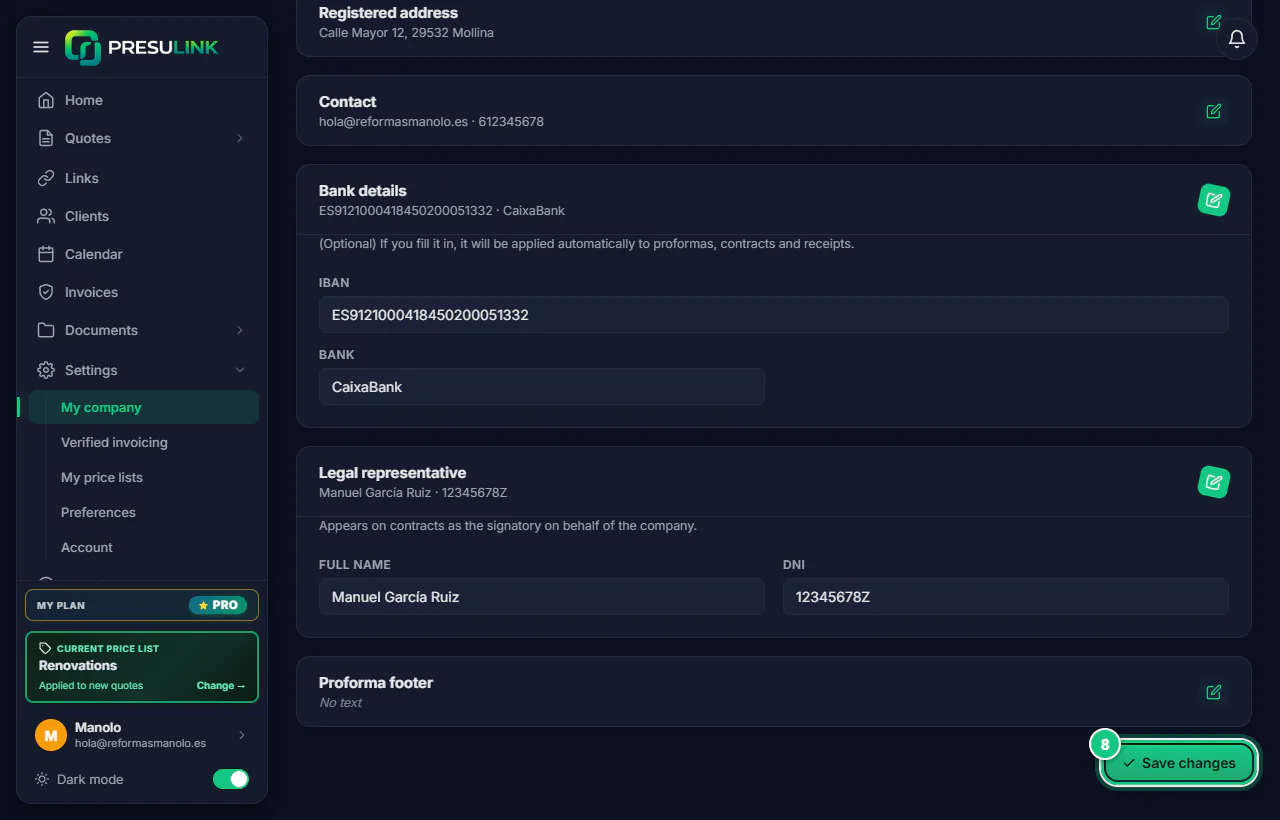
Note: Your registered address, Bank details and Legal representative appear on contracts and receipts.
-
Fill in what is missing and click Save changes.
-
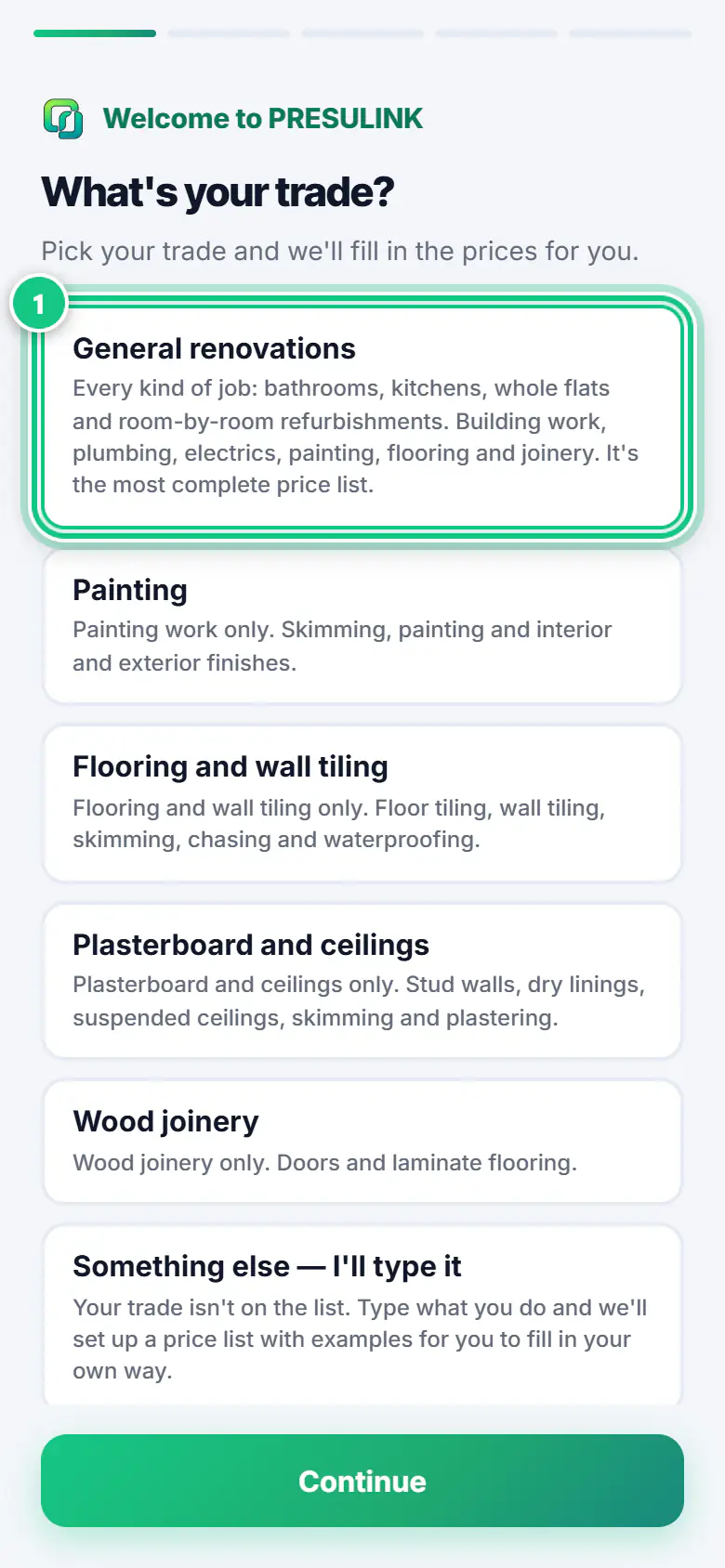
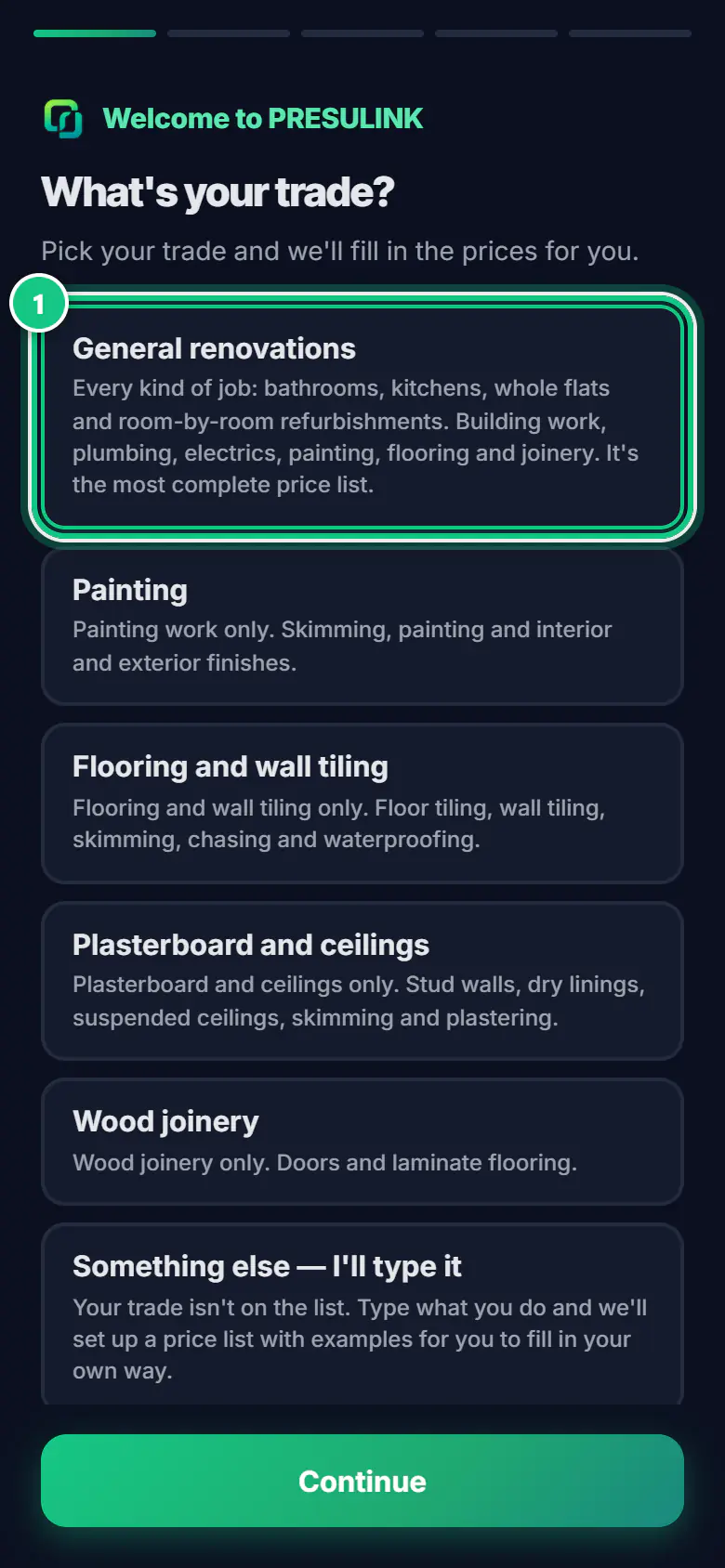
Pick your trade and tap Continue.
Note: If you do a bit of everything, choose General renovations. Your trade sets your starting prices.
-
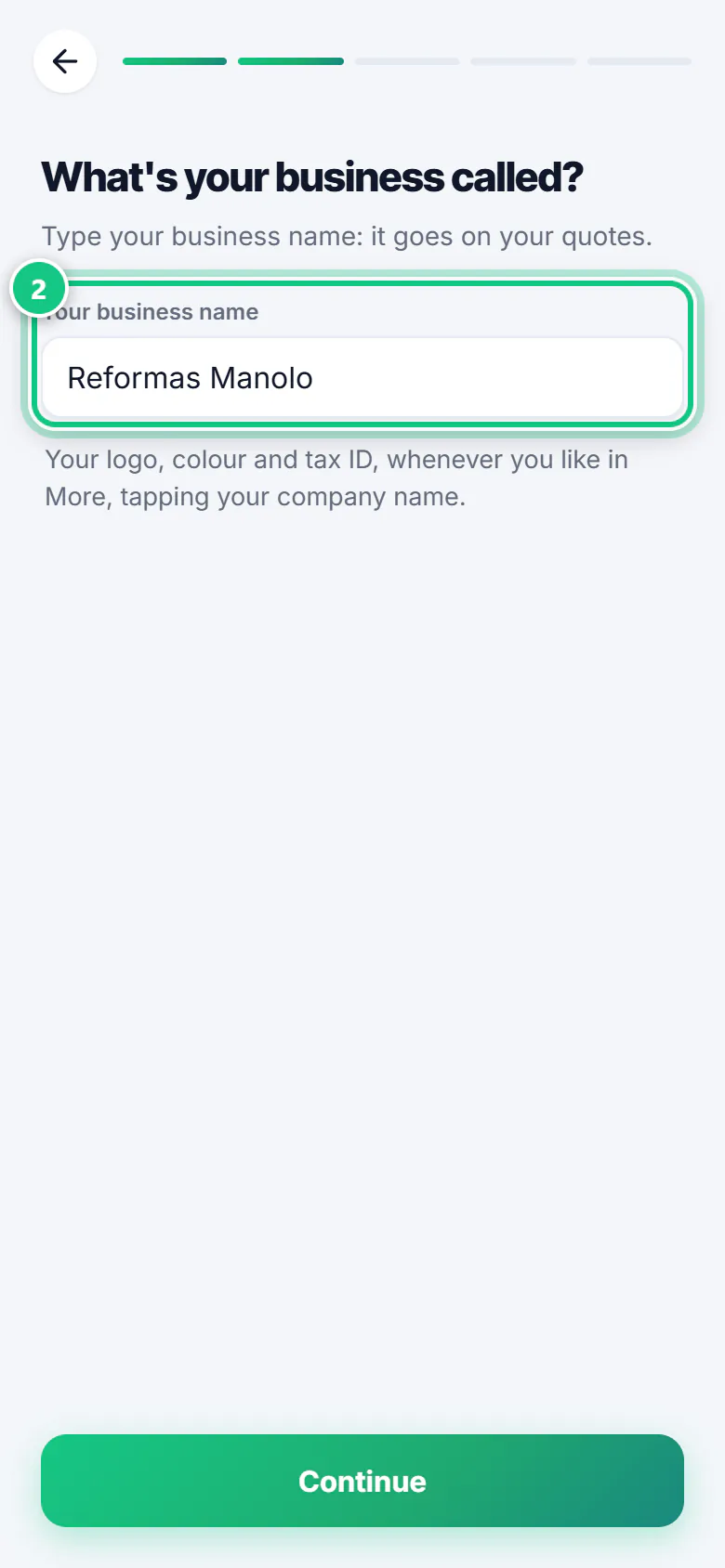
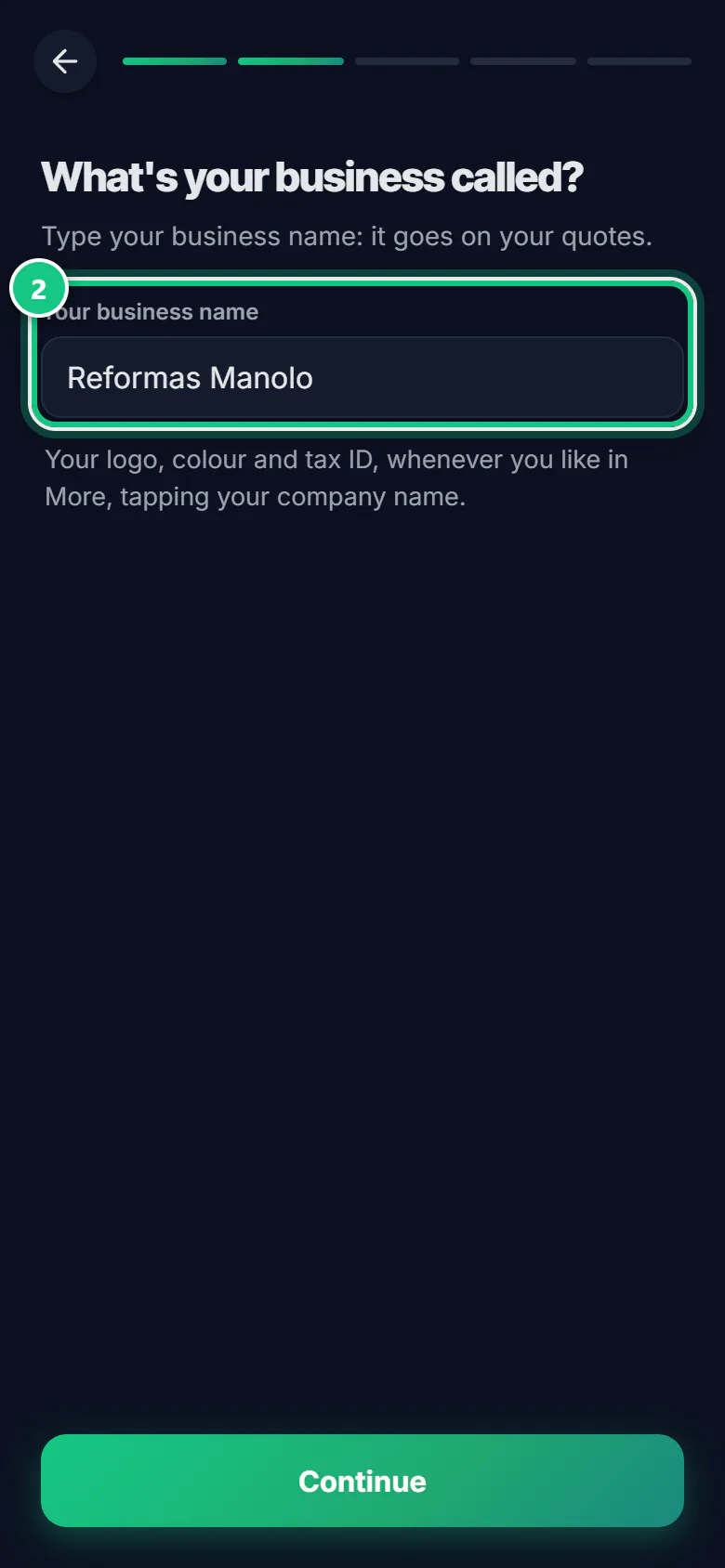
Type Your business name and tap Continue.
-
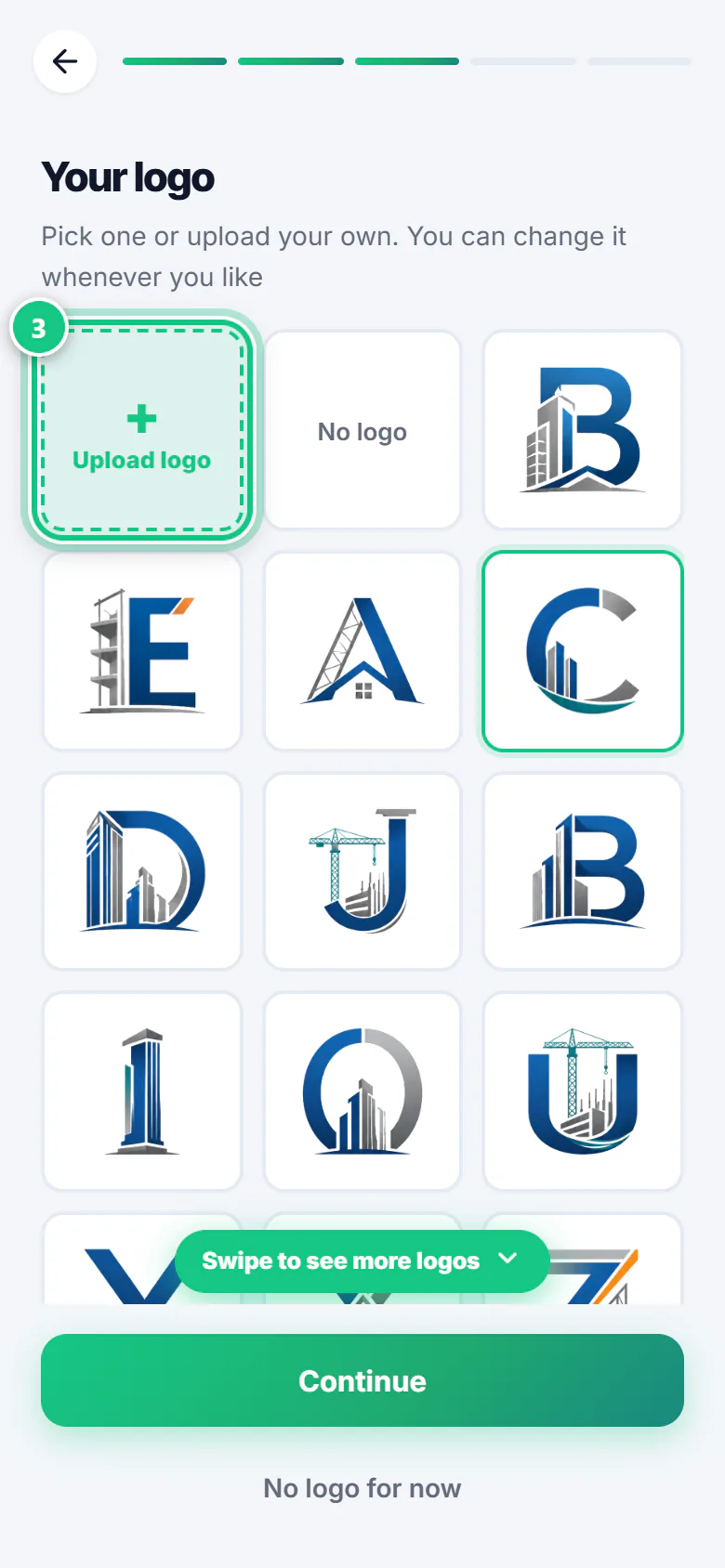
Tap Upload logo or pick one from the list.
Note: No logo yet? Tap No logo for now.
-
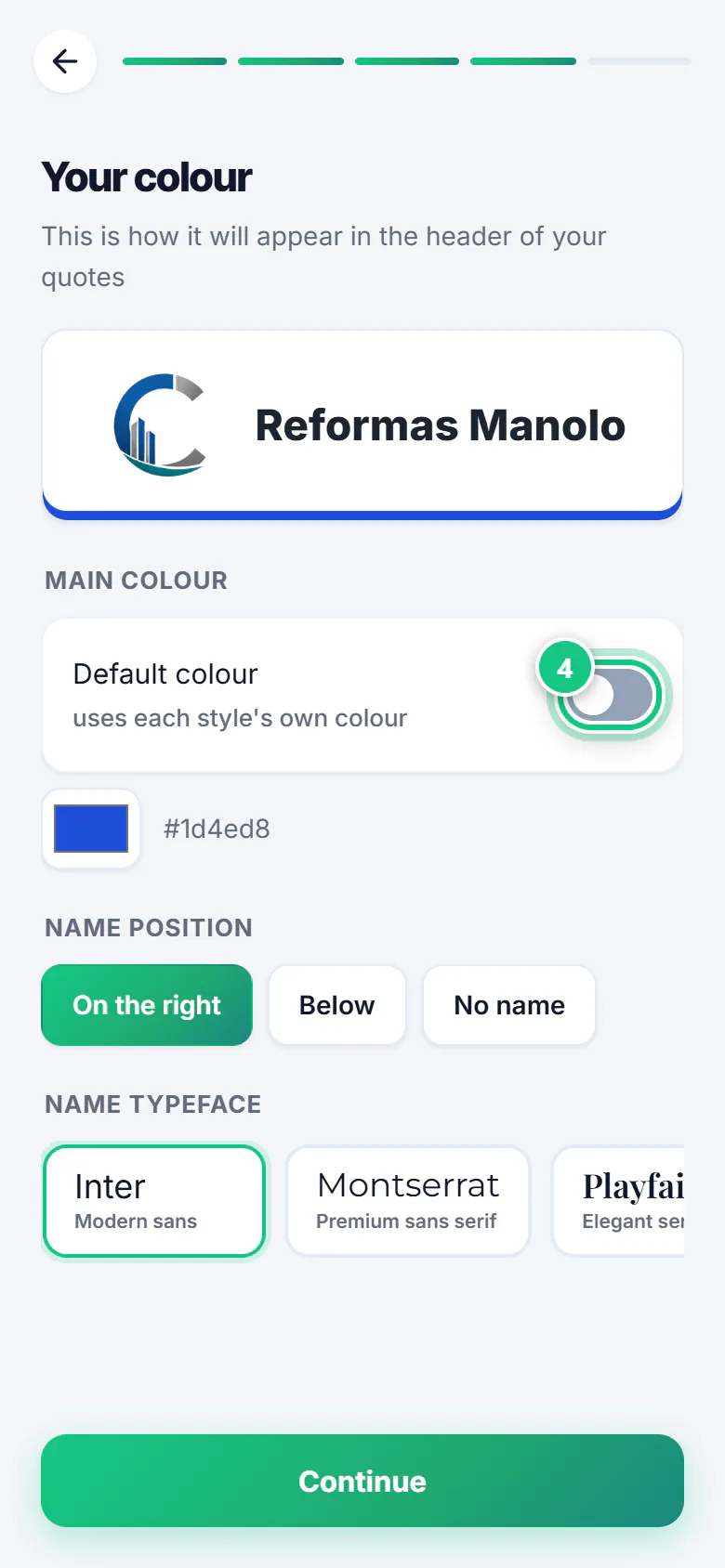
To use your own colour, switch off Default colour and pick it. Tap Continue.
-
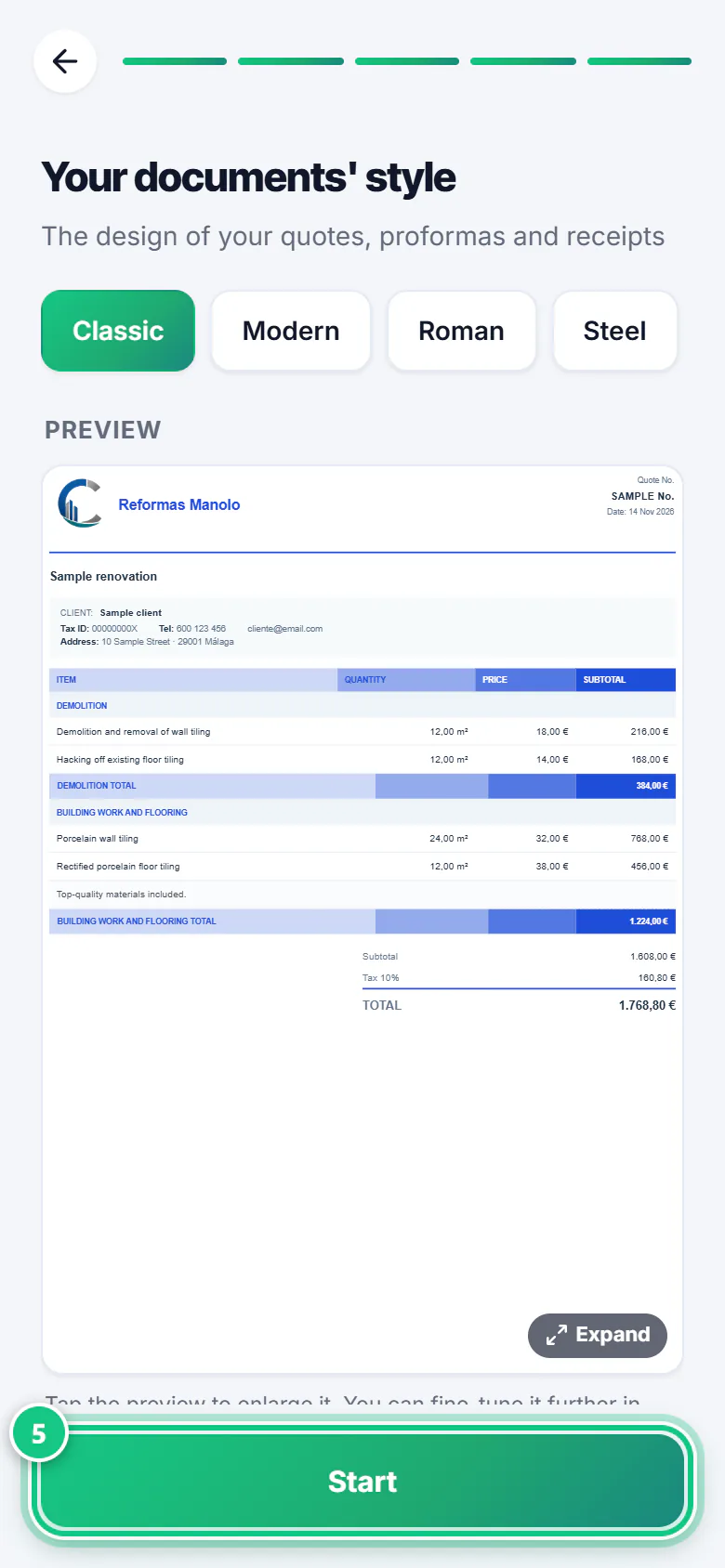
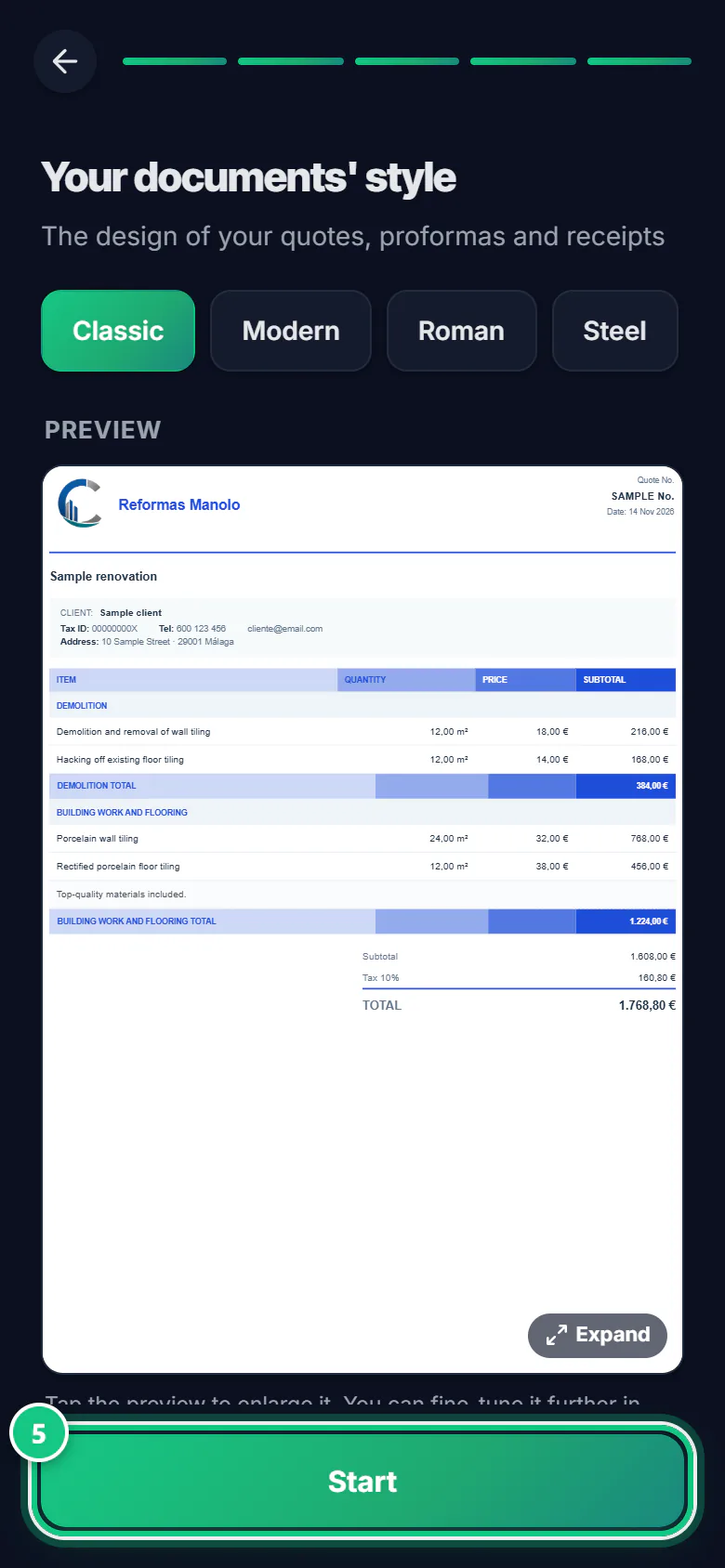
Choose a style for your documents and tap Start.
-
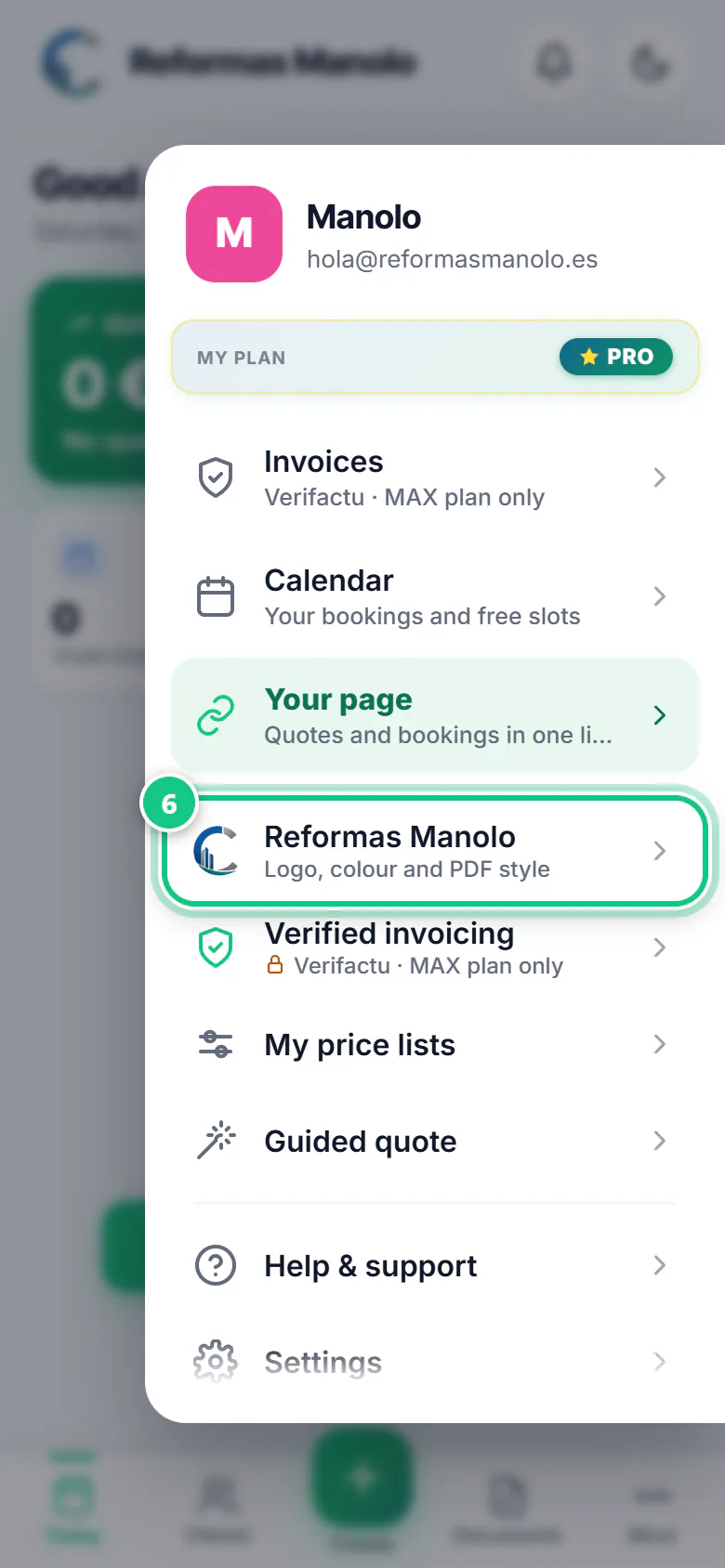
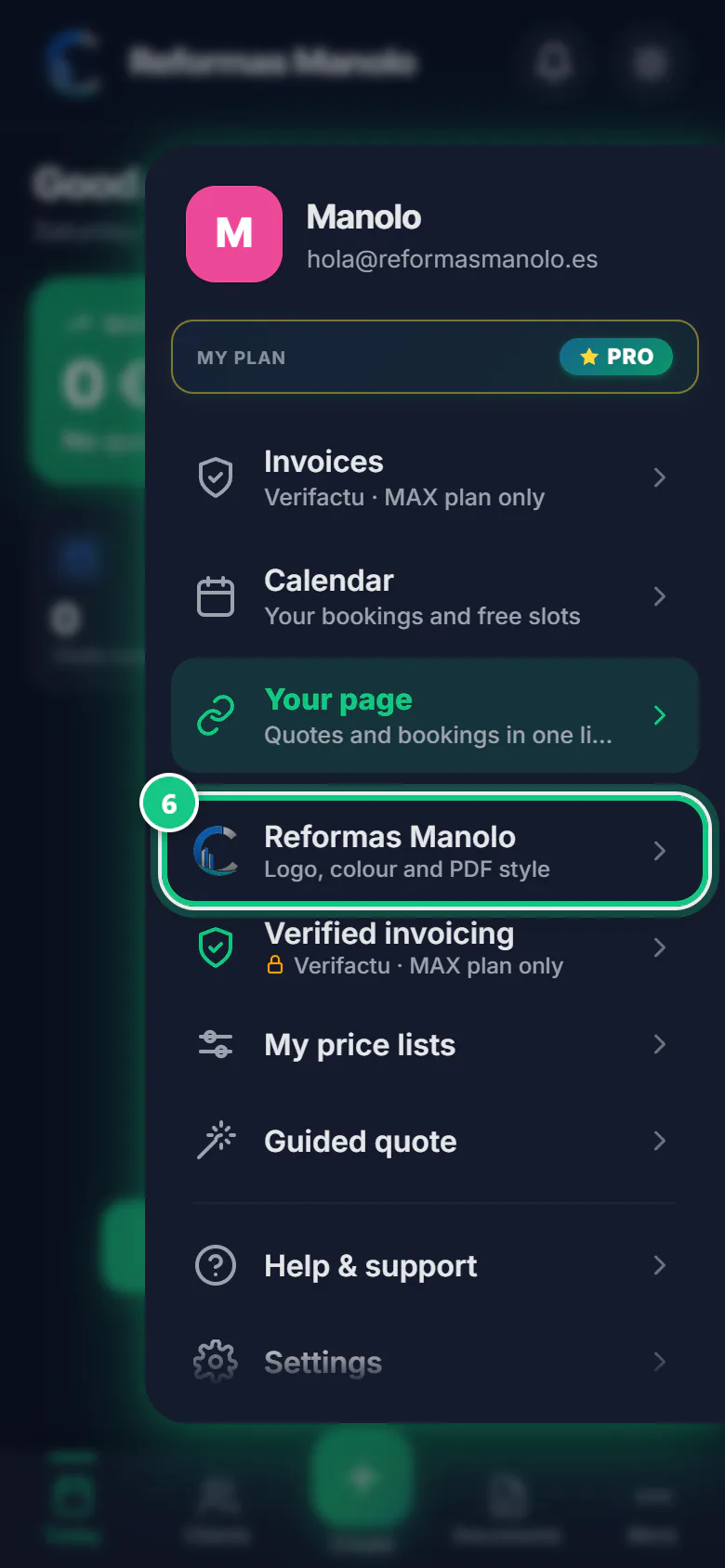
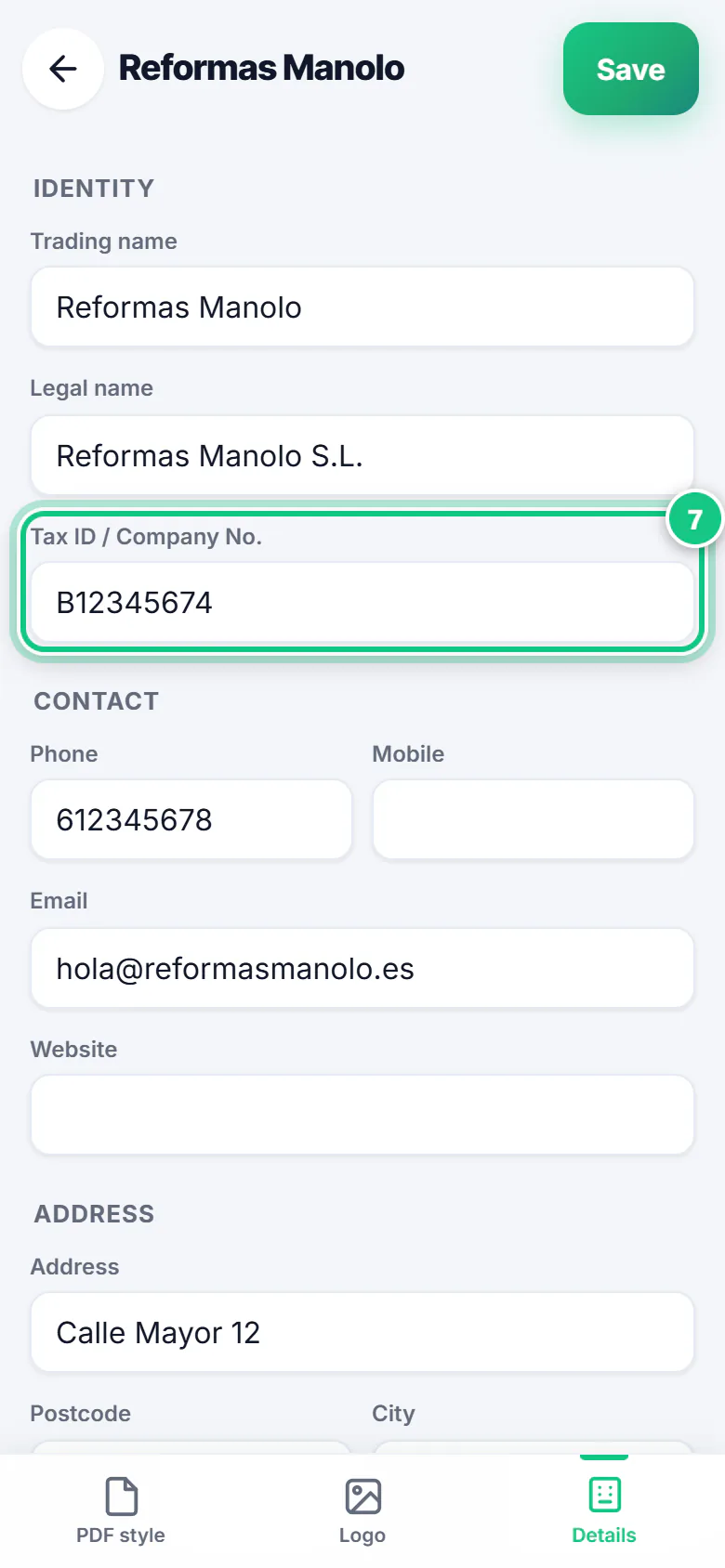
Now your tax ID. If an on-screen tip (“Step 1 of …”) appears, tap Skip tutorial, at the top. Then tap More and your business name.
-
At the bottom, tap Details: fill in tax ID, phone, email, address and IBAN.
Note: Back on Today? Go in again: More › your business name › Details. Save (top right) also takes you to Today without a word: it is saved.
Where people get stuck
- The phone welcome does not ask for your tax ID. Until you add it (steps 6 and 7), PDFs lack your tax ID and phone.
- “My colour does not show.” Default colour (phone) or Style colour (computer) is on: switch it off.
- The contract has blanks [ ]. Add your address and IBAN in More › your business name › Details. The legal representative is computer only.
- The contract has blanks [ ]. Your registered address, IBAN or representative are missing: step 7.
- Wrong logo or colour? Change it any time. On the phone, More › your business name. On the computer, Settings › Your brand.
Open it in the app
On your phone
Open the PRESULINK app and go to:
More›your business name›Details
On your computer
Takes you to that screen. If you are not logged in, it asks you to log in first and then takes you there.
Open My companyOn a computer, at app.presulink.es: Settings›My company