

Calendar: set your hours and let clients book the visit
Set your hours once and your clients book the visit themselves, with a link or a QR code.
Step by step
-
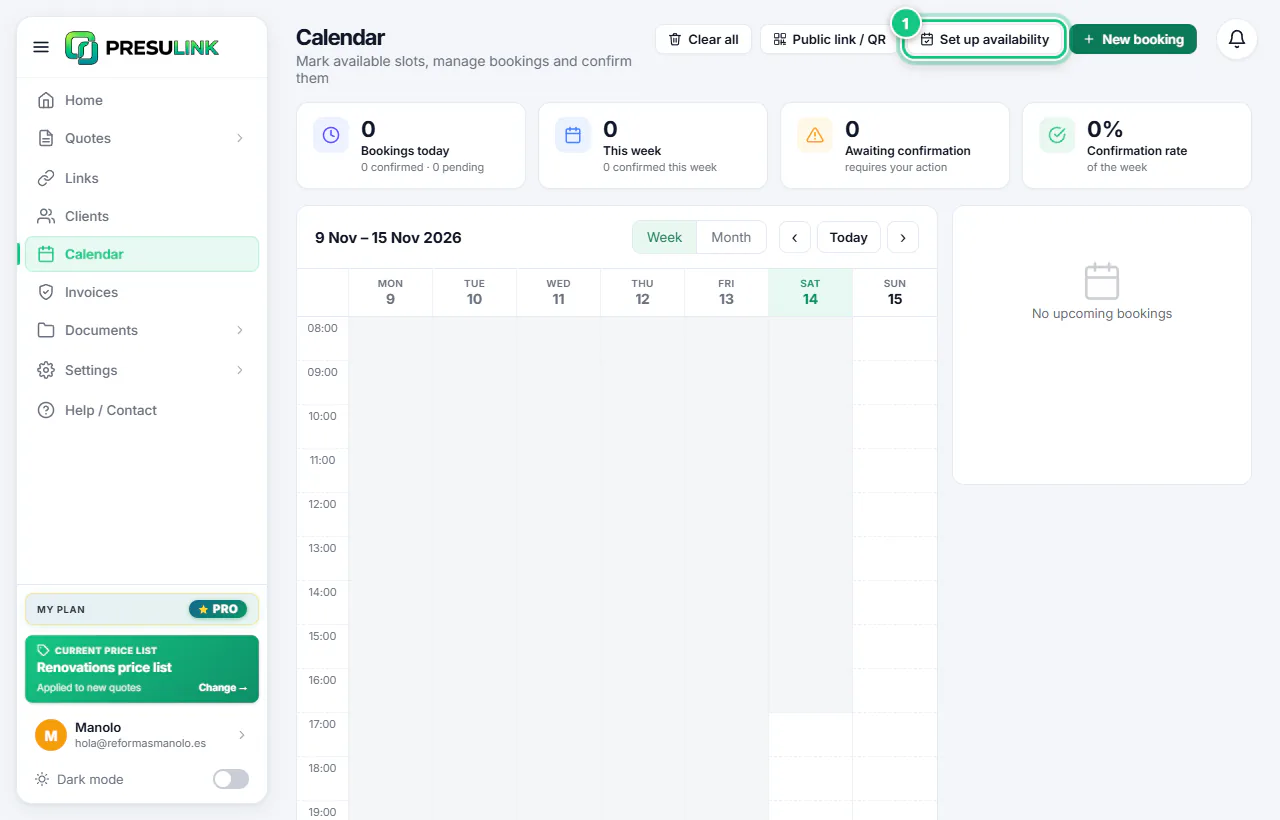
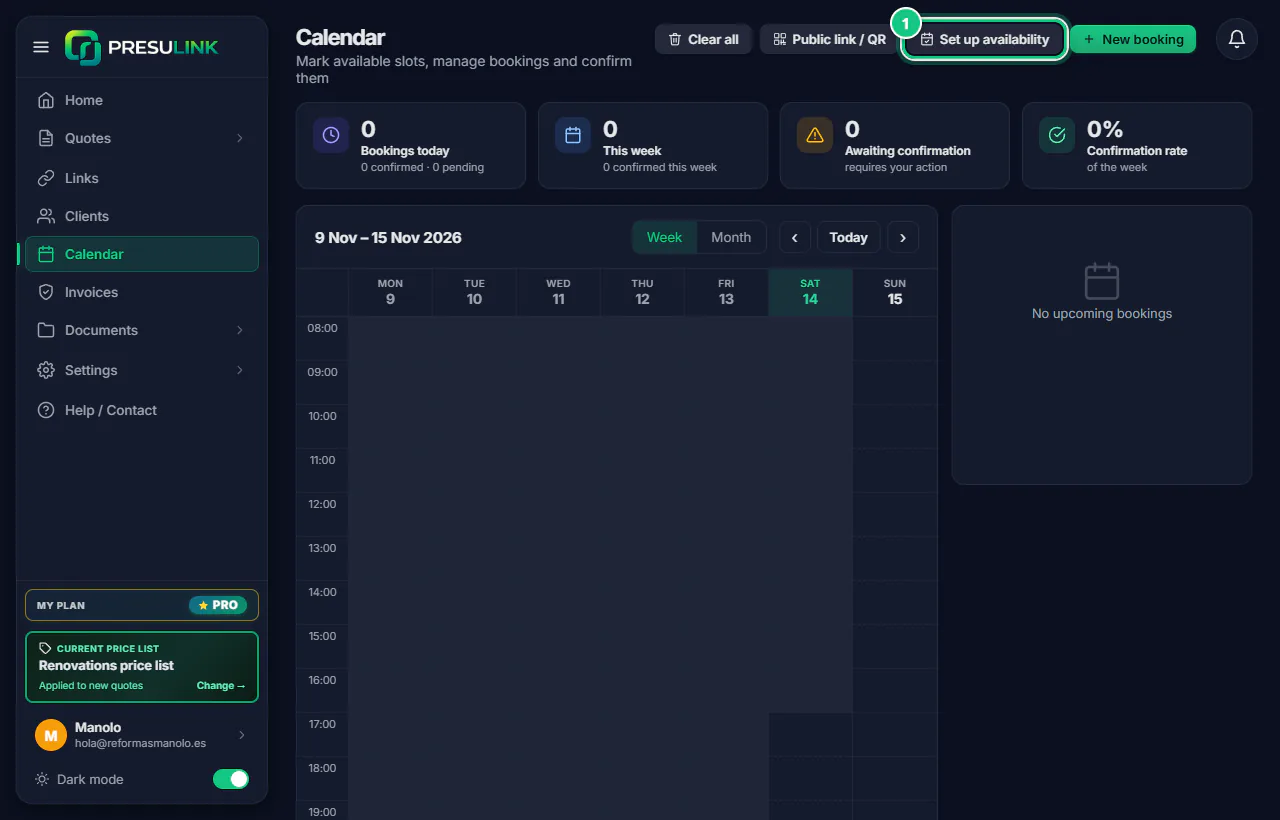
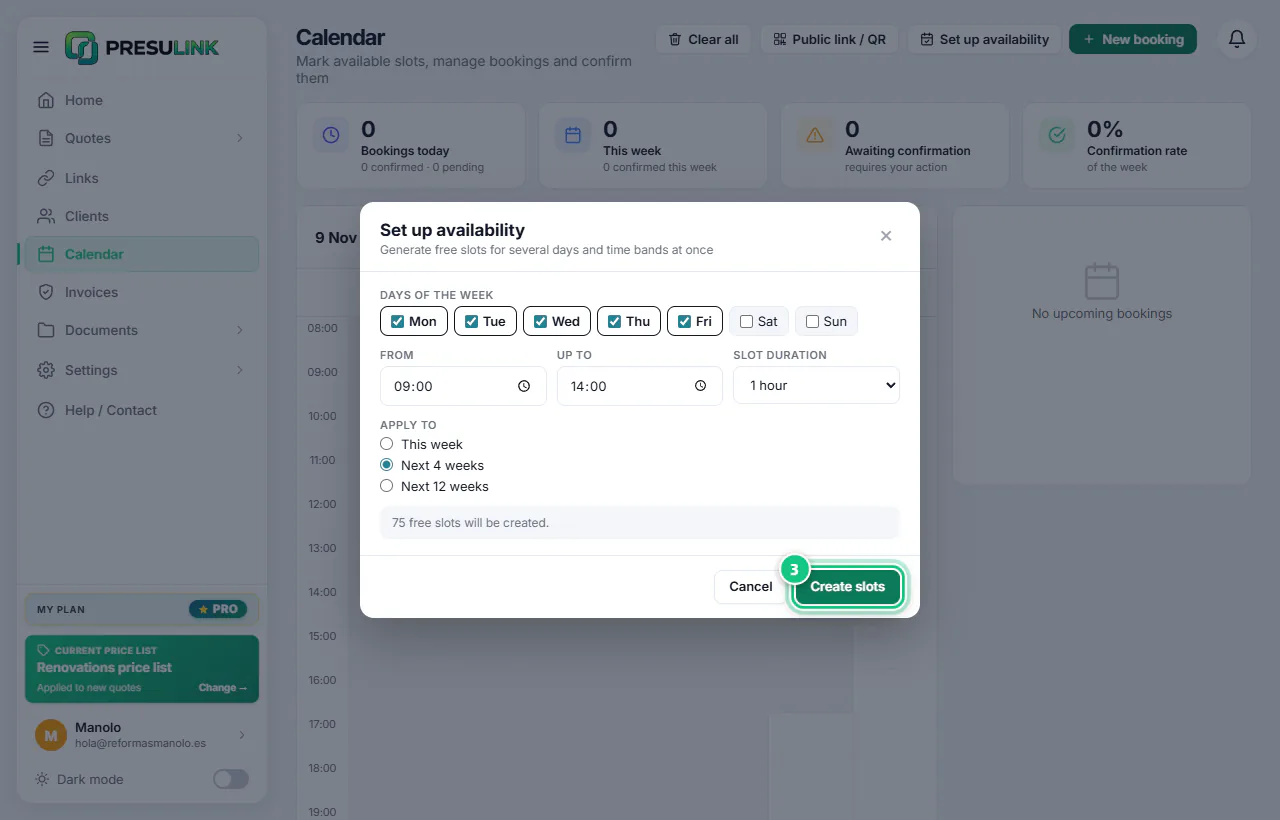
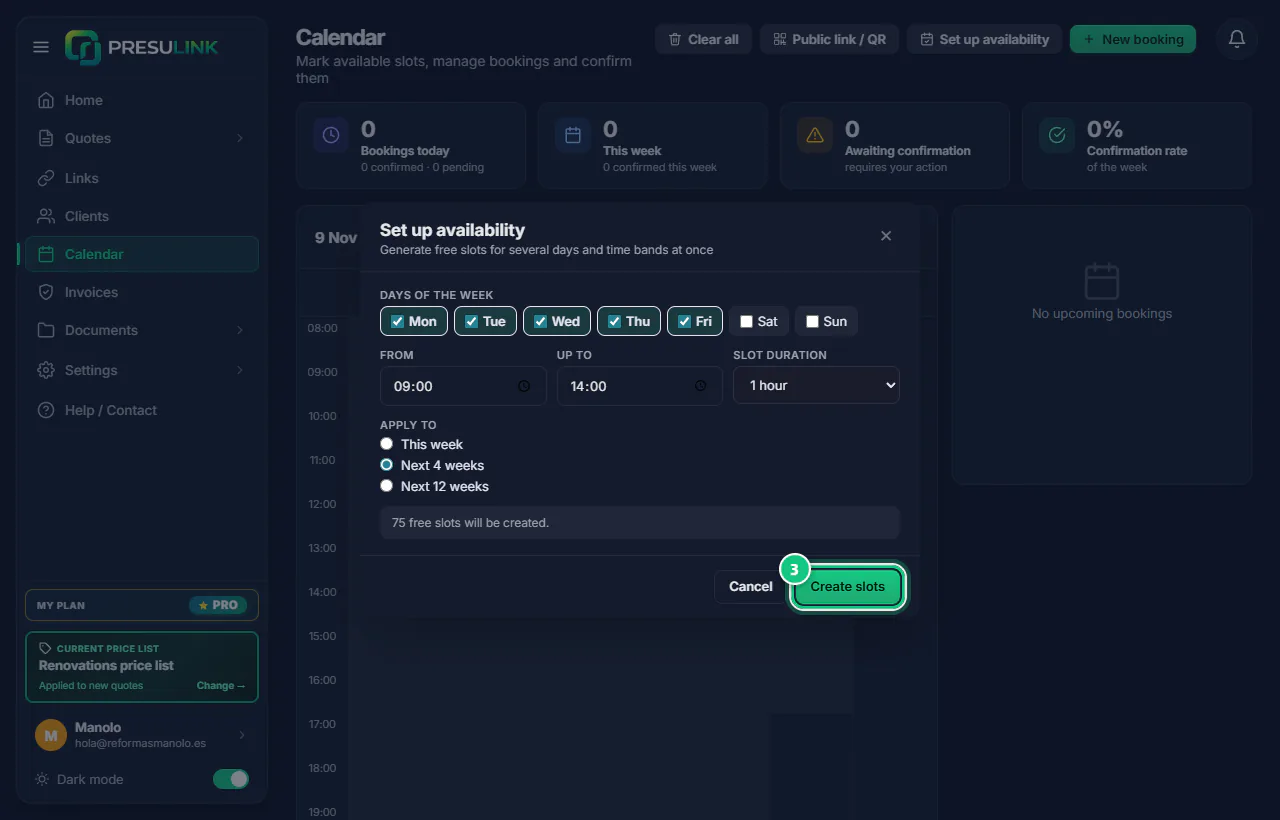
Click Calendar, then Set up availability.
-
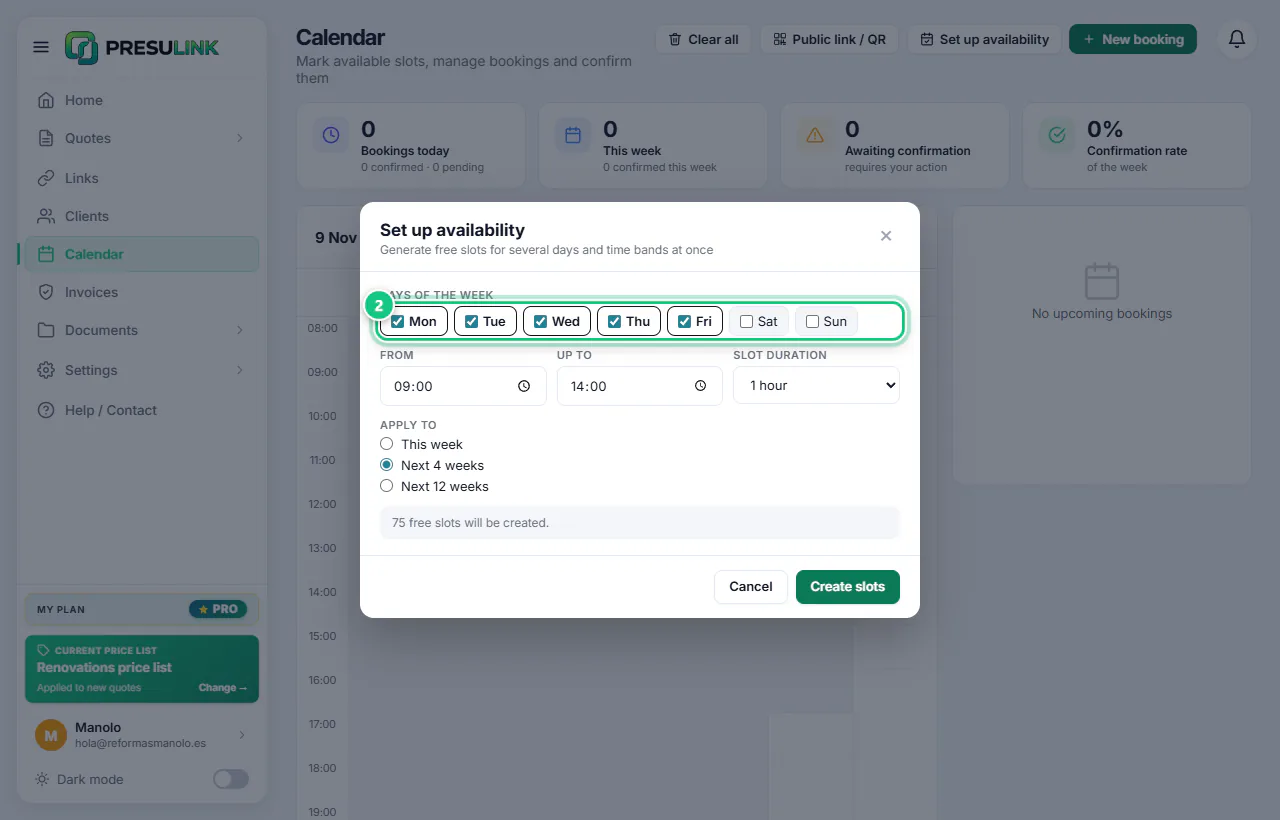
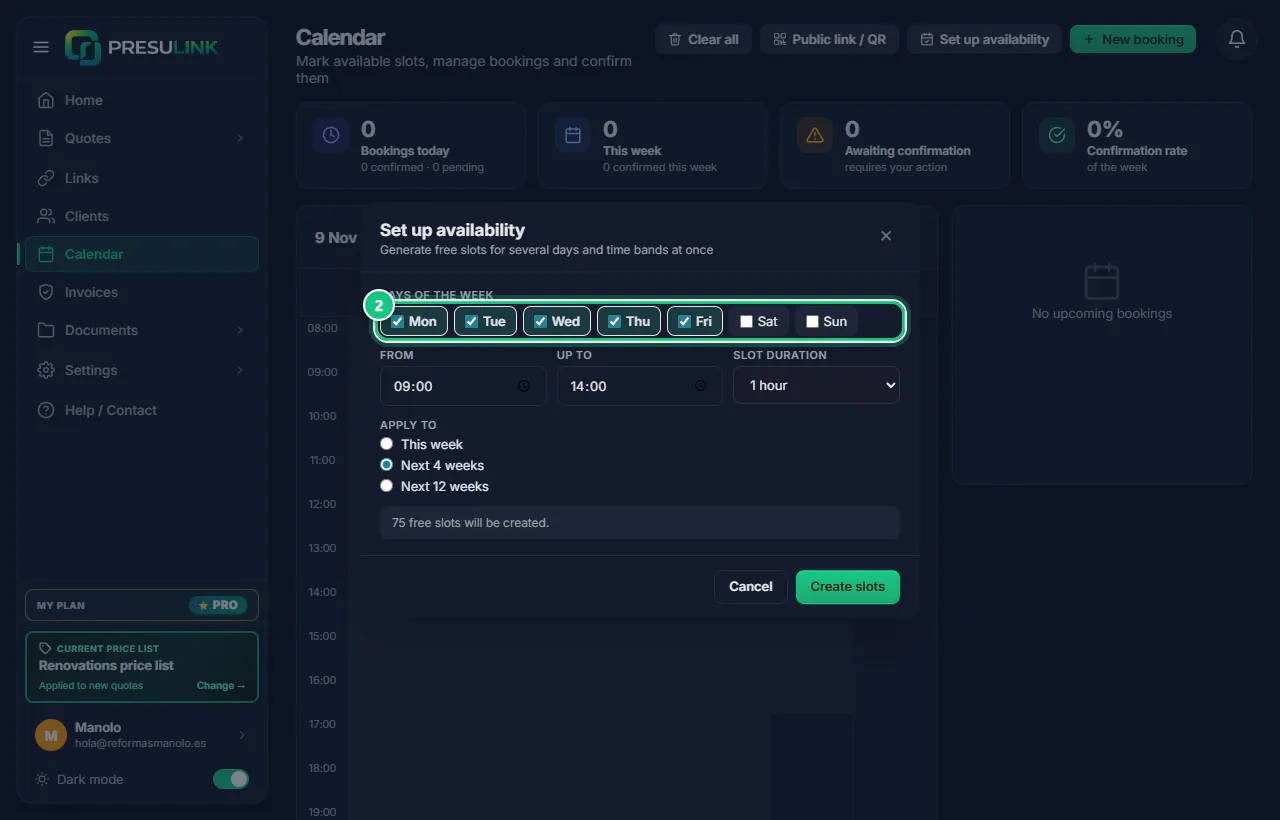
Tick the days and set From, Up to and how long each visit lasts.
-
Under Apply to, choose Next 4 weeks and click Create slots.
Note: Slots run out: come back here before those weeks are over.
-
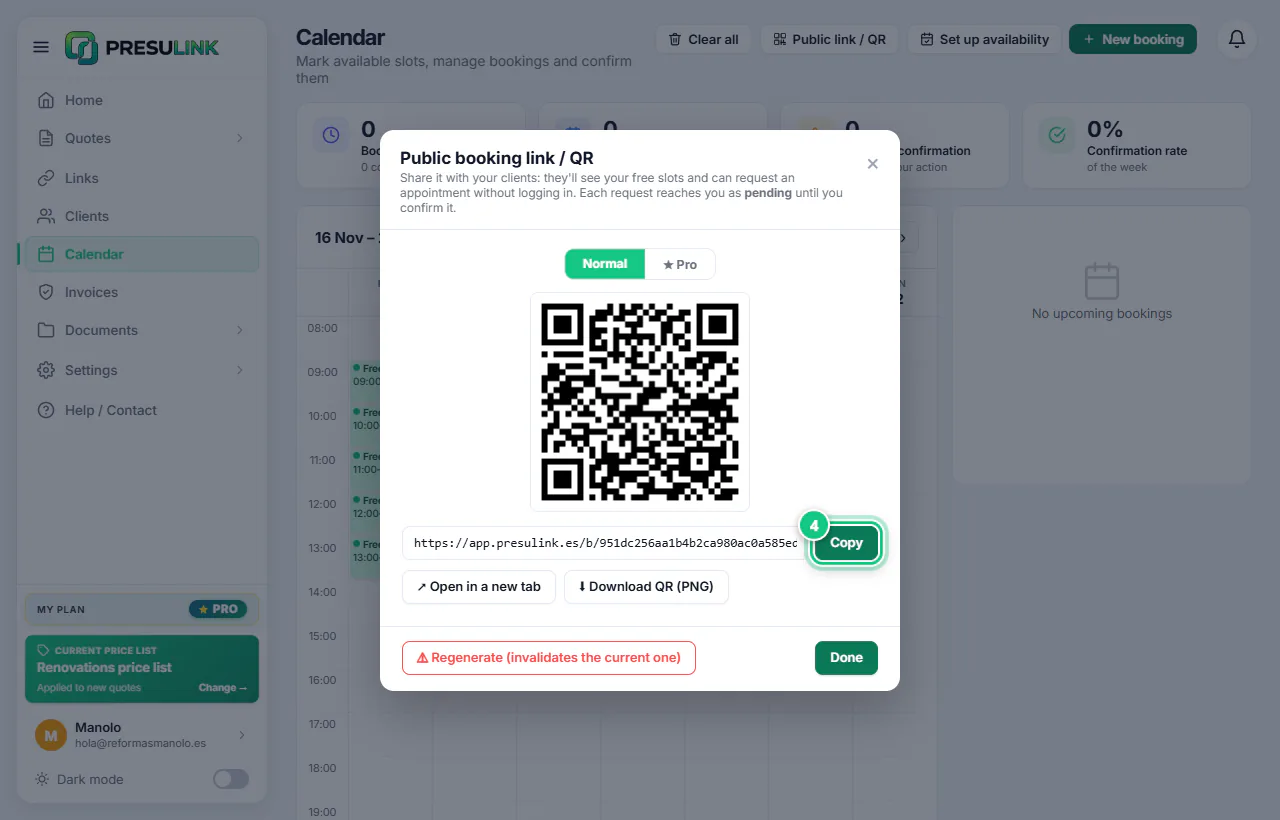
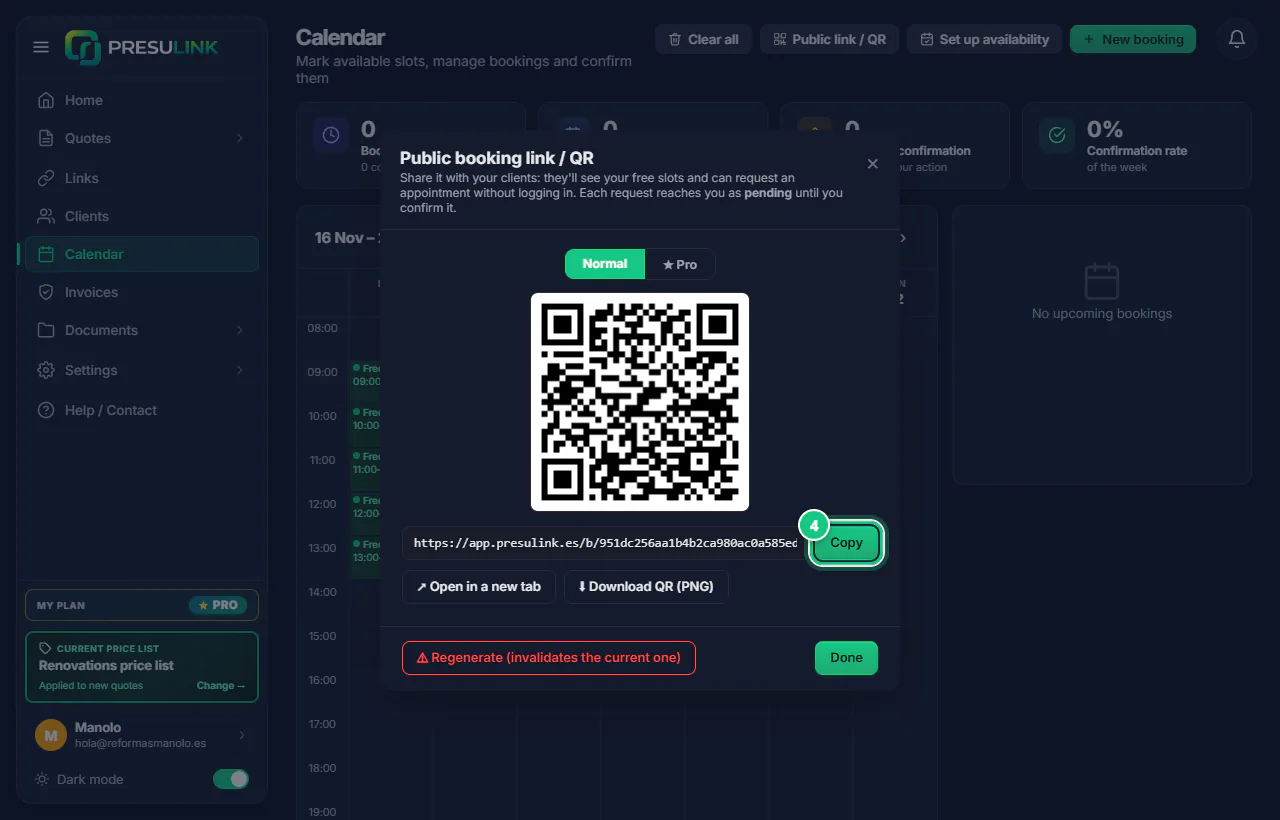
Click Public link / QR to copy your booking link.
Note: Download the QR code for your cards or the van.
-
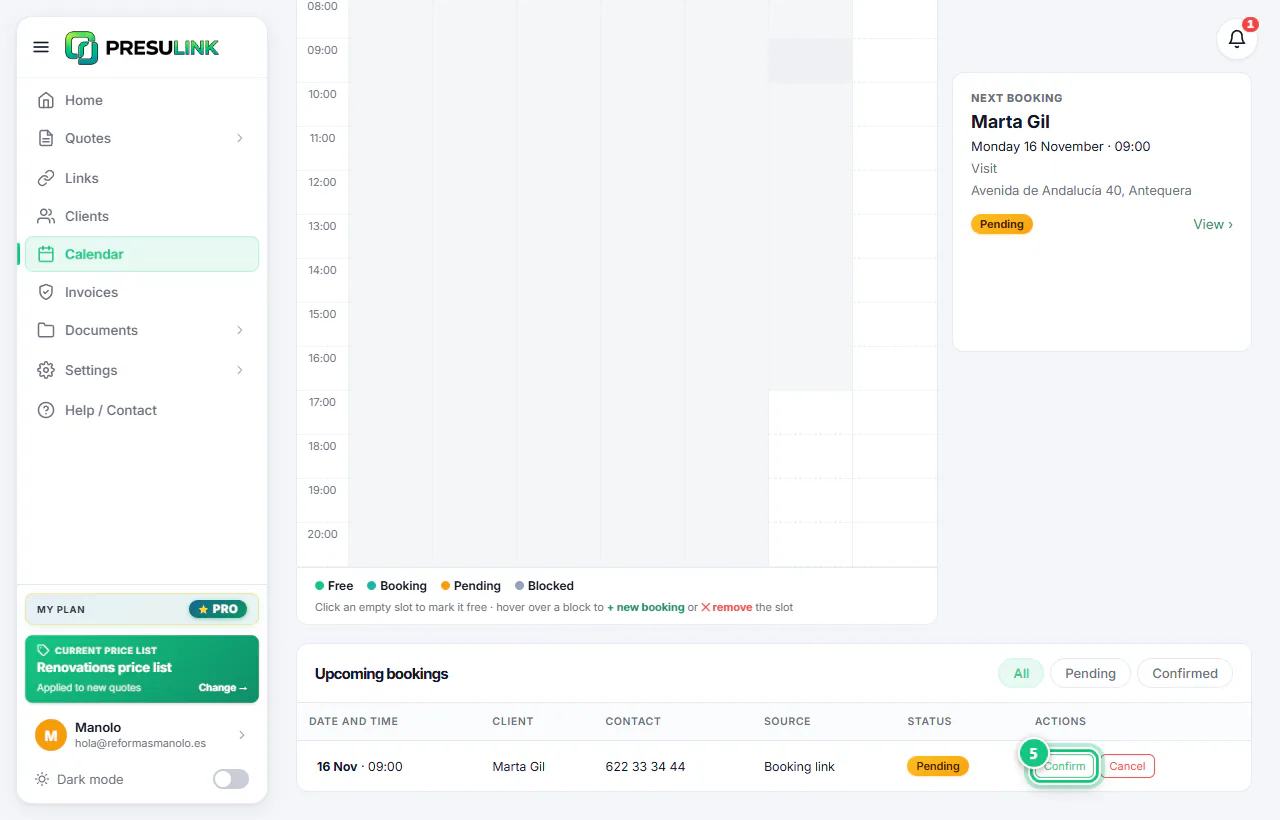
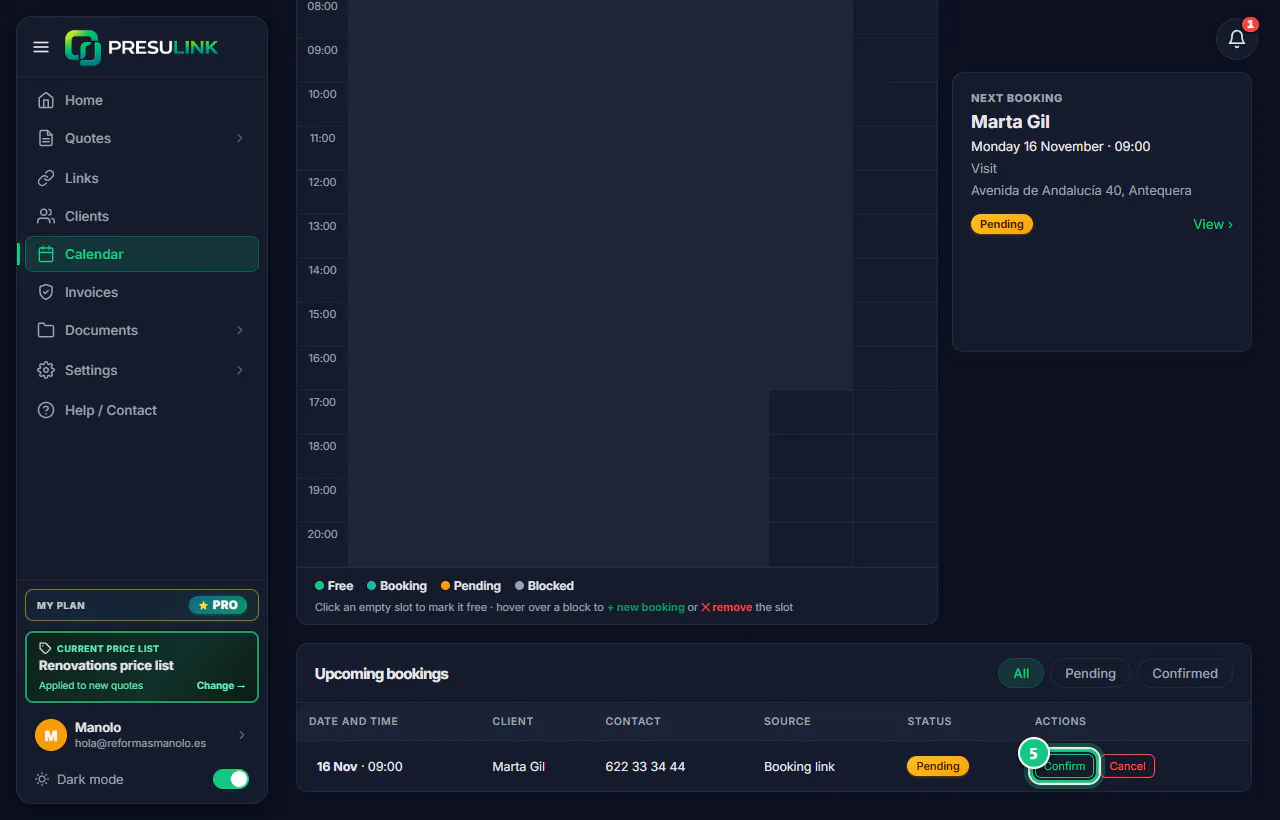
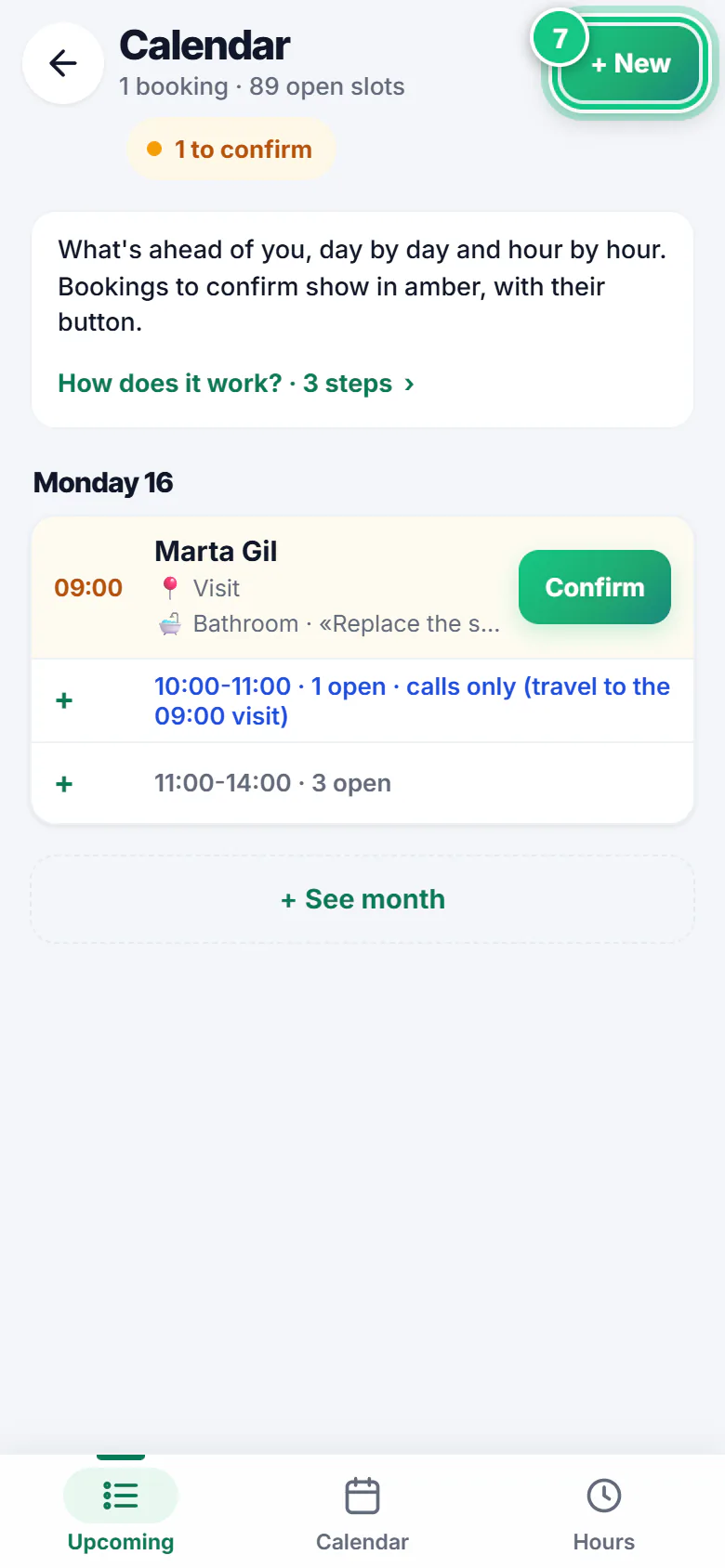
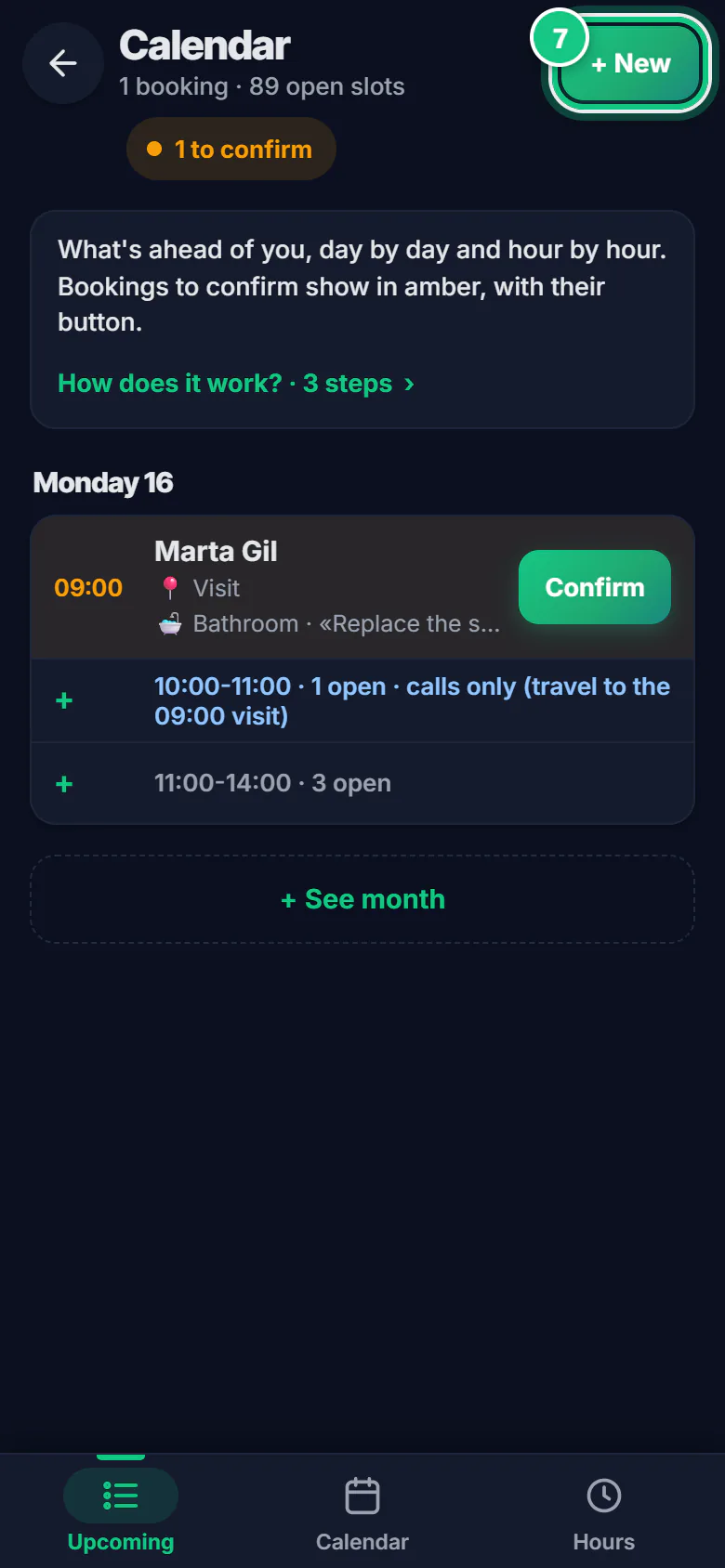
Bookings arrive as pending: click Confirm.
-
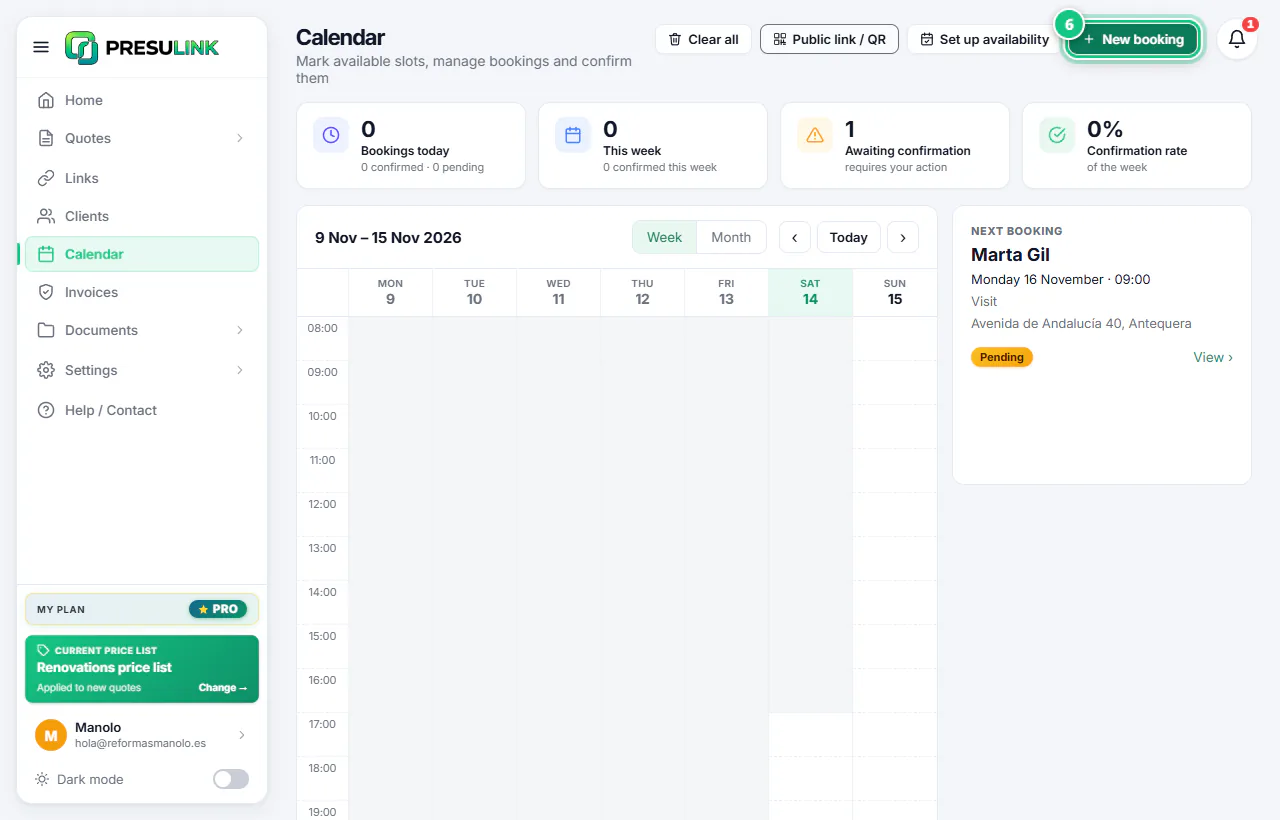
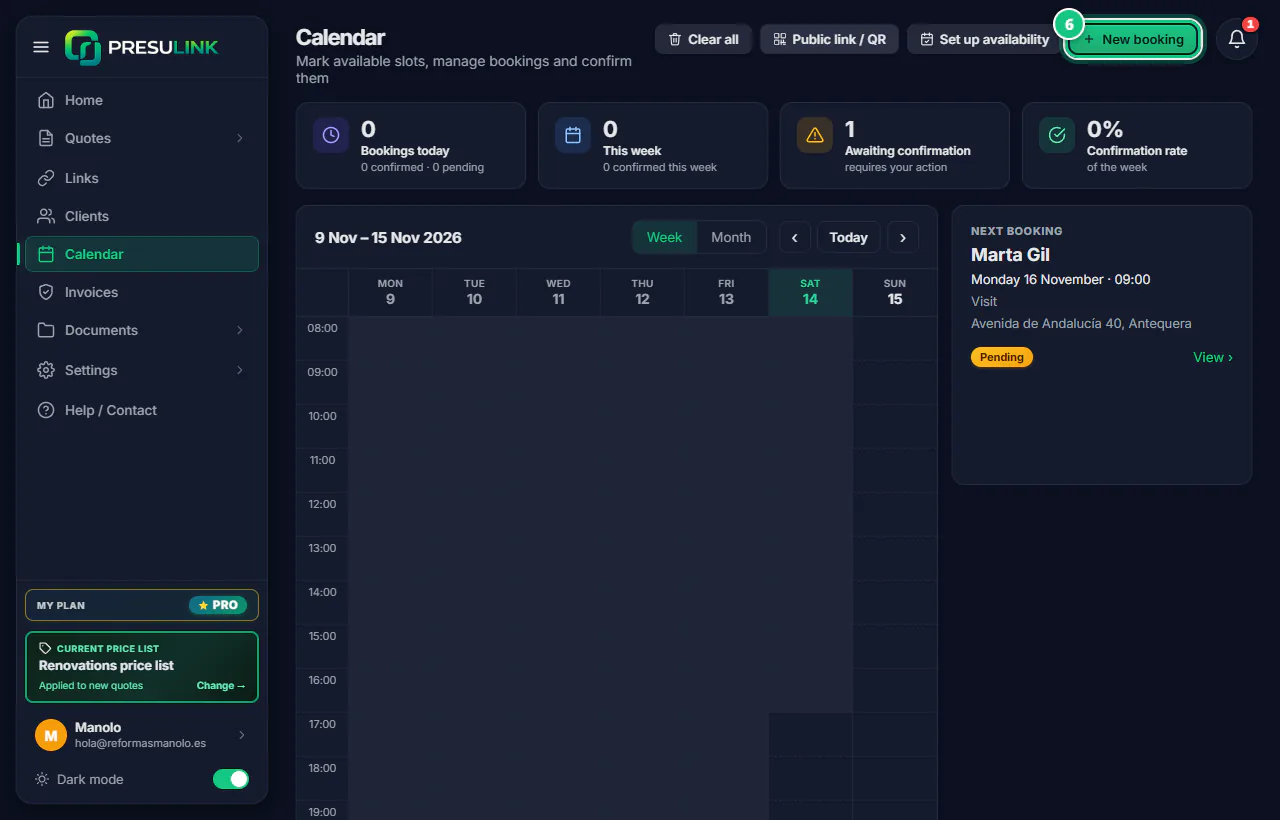
A visit someone asked for by phone? Click New booking.
-
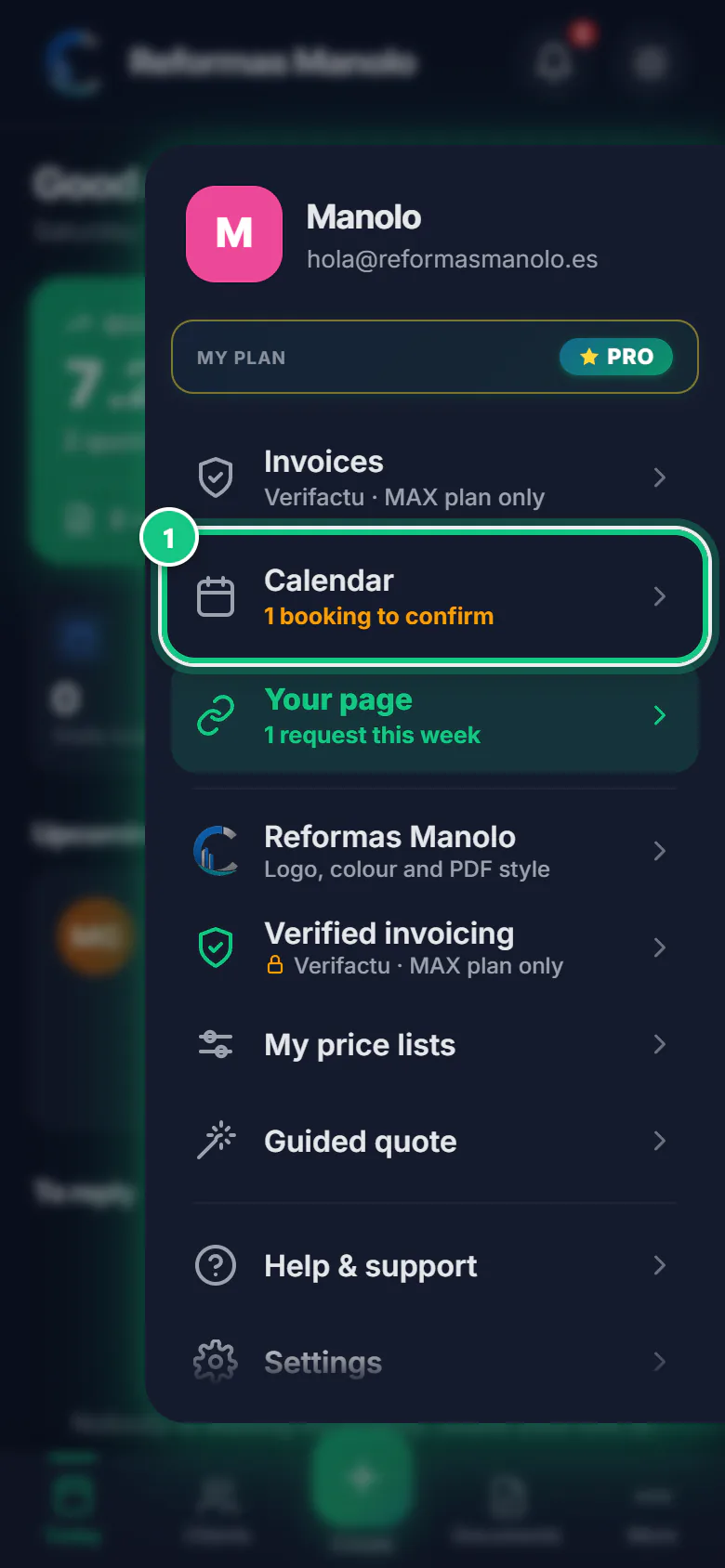
Tap More, then Calendar.
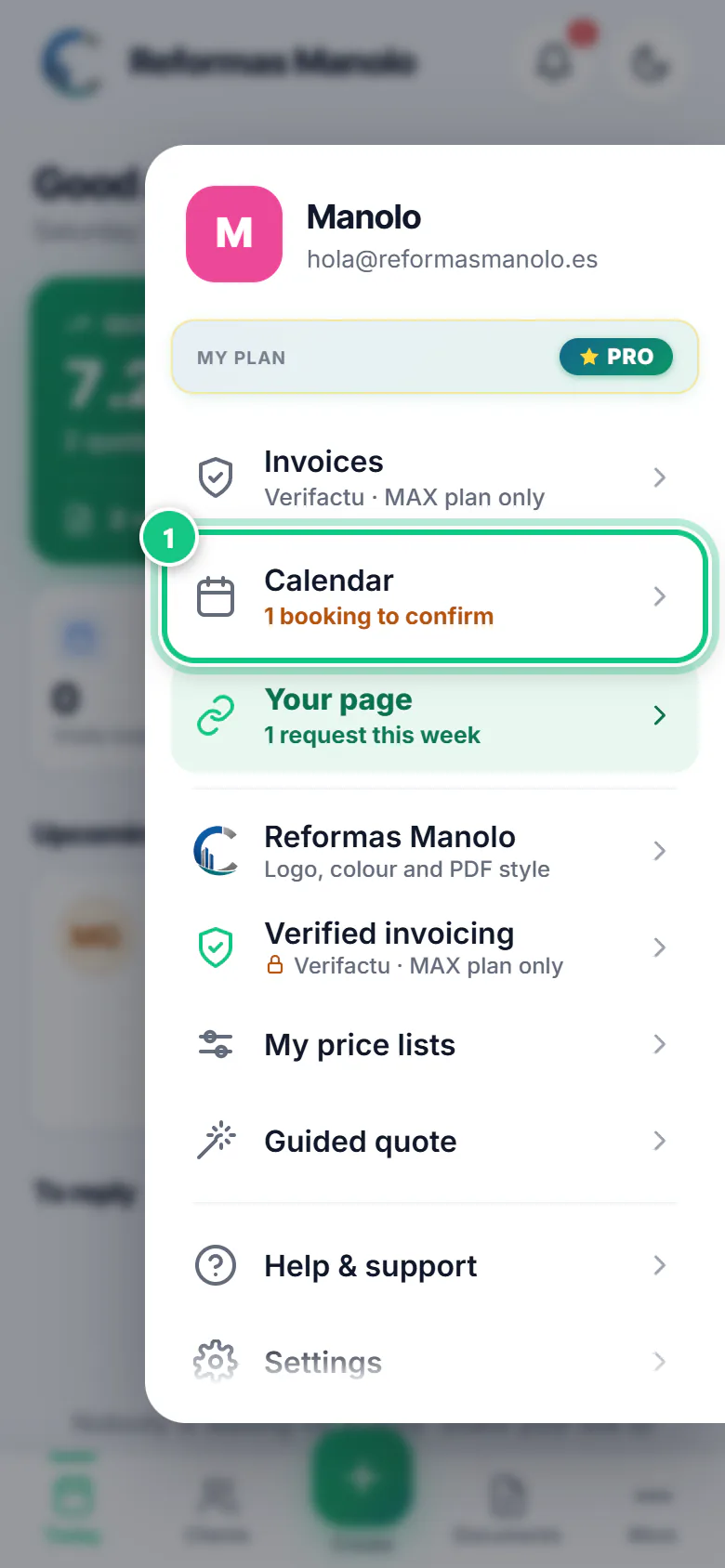
-
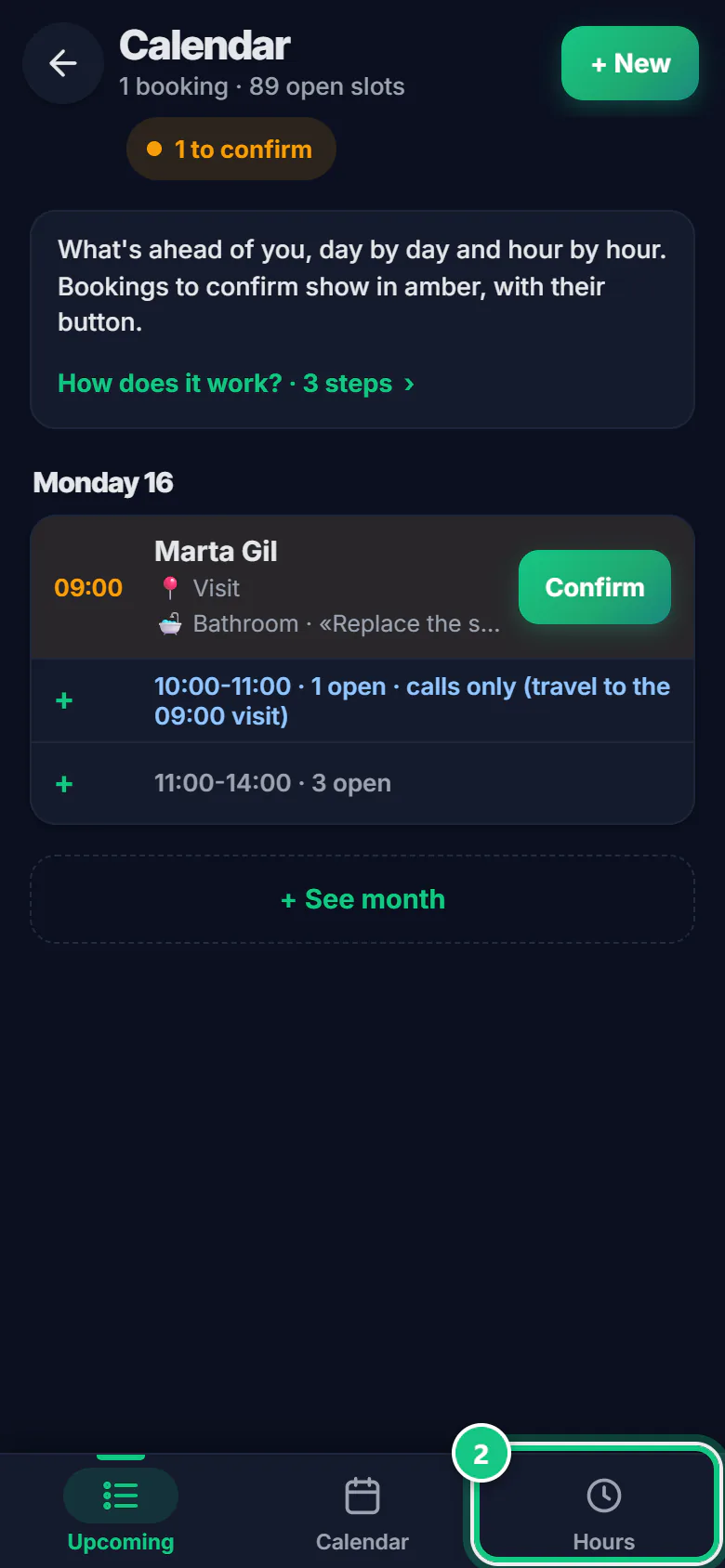
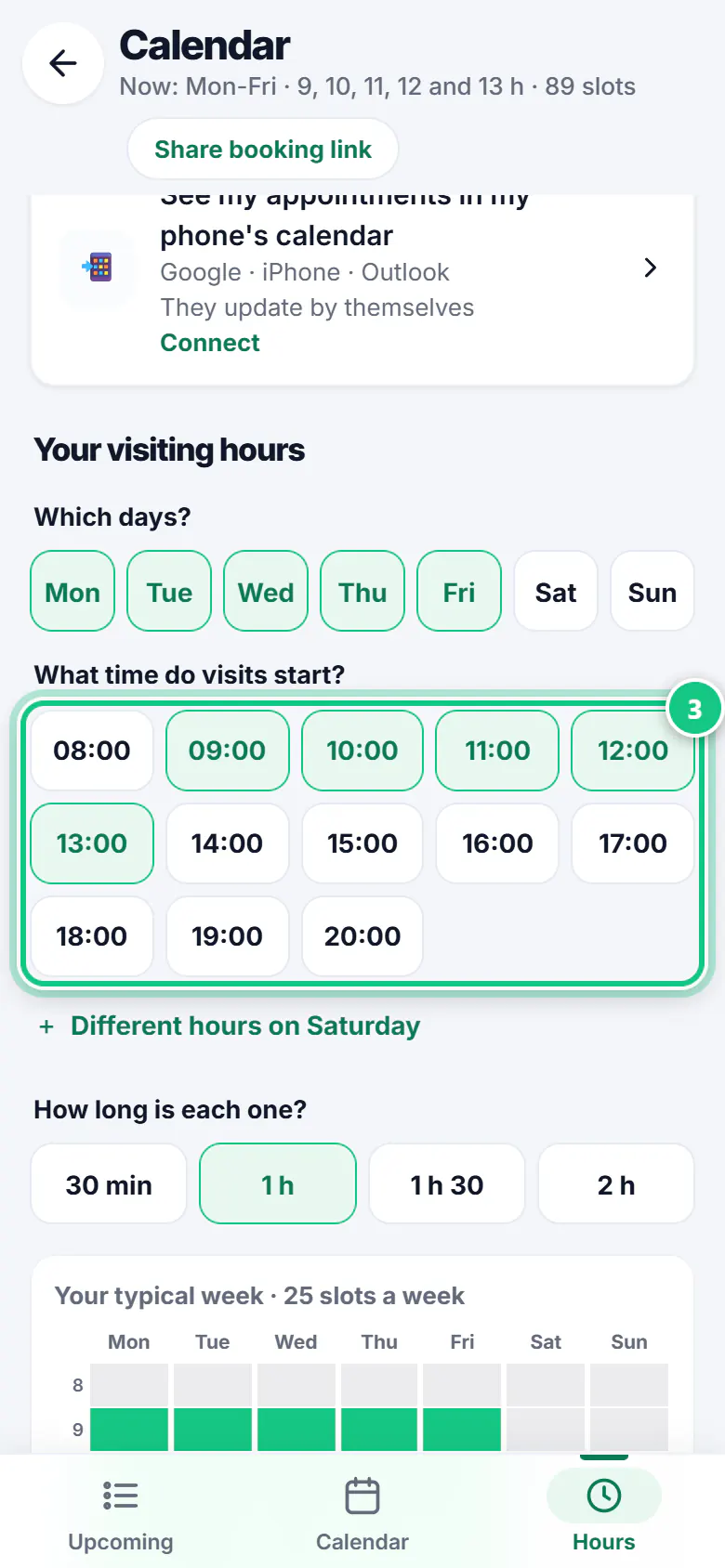
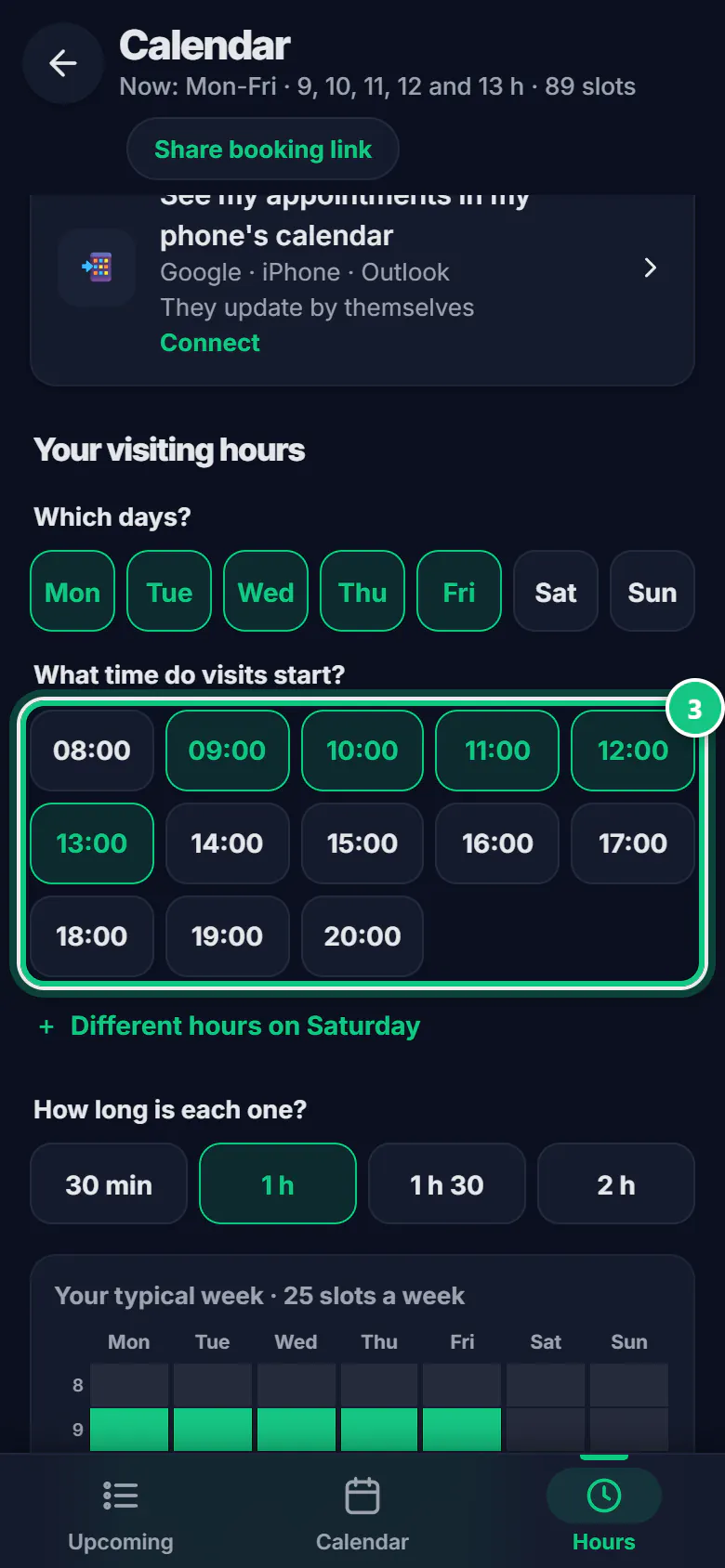
Tap the Hours tab.
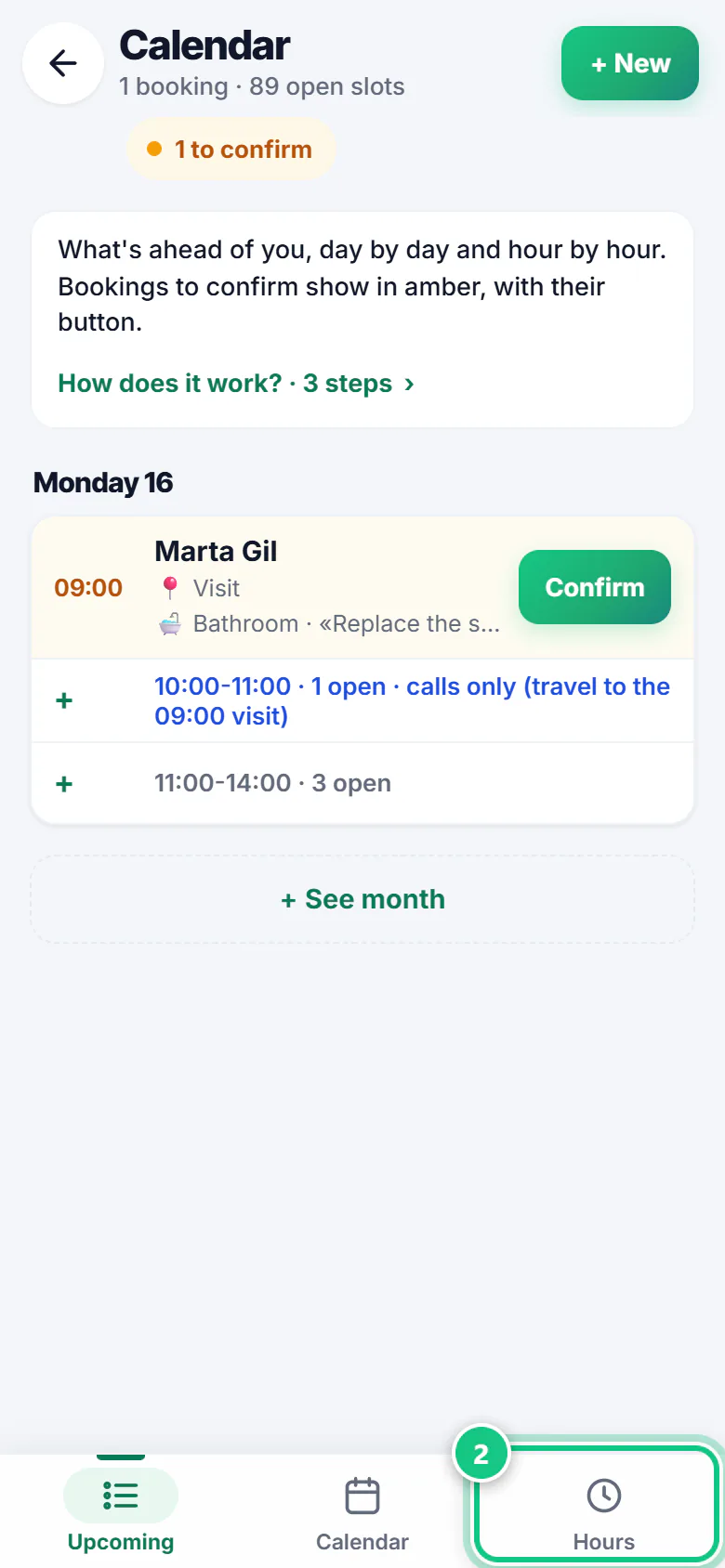
-
Tick the days and tap the times your visits start.
Note: Choose how long each one lasts, too.
-
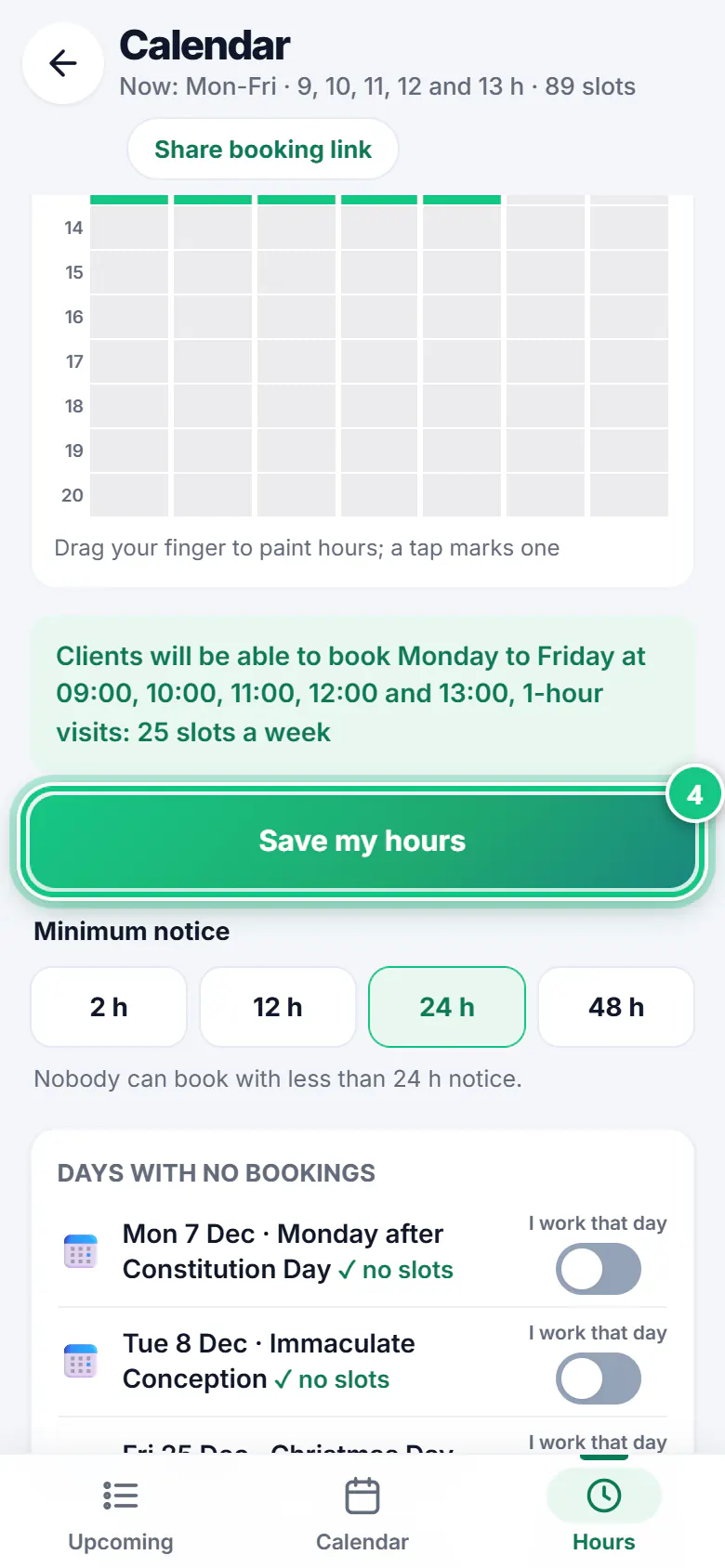
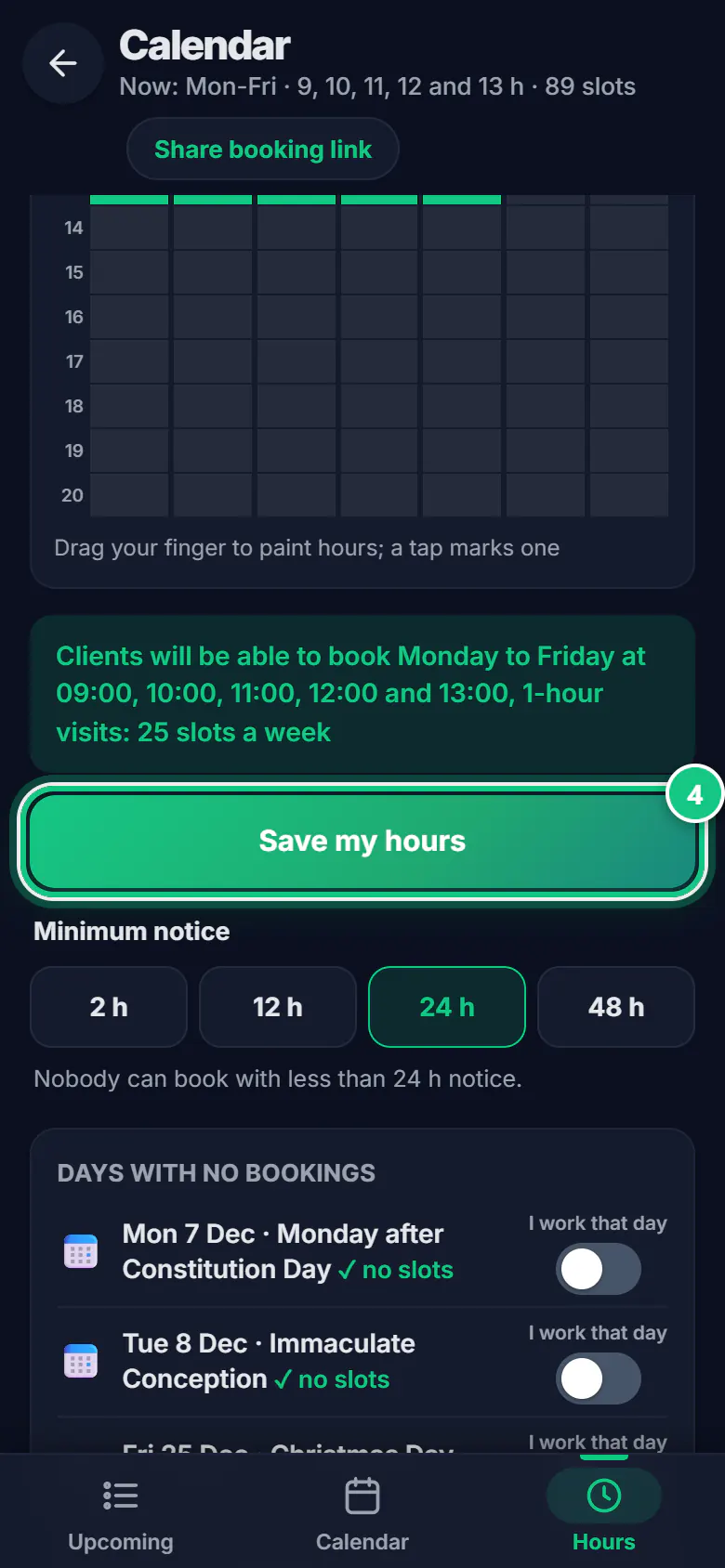
Tap Save my hours. They repeat every week.
-
Tap Share booking link and send it on WhatsApp.
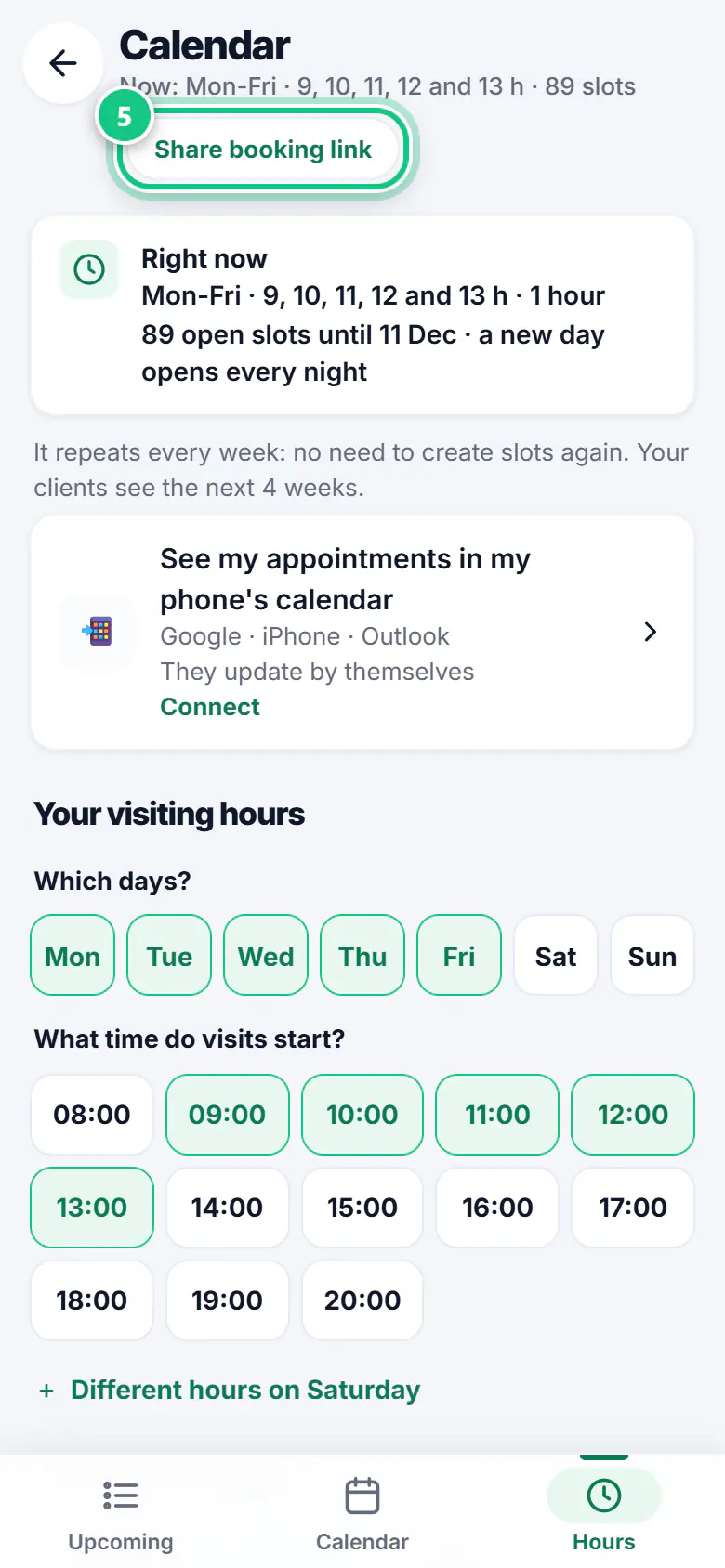
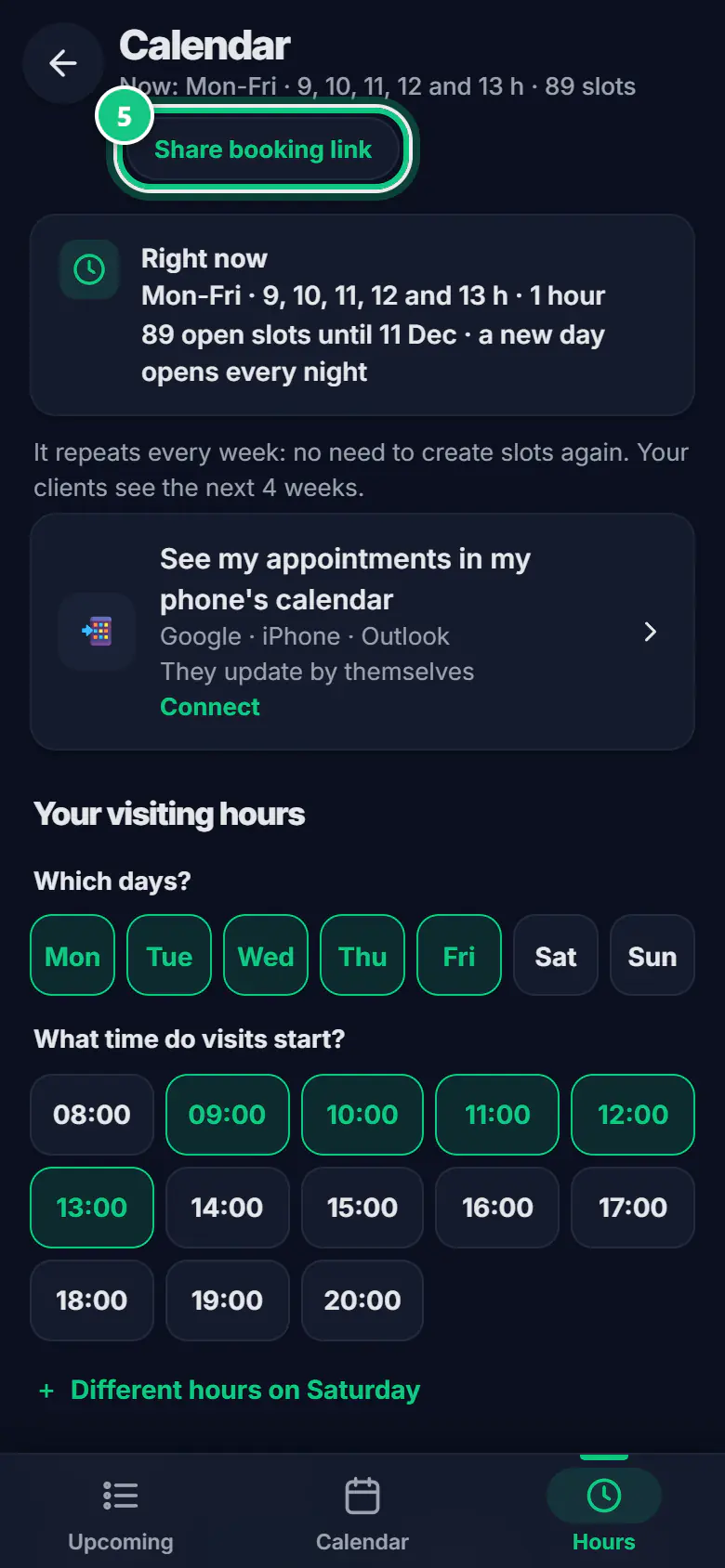
-
When someone books, it arrives as pending: tap Confirm.
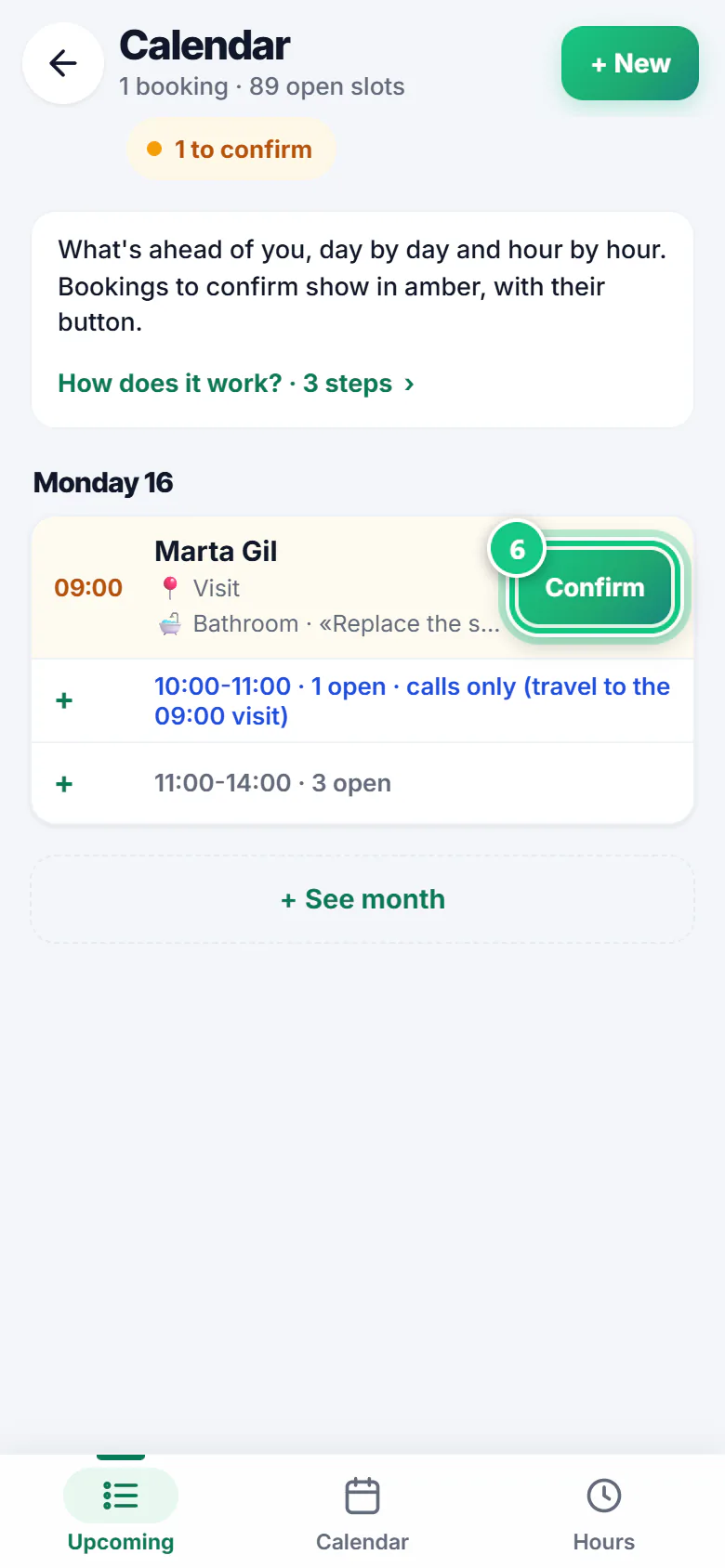
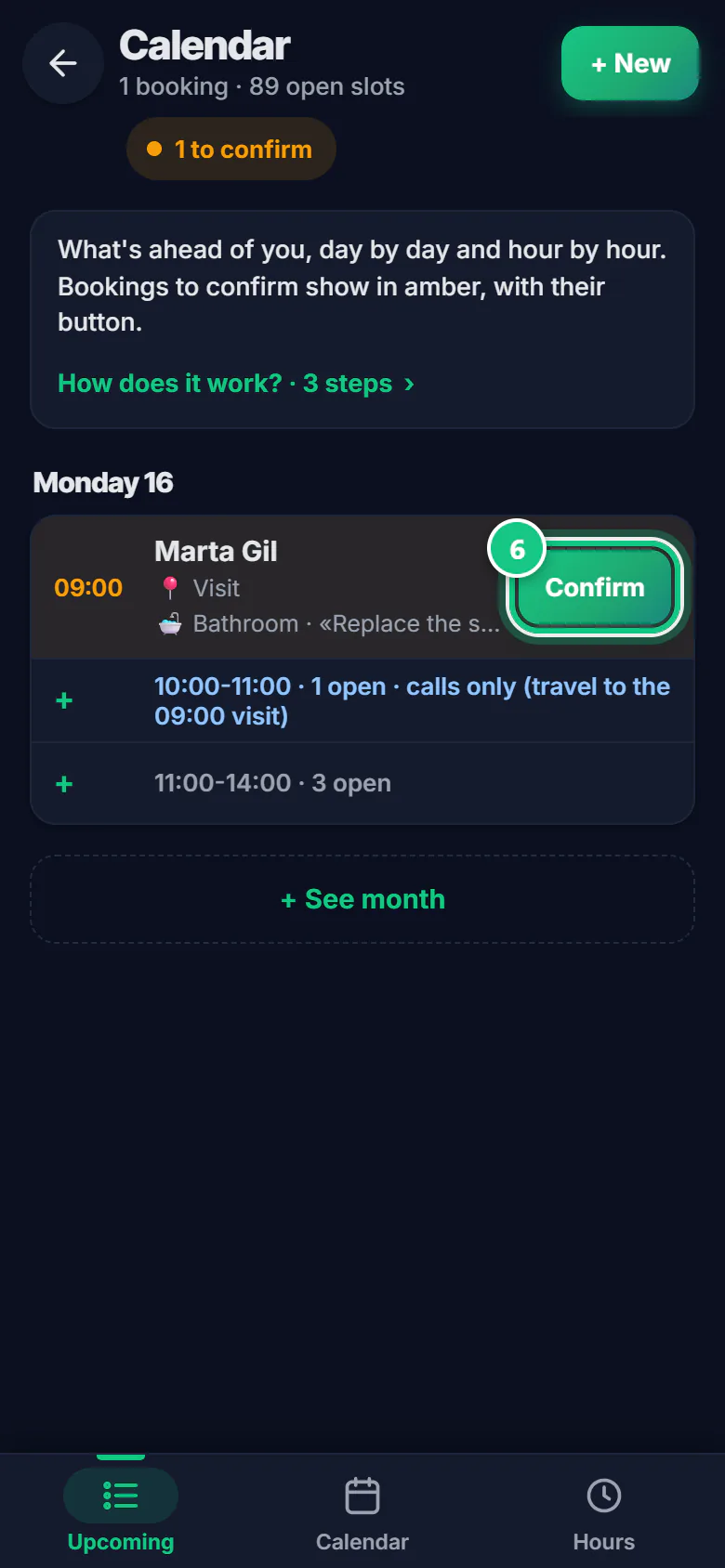
-
A visit someone asked for by phone? Tap + New.
Where people get stuck
- With no hours set, your client can’t book. Set your hours before you send any link.
- On the computer, slots run out. They last 4 or 12 weeks: create them again in time.
- “Clear all” deletes all your free slots. Booked visits stay, but think twice.
- “Regenerate” on the booking link breaks your printed QR codes. Only use it if the link leaked.
Open it in the app
On your phone
Open the PRESULINK app and go to:
More›Calendar›Hours
On your computer
Takes you to that screen. If you are not logged in, it asks you to log in first and then takes you there.
Open the CalendarOn a computer, at app.presulink.es: Calendar›Set up availability