

From “yes” to signed: a contract signed with a finger
A contract with the accepted quote, signed by you and your client on the phone, with date and time.
Step by step
-
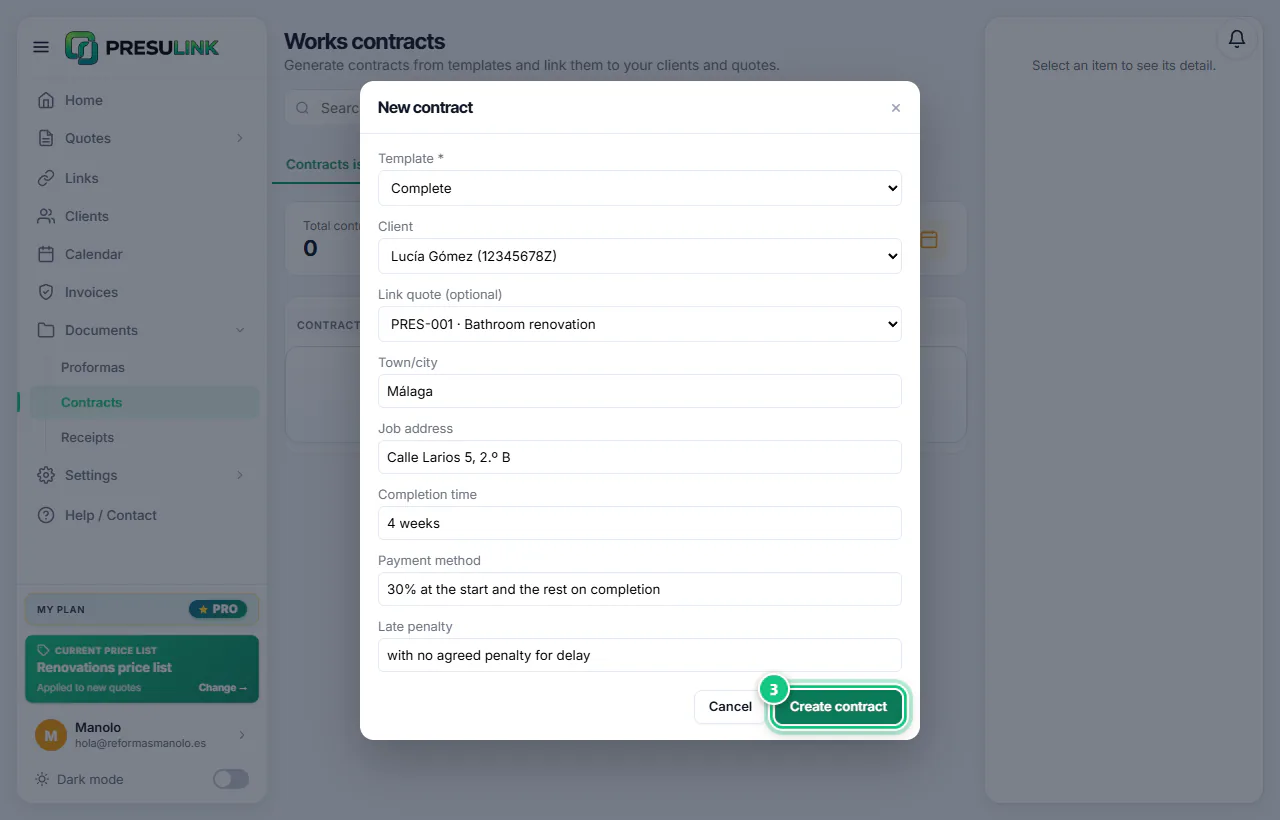
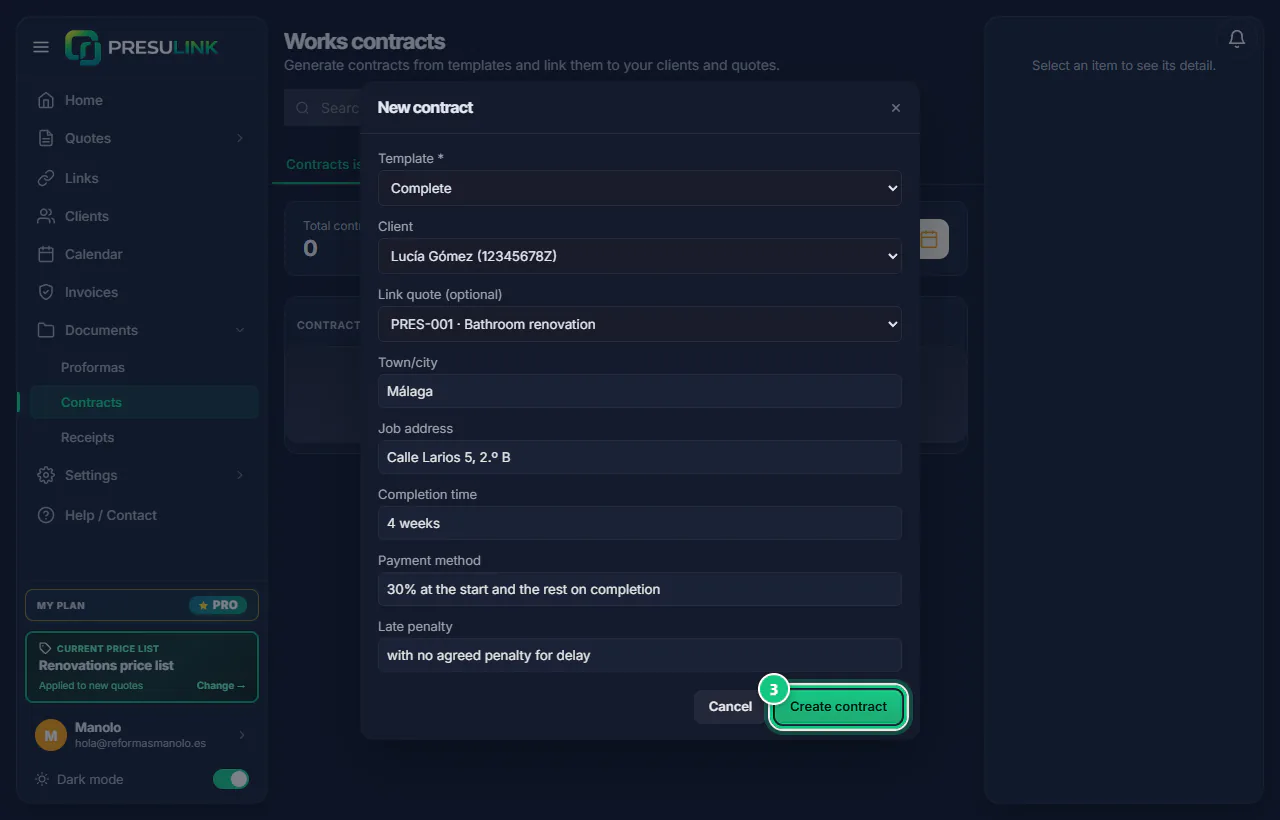
Click Documents › Contracts › New contract.
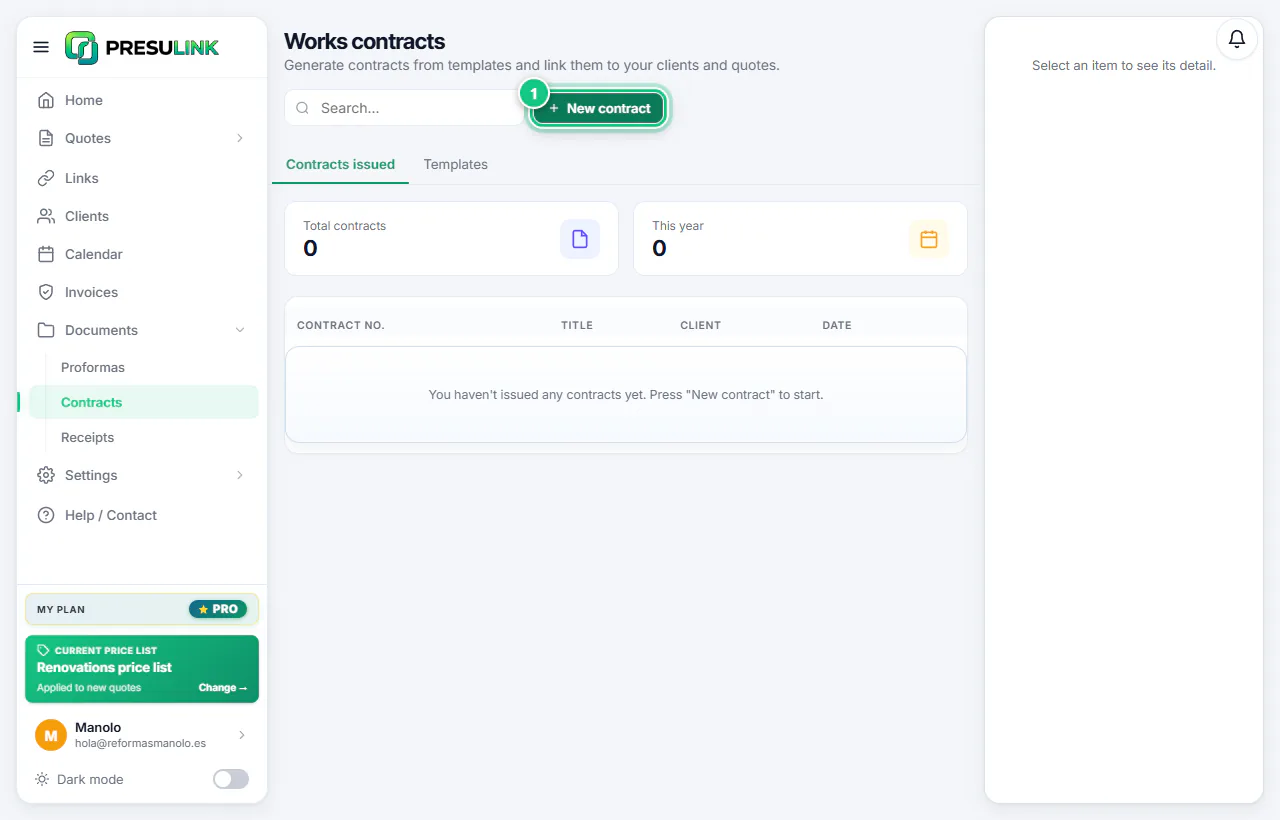
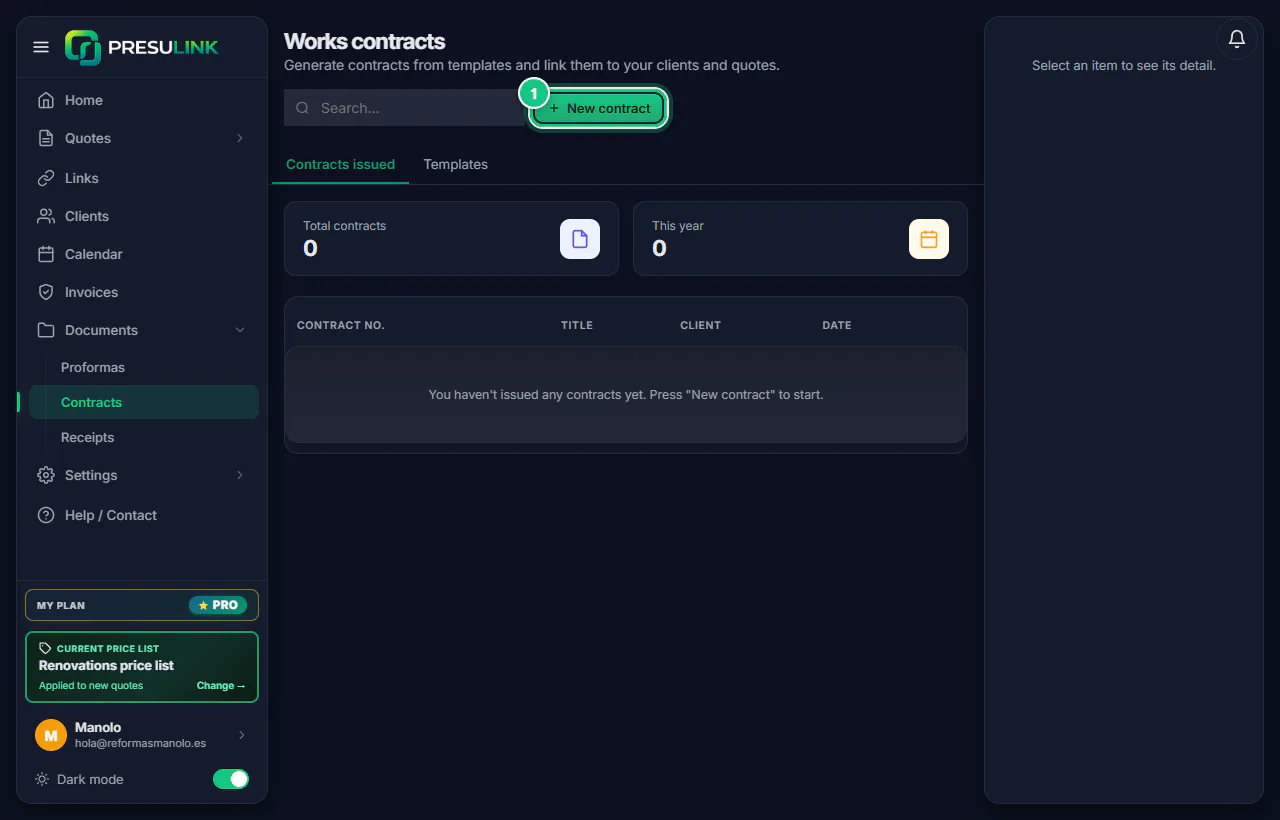
-
Choose template, client and quote; fill in job address, time frame and payment.
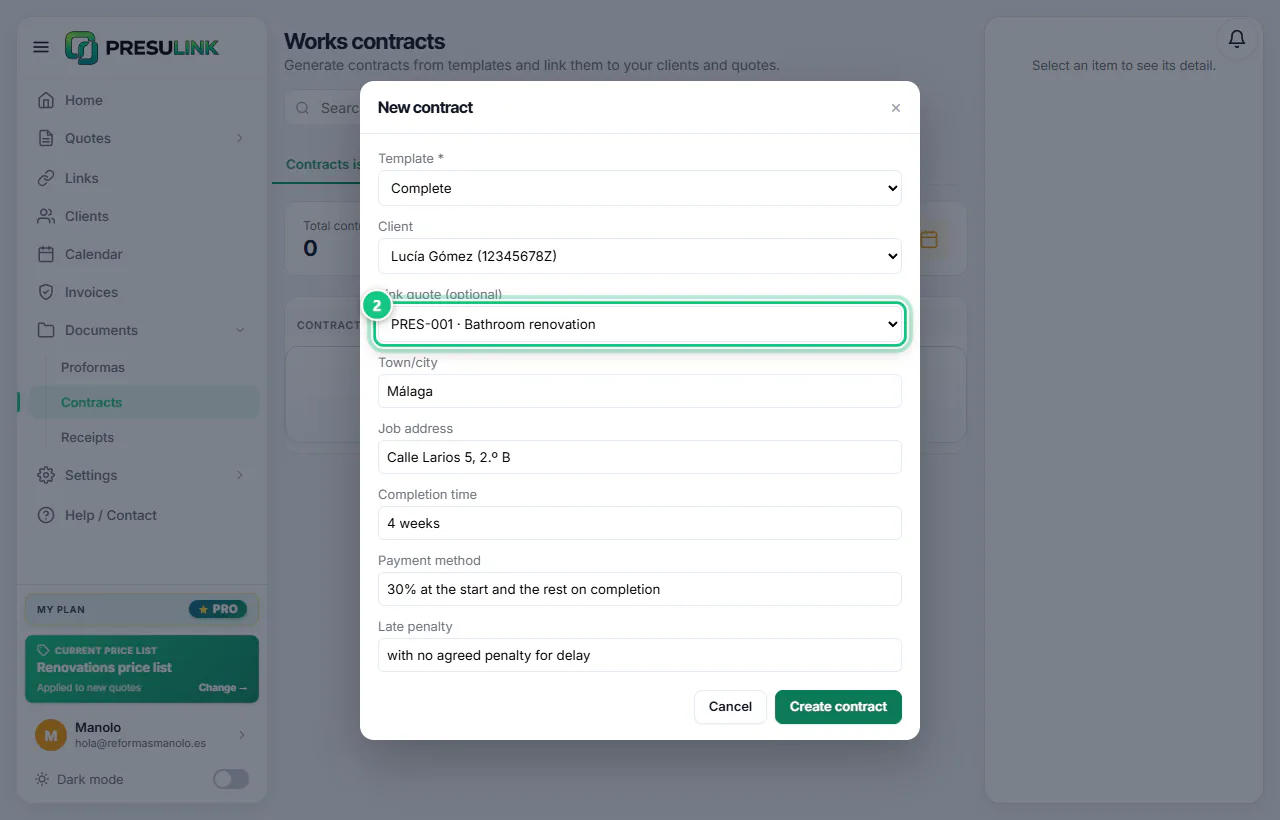
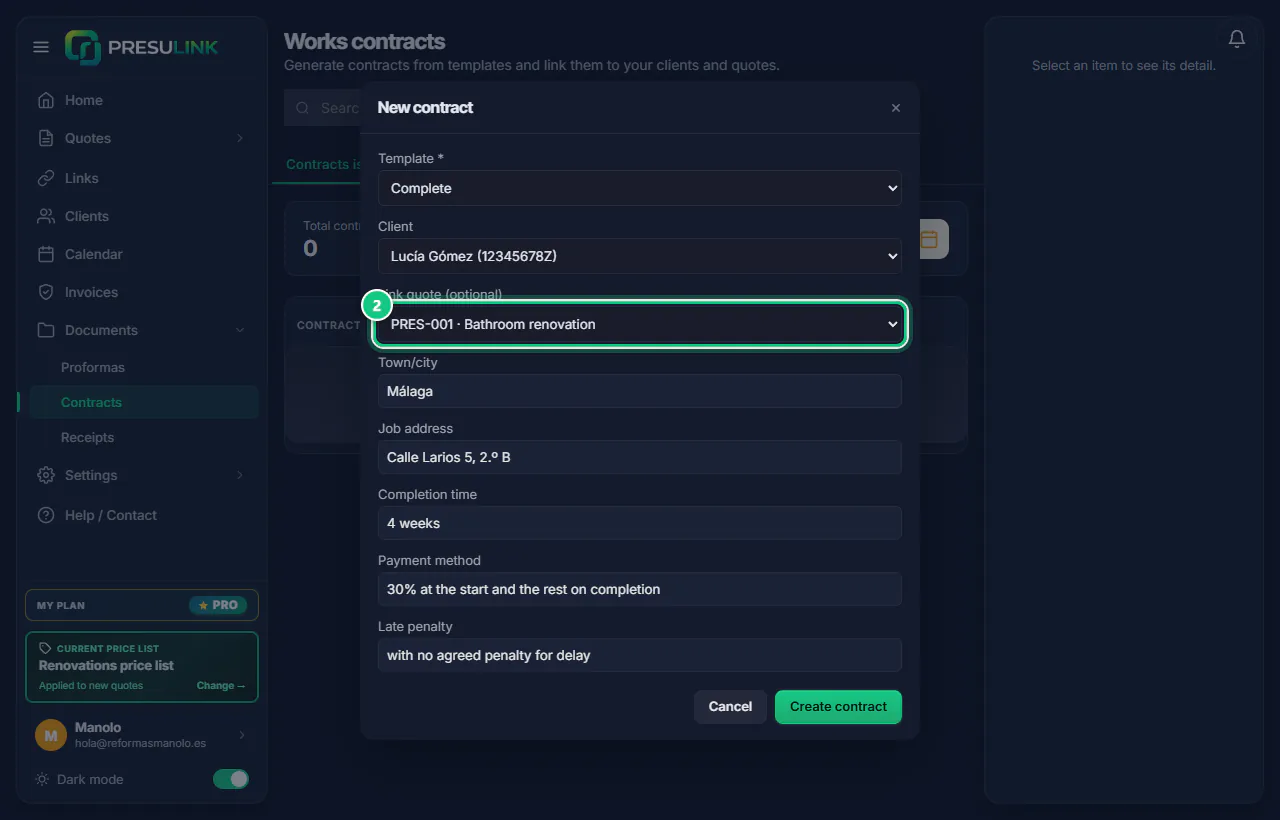
-
Click Create contract.
Note: If it warns that your company details are missing, click Back and fill them in. Create anyway leaves blanks [ ].
-
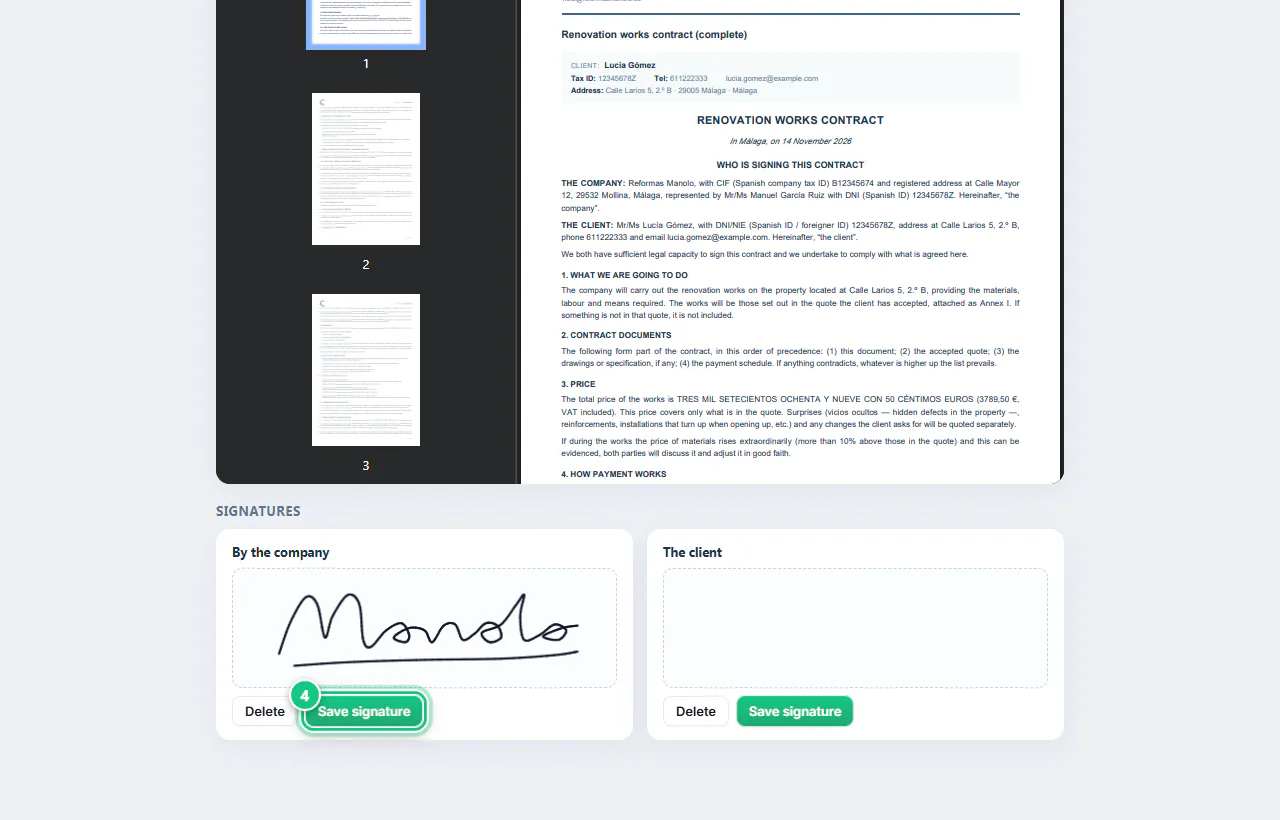
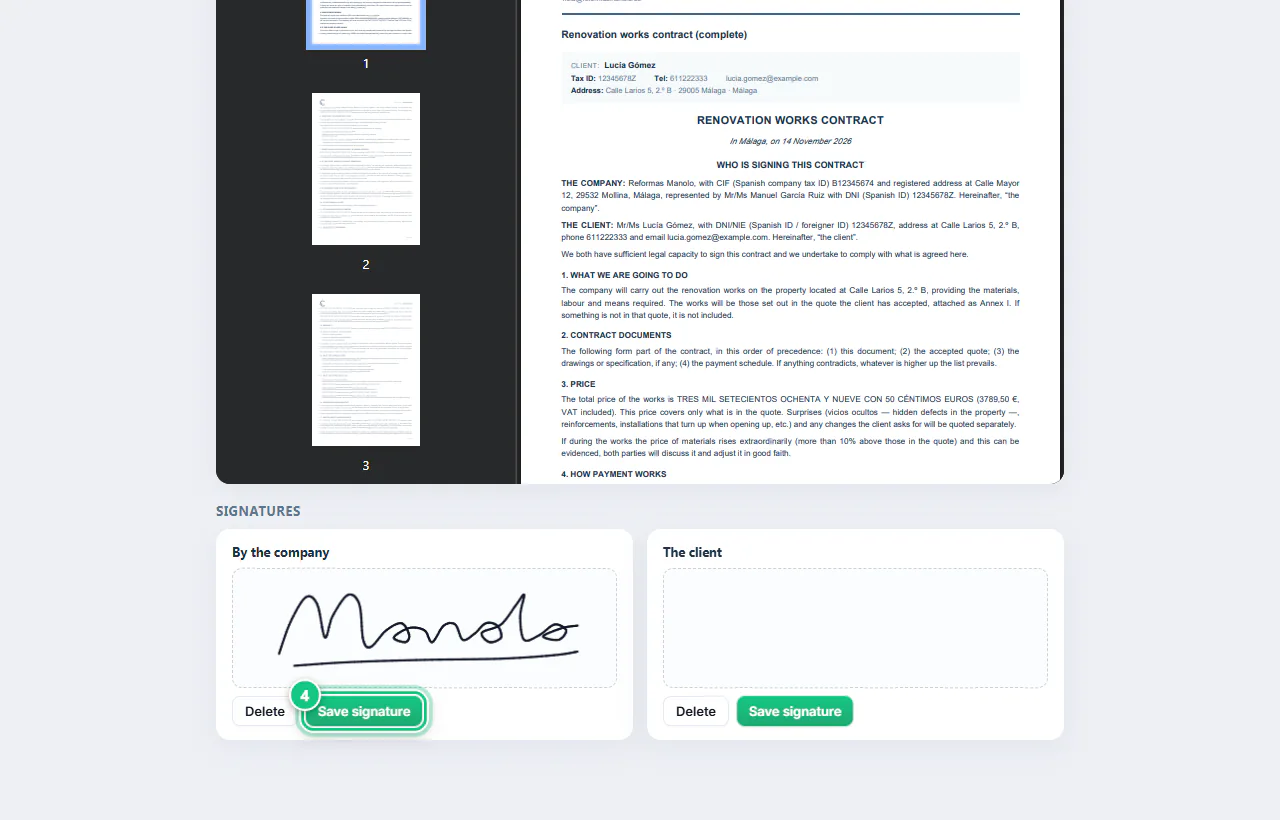
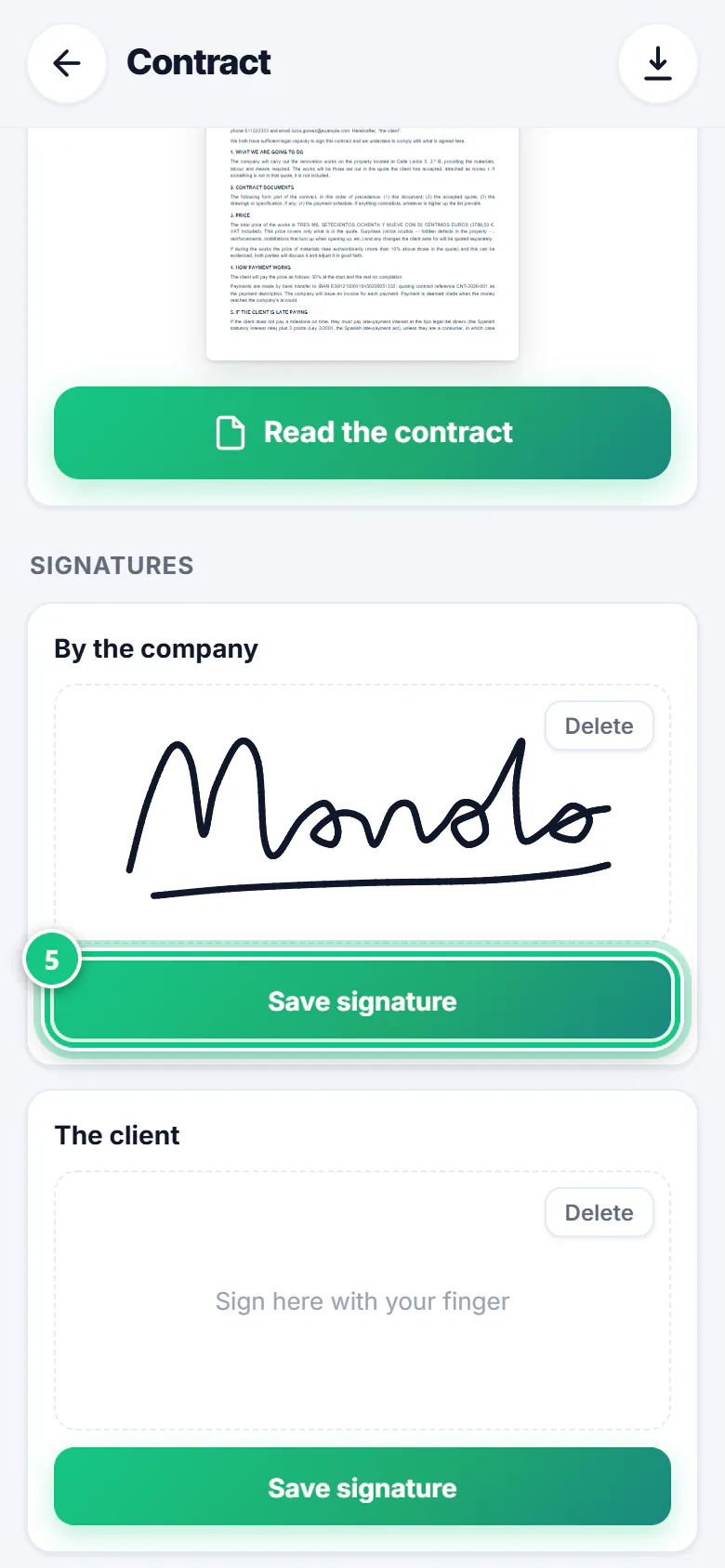
At the bottom, sign for the company and click Save signature.
-
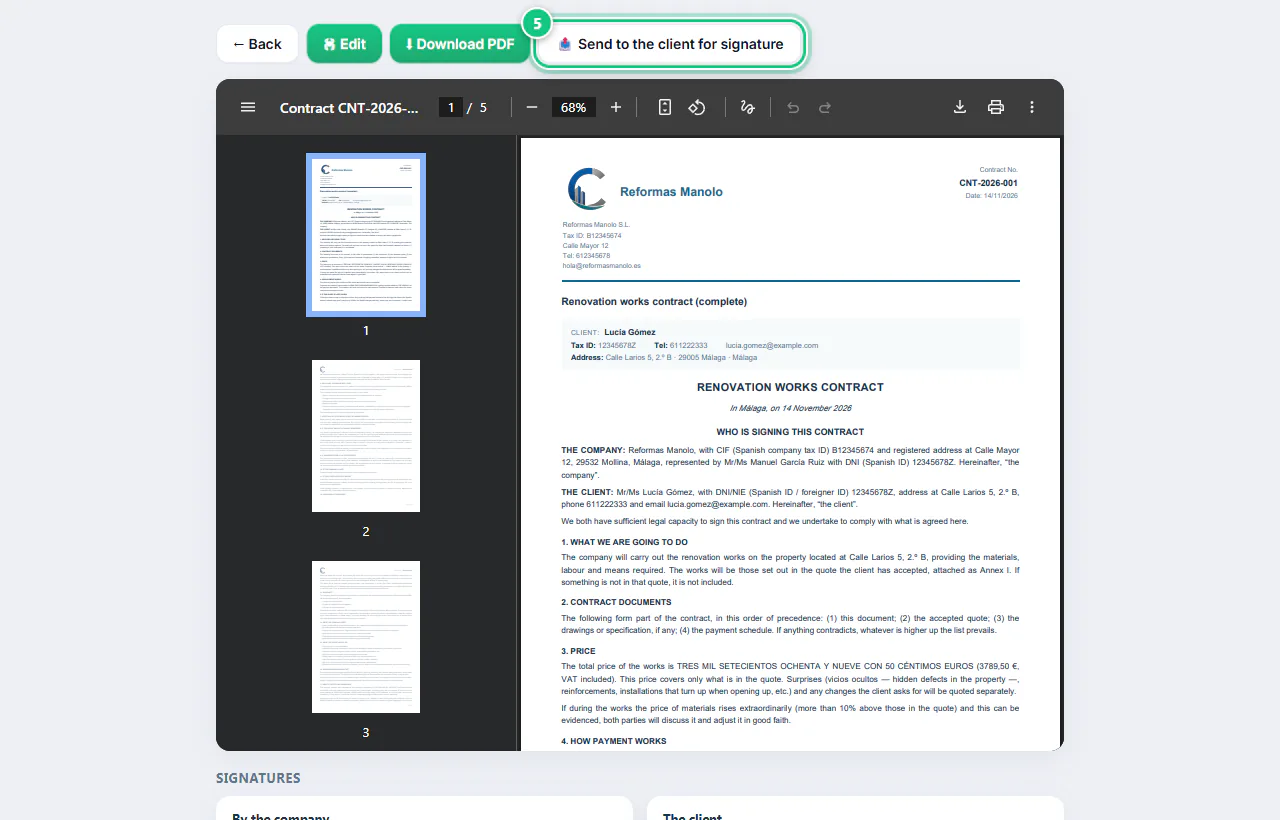
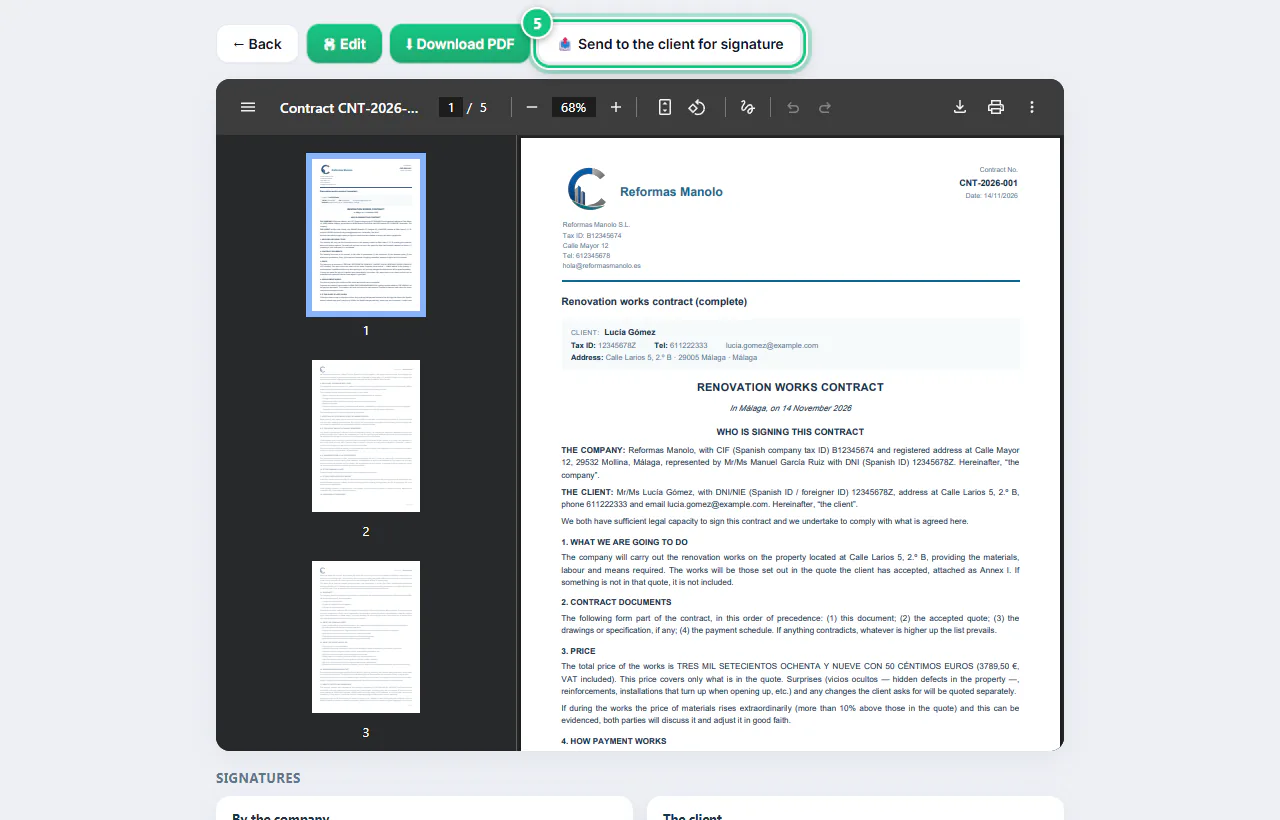
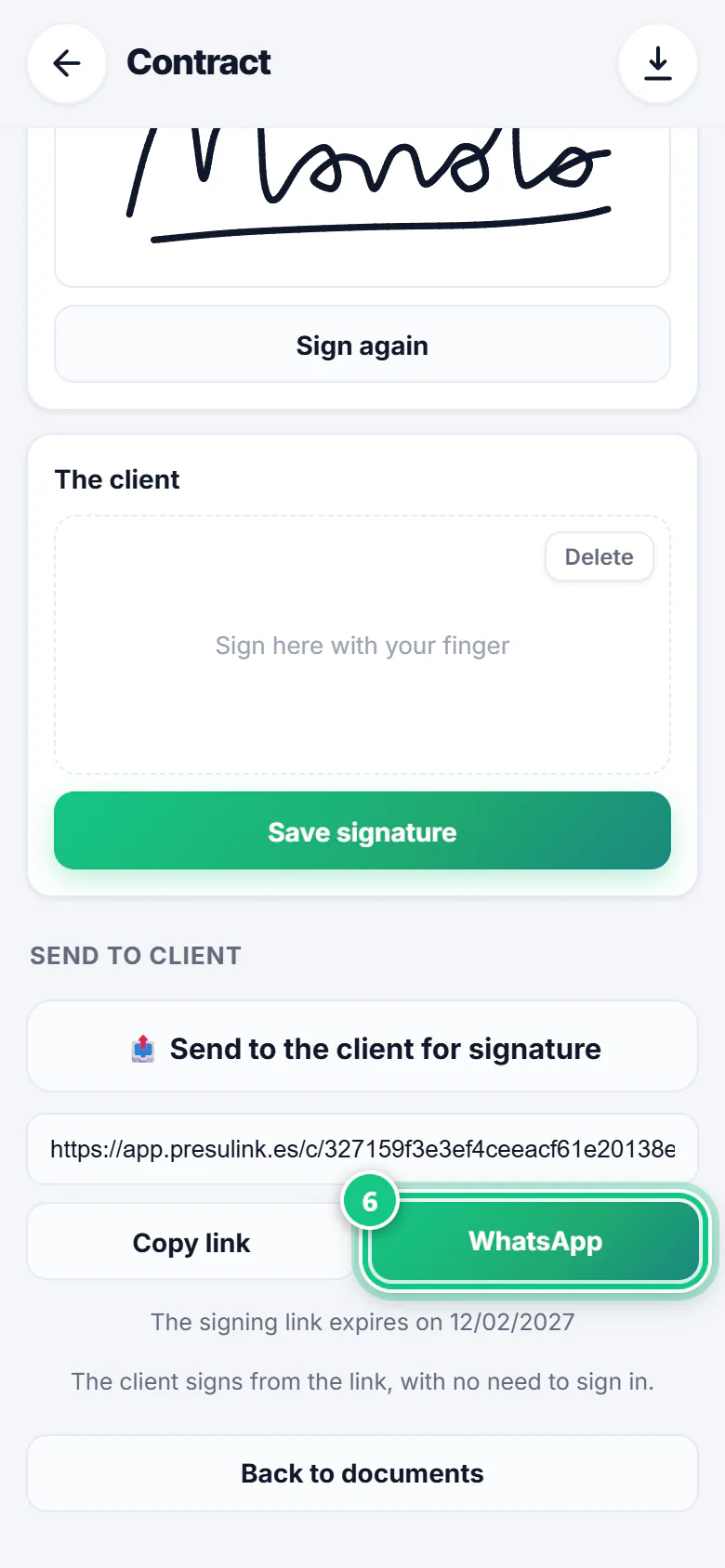
At the top, click 📤 Send to the client for signature.
Note: If you haven’t signed first, it reminds you and doesn’t send.
-
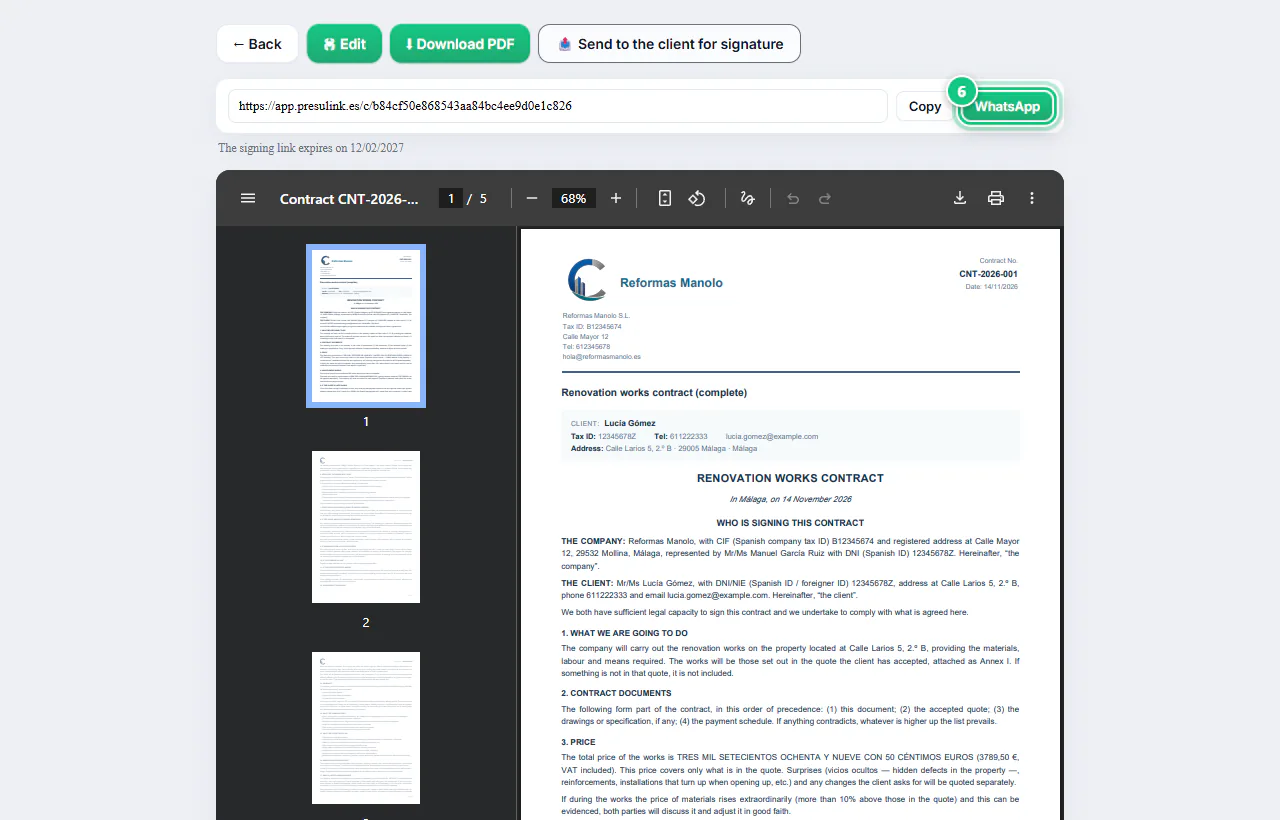
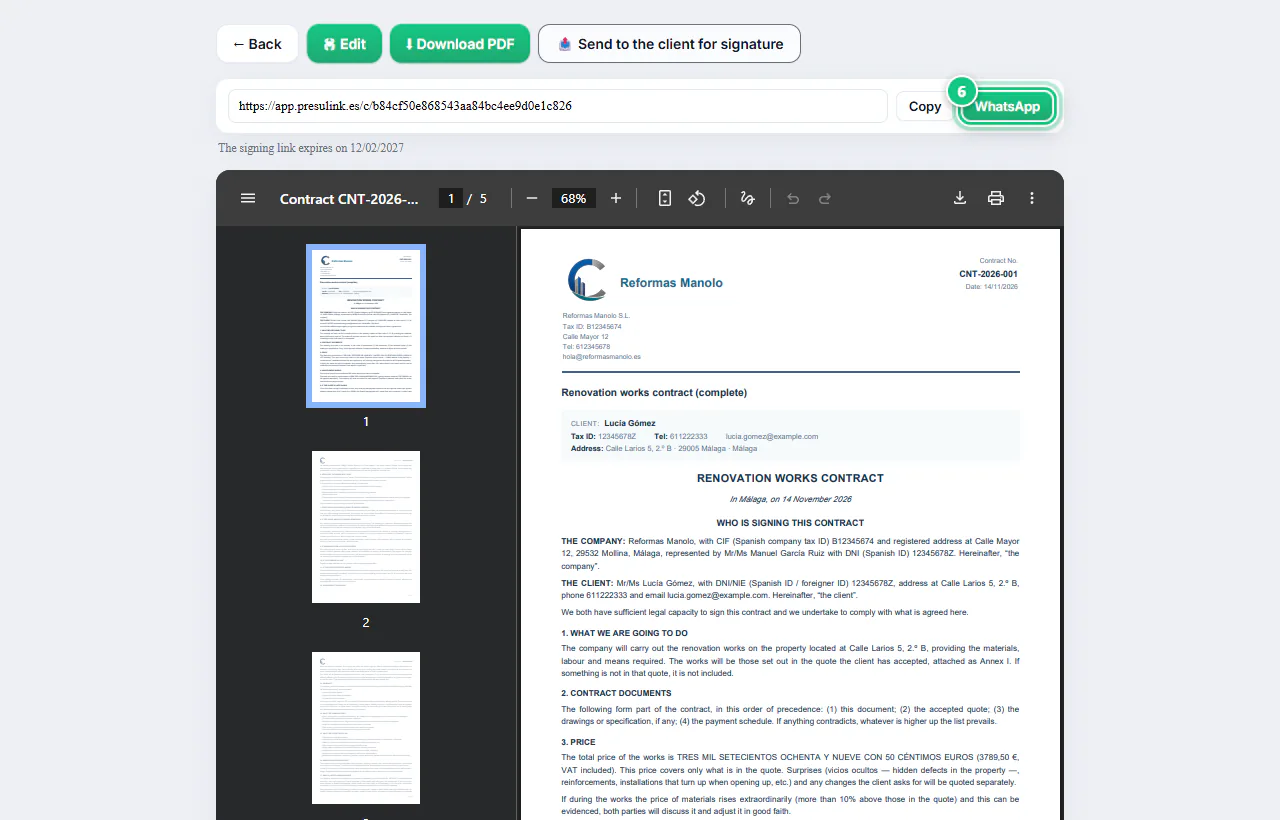
Click WhatsApp or Copy and send it.
-
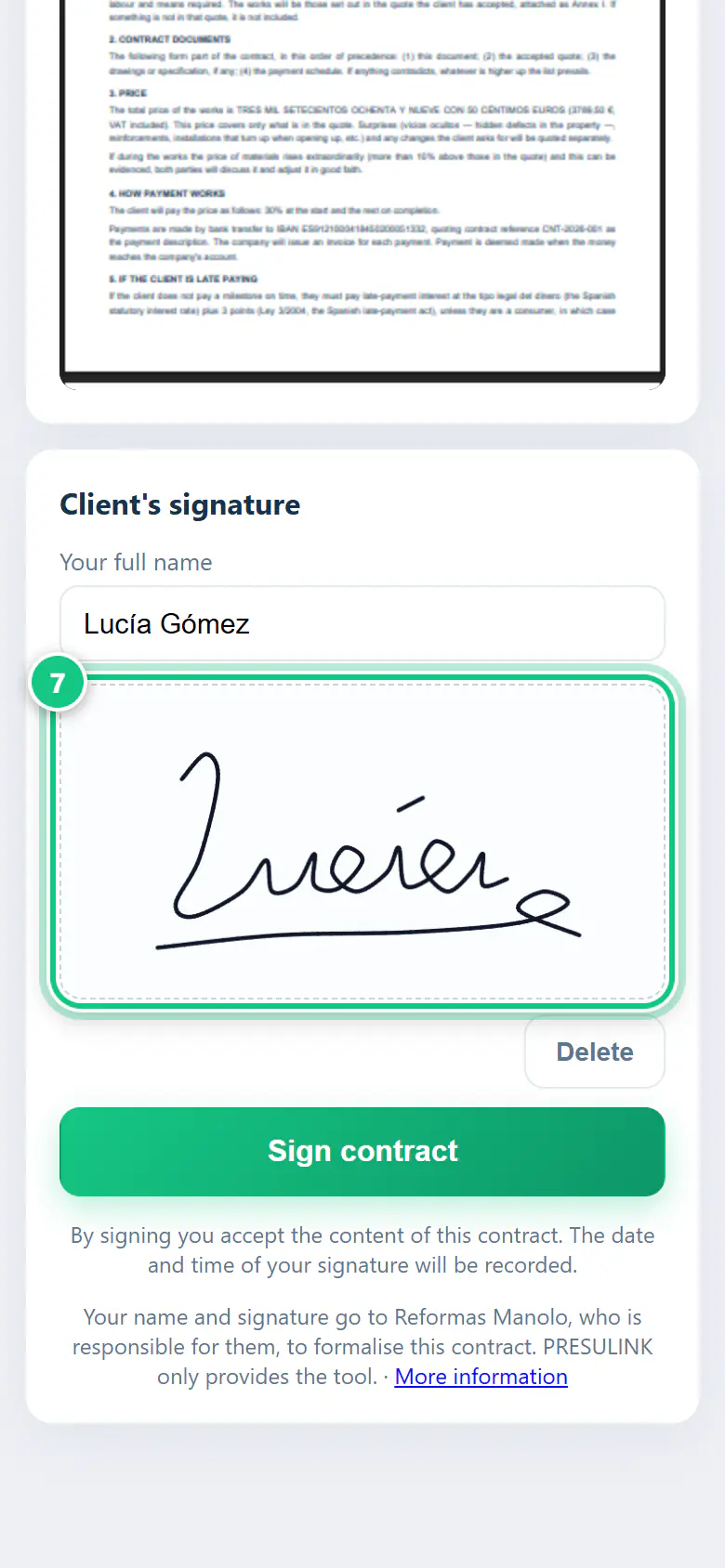
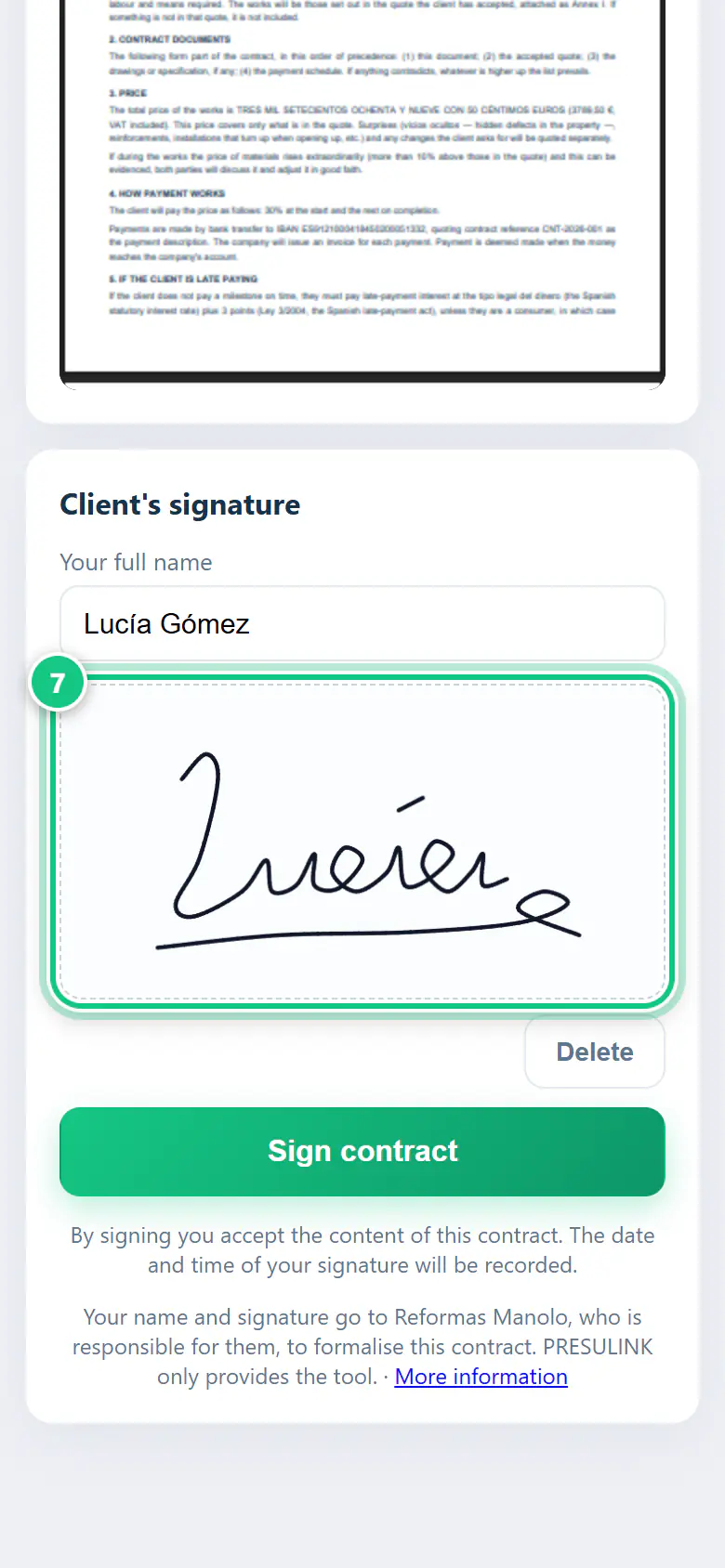
Your client signs with a finger and taps Sign contract.
Note: They sign on their phone: see how it looks in the On your phone tab.
-
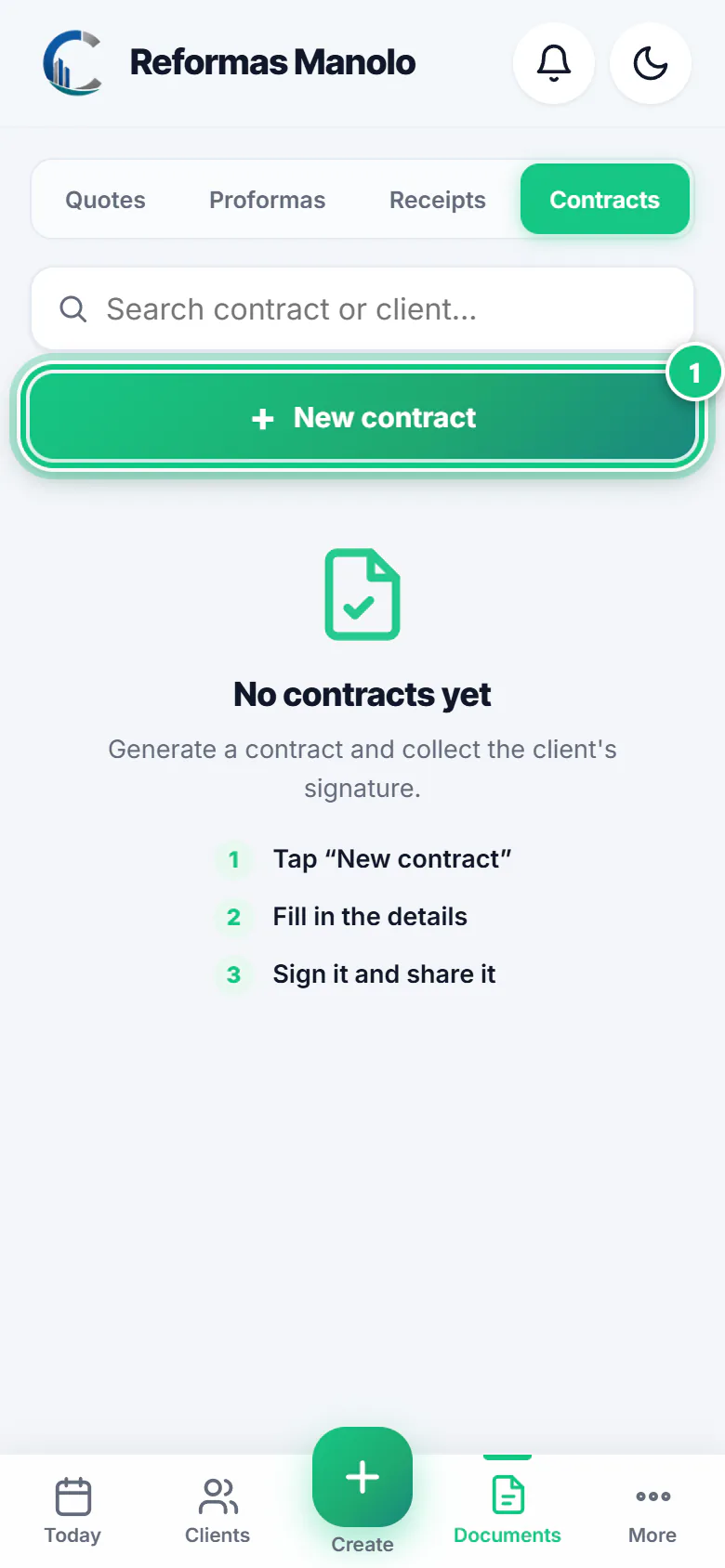
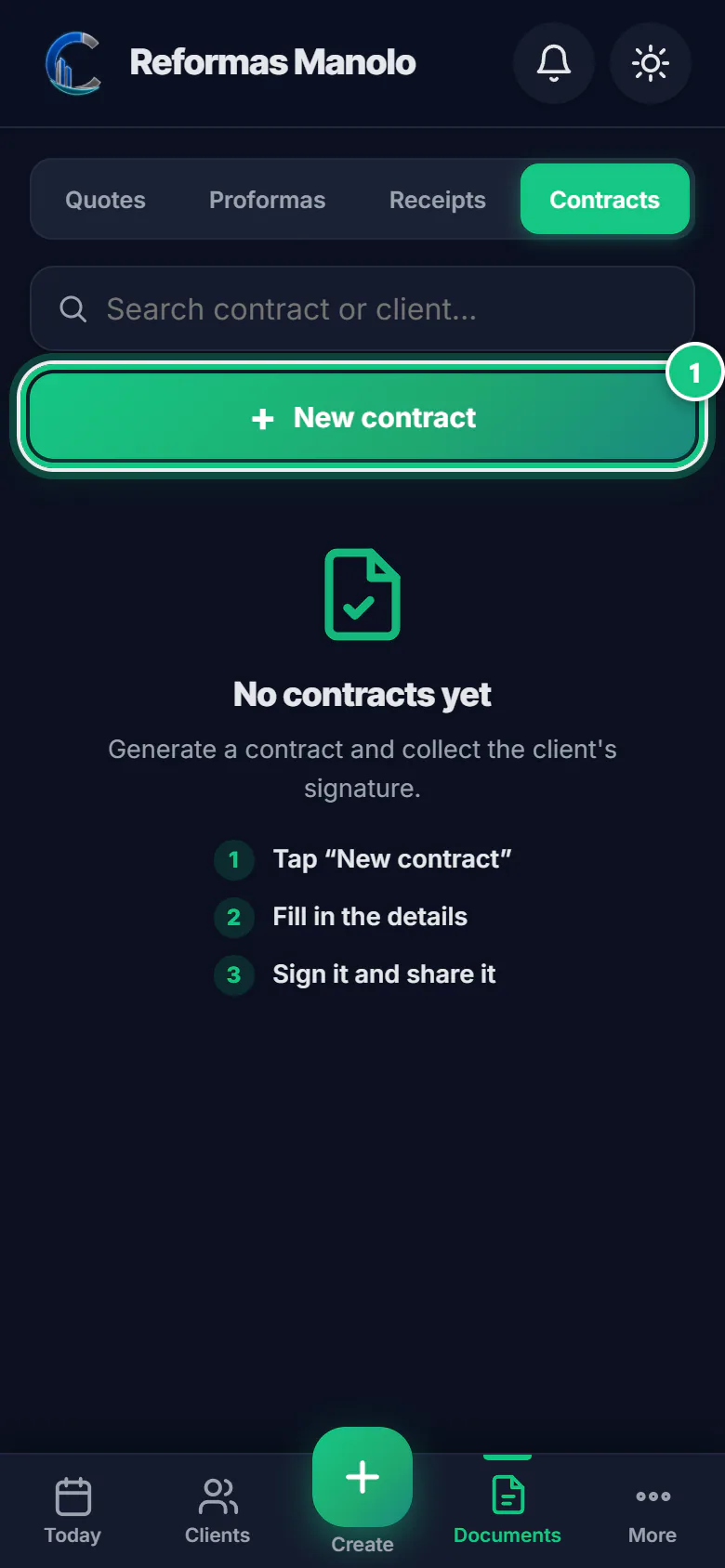
Tap Documents, the Contracts tab, then New contract.
-
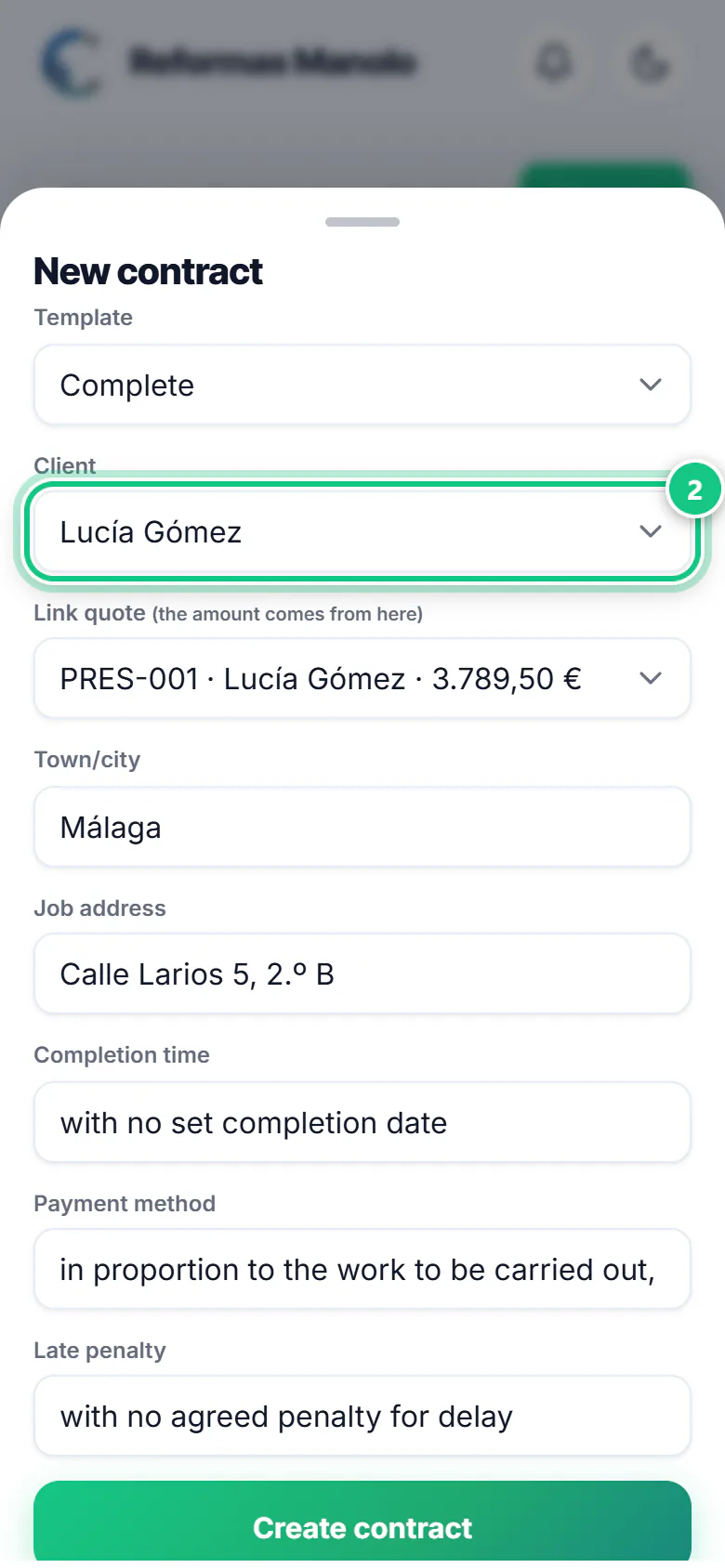
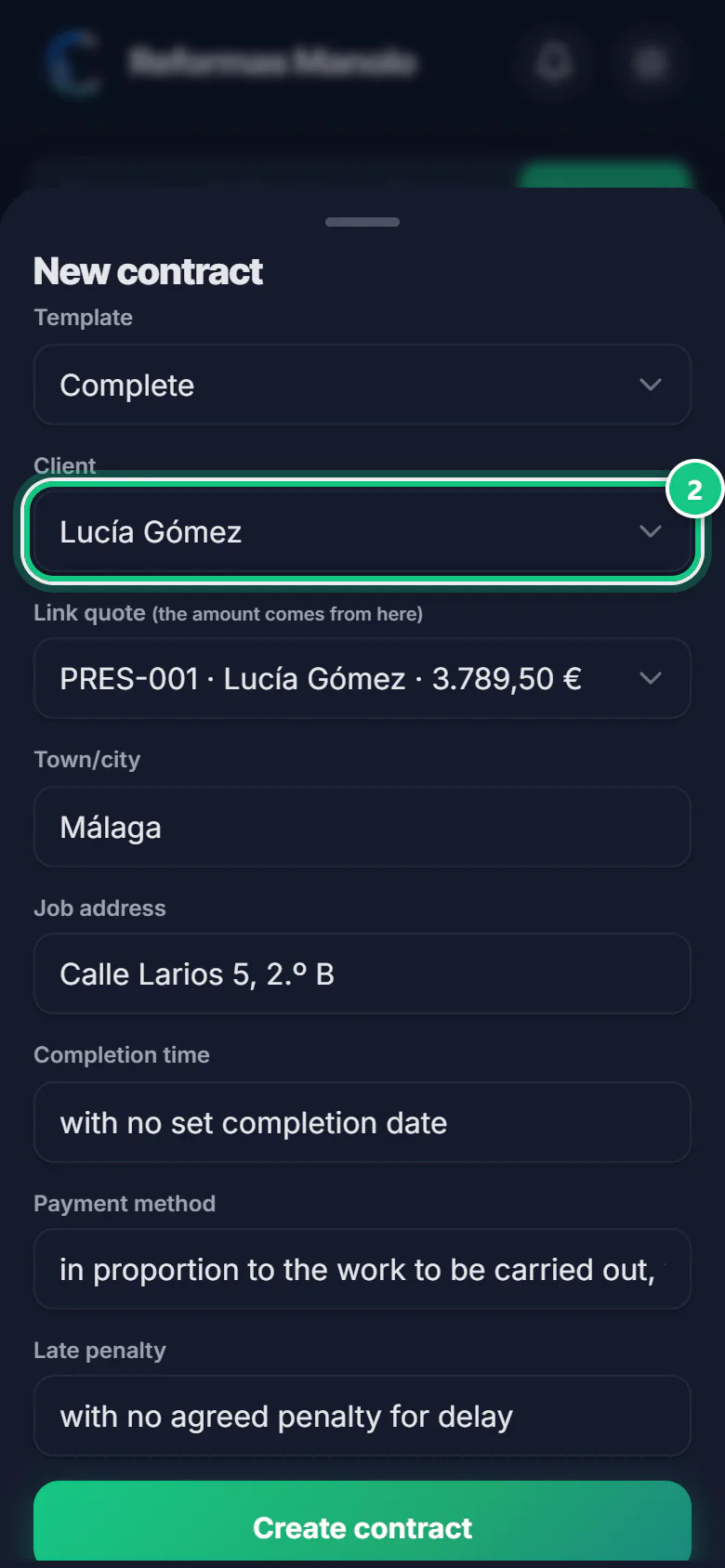
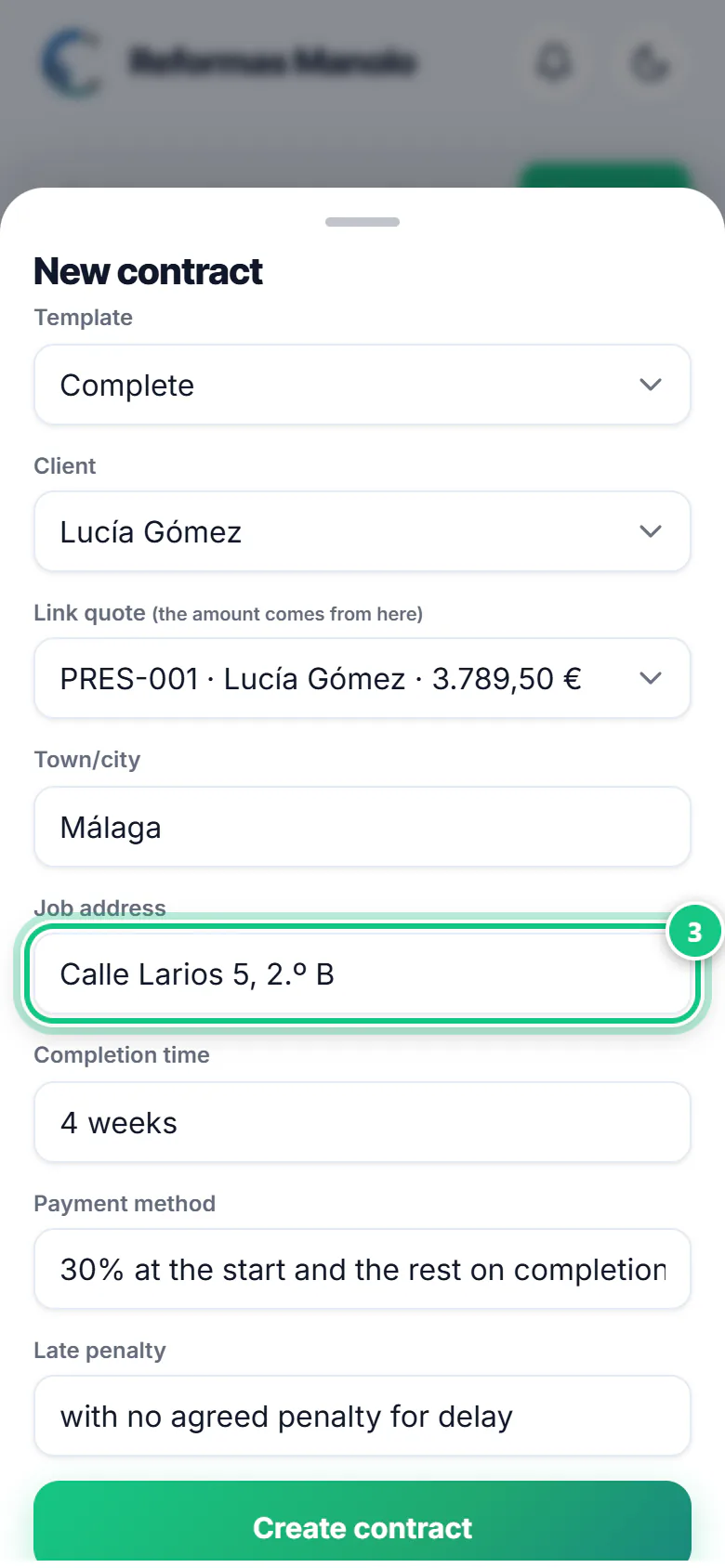
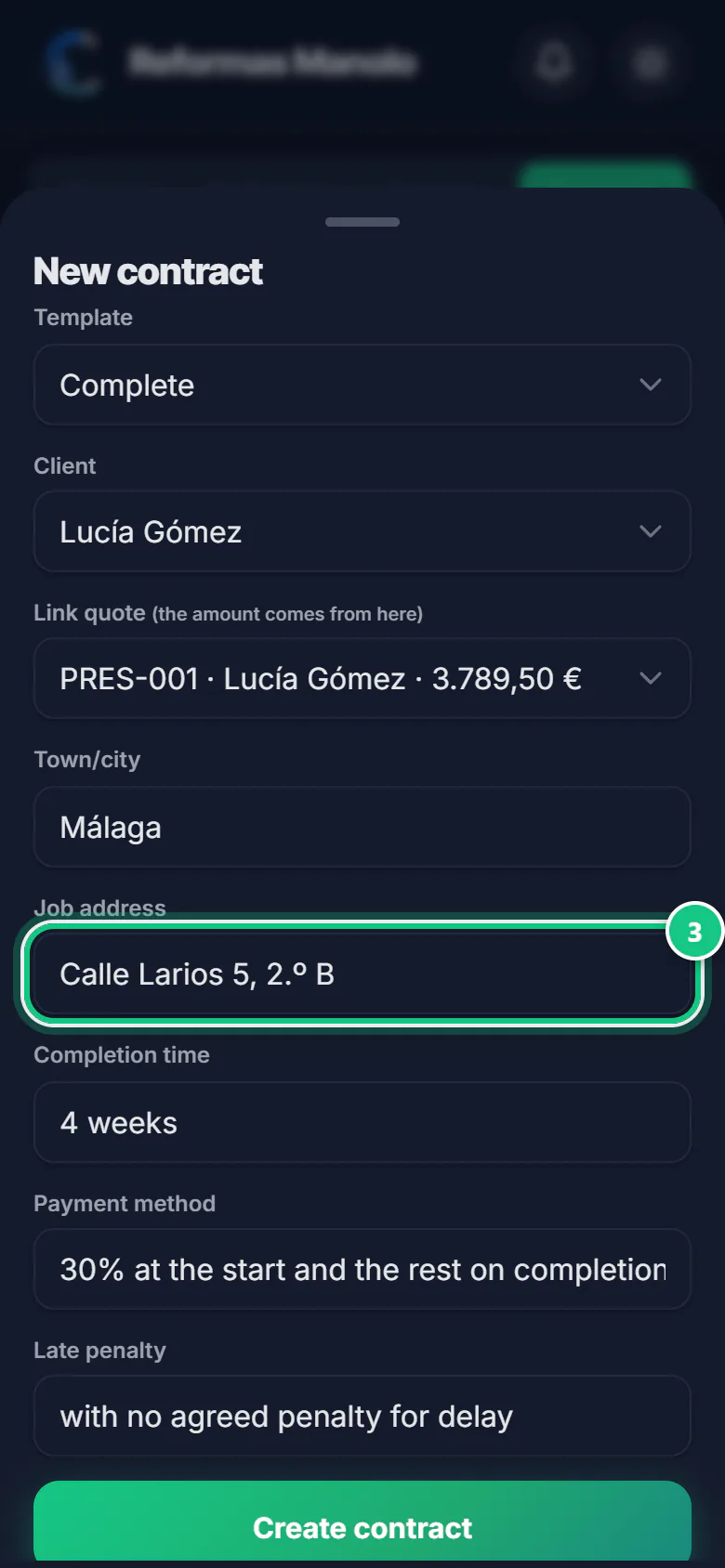
Choose the template, the client and the quote.
Note: The contract amount comes from the quote.
-
Fill in the job address, the time frame and the payment method.
Note: See “Your company details are missing”? There will be blanks [ ]: fill them in first.
-
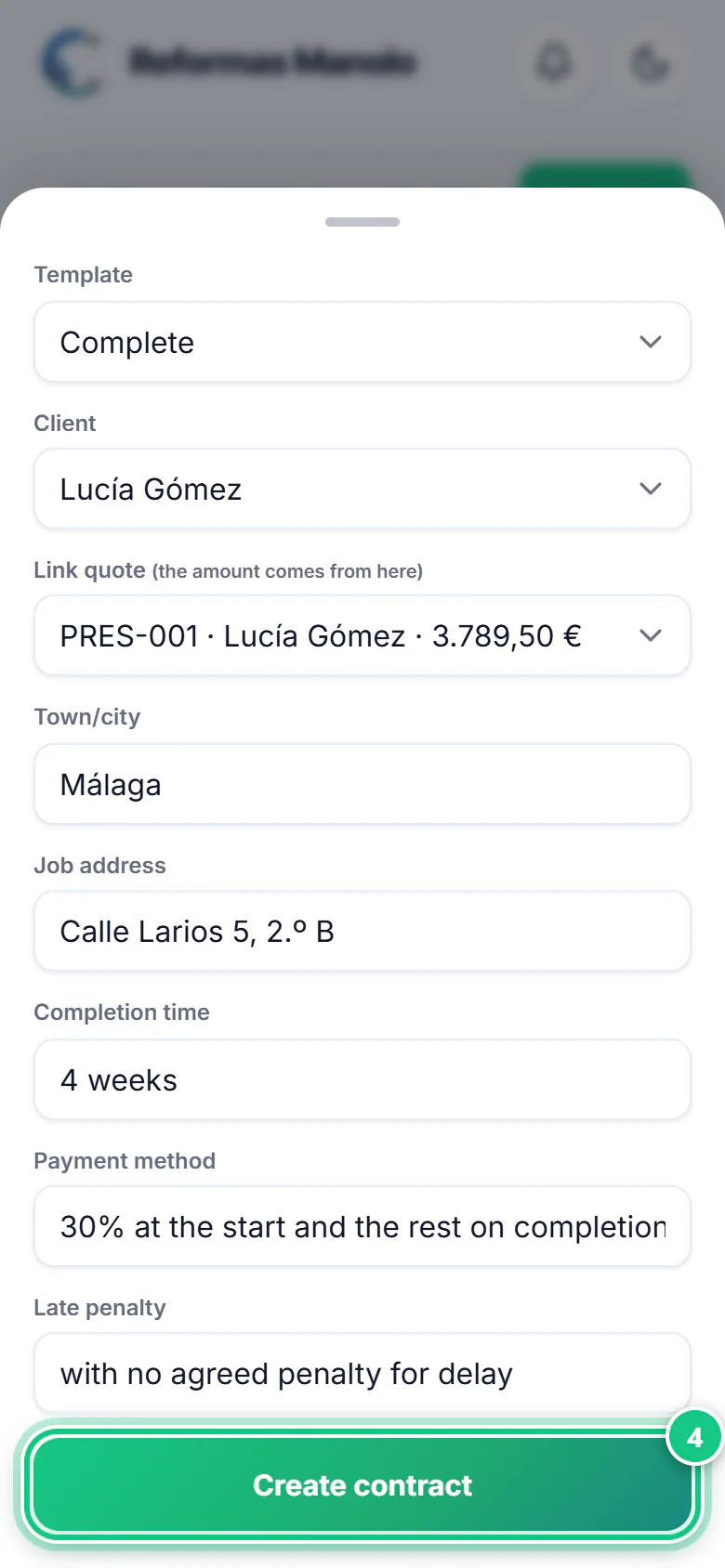
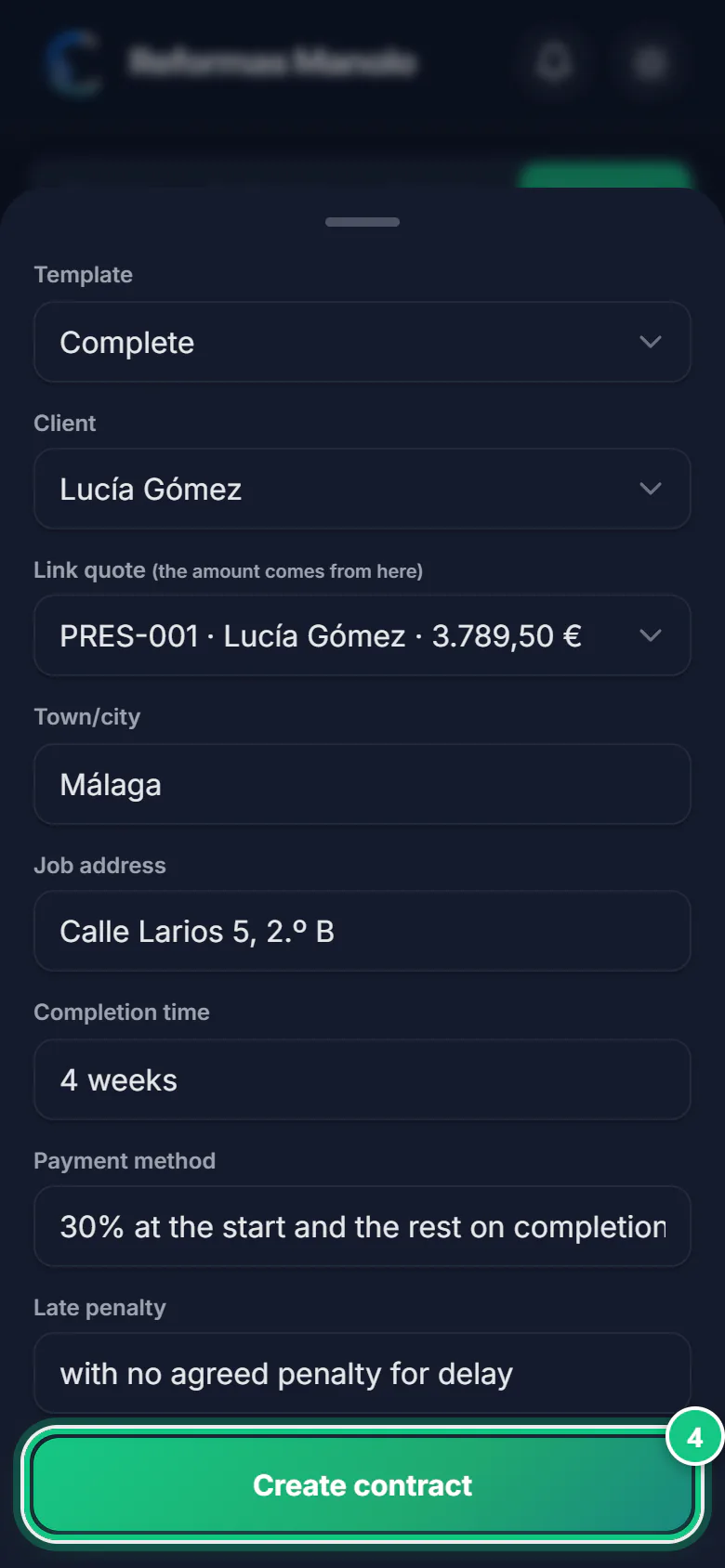
Tap Create contract.
-
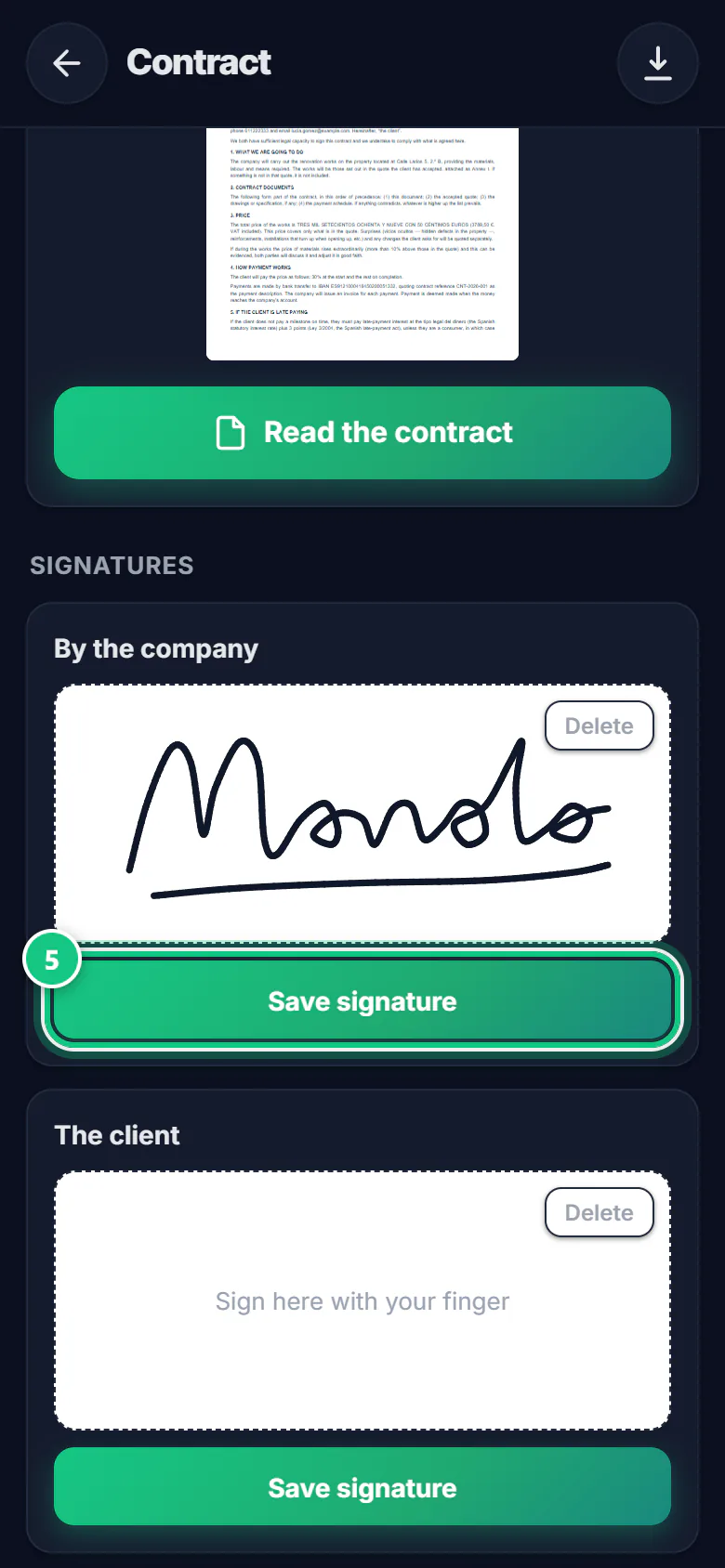
At the bottom, sign for the company with your finger and tap Save signature.
-
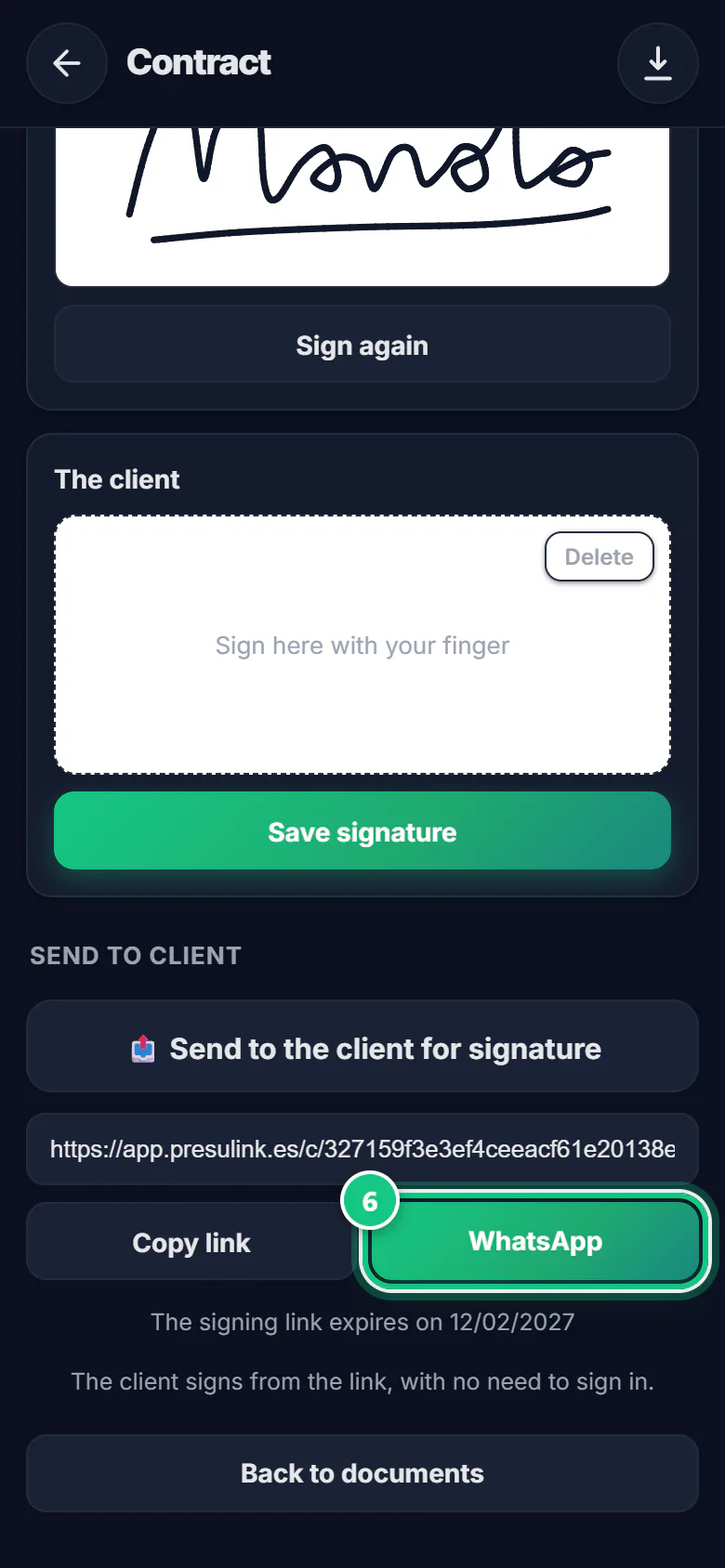
Tap 📤 Send to the client for signature, then WhatsApp.
Note: This button appears once you have signed.
What your client does
-
Your client reads it, types their name and signs with a finger.
-
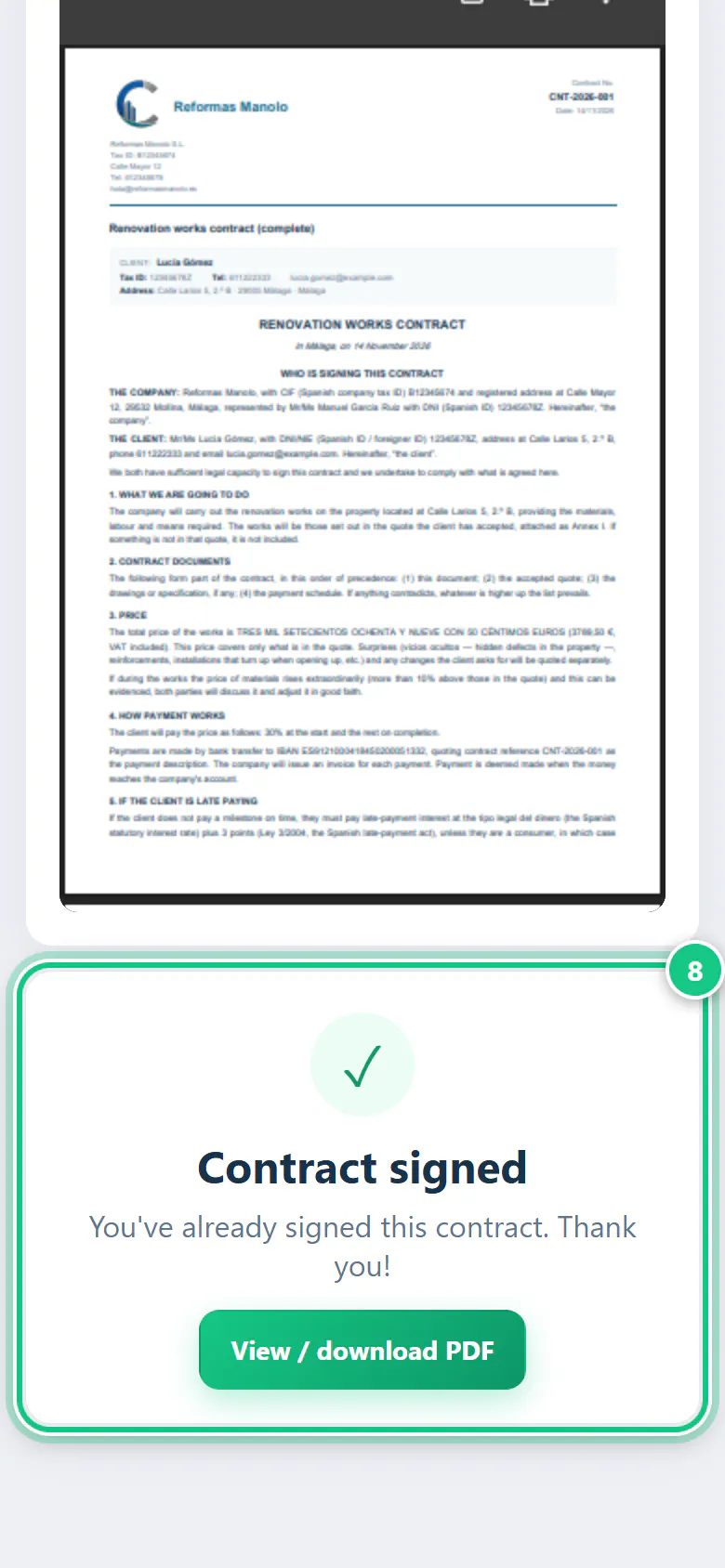
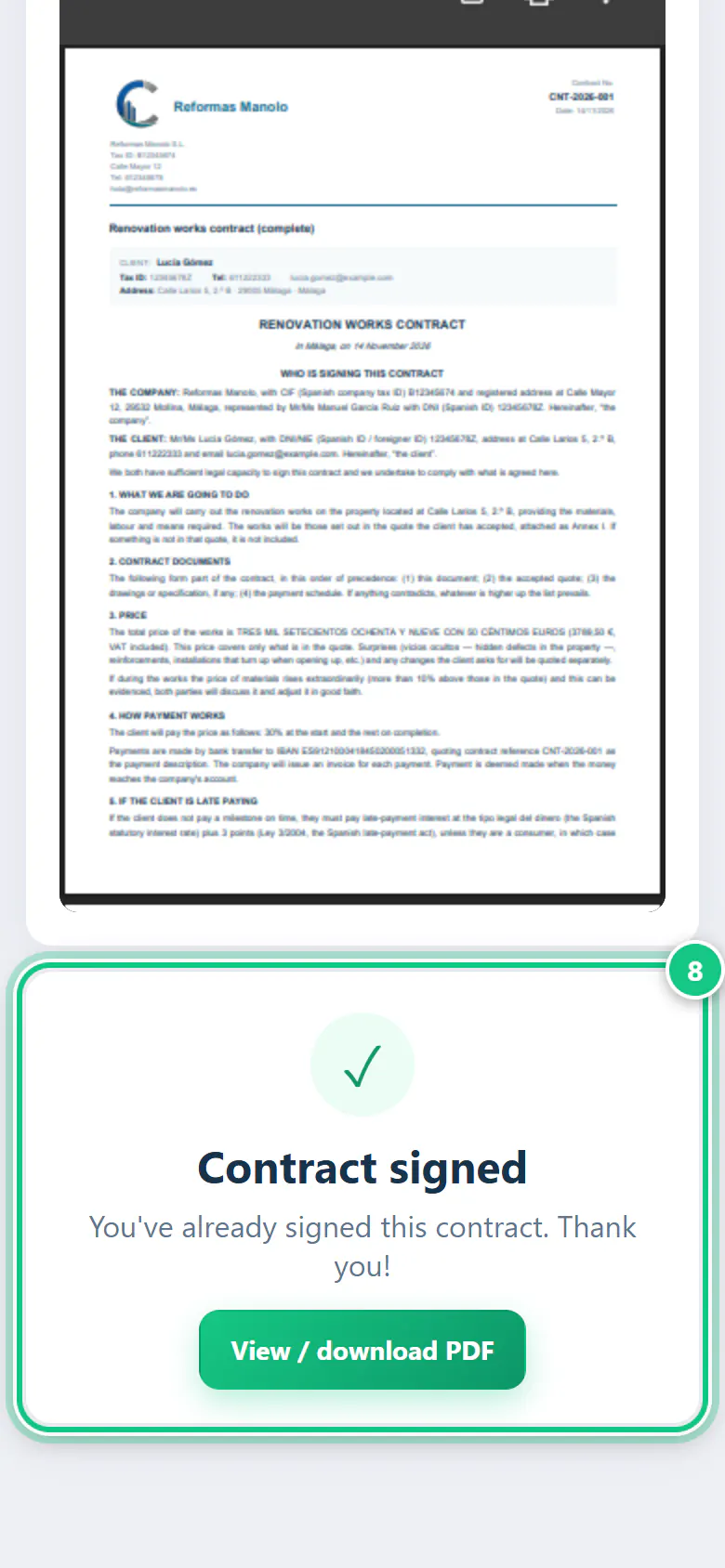
They tap Sign contract: the date and time are recorded, and you are notified.
Where people get stuck
- “Send for signature” does nothing. You sign first, at the bottom, and Save signature: step 5.
- “Send for signature” does nothing. You sign first, at the bottom, and Save signature: step 4.
- The contract has blanks [ ]. Add your address and IBAN in More › your business name › Details. The legal representative is computer only.
- The contract has blanks [ ]. Your company details are missing: registered address, IBAN or representative. They are in Settings › My company.
- Your client isn’t in the “Client” list. If they came through a link, they are in Requests: add them in Clients.
- The signature link expires after 90 days. If it does, send it again from the contract.
Open it in the app
On your phone
Open the PRESULINK app and go to:
Documents›Contracts›New contract
On your computer
Takes you to that screen. If you are not logged in, it asks you to log in first and then takes you there.
Open ContractsOn a computer, at app.presulink.es: Documents›Contracts
More about contracts, proformas and receipts in pro-forma invoices and documents.